Thinkcar ThinkDiag2 Troubleshooting: Quick Fix Guide
Most Thinkcar ThinkDiag2 problems come from weak power, poor Bluetooth pairing, outdated software, or unsupported vehicle functions.
Thinkcar ThinkDiag2 Troubleshooting is easier when you check the basics before blaming the scanner. This guide explains the most common connection, app, update, communication, and diagnostic faults, along with safe steps that help you get back to testing quickly.
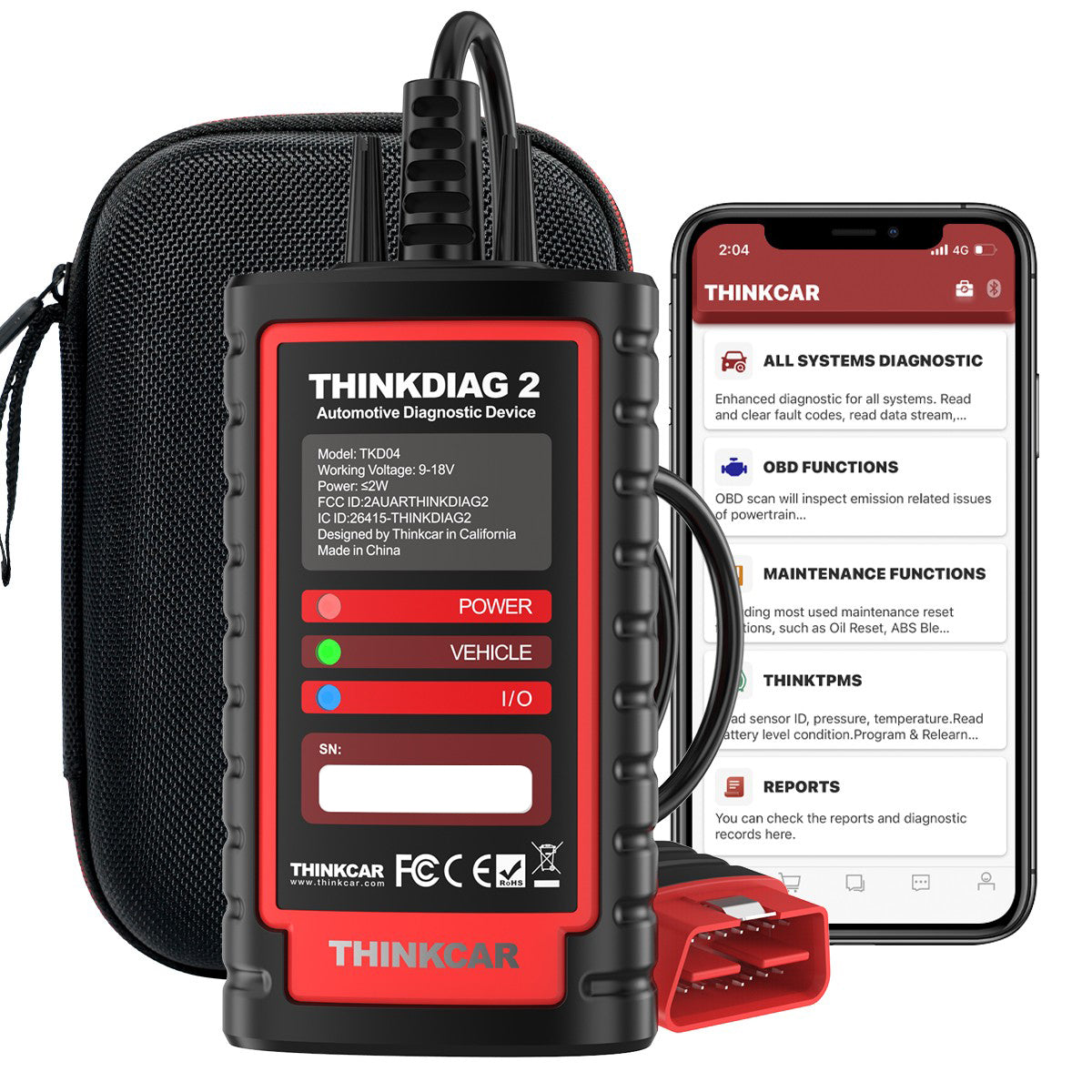
What the Thinkcar ThinkDiag2 Does
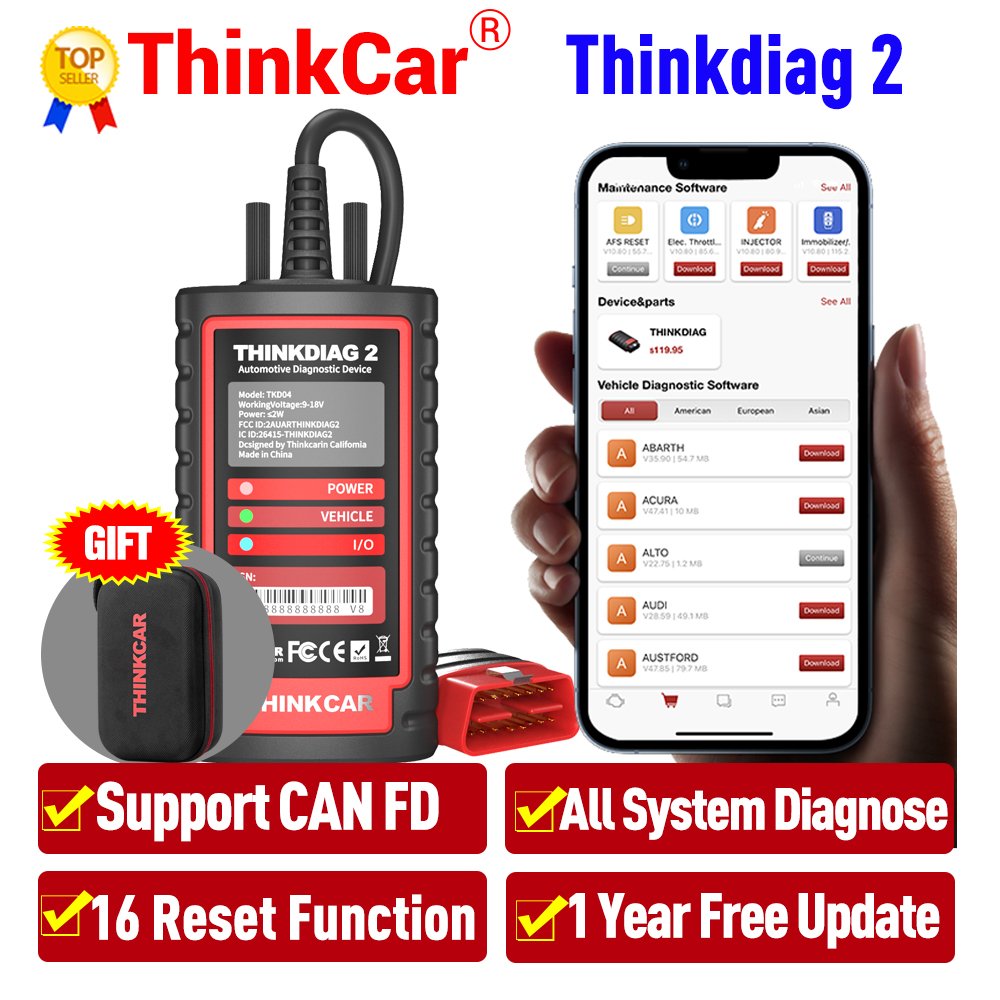
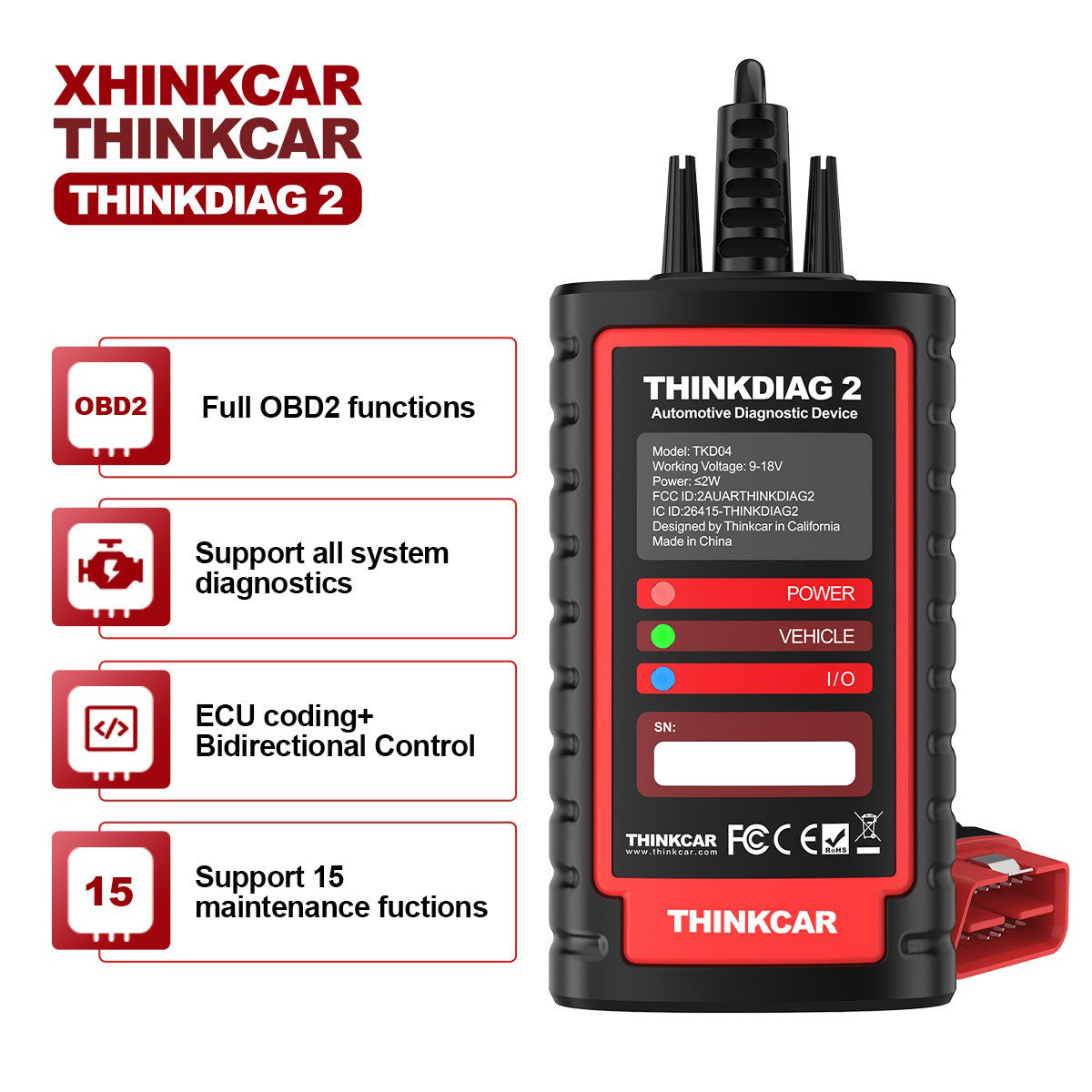
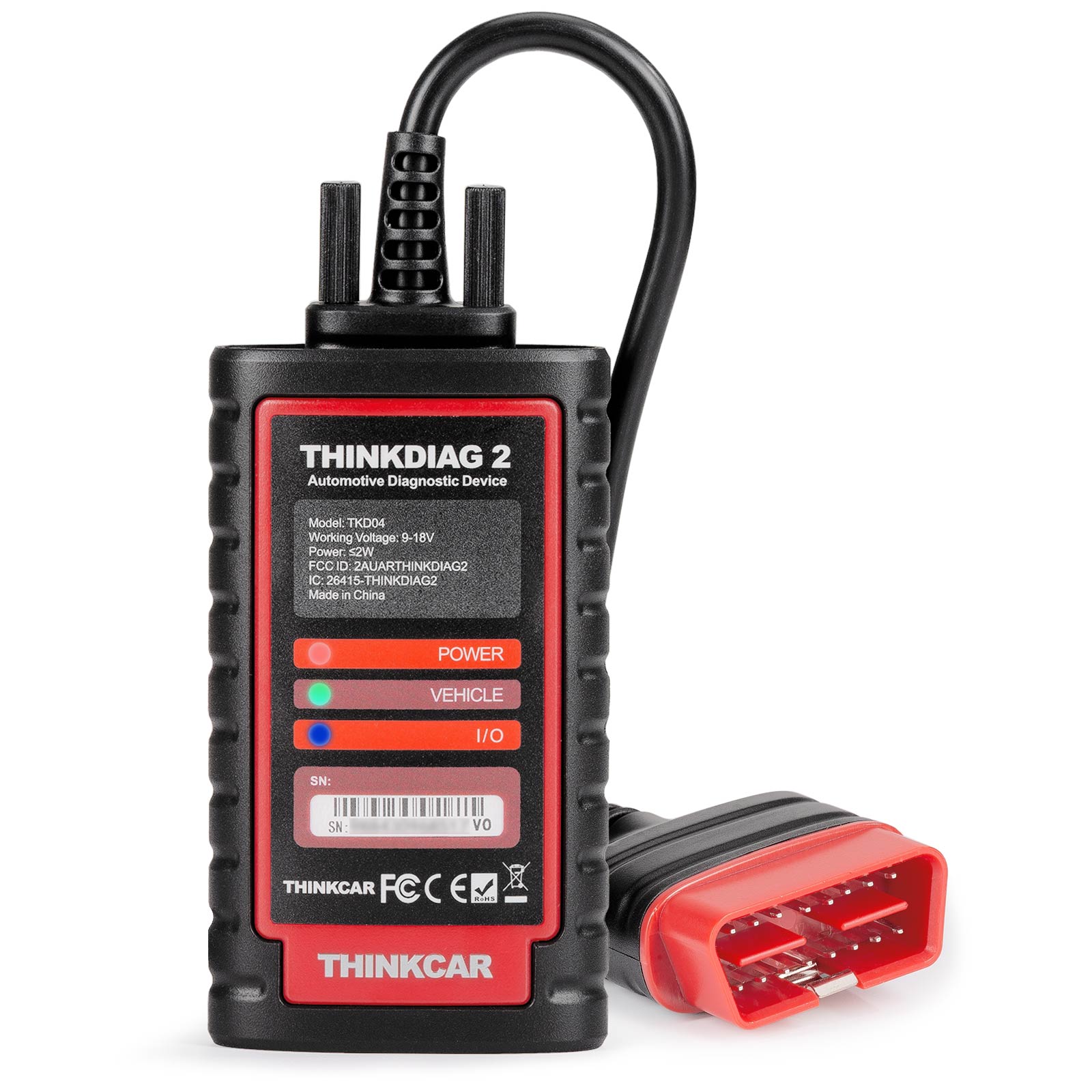
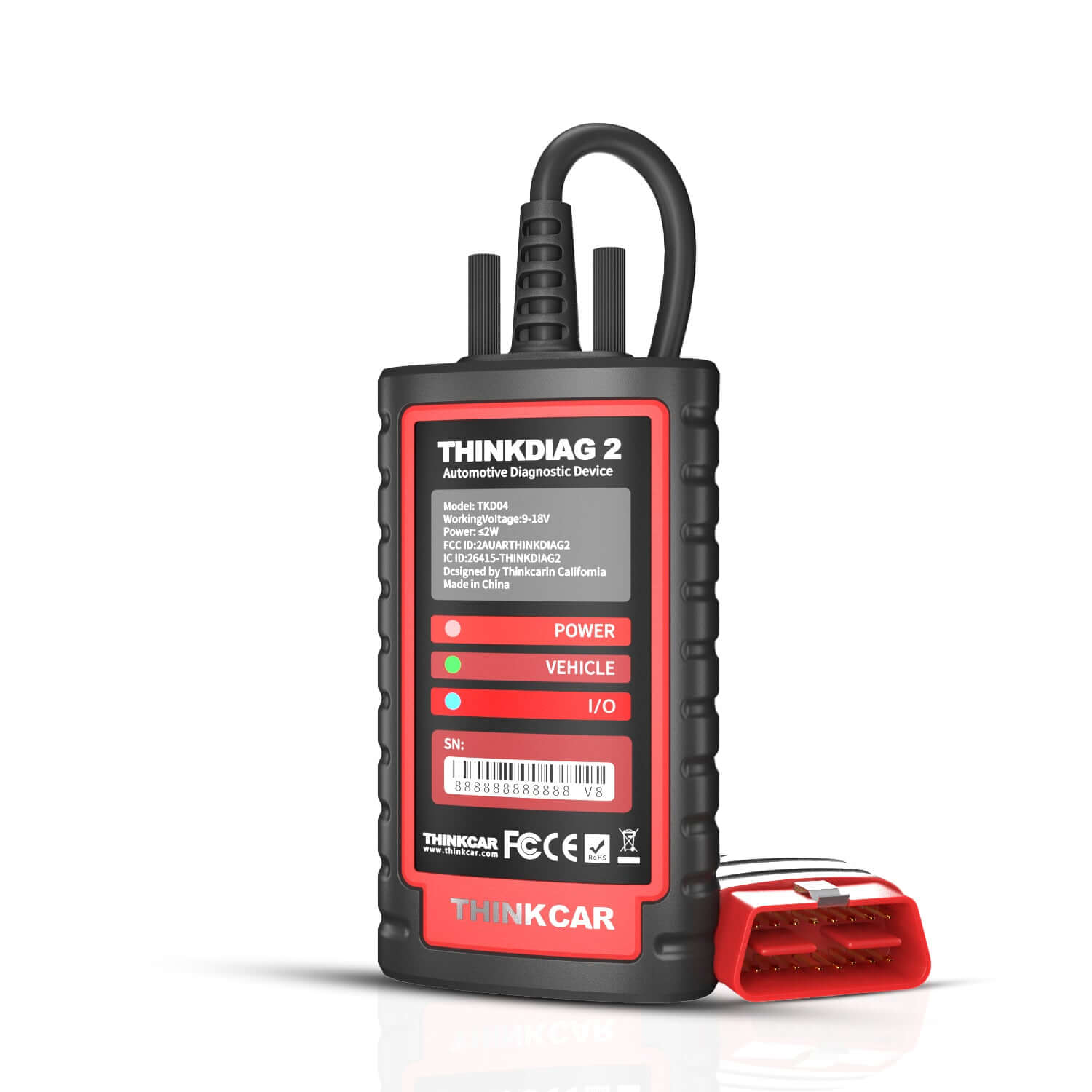
The Thinkcar ThinkDiag2 is a compact vehicle diagnostic tool that connects to a phone or tablet through the ThinkDiag app. It uses the vehicle’s OBD-II port to read fault codes, show live data, clear codes, and perform some advanced functions.
Its exact features depend on the vehicle, model year, software package, and subscription plan. Basic engine code reading may work on many vehicles, while functions such as ABS, airbag, battery registration, or service resets may need specific software access.
Thinkcar ThinkDiag2 Troubleshooting should begin with this simple fact: the tool is not a full replacement for a factory scan tool. It can be powerful, but coverage is not identical across every car.
Quick Safety Checks Before Troubleshooting
Before connecting the ThinkDiag2, park the vehicle safely and switch off the engine. Keep the battery in good condition, especially when running a long scan or a special function.
Use these basic checks first:
• Confirm that the vehicle uses a standard 16-pin OBD-II connector.
• Check that the diagnostic socket is dry, clean, and free from bent pins.
• Turn off strong Bluetooth devices near the phone.
• Use a phone with a stable internet connection during login, updates, and software downloads.
• Keep the vehicle battery above about 12 volts when possible.
• Do not unplug the adapter during coding, calibration, or module programming.
A weak car battery can create several false symptoms. Modules may stop replying, codes may appear that were not present before, or a service function may fail halfway through. A battery charger made for vehicle diagnostics is safer than a basic trickle charger during long procedures.
Thinkcar ThinkDiag2 Will Not Power On
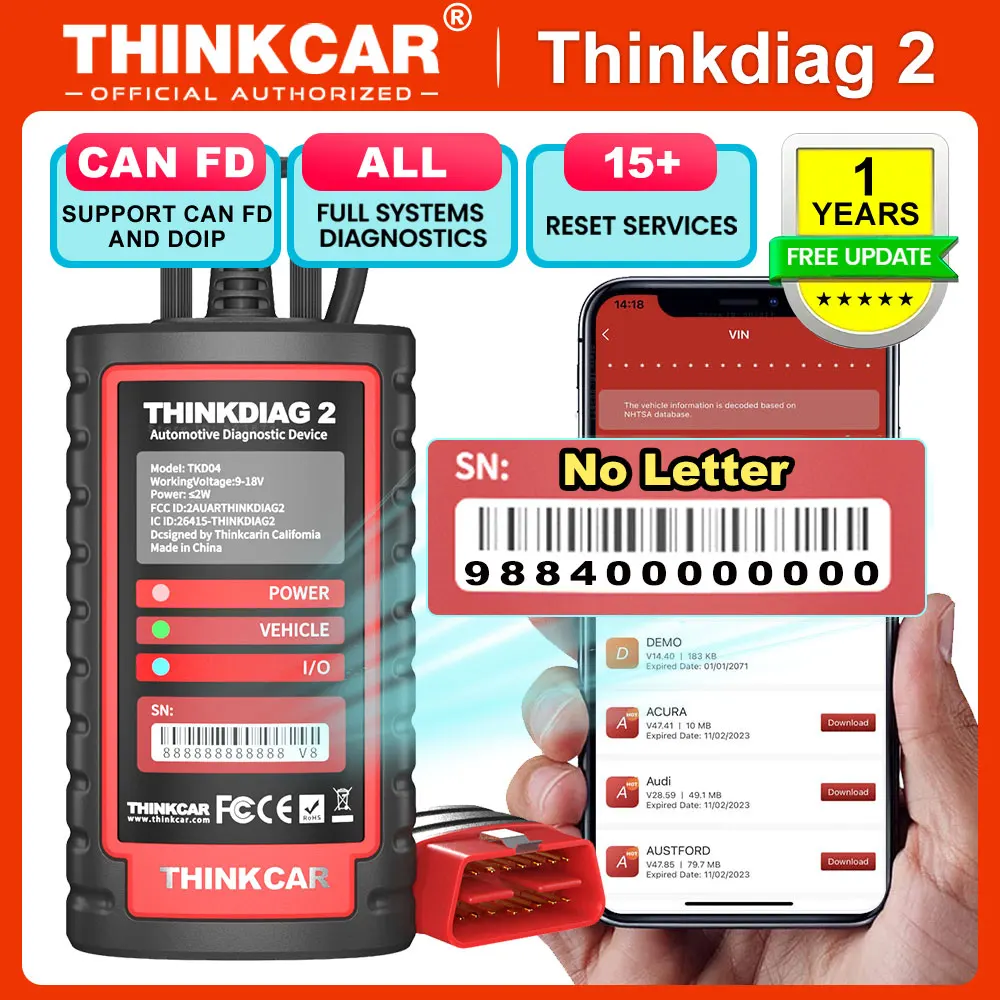
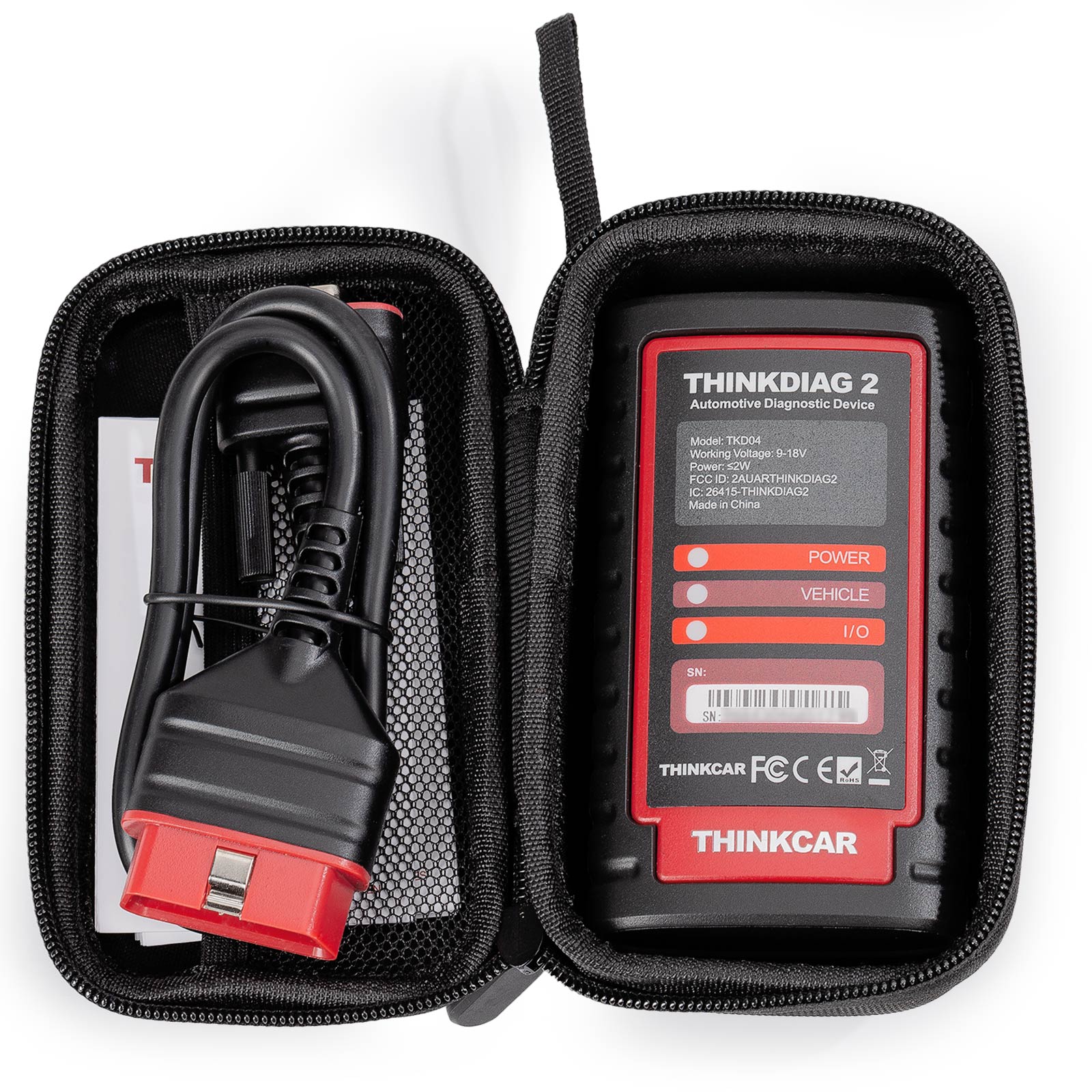
The adapter should normally receive power from the OBD-II port when the vehicle is connected. If no indicator light appears, start at the vehicle side rather than the app.
Follow these steps:
- Push the ThinkDiag2 firmly into the OBD-II port.
- Turn the ignition to the ON position without starting the engine.
- Try the adapter in another compatible vehicle.
- Inspect the OBD-II pins for damage or corrosion.
- Check the vehicle’s diagnostic port fuse.
- Test the vehicle battery voltage.
The OBD-II port often receives power through a fuse shared with the cigarette lighter or accessory socket. If that accessory has stopped working too, a blown fuse is a strong clue.
Never force the adapter into the port. The wide side of the connector must match the wide side of the socket. If the ThinkDiag2 works in another vehicle but not yours, the issue is likely the vehicle power supply, fuse, wiring, or diagnostic connector.
If the adapter remains completely dead in several vehicles, contact Thinkcar support or the seller. Continuing to insert a damaged adapter can cause more connector damage.
Bluetooth Pairing Problems
Bluetooth pairing is one of the most common reasons users search for Thinkcar ThinkDiag2 Troubleshooting. The adapter may show power, yet the app may still report that no device is found.
Try this pairing method:
- Close the ThinkDiag app.
- Unplug the ThinkDiag2.
- Turn Bluetooth off on the phone.
- Restart the phone.
- Turn Bluetooth back on.
- Plug the ThinkDiag2 into the vehicle.
- Open the ThinkDiag app and sign in.
- Pair the adapter from inside the app.
Some diagnostic adapters do not pair like headphones. The app may control the connection directly. If the device appears in the phone’s Bluetooth settings but fails inside the app, remove the saved Bluetooth entry and pair it through the ThinkDiag app instead.
Also check app permissions. On some Android versions, the app needs nearby-device or location permission to scan for Bluetooth devices. On iPhone, Bluetooth access must be allowed in the app settings.
Keep the phone close to the adapter. The signal usually travels only a short distance through the vehicle cabin, and metal parts can weaken it. Turn off another nearby diagnostic adapter if one is connected.
ThinkDiag App Cannot Log In or Activate
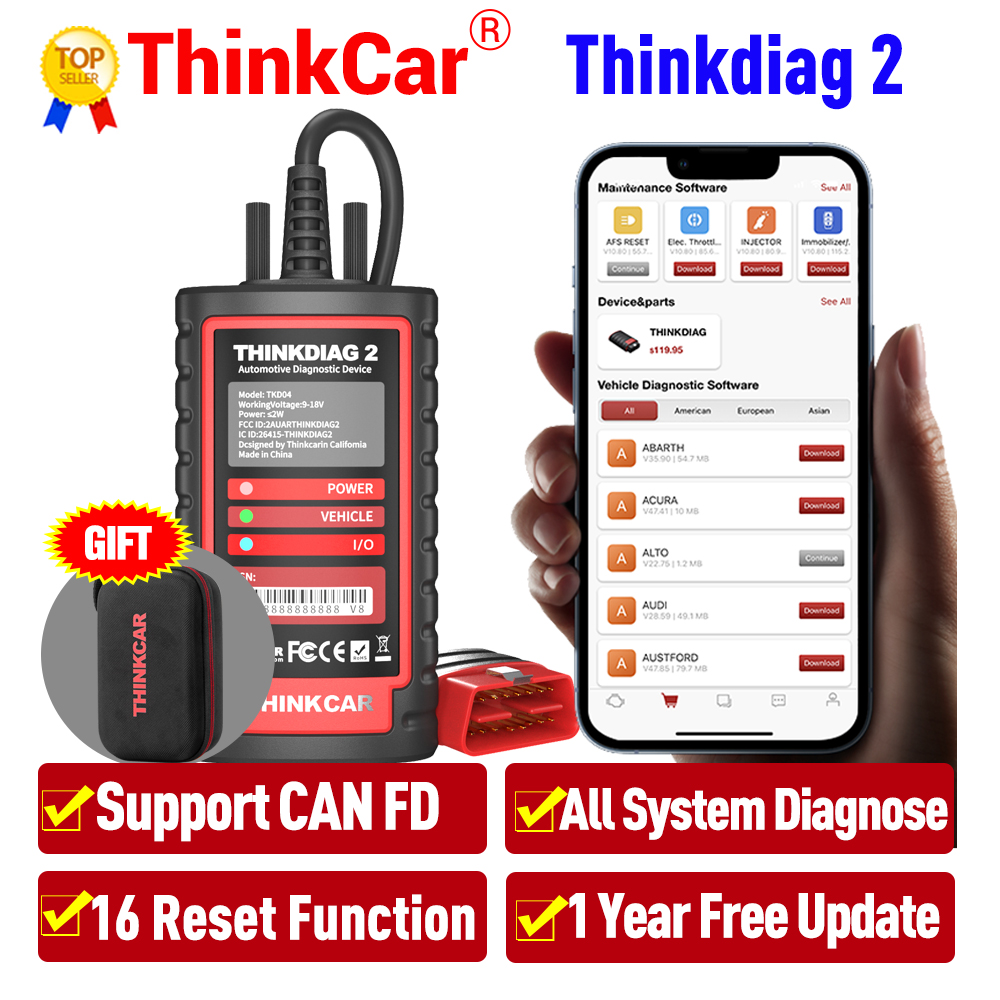
An account problem can look like a hardware failure. The ThinkDiag2 may be powered and connected, but the app may block access because the account, activation, or software package is not ready.
Check the following:
• Verify the email address and password.
• Reset the password if login repeatedly fails.
• Confirm that the phone has mobile data or Wi-Fi.
• Update the ThinkDiag app from the official app store.
• Check that the device date and time are set automatically.
• Confirm that the adapter is linked to the correct account.
• Review whether the selected vehicle software or subscription is active.
Activation rules and available functions can change with app updates. A used adapter may also remain linked to a previous account, depending on the product system and region. In that case, the seller or Thinkcar support may need to help transfer or reset ownership.
Do not install unofficial modified apps. They can cause account errors, expose your personal data, or interfere with secure diagnostic communication.

Vehicle Is Not Detected
When the app connects to the ThinkDiag2 but cannot identify the vehicle, select the vehicle manually. Automatic identification is convenient, but it can fail when the VIN is not broadcast correctly or when the vehicle has unusual communication settings.
Use this process:
- Select the correct vehicle brand.
- Choose the correct model and year.
- Confirm the engine and market region.
- Switch the ignition off for about 30 seconds.
- Reconnect the adapter.
- Turn the ignition on.
- Start a manual system scan.
Make sure the ignition is fully on. On vehicles with a push-button start, press the button without pressing the brake or clutch. The dashboard should light up while the engine remains off.
Some older vehicles need a manufacturer-specific adapter or a special diagnostic procedure. A standard OBD-II connector does not guarantee full system access. Commercial vehicles, motorcycles, electric vehicles, and cars sold outside North America may require different coverage.
This is a key part of Thinkcar ThinkDiag2 Troubleshooting: a failed vehicle scan does not always mean the tool is defective. It may indicate unsupported coverage, low voltage, a communication fault, or an incorrect vehicle selection.
Communication Error During a Scan
A communication error means the tool cannot maintain a stable link with one or more vehicle control modules. The cause may be electrical, software-related, or vehicle-specific.
Work through these checks:
• Confirm the battery is charged.
• Disconnect other OBD accessories, insurance trackers, or splitters.
• Turn off the engine unless the test specifically requires it to run.
• Keep the ignition on during the complete scan.
• Remove and reconnect the adapter.
• Restart the app.
• Try a full vehicle power cycle.
A vehicle power cycle means turning the ignition off, removing the key if possible, locking the vehicle, and waiting several minutes. Some modules remain awake after the ignition is turned off. Allowing them to shut down can clear a temporary communication state.
Do not clear codes simply because a communication error appears. First record the codes, freeze-frame data, and module names. Clearing data too soon can remove useful clues for a technician.
If only one module fails to communicate, inspect that system’s fuse, wiring, and power supply. If every module fails, suspect the OBD port, vehicle battery, adapter connection, or app session.
Codes Will Not Clear
A diagnostic code will not always clear just because the button is pressed. Many codes return because the fault is still active.
Use this approach:
- Read and save the original code.
- Record freeze-frame data if available.
- Repair the suspected fault.
- Cycle the ignition.
- Run the scan again.
- Clear the code only after the repair.
- Perform a second scan to confirm the result.
Permanent emissions codes may remain stored until the vehicle completes its required drive cycles. Some airbag, ABS, and body-control faults also need the underlying problem repaired before they will clear.
A code is not a diagnosis by itself. For example, an oxygen sensor code can result from a wiring fault, an exhaust leak, a vacuum leak, or a fuel problem. Thinkcar ThinkDiag2 Troubleshooting works best when you use the code as a starting point, not as a parts-ordering shortcut.

Live Data Looks Wrong or Does Not Update
Live data can help you understand what the engine is doing, but readings must be viewed in context. A sensor value may look strange because the engine is cold, the ignition is on without the engine running, or the selected data list is not supported correctly.
Try these steps:
• Start the engine if the test requires running data.
• Let the engine reach normal operating temperature.
• Compare related values instead of judging one number alone.
• Check the measurement units.
• Look for values that change when the throttle, load, or temperature changes.
• Repeat the test with a different data list.
For example, engine coolant temperature should usually rise gradually as the engine warms. A value that stays fixed at an extreme temperature may suggest a sensor, wiring, or data display problem. It does not prove that the sensor itself is bad.
Use a multimeter, wiring diagram, or manufacturer test procedure when accuracy matters. Scan-tool data is useful evidence, but it is not a substitute for electrical testing.
Special Functions Fail or Are Missing
ThinkDiag2 special functions may include service resets, battery registration, electronic parking brake service, throttle relearn, steering-angle calibration, injector coding, or other tasks. Availability differs by vehicle and software package.
If a function is missing or fails, check:
• The exact vehicle model and year.
• The selected control module.
• Your active software license.
• Battery voltage.
• Ignition instructions shown by the app.
• Whether the function requires a security gateway connection.
Some manufacturers protect diagnostic functions with a security gateway. The tool may need an approved online account, a manufacturer authorization, or an additional access process. A generic scanner cannot bypass every security system.
Read each on-screen instruction before continuing. During a reset or calibration, moving the vehicle, pressing the wrong pedal, or disconnecting power can create a new fault. When the app asks you to confirm a safety condition, treat that message as important.
Software Updates and Firmware Problems
Updates can improve vehicle coverage and fix connection problems, but an interrupted update can leave the app or adapter in an unstable state.
For safer updates:
- Charge the phone.
- Use reliable Wi-Fi.
- Close other high-bandwidth apps.
- Keep the ThinkDiag2 connected as instructed.
- Do not switch off the phone.
- Do not unplug the adapter during firmware installation.
- Restart the app after the update finishes.
If the app shows an update loop, sign out and sign back in. Then check the phone’s storage and app permissions. On Android, clearing the app cache may help; avoid clearing app data unless you know your account credentials and activation details.
Install software only through official Thinkcar channels. Firmware files from forums or unknown websites may be incomplete or unsafe. If an update fails repeatedly, save screenshots of the error, note the phone model and operating system, and contact support with the adapter serial information.
ThinkDiag2 App Crashes or Freezes
App crashes may come from low storage, an old operating system, a damaged cache, or a conflict with other apps.
Use this order:
• Restart the phone.
• Update the operating system when supported.
• Update the ThinkDiag app.
• Free several hundred megabytes of storage.
• Force-close background apps.
• Clear the app cache.
• Reinstall the app if necessary.
Before deleting the app, confirm that you know the correct login details. Also check whether reports, saved records, or downloaded vehicle software are stored locally.
Older phones may struggle with large system scans. A newer phone with stable Bluetooth and enough storage often improves the experience more than repeated adapter resets.
When to Stop and Seek Professional Help
Some problems should not be handled by trial and error. Stop the test if the vehicle shows serious warning messages, loses power, or behaves unexpectedly.
Seek qualified help when:
• The airbag warning system requires a repair.
• The vehicle will not start after a programming attempt.
• Battery voltage falls sharply.
• A module stops communicating after coding.
• Wiring or the OBD port appears damaged.
• You are working on a hybrid or electric high-voltage system.
• The app requests a function you do not understand.
High-voltage vehicles require specific training and protective equipment. The ThinkDiag2 can support some electric vehicle diagnostics, but a scan tool does not make high-voltage work safe by itself.
A professional technician can compare scan data with wiring diagrams, voltage tests, manufacturer service information, and known-good components. That wider view is often what separates a correct repair from an expensive guess.
A Practical ThinkDiag2 Troubleshooting Workflow
Use this repeatable workflow whenever a problem appears:
- Identify the symptom clearly.
- Check vehicle battery voltage.
- Confirm OBD-II port power.
- Inspect the connector and adapter.
- Restart the phone and app.
- Confirm Bluetooth permissions.
- Update the app and vehicle software.
- Select the vehicle manually.
- Scan before clearing any codes.
- Save reports and screenshots.
- Test the suspected circuit.
- Contact support if the fault remains.
In my recommended workshop process, the most useful habit is saving the first scan. It creates a baseline. Without that record, it is easy to forget which codes were present before a repair or which modules failed to respond.
Thinkcar ThinkDiag2 Troubleshooting becomes much faster when you change only one thing at a time. If you update the app, replace the battery, change the phone, and clear all codes together, you may never know which step solved the problem.
Common Mistakes to Avoid
Many failed scans come from simple mistakes rather than serious hardware faults.
Avoid these errors:
• Starting a scan with a weak battery.
• Using the wrong vehicle year or engine option.
• Pairing through phone settings only.
• Leaving another OBD device connected.
• Clearing codes before recording them.
• Unplugging the tool during a special function.
• Assuming every code identifies a failed part.
• Using unsupported software or unofficial firmware.
• Ignoring the app’s ignition instructions.
• Treating a generic OBD-II scan as a complete vehicle diagnosis.
The ThinkDiag2 is most valuable when it is used as part of a test plan. Think of it as a conversation with the vehicle. The scanner asks questions, but voltage checks, visual inspections, and repair knowledge help you understand the answers.
Frequently Asked Questions About Thinkcar ThinkDiag2 Troubleshooting
Why does my Thinkcar ThinkDiag2 show no light?
Check the OBD-II connection, ignition position, vehicle battery, and diagnostic-port fuse. Test the adapter in another compatible vehicle to determine whether the issue is in the car or the tool.
Why will ThinkDiag2 not connect to my phone?
Restart the phone, enable Bluetooth and nearby-device permissions, and connect through the ThinkDiag app. Remove old Bluetooth entries and keep other Bluetooth or OBD devices away during pairing.
Can ThinkDiag2 clear every vehicle fault code?
No. The tool cannot clear a code caused by an active fault, and some permanent, safety, or manufacturer-protected codes need additional repairs or authorization. Coverage also varies by vehicle and software subscription.
Why does the ThinkDiag2 lose communication during a scan?
Low battery voltage, loose OBD connections, unsupported modules, app errors, and other connected OBD devices can interrupt communication. Check power first, then restart the app and select the vehicle manually.
Do I need a subscription for ThinkDiag2?
Basic and advanced functions depend on the software package, vehicle brand, region, and current Thinkcar account terms. Review the activation details in the official app before buying or renewing a package.
Is ThinkDiag2 safe for programming vehicle modules?
Programming can be safe when the function is supported and all instructions are followed, but interruption can damage module software. Use a stable battery charger and seek professional help if you are unsure.
Conclusion
Thinkcar ThinkDiag2 Troubleshooting starts with power, connection, permissions, software, and correct vehicle selection. Most problems become easier to solve when you save the first scan, avoid guessing from one code, and change one variable at a time.
The ThinkDiag2 is a useful diagnostic aid, but it has limits. Use it with sound electrical tests, accurate service information, and safe working habits. Try the workflow in this guide during your next scan, and explore official Thinkcar support resources or share your experience with other vehicle owners.