Thinkcar ThinkDiag Troubleshooting: Easy Fixes
Thinkcar ThinkDiag troubleshooting starts with power, Bluetooth, app setup, vehicle choice, and stable battery voltage.
Thinkcar ThinkDiag is a small scan tool, but it depends on several links working together. The adapter, phone, ThinkDiag app, vehicle network, software license, and car battery must all communicate correctly. When one link fails, the tool may show errors such as “device not connected,” “no communication,” or “function not supported.”
This guide explains Thinkcar ThinkDiag troubleshooting in a clear, practical way. It covers the most common faults, safe tests, app fixes, connection steps, and limits you should know before working on a modern vehicle.
How Thinkcar ThinkDiag Works
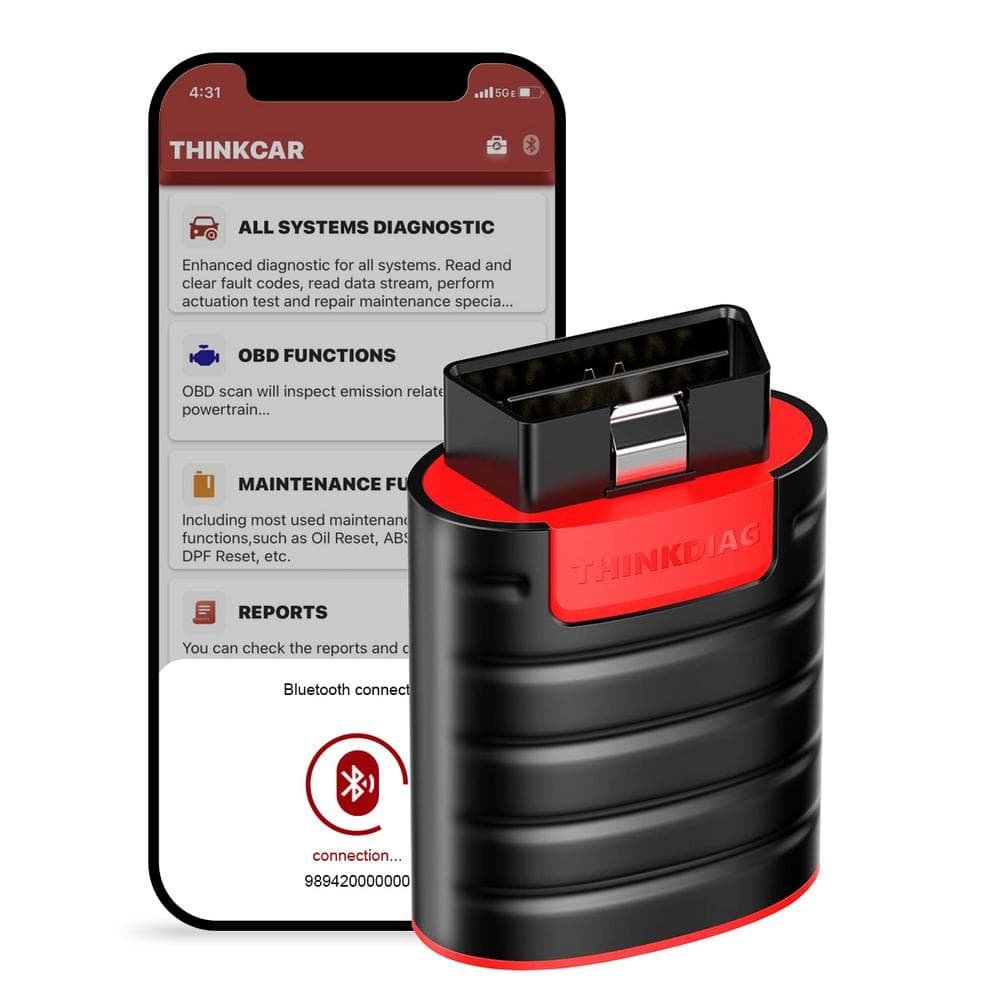
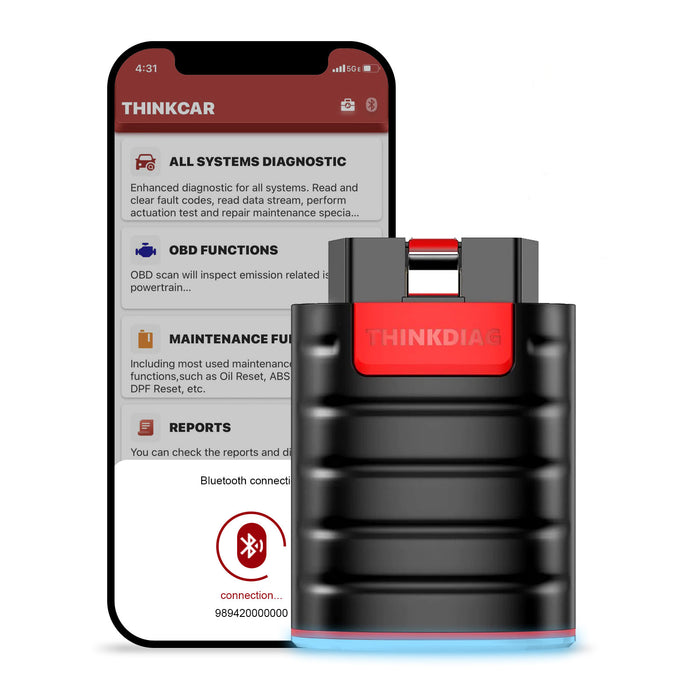
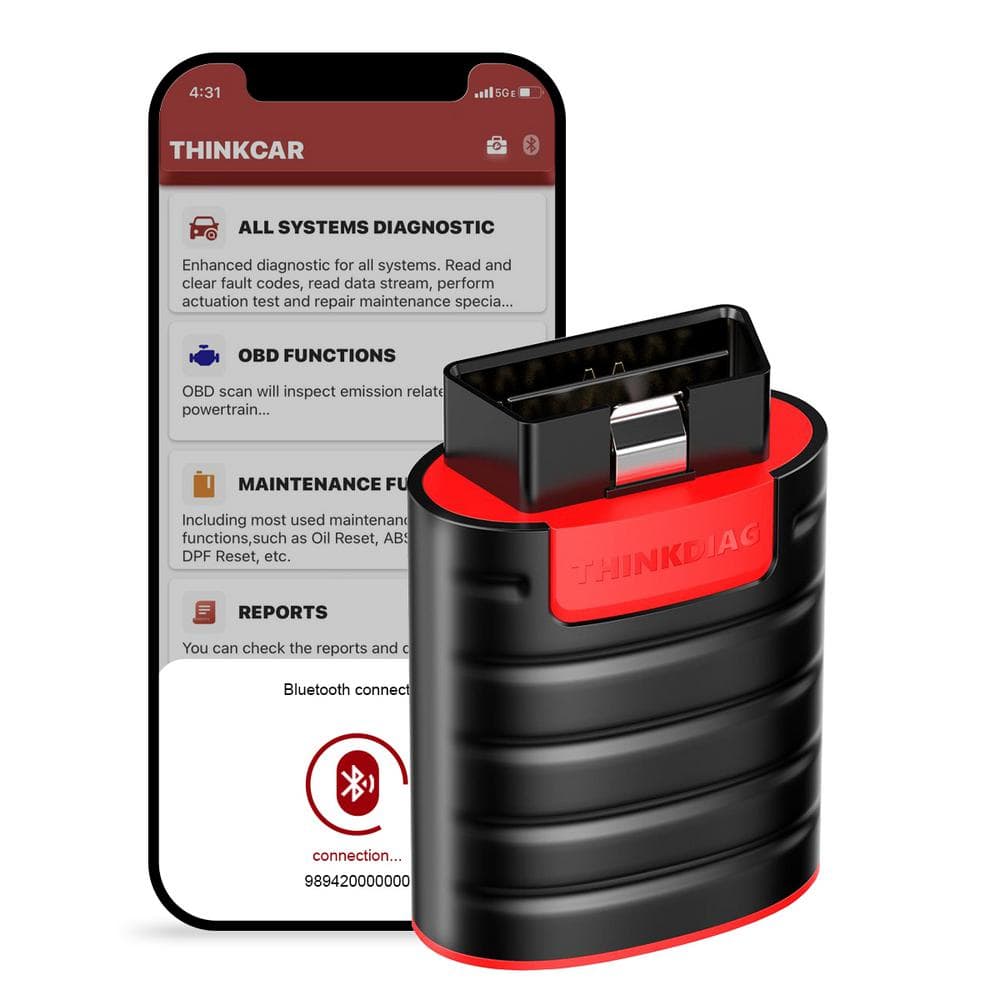
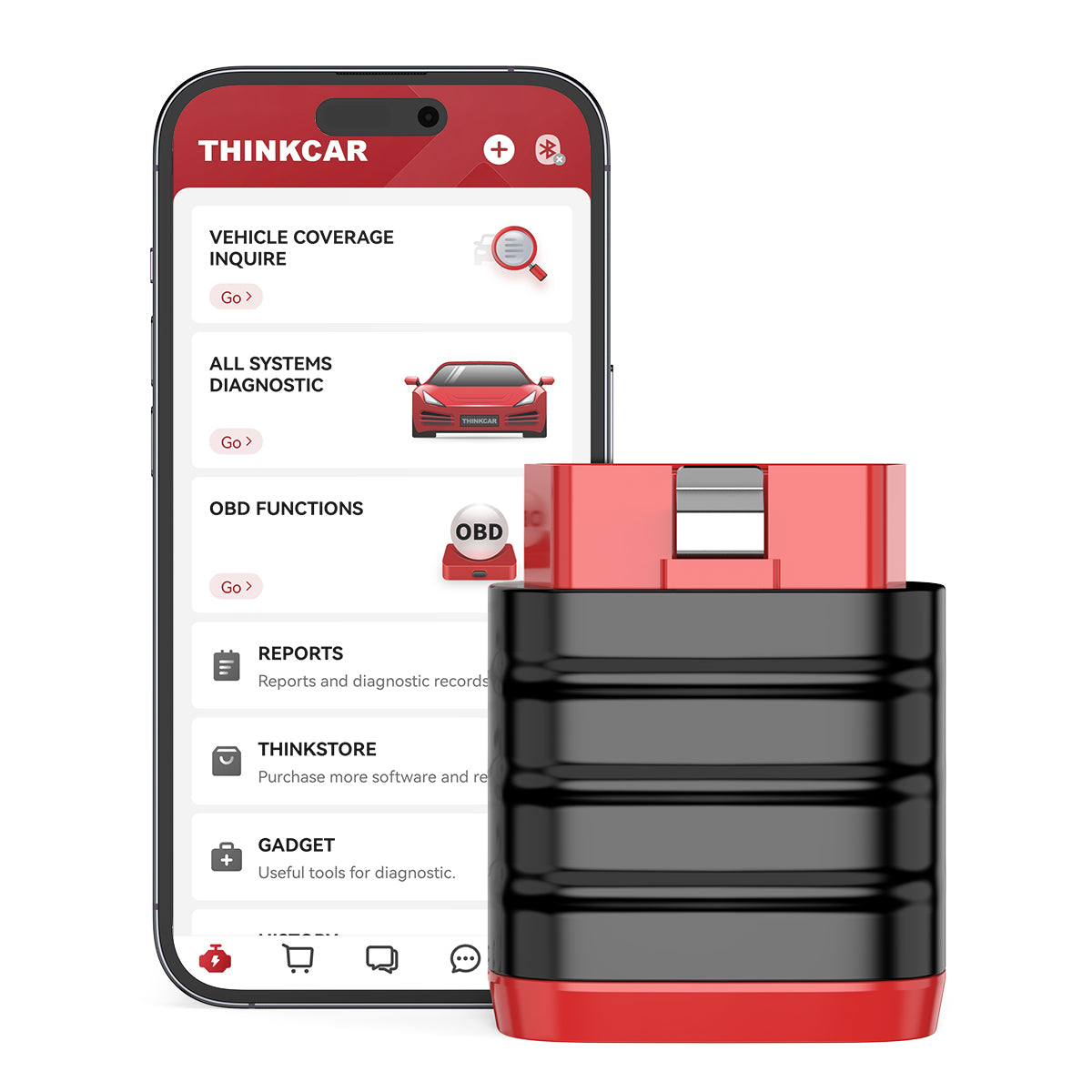
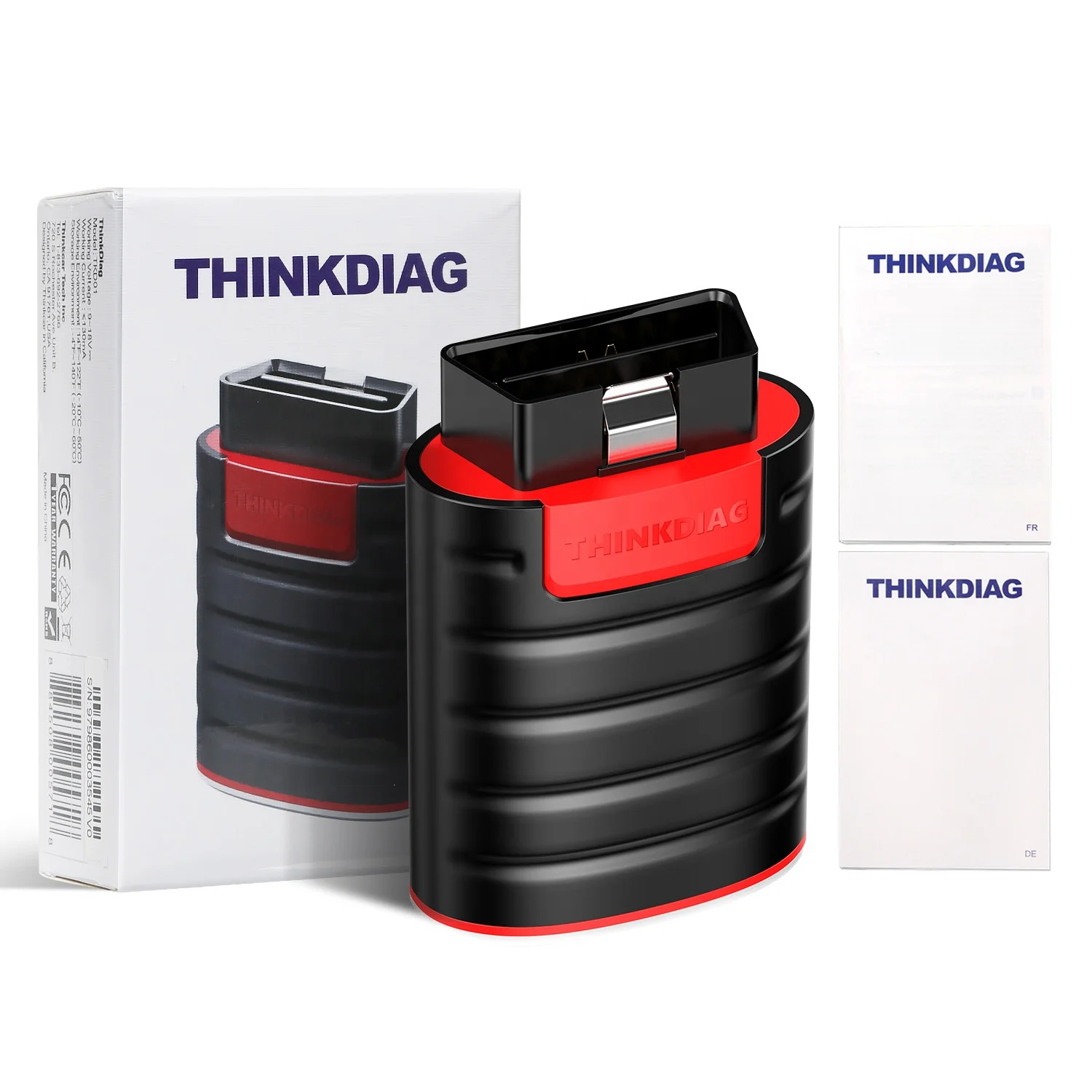
Thinkcar ThinkDiag is a Bluetooth vehicle diagnostic adapter. It plugs into the car’s OBD-II port and sends data to the ThinkDiag app on an Android or iPhone device.
The tool can read and clear diagnostic trouble codes, view live data, run some active tests, and support selected service functions. The exact features depend on the vehicle, software package, model year, region, and subscription plan.
The main communication path looks like this:
- The car supplies power through the OBD-II port.
- ThinkDiag starts and communicates with the vehicle network.
- Your phone connects to ThinkDiag through Bluetooth.
- The ThinkDiag app identifies the adapter.
- The app connects to the correct vehicle system.
- The software sends commands and displays the results.
A fault at any step can stop the scan. This is why replacing the adapter is not always the best first move.
Thinkcar ThinkDiag Troubleshooting: Start With Basic Checks
Before trying advanced repairs, perform a simple inspection. Basic checks solve many Thinkcar ThinkDiag problems in less than five minutes.
Check the OBD-II port
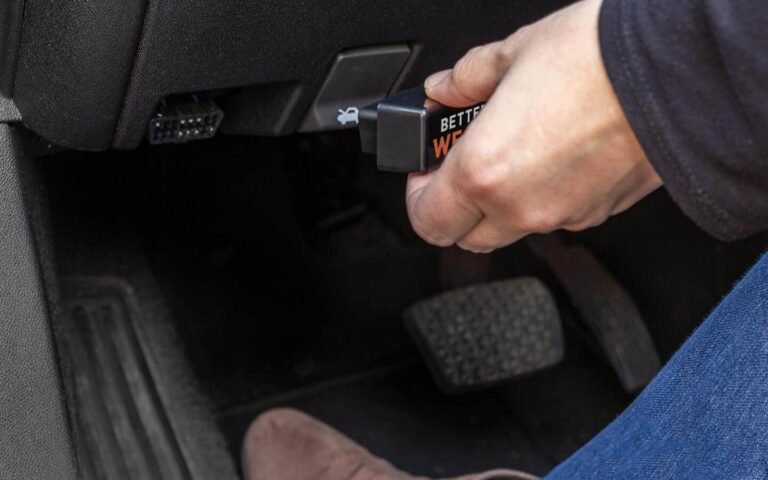
The port is often under the dashboard near the steering column. Make sure the adapter is fully inserted. A loose fit can interrupt power or data flow.
Inspect the port for:
• Bent or pushed-back pins
• Dirt, moisture, or corrosion
• Aftermarket wiring
• A damaged plastic housing
• A loose connection behind the dashboard
Do not force the adapter into the port. The connector should slide in with steady pressure.
Check the vehicle battery
Low battery voltage can cause strange scan results. A weak battery may power the adapter but fail during module tests or coding tasks.
As a basic guide:
• Around 12.6 volts is common for a fully charged battery at rest
• Around 12.2 volts suggests a partly discharged battery
• Below 12 volts may cause unreliable vehicle communication
• A running vehicle often shows about 13.5 to 14.8 volts, depending on the charging system
Use a digital multimeter for accurate testing. If the battery is weak, charge it before running active tests or service functions.
Turn the ignition on correctly
For most scans, switch the ignition to the ON position without starting the engine. The dashboard warning lights should appear.
Some vehicles require the engine to run for live data. Other tests work only with the engine off. Follow the instructions shown in the ThinkDiag app.
Restart the complete system
When a connection seems stuck, use this order:
- Unplug ThinkDiag from the vehicle.
- Close the ThinkDiag app.
- Turn Bluetooth off and on.
- Restart the phone.
- Turn the vehicle ignition off.
- Wait for the vehicle modules to sleep.
- Plug ThinkDiag back in.
- Open the app and connect again.
This reset clears many temporary communication faults.
Thinkcar ThinkDiag Bluetooth Connection Problems
Bluetooth issues are among the most common Thinkcar ThinkDiag troubleshooting cases. The phone may see the adapter but fail to connect, or the app may show the device as offline.
Use the ThinkDiag app for pairing
Do not pair the adapter only through the phone’s normal Bluetooth menu unless the app specifically asks you to do so. Many diagnostic adapters manage pairing inside the app.
Open the ThinkDiag app, sign in, and use its device connection screen. Keep the phone close to the adapter during the first connection.
Check phone permissions
The app may need permission to use:
• Bluetooth
• Nearby devices
• Location services on some Android versions
• Mobile data or Wi-Fi
• Storage for reports and updates
On Android, open the app permissions menu and allow the required access. On iPhone, check Bluetooth access under the app settings.
Remove old Bluetooth connections
If the adapter was used with another phone, the old connection may interfere. Turn Bluetooth off on nearby phones and tablets. Then remove any saved ThinkDiag entry from your phone and reconnect through the app.
Avoid connection interference
Keep the phone away from other Bluetooth scan tools, wireless key programmers, and crowded workshop devices. Interference is not always the cause, but reducing nearby signals makes testing easier.
A useful workshop habit is to connect one phone to one ThinkDiag adapter. Do not switch between several devices during an active scan.
What if ThinkDiag is not detected?
Try these steps:
- Confirm the adapter’s indicator light or startup behavior.
- Check that the OBD-II port has power.
- Allow Bluetooth and nearby device permissions.
- Close other diagnostic apps.
- Restart the phone.
- Try a second compatible phone if available.
- Test the adapter in another vehicle.
If ThinkDiag works in another vehicle, inspect the original vehicle’s port and power supply. If it fails everywhere, the adapter or app account may need support review.
Thinkcar ThinkDiag App Login and Subscription Errors
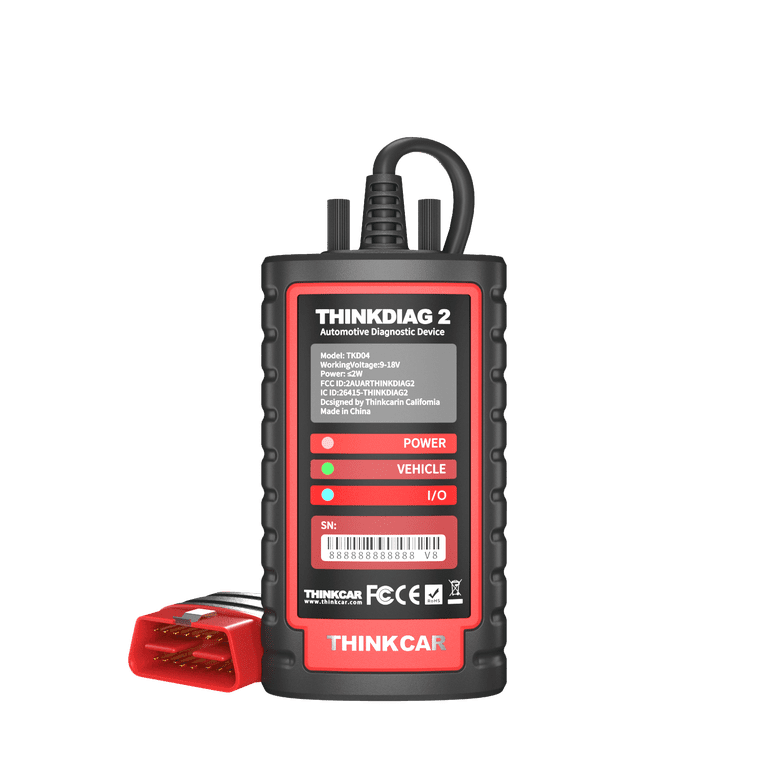
Thinkcar ThinkDiag troubleshooting also includes account and software access problems. The adapter may connect correctly, yet a scan may fail because the app cannot access the selected vehicle software.
Common causes include:
• Wrong account credentials
• Expired vehicle software
• An incomplete software download
• Poor internet access
• A region mismatch
• An app update that has not finished
• A vehicle brand package that was not activated
Sign out of the app only after confirming that you know the correct login details. Then sign in again using a stable internet connection.
Check the software or subscription page in the app. Look for the vehicle brand, coverage period, activation status, and download progress. Do not start a scan while a package is still downloading.
If the app shows that a package is active but the function remains locked, take a screenshot of the error. Record the adapter serial number, phone model, app version, vehicle identification number, and purchase details. This information helps support staff identify account or license problems faster.
Avoid unofficial APK files or modified software. They can create security risks, corrupt updates, or cause the adapter to behave unpredictably.
Thinkcar ThinkDiag Cannot Communicate With the Vehicle
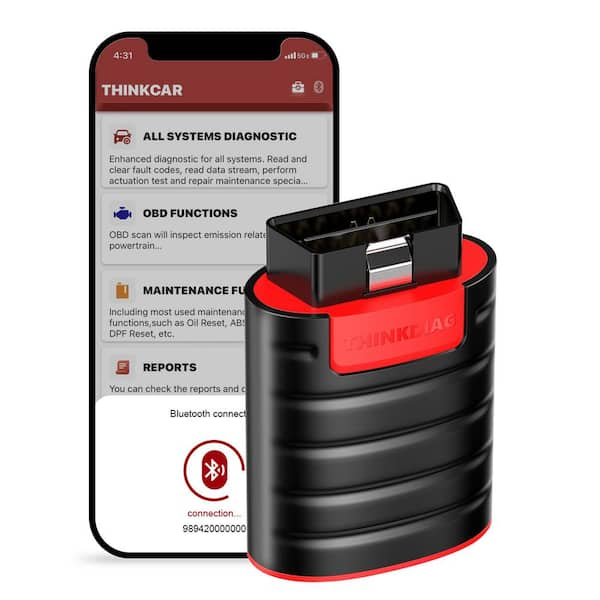
A “no communication” message means the app cannot establish a reliable link with one or more vehicle modules. It does not always mean the ThinkDiag adapter is defective.
Use this diagnostic order:
- Confirm the correct vehicle make, model, year, and engine.
- Turn the ignition on.
- Check battery voltage.
- Inspect the OBD-II port.
- Disconnect other accessories from the diagnostic port.
- Try an automatic vehicle identification scan.
- Try manual vehicle selection.
- Test another control module.
- Compare results with another scan tool if possible.
Selecting the wrong engine or system can cause a failed connection. This is common with vehicles that have several engine options or major changes between model years.
Check OBD-II power
On many vehicles, the OBD-II port receives battery power through a dedicated fuse. If ThinkDiag has no light or no startup response, check the relevant fuse with the vehicle owner’s manual.
Never bridge a fuse with wire or install a fuse with a higher rating. A fuse protects the wiring. Using the wrong replacement can cause serious damage.
Check for aftermarket equipment
Remote starters, fleet trackers, insurance devices, alarm systems, and other accessories may share the OBD-II port. Unplug them before testing. Some devices block access or create electrical noise on the communication line.
Consider gateway security
Some late-model vehicles use secure gateways that restrict diagnostic access. A scan tool may read basic information but block coding, active tests, or certain module functions.
In that case, the issue may be access authorization rather than a bad connection. Use only approved security procedures and confirm that ThinkDiag supports the required gateway process for that vehicle.

Thinkcar ThinkDiag Reads Codes but Cannot Clear Them
This is a common point of confusion. Reading a code and clearing a code are different tasks.
A code may not clear when:
• The fault is still present
• The ignition is in the wrong position
• The selected module is not the source of the code
• The battery voltage is too low
• The vehicle blocks clearing during certain conditions
• The code is permanent or emissions-related
• The system requires a repair and drive cycle first
Do not clear codes before saving the report. The report can include code numbers, descriptions, freeze-frame data, and module details.
A cleared warning light does not prove that the problem is fixed. For example, an oxygen sensor code may return because of a wiring fault, an exhaust leak, or a fuel mixture problem. ThinkDiag can point you toward the fault, but it cannot replace electrical tests and mechanical inspection.
After repairs, clear the code only when appropriate. Then perform the required drive cycle or system test. Some monitors need several trips before they show complete.

Thinkcar ThinkDiag Live Data and Active Test Problems
Live data shows values reported by vehicle sensors and control modules. Active tests send commands to components such as fans, relays, solenoids, or windows.
If live data looks wrong, first confirm that you selected the correct module and data list. A value may appear abnormal because the engine is cold, the ignition is off, or the unit is displayed in an unfamiliar format.
• Warm the engine when the test requires operating temperature
• Compare related values instead of reading one value alone
• Check sensor data against a known-good meter or gauge
• Watch for values that remain fixed
• Save a report before changing settings
• Follow the app’s safety instructions
Active tests require extra care. Do not run a fuel pump, cooling fan, throttle, or transmission test near moving parts. Keep hands, tools, and clothing away from belts and fans.
Some functions may be unavailable because of vehicle design. ThinkDiag coverage is not identical across all makes and models. A missing function does not automatically mean the app is broken.
Thinkcar ThinkDiag Service Reset and Special Function Errors
ThinkDiag may support service operations such as oil reset, battery registration, steering angle calibration, electronic parking brake service, diesel particulate filter functions, or throttle relearn. Availability varies by vehicle.
Before starting a special function:
- Read the full instructions in the app.
- Connect a battery maintainer when the procedure may take time.
- Confirm the vehicle is in the required state.
- Save the original settings or report.
- Keep the phone connected and charged.
- Do not unplug the adapter during the procedure.
- Complete any required road test or relearn step.
A service reset does not repair the system behind the warning. For example, resetting an oil service reminder does not correct low oil pressure. A battery registration function also does not replace a weak battery.
If a procedure fails, do not repeat it again and again without checking the cause. Confirm battery voltage, charger quality, vehicle selection, and software coverage first. Some failed calibrations require factory-level procedures or a repair before they can complete.
Thinkcar ThinkDiag Update and Firmware Troubleshooting
Updates can improve vehicle coverage and fix software bugs, but an interrupted update can create new problems. Use a stable Wi-Fi network and keep the phone connected to power during large downloads.
Follow these steps:
- Update the ThinkDiag app from the official app store.
- Sign in to the correct account.
- Check the adapter firmware status.
- Download the selected vehicle package completely.
- Keep Bluetooth close and stable.
- Do not switch apps during a firmware update.
- Restart the phone and adapter after the update.
If an update stops, do not unplug the adapter during a firmware-writing process unless the app clearly instructs you to do so. Try the update again with a stronger network and a fully charged phone.
Clear only the app cache when troubleshooting Android problems. Clearing app data or reinstalling may remove local reports or require another login. Save important diagnostic reports before taking that step.
On iPhone, reinstalling the app may remove locally stored information. Check whether reports are backed up or exported first.
A Practical Thinkcar ThinkDiag Troubleshooting Workflow
A fixed process prevents guesswork. I have found that technicians often lose time by changing several things at once. If you change the phone, vehicle selection, cable, and app settings together, you will not know which change solved the fault.
Use this workflow:
Step 1: Record the symptom
Write down the exact message. “No device,” “no communication,” “function unavailable,” and “operation failed” point to different causes.
Step 2: Check power
Inspect the vehicle battery, OBD-II port, adapter fit, and related fuse.
Step 3: Check the phone
Confirm Bluetooth, permissions, internet access, battery level, and app version.
Step 4: Check vehicle selection
Choose the correct make, model, year, engine, and system. Use automatic identification when it works.
Step 5: Test a basic function
Try reading vehicle information or generic engine codes before attempting coding or active tests.
Step 6: Test another vehicle or phone
This separates an adapter problem from a vehicle or phone problem.
Step 7: Save evidence
Keep screenshots, reports, error text, and software details. Good records make support much more useful.
Step 8: Stop when safety is uncertain
Do not continue with programming, airbag work, steering systems, or high-voltage systems if the instructions are unclear. Seek qualified help.
Common Mistakes to Avoid
Thinkcar ThinkDiag troubleshooting becomes harder when basic safety steps are skipped.
Avoid these mistakes:
• Clearing all codes before saving them
• Running a module test with a weak battery
• Using the wrong vehicle profile
• Leaving another scan device connected
• Unplugging during a firmware update
• Installing unofficial software
• Assuming a code identifies the failed part
• Repeating a failed calibration without diagnosis
• Using a battery charger that causes unstable voltage
• Working around airbags or high-voltage systems without training
One mistake I often see is replacing a sensor as soon as a code appears. A sensor code can result from a broken wire, poor ground, blown fuse, vacuum leak, or network problem. Test the circuit before buying parts.
ThinkDiag is best used as a source of evidence. Treat its data like a flashlight in a dark room. It shows where to look, but you still need to inspect the area.
When to Contact Thinkcar Support or a Professional
Contact support when the adapter fails in several vehicles, the app will not recognize an active license, or firmware recovery is needed.
Provide:
• ThinkDiag serial number
• App version
• Phone model and operating system
• Vehicle make, model, year, and engine
• Exact error message
• Screenshots or saved reports
• Steps already completed
Seek a qualified automotive technician when the issue involves airbag deployment circuits, brake control, steering calibration, immobilizer programming, high-voltage battery systems, or repeated communication faults.
There are also limits to app-based diagnostics. Manufacturer security systems, software coverage, region restrictions, and hardware differences can prevent a function from working. Honest troubleshooting means accepting when a different tool or factory procedure is required.
Frequently Asked Questions About Thinkcar ThinkDiag Troubleshooting
Why is my ThinkDiag adapter not connecting to my phone?
Check Bluetooth, nearby device permissions, app access, and adapter power. Restart the phone, close other diagnostic apps, and connect through the ThinkDiag app instead of the phone’s Bluetooth menu.
Why does ThinkDiag say there is no communication with the vehicle?
The cause may be low battery voltage, a blown OBD-II fuse, a poor port connection, incorrect vehicle selection, or gateway security. Test the port and battery first, then confirm the exact vehicle profile.
Can ThinkDiag clear every diagnostic trouble code?
No. Some codes remain because the fault is active, permanent, security-related, or stored in a system that the software cannot access. Repair the cause and follow the vehicle’s required clearing or drive-cycle procedure.
Why is a ThinkDiag special function unavailable?
The selected vehicle may not support that function, the software package may be inactive, or the vehicle may require security authorization. Confirm coverage, subscription status, vehicle details, and battery voltage before trying again.
What should I do if ThinkDiag stops during an update?
Keep the adapter connected unless the app gives different instructions. Use stable Wi-Fi, update the app, restart the phone, and retry the firmware or vehicle software update; contact support if the adapter no longer responds.
Can a weak car battery cause ThinkDiag errors?
Yes. Low or unstable voltage can interrupt communication and cause failed scans, resets, or calibrations. Charge the battery or use a suitable battery maintainer before running advanced functions.
Is it safe to clear a check engine light with ThinkDiag?
Clearing a code is usually safe when done correctly, but it does not repair the fault. Save the diagnostic report first, because clearing codes can erase freeze-frame information and reset emissions monitors.
Conclusion
Thinkcar ThinkDiag troubleshooting works best when you follow a calm, step-by-step process. Start with the OBD-II port, battery voltage, ignition position, Bluetooth, app permissions, vehicle selection, and software access before testing advanced functions.
Remember that a diagnostic code is a clue, not a final repair order. Save reports, avoid unsafe resets, keep the software current, and stop when a procedure involves systems you are not trained to handle.
Use these checks the next time ThinkDiag fails, and you can solve many connection and scan problems without needless parts or wasted time. Explore the vehicle-specific instructions in the app, keep a record of your tests, and share your results with a trusted technician when deeper diagnosis is needed.