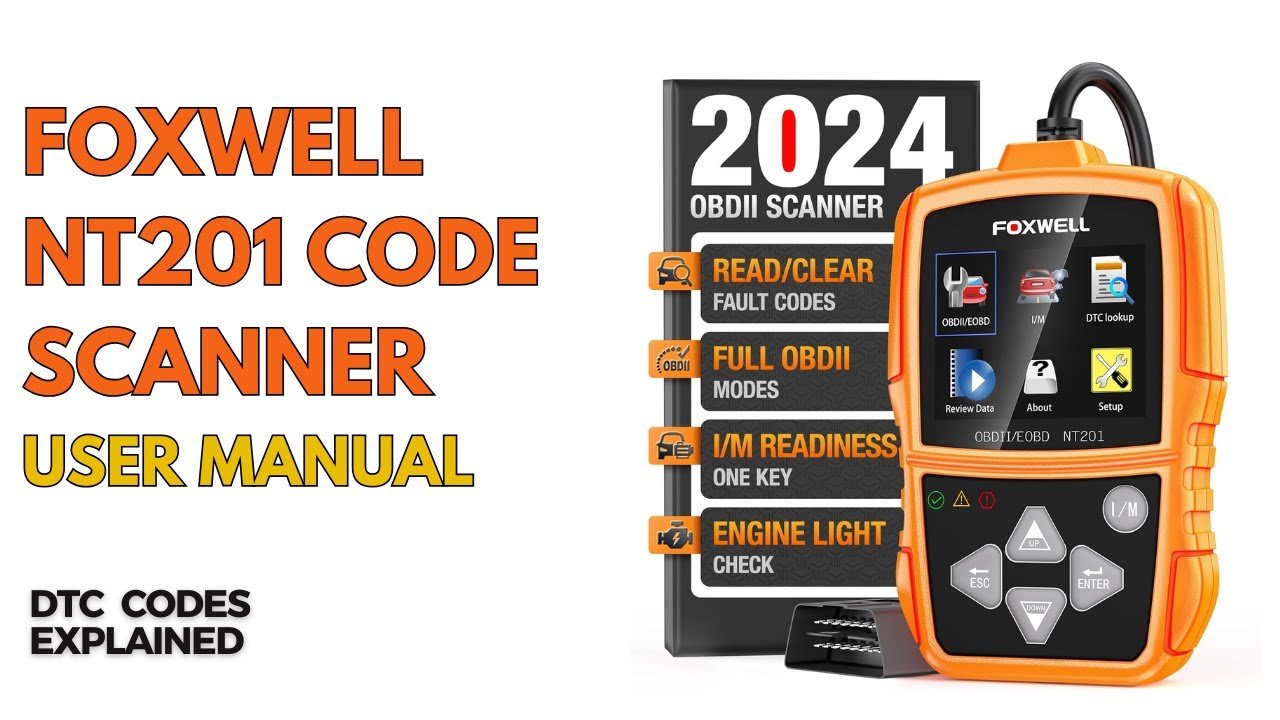
FOXWELL NT201 Troubleshooting: Quick Fixes And Tips
Most FOXWELL NT201 problems come from weak vehicle power, poor connection, wrong settings, or codes that need more testing.
FOXWELL NT201 troubleshooting is usually simple when you follow a clear order. This small OBD2 scanner can read and clear engine fault codes, show code details, and check emissions readiness, but it cannot repair the fault itself. This guide explains common NT201 problems, safe fixes, limits, and practical steps that help you avoid wasted time and repeat repairs.

What the FOXWELL NT201 Does
The FOXWELL NT201 is a basic OBD2 diagnostic scanner. It connects to the vehicle’s 16-pin diagnostic port, often called the DLC. The car supplies power through this port, so the scanner normally does not need separate batteries.
The NT201 can usually:
• Read diagnostic trouble codes from the engine control system
• Clear stored trouble codes after repairs
• Show code definitions
• Display emissions readiness monitors
• Support common OBD2 test modes
• Work with many vehicles sold in the United States since 1996
Vehicle support can vary. A car may have a 16-pin port but still limit the functions that the scanner can use. The NT201 is mainly an engine and emissions tool. It is not a full system scanner for air bags, ABS, transmission, body control, or advanced manufacturer systems.
That difference matters. A code reader is like a flashlight. It helps you see where to look, but it does not replace a full repair manual or a trained technician.

FOXWELL NT201 Troubleshooting: Start With Safety
Before you begin FOXWELL NT201 troubleshooting, park the vehicle in a safe place. Turn off the engine unless a test specifically requires the engine to run.
Follow these basic steps:
-
Set the parking brake.
-
Place the transmission in Park or Neutral.
-
Keep your hands away from moving belts and fans.
-
Do not clear codes before writing them down.
-
Keep the vehicle battery charged during testing.
-
Never use force when inserting the scanner into the OBD2 port.
A low battery can create strange symptoms. It may cause communication errors, interrupted scans, or a scanner that turns off during use. If the car has recently needed a jump-start, charge the battery first.
It is also wise to record the make, model, year, engine, mileage, warning lights, and recent repairs. Those details can reveal patterns that a code alone cannot show.
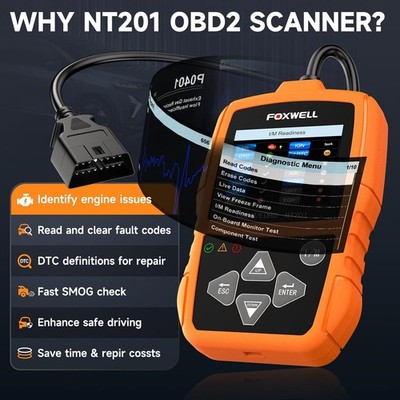
FOXWELL NT201 Will Not Turn On
A blank screen is one of the most common FOXWELL NT201 problems. Since the scanner receives power from the vehicle, the first suspect is the OBD2 power circuit.
Try these checks in order:
• Turn the ignition key to the ON position. Do not leave it in the LOCK or ACC position.
• Push the NT201 firmly into the port.
• Test the scanner with the engine off and the key switched on.
• Inspect the port for dirt, bent pins, or loose wiring.
• Check the vehicle’s cigarette lighter or OBD fuse.
• Try the scanner on another compatible vehicle.
The OBD2 port often sits below the dashboard near the steering column. Some vehicles place it behind a small cover. Do not assume that the closest connector is the diagnostic port.
If the NT201 works in another vehicle, the original car may have a blown fuse or a damaged data port. If it stays blank in several vehicles, the scanner cable or unit may be defective.
Do not bridge pins or apply outside power to the OBD2 connector. A wrong connection can damage the vehicle control module.

FOXWELL NT201 Shows a Link Error
A link error means the scanner has power but cannot communicate with the vehicle. This is different from a dead scanner.
Use this FOXWELL NT201 troubleshooting sequence:
-
Turn the ignition fully off.
-
Unplug the NT201.
-
Wait about 30 seconds.
-
Plug it back into the OBD2 port.
-
Turn the key to ON without starting the engine.
-
Select the correct vehicle or communication option.
-
Start the scan again.
A weak battery, aftermarket alarm, remote starter, or poorly installed stereo can sometimes disrupt communication. A damaged OBD2 port can also cause the problem.
Check whether the vehicle uses standard OBD2 communication. Many newer cars support OBD2, but some special models and non-US vehicles may need a manufacturer-specific scanner.
If the car has recently had an engine computer replacement, wiring repair, or major electrical work, the communication line may need professional testing. The NT201 can identify a connection failure, but it cannot repair damaged CAN wiring or a faulty control module.

FOXWELL NT201 Does Not Detect the Vehicle
Sometimes the NT201 powers up but cannot identify the vehicle. This can happen when the selected year, region, or engine information is wrong.
Check the following:
• Confirm the vehicle year and engine size.
• Select the correct country or market when prompted.
• Use the automatic vehicle detection option if available.
• Turn off accessories that may lower battery voltage.
• Confirm that the ignition is in the ON position.
• Try scanning with the engine off first.
Some vehicles have more than one ignition position. The key must power the dashboard warning lights. With push-button start, press the start button without pressing the brake or clutch, if the vehicle allows that mode.
The NT201 may not support every vehicle function. A vehicle made for a different market may use a different protocol or have limited OBD2 support. Check the official compatibility information before assuming the scanner is faulty.

FOXWELL NT201 Finds No Codes
A “no codes” message does not always mean the vehicle is healthy. It means the NT201 did not find stored or pending engine codes that it could access.
Possible reasons include:
• The warning light is not related to the engine system.
• The fault is intermittent and has not met the code-setting conditions.
• The code was recently cleared.
• The vehicle has a communication problem.
• The problem is mechanical but has not triggered a sensor code.
• The scanner cannot access the required control module.
For example, a worn wheel speed sensor may turn on an ABS light without storing an engine code. The NT201 may not read that ABS code because it is designed mainly for standard engine OBD2 functions.
Check for pending codes as well as confirmed codes. Pending codes can show a fault that has occurred but has not yet happened enough times to turn on the check engine light.
Never assume “no codes” means “no problem.” Listen for unusual sounds, check fluid levels, inspect wiring, and note how the vehicle drives.

FOXWELL NT201 Cannot Clear Codes
The NT201 can usually clear emissions-related engine codes. However, it cannot erase every warning light on every vehicle.
Before clearing a code, write down:
• The exact code number
• The code description
• Freeze-frame information, if shown
• Mileage and driving conditions
• Recent repairs
To clear codes, turn the ignition on, connect the scanner, read the codes, and choose the erase or clear function. Follow the screen instructions. Some vehicles require the engine to remain off during this process.
If the code returns at once, the fault is still active. Clearing it again will not fix the cause. It may also erase useful diagnostic data.
A warning light may remain on because the code belongs to the ABS, air bag, transmission, or body system. In that case, you need a scanner that supports that specific module.
After clearing codes, emissions monitors may reset to “not ready.” This is normal. The vehicle needs a suitable drive cycle before an emissions test. The exact cycle depends on the vehicle manufacturer.

FOXWELL NT201 Freezes or Restarts
A frozen screen can result from unstable vehicle voltage, a loose connection, or a software issue.
Try this basic reset:
-
Disconnect the scanner from the vehicle.
-
Turn the ignition off.
-
Wait at least one minute.
-
Restart the vehicle and connect the NT201 again.
-
Avoid moving the cable during the scan.
Inspect the cable near both connectors. Repeated bending can damage internal wires. A cable may look fine outside but still lose contact when moved.
If the scanner freezes on only one vehicle, focus on the vehicle’s power and communication system. If it freezes on several compatible vehicles, check for an available Foxwell software update or contact Foxwell support.
Do not interrupt a firmware update. Loss of power during an update can make the tool unusable. Use a stable vehicle battery or follow the manufacturer’s update instructions carefully.

FOXWELL NT201 Displays an Unknown Code
An unknown code does not always mean the code is false. It may be a manufacturer-specific code, a software coverage issue, or a code that the tool cannot define.
Write down the full code, including its letter. Common code families include:
• P codes for powertrain systems
• B codes for body systems
• C codes for chassis systems
• U codes for network communication
The NT201 mainly focuses on standard powertrain OBD2 codes. A generic P0 code often has a common meaning. A manufacturer-specific code may require factory data or a more advanced scan tool.
Use the NT201 code definition as a starting point, not as a final diagnosis. A code for an oxygen sensor, for example, does not always mean the sensor itself has failed. Vacuum leaks, exhaust leaks, wiring faults, and fuel problems can create similar readings.
FOXWELL NT201 Live Data and Readiness Problems
Depending on the vehicle and software version, the NT201 may show selected live data or emissions information. Some values may be unavailable. That does not automatically indicate a scanner fault.
Common readiness terms include:
• Ready, meaning the monitor completed its test
• Not ready, meaning the test has not completed
• Not supported, meaning the vehicle does not use that monitor
If the battery was disconnected or codes were cleared, monitors may show not ready. This can take several trips and may require cold starts, steady cruising, stops, and periods of idling.
Do not use a random drive cycle from the internet as a guarantee. Drive cycles vary by vehicle. Follow the owner’s manual when possible, and obey local emissions rules.
For a check engine light, live data can help compare sensor behavior. Yet basic scan data is not a substitute for a multimeter, smoke machine, fuel pressure gauge, or oscilloscope when deeper testing is needed.
How to Diagnose a Trouble Code Correctly
A good scan is the beginning of diagnosis. Use this process after the FOXWELL NT201 retrieves a code:
-
Record the code and freeze-frame data.
-
Read the code description carefully.
-
Check for other related codes.
-
Inspect connectors, wires, hoses, and fuses.
-
Test the likely cause before buying parts.
-
Repair the confirmed fault.
-
Clear the code.
-
Complete a road test.
-
Rescan the vehicle.
For example, code P0301 may indicate a cylinder one misfire. The cause could be a spark plug, ignition coil, injector, vacuum leak, low compression, or wiring problem. Replacing the first part that comes to mind can become an expensive guessing game.
In my own diagnostic work, the most common mistake was treating the code description as a parts list. A visual inspection often found a loose connector or split hose before any component needed replacement.
Common Mistakes to Avoid
FOXWELL NT201 troubleshooting becomes harder when basic steps are skipped.
Avoid these mistakes:
• Scanning with the ignition off
• Clearing codes before recording them
• Replacing parts based on one code
• Ignoring low battery voltage
• Assuming every warning light is an engine code
• Using a damaged or loose OBD2 port
• Driving through an emissions test before monitors are ready
• Disconnecting the scanner during an update
• Ignoring a flashing check engine light
A flashing check engine light may indicate an active misfire that can damage the catalytic converter. Reduce driving and seek professional help quickly.
Also remember that safety systems deserve special care. If the air bag light, brake warning light, or high-temperature warning appears, do not rely on a basic engine code reader alone.
When to Contact a Professional
You can handle many basic checks at home. Professional help is the safer choice when the problem involves network communication, repeated stalling, wiring damage, fuel pressure, high voltage, or safety systems.
Seek help if:
• The NT201 cannot communicate with several known-compatible vehicles
• The vehicle has multiple U codes
• The battery and fuses test good but the port has no power
• A code returns immediately after a correct repair
• The engine runs poorly or stalls
• The check engine light flashes
• The vehicle has ABS, air bag, or transmission warnings
A technician may use a factory scan tool, wiring diagram, lab scope, or advanced test equipment. The NT201 still helps by showing basic codes and giving the technician useful starting information.
FOXWELL NT201 Maintenance Tips
Proper care can prevent many FOXWELL NT201 troubleshooting issues.
• Store the scanner in a dry place.
• Keep the cable free from sharp bends.
• Wipe the connector with a clean, dry cloth.
• Protect the screen from heavy impact.
• Do not pull the scanner out by the cable.
• Keep the software current when updates are available.
• Use a stable battery during scanning.
• Keep a record of previous codes and repairs.
Do not spray cleaner into the OBD2 port or scanner. If the vehicle port is dirty, use gentle compressed air and avoid bending the pins.
Is the FOXWELL NT201 Right for You?
The NT201 is a useful choice for drivers who want a simple check engine light scanner. It is compact, easy to carry, and more informative than guessing from dashboard symptoms.
It may suit you if you need to:
• Read standard engine codes
• Clear codes after a repair
• Check emissions readiness
• Understand a basic check engine light
It may not suit you if you need:
• ABS or air bag diagnostics
• Transmission module access
• Key programming
• Bi-directional controls
• Advanced service resets
• Full manufacturer-level coverage
Knowing this limit prevents disappointment. The right tool depends on the system you need to test.
Frequently Asked Questions About FOXWELL NT201 Troubleshooting
Why is my FOXWELL NT201 screen blank?
Make sure the ignition is in the ON position and the scanner is fully connected. Then check the vehicle’s OBD2 fuse and test the NT201 on another compatible vehicle.
Why does the FOXWELL NT201 show a link error?
A link error usually means the scanner has power but cannot communicate with the vehicle. Check the ignition position, battery voltage, OBD2 port, vehicle compatibility, and possible aftermarket electrical equipment.
Can the FOXWELL NT201 clear a check engine light?
Yes, it can usually clear standard engine and emissions codes that it can access. The light will return if the fault remains, and it may not clear ABS, air bag, transmission, or other system warnings.
Why does the NT201 find no code when the warning light is on?
The warning may belong to a system outside the NT201’s coverage. The fault may also be intermittent, pending, recently cleared, or caused by a mechanical issue that has not triggered an accessible code.
Does disconnecting the car battery fix scanner problems?
Disconnecting the battery may reset some vehicle systems, but it is not a reliable repair. It can erase diagnostic data and reset emissions monitors, so record codes before disconnecting power.
Can the FOXWELL NT201 diagnose every car?
No. It supports many standard OBD2 vehicles, but coverage depends on the vehicle year, market, protocol, and control system. Check official compatibility details for your exact vehicle.
Conclusion
FOXWELL NT201 troubleshooting starts with simple checks: confirm ignition power, inspect the OBD2 port, test battery voltage, verify compatibility, and record codes before clearing them. The scanner is a helpful guide, but a code does not prove that one specific part has failed.
Use the NT201 as the first step in a careful diagnosis. Check the cause, make the repair, clear the code, and confirm the result with a road test. If you found this guide useful, explore more vehicle diagnostic resources or share your NT201 experience in the comments.