
TOPDON Phoenix Max Troubleshooting: Quick Fixes Guide
Most TOPDON Phoenix Max problems come from weak power, poor network access, outdated software, or an incorrect vehicle connection.
TOPDON Phoenix Max troubleshooting is much easier when you check the basics before blaming the tablet or vehicle. This guide explains common faults, safe fixes, update problems, connection errors, diagnostic mistakes, and repair limits in a clear workshop-friendly way.
Start With Basic TOPDON Phoenix Max Troubleshooting
Before changing settings or reinstalling software, inspect the simple causes first. Many scan tool problems begin with low battery voltage, a loose diagnostic cable, or an unstable Wi-Fi signal.
Use this quick check:
- Charge the Phoenix Max tablet to at least 50%.
- Restart the tablet.
- Inspect the main cable, connector pins, and protective covers.
- Turn the vehicle ignition on without starting the engine.
- Connect to a strong Wi-Fi network.
- Check for available software updates.
- Confirm that the selected vehicle matches the car in the bay.
A scan tool needs stable power from both the tablet and the vehicle. If either source is weak, the device may freeze, fail to identify the car, or lose communication during a scan.
Always keep a vehicle battery charger connected during long scans, coding, active tests, or programming. A small voltage drop can interrupt communication and may create new faults.

TOPDON Phoenix Max Will Not Turn On
If the Phoenix Max does not power on, first connect the original charger and wait several minutes. A fully drained battery may need time before the screen responds.
Try these steps:
• Hold the power button for about 10 seconds.
• Test a different wall outlet.
• Check the charging cable for cuts, bent ends, or loose connections.
• Look for a charging symbol or status light.
• Remove connected accessories and try starting the tablet again.
If the screen remains black, connect the charger for at least 30 minutes and repeat the long-press restart. Do not open the tablet yourself. Internal battery work can create safety risks and may affect warranty support.
If the tablet turns on but shuts down quickly, the battery may be weak, the system may be overheating, or a background process may be failing. Keep the unit away from direct sun and allow it to cool before testing again.
TOPDON Phoenix Max troubleshooting should stop at this point if the tablet becomes unusually hot, smells burnt, or shows battery swelling. Disconnect power and contact authorized support.
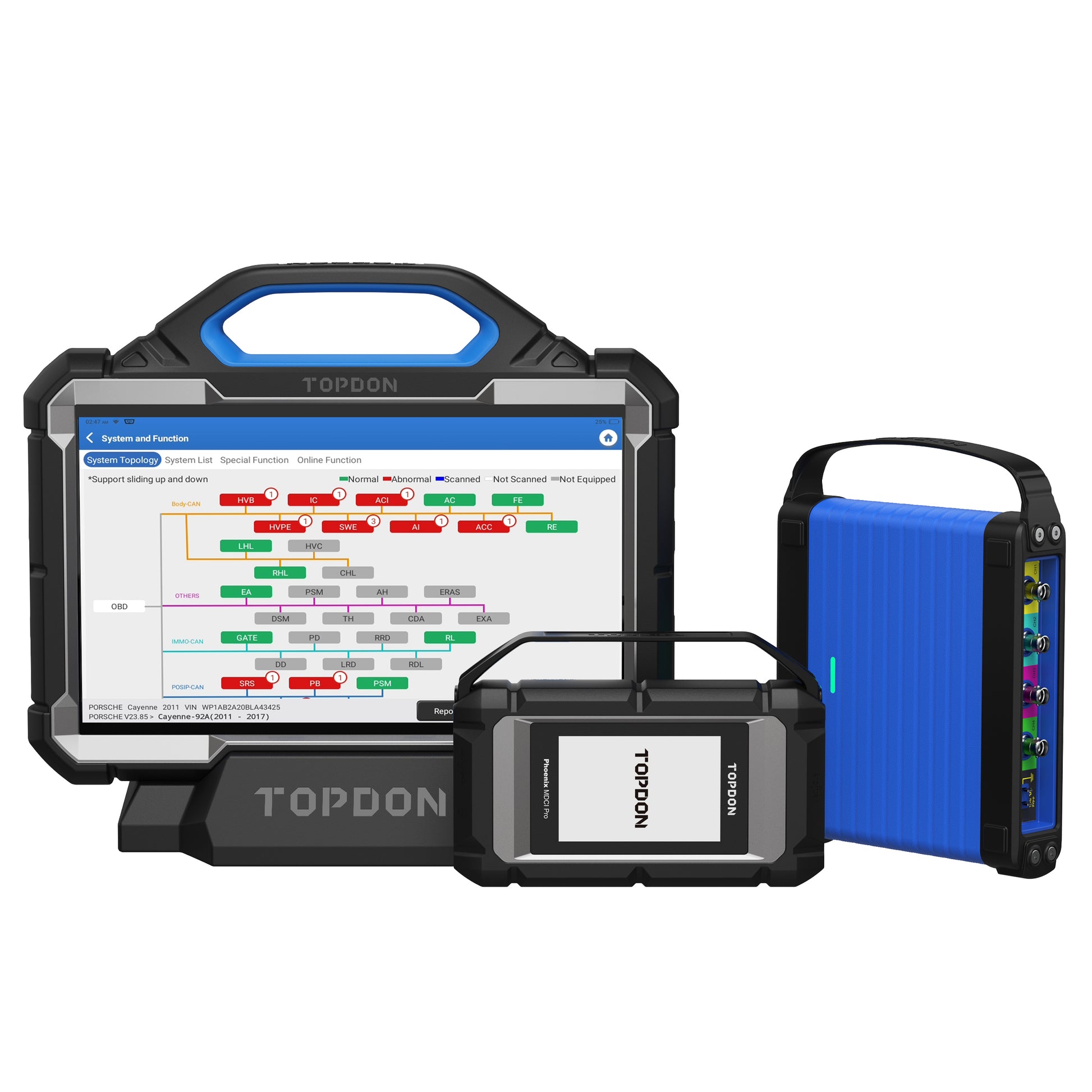
Phoenix Max Freezes, Reboots, or Runs Slowly
A scan tablet can slow down when storage is nearly full or when many apps run in the background. Large vehicle software packages also need free space for downloads and installation.
Try the following:
• Restart the tablet fully instead of only locking the screen.
• Close unused apps.
• Delete old screenshots and unnecessary files.
• Keep enough free storage for system and vehicle updates.
• Install updates on a stable Wi-Fi network.
• Avoid using the tool in extreme heat or cold.
Do not repeatedly press buttons while the Phoenix Max is loading a vehicle database. That can make a slow process appear frozen and may interrupt a download.
If the device freezes during one brand’s software but works normally with another, the issue may relate to that vehicle package. Record the vehicle make, model, year, engine, software version, and exact screen where the fault occurs. This information helps technical support find the cause faster.
In my experience with scan tool workflows, rushed restarts cause more trouble than they solve. Give the tablet a short pause, then use one controlled restart rather than several rapid power cycles.
TOPDON Phoenix Max Cannot Connect to the Vehicle
A vehicle connection error often points to the data link connector, ignition state, cable, or vehicle voltage. The tablet may be working correctly even when communication fails.
Use this sequence:
- Turn the ignition off.
- Locate the vehicle’s OBD-II port.
- Check for dirt, pushed-back terminals, or physical damage.
- Plug the diagnostic cable in firmly.
- Turn the ignition on.
- Select the vehicle manually if automatic identification fails.
- Try a full system scan.
The OBD-II port usually sits below the dashboard, but its location varies. Some vehicles use extra manufacturer connectors or require a gateway unlock procedure.
Make sure the cable is fully seated. A connector that feels attached may still have poor contact. Avoid forcing it, since damaged terminals can create intermittent communication faults.
If the tool connects to one vehicle but not another, compare the vehicles rather than assuming the tablet is defective. Check battery voltage, port power, fuse condition, and whether the selected software supports that model.
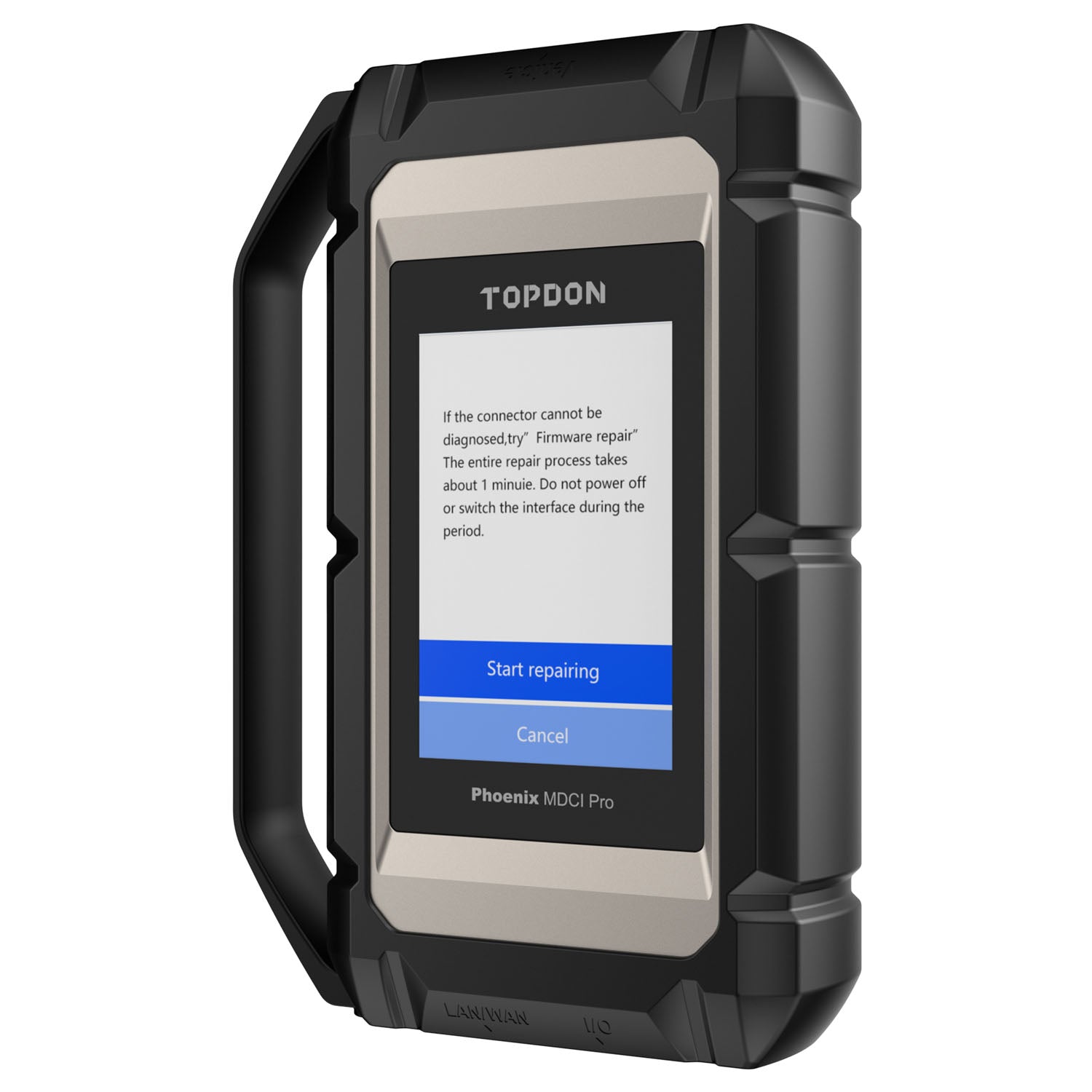
Fixing Automatic Vehicle Identification Errors
Automatic identification is convenient, but it is not perfect. Some vehicles do not transmit enough information through the diagnostic network, especially when the ignition is off or the battery is weak.
When automatic VIN detection fails:
• Select the vehicle make manually.
• Enter the model year, engine, and system when requested.
• Confirm the VIN against the vehicle.
• Use the correct regional model.
• Turn off aftermarket alarms, remote starters, or gateway devices if they interfere.
A wrong vehicle selection can lead to missing modules, incorrect fault descriptions, or unavailable special functions. This is one of the most important parts of TOPDON Phoenix Max troubleshooting.
Never choose a nearby model simply because it looks similar. Engine options, control modules, network systems, and software can vary by trim level and market.
If manual selection works but automatic identification does not, the scanner may be fine. The issue may be a vehicle communication condition rather than a hardware failure.
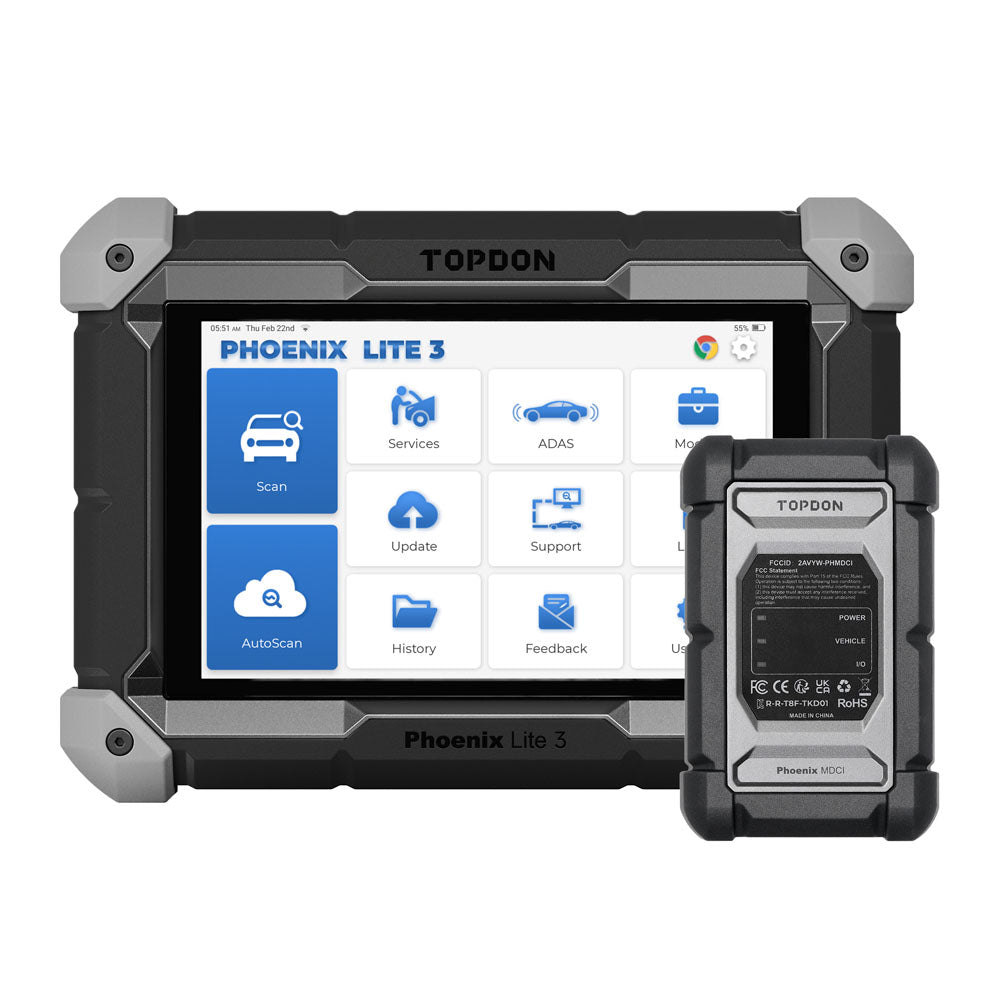
TOPDON Phoenix Max Software Update Problems
Software updates may fail because of weak Wi-Fi, low storage, an expired license, server traffic, or an interrupted power supply. Update errors do not always mean the tablet is damaged.
Before updating:
• Charge the tablet.
• Connect to a reliable private Wi-Fi network.
• Keep the screen awake during the download.
• Free storage space if needed.
• Confirm the device date and time are correct.
• Avoid mobile hotspots with unstable signals.
If an update stops, restart the tablet and check the update menu again. Do not repeatedly delete system files or install unknown software from outside official channels.
Vehicle coverage depends on software version, region, subscription status, and manufacturer access. A Phoenix Max may support a function in one market but not another. Coverage can also change as vehicle makers update security systems.
For a failed update, save the error message and note the package name. A clear screenshot is often more useful than a general report such as “the update does not work.”
Wi-Fi, Bluetooth, and Internet Connection Issues
The Phoenix Max needs internet access for updates, cloud functions, account services, and some data features. A strong signal at home does not guarantee a strong signal inside a metal workshop.
Try these network fixes:
- Move the tablet close to the router.
- Forget the Wi-Fi network.
- Restart the router.
- Re-enter the password carefully.
- Test another trusted network.
- Disable a VPN or restricted network profile.
- Check whether other devices can access the internet.
Bluetooth issues may involve the diagnostic VCI rather than the tablet. Keep the VCI near the tablet, remove other active Bluetooth devices, and confirm that the correct VCI is selected in the app.
Do not pair the VCI through the tablet’s general Bluetooth menu unless the product instructions require it. Many scan tools manage the connection inside their own diagnostic application.
Public Wi-Fi may block required ports or login services. A private workshop network is usually more reliable and safer for diagnostic updates.

Fixing Diagnostic Communication and Network Errors
Modern vehicles use several communication systems, including CAN, CAN-FD, DoIP, and manufacturer-specific gateway designs. A scan tool may connect to the vehicle but fail to reach one or more modules.
Common causes include:
• Low vehicle battery voltage.
• A blown diagnostic fuse.
• An open or shorted network wire.
• A sleeping vehicle network.
• An active security gateway.
• Incorrect vehicle selection.
• Unsupported software or hardware.
Try a full vehicle power cycle. Turn the ignition off, lock the vehicle, wait several minutes, and then reconnect. Follow the vehicle maker’s instructions, since some cars need a longer sleep period.
Do not unplug modules or probe network wires without proper training. CAN and gateway circuits are sensitive, and careless testing can damage control units.
If other professional scan tools also fail to communicate, suspect a vehicle-side fault. If only the Phoenix Max fails, test another approved cable or VCI and check software compatibility.
TOPDON Phoenix Max troubleshooting cannot replace electrical diagnosis. A scan tool reports what it can see; it does not repair a broken network.
Trouble Reading or Clearing Fault Codes
A diagnostic trouble code is a clue, not a final diagnosis. For example, a communication code may come from low voltage, wiring damage, a failed module, or a temporary network interruption.
Use this process:
- Record every code before clearing anything.
- Save freeze-frame data when available.
- Note whether each code is current, pending, or stored.
- Check related modules for matching faults.
- Test the suspected circuit.
- Repair the cause.
- Clear codes and perform a drive cycle.
Avoid clearing codes before saving the report. Once erased, important operating conditions may be lost.
A code reader can show a sensor-related fault even when the sensor is not the true cause. A damaged power supply, poor ground, or broken signal wire may create the same symptom.
After repairs, rescan the vehicle. A code that returns immediately needs more testing. A code that stays gone after a normal drive cycle may have resulted from a temporary condition, but always confirm the repair with evidence.

Special Functions, Coding, and Active Tests
The Phoenix Max can offer advanced functions on supported vehicles. These may include battery registration, service resets, actuator tests, adaptations, key functions, and coding. Availability is not identical for every model.
Before using a special function:
• Connect a stable battery support unit.
• Read the on-screen instructions.
• Confirm the vehicle identity.
• Record original values when the tool allows it.
• Turn off unnecessary electrical loads.
• Do not interrupt the process.
Coding and programming are not the same. Coding changes configuration data. Programming may write software to a control module and carries greater risk.
Never guess a coding value. A wrong configuration can disable features or create additional faults. Some functions also require security access, online authorization, or a separate subscription.
If a function is missing, check vehicle coverage, software version, region, and prerequisites. The absence of a menu does not automatically mean the Phoenix Max is defective.
TOPDON Phoenix Max Does Not Program a Module
Module programming needs stable power, reliable communication, and correct software. It should not be treated like a normal code scan.
Before programming:
- Use a suitable regulated battery support unit.
- Confirm the vehicle identification.
- Close doors and switch off electrical loads as instructed.
- Disable sleep settings on the tablet.
- Use a dependable internet connection.
- Do not move the cable or VCI.
- Follow every on-screen step.
A voltage drop during programming can leave a control module in an incomplete state. This may require factory recovery equipment or specialist support.
Programming support can vary by brand. Some manufacturers require an approved pass-through interface, an online account, or factory software. The Phoenix Max may not replace every factory programming system.
If programming fails, do not repeat the process blindly. Record the failure point, voltage reading, error code, and module status. Then contact TOPDON support or a qualified repair specialist.
When the VCI or Cable Is the Problem
The vehicle communication interface and cable are common failure points because they are handled often and exposed to workshop conditions.
Inspect for:
• Bent or recessed connector pins.
• Cracked plastic.
• Loose strain relief.
• Damaged cable insulation.
• Corrosion or moisture.
• Intermittent lights on the VCI.
Test the Phoenix Max with another approved cable or vehicle when possible. This simple comparison can separate a tool problem from a vehicle problem.
Keep the VCI away from oil, water, welding equipment, and excessive heat. Store the cable without tight bends. Never pull it from the vehicle by the wire.
A replacement cable should match the exact Phoenix Max system. Random OBD cables may lack required wiring, shielding, or communication support.
Touchscreen, Display, and App Problems
If taps do not register, clean the screen with a soft, dry cloth. Remove thick gloves, damaged screen protectors, or objects that may press against the display.
For app problems:
• Close and reopen the diagnostic app.
• Restart the tablet.
• Check for software updates.
• Confirm account access.
• Verify free storage.
• Record the app version and error message.
Do not install unofficial APK files or modify system settings without a clear reason. Unapproved software can create security risks and make support more difficult.
A screenshot helps explain a display problem. Include the full error, vehicle information, and the step that caused it.
A Practical TOPDON Phoenix Max Troubleshooting Checklist
Use this checklist in order:
- Confirm tablet battery charge.
- Inspect the cable and VCI.
- Check vehicle battery voltage.
- Turn the ignition on correctly.
- Select the exact vehicle.
- Test the diagnostic port.
- Confirm Wi-Fi access.
- Update the tablet and vehicle software.
- Scan all modules.
- Save codes before clearing them.
- Test the suspected circuit.
- Contact support with complete details.
This order saves time because it moves from low-risk checks to deeper diagnosis. It also prevents a common mistake: replacing parts before proving the fault.
Keep a simple record for each difficult case. Write down the vehicle, symptom, codes, voltage, software version, and test results. Good notes turn a confusing fault into a short story with a clear next step.
Mistakes to Avoid During Troubleshooting
Some actions can make a small problem much worse. Avoid these common errors:
• Clearing codes before saving data.
• Programming without battery support.
• Choosing the wrong vehicle model.
• Using an unapproved cable.
• Updating over unstable Wi-Fi.
• Disconnecting the VCI during a test.
• Treating every code as proof that a part is bad.
• Ignoring low system voltage.
• Repeating a failed coding process without finding the cause.
The best diagnostic work is controlled and measured. Change one variable at a time. After each change, test again and record the result.
Also remember that scan data has limits. A tool cannot confirm a mechanical failure, damaged wiring, poor grounds, or a failed sensor without suitable tests.
When to Contact TOPDON Support or a Specialist
Contact support when the tablet will not charge, repeated updates fail, the VCI will not connect to several known-good vehicles, or a supported function disappears after an update.
Provide:
• Serial number and model.
• Software and firmware versions.
• Vehicle make, model, year, and engine.
• Exact error message.
• Steps that cause the problem.
• Photos or screenshots.
• Results from cable, Wi-Fi, and vehicle tests.
For safety, stop work if you notice smoke, heat damage, battery swelling, exposed wiring, or signs of a short circuit. Vehicle programming and high-voltage electric vehicle systems also require specialist training and proper equipment.
Product coverage changes over time. Always compare current vehicle support, subscription terms, and manufacturer requirements before relying on a function for customer work.
Frequently Asked Questions About TOPDON Phoenix Max Troubleshooting
Why will my TOPDON Phoenix Max not connect to a vehicle?
Check the vehicle battery, ignition position, diagnostic port, cable, and selected model. If the tool works on another vehicle, the first vehicle may have a fuse, gateway, wiring, or power problem.
How do I fix TOPDON Phoenix Max update errors?
Charge the tablet, use stable private Wi-Fi, free storage, and restart the device before trying again. Save the error message if the update still fails, then contact support with the tablet and software details.
Can a low car battery stop the Phoenix Max from working?
Yes. Low voltage can prevent modules from waking up and can interrupt communication during scans or programming. Use a suitable battery support unit during long diagnostic functions.
Why does the Phoenix Max find the VIN incorrectly?
Automatic VIN detection can fail when the vehicle does not send complete identification data or when the network is asleep. Select the make, model, year, engine, and region manually, then confirm the VIN before scanning.
Can I use the Phoenix Max for module programming?
It may support programming or coding on selected vehicles, but coverage and requirements vary. Use stable power, follow all instructions, and confirm whether factory software, online access, or a special interface is required.
Why does a fault code return after I clear it?
The code usually returns because the underlying fault remains active. Check freeze-frame data, wiring, power, grounds, related modules, and live data instead of replacing a part based only on the code.
What should I do if the Phoenix Max freezes during a scan?
Wait briefly, then perform one controlled restart if the screen remains unresponsive. Check storage, heat, software version, and vehicle voltage before repeating the scan.
Conclusion
TOPDON Phoenix Max troubleshooting starts with stable power, a sound cable, correct vehicle selection, reliable internet, and updated software. From there, save diagnostic data, test one cause at a time, and treat fault codes as clues rather than final answers.
Use the checklist before replacing parts or repeating a failed coding task. With careful notes and safe working habits, you can solve many Phoenix Max problems faster and avoid costly mistakes. Explore the latest product support resources, keep your software current, and share your troubleshooting experience with other technicians.




One Comment