FOXWELL NT301 Troubleshooting: Easy Fixes And Tips
Most FOXWELL NT301 problems come from weak power, poor connections, wrong settings, or vehicle compatibility limits.
FOXWELL NT301 Troubleshooting is often simple once you follow a clear test order. This guide explains common scanner errors, connection problems, code issues, update steps, and safe ways to read diagnostic data without guessing or replacing parts too soon.
What the FOXWELL NT301 Does
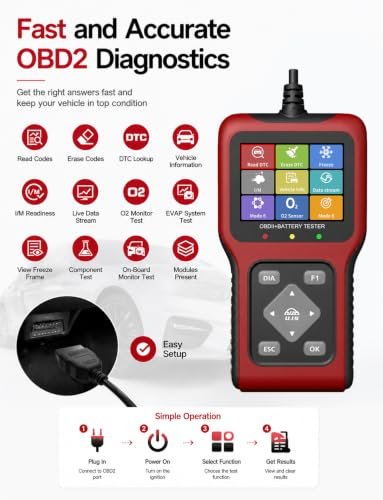
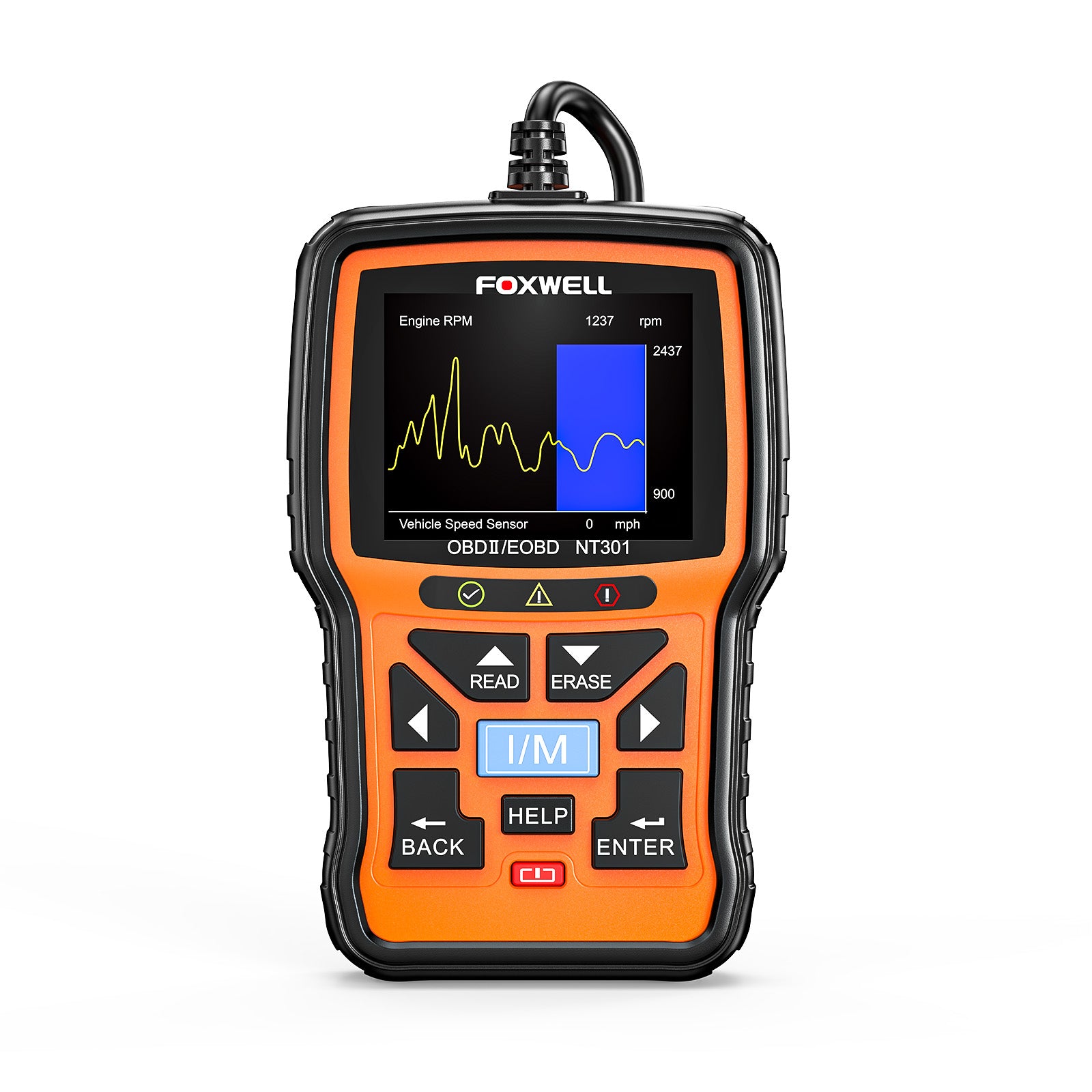
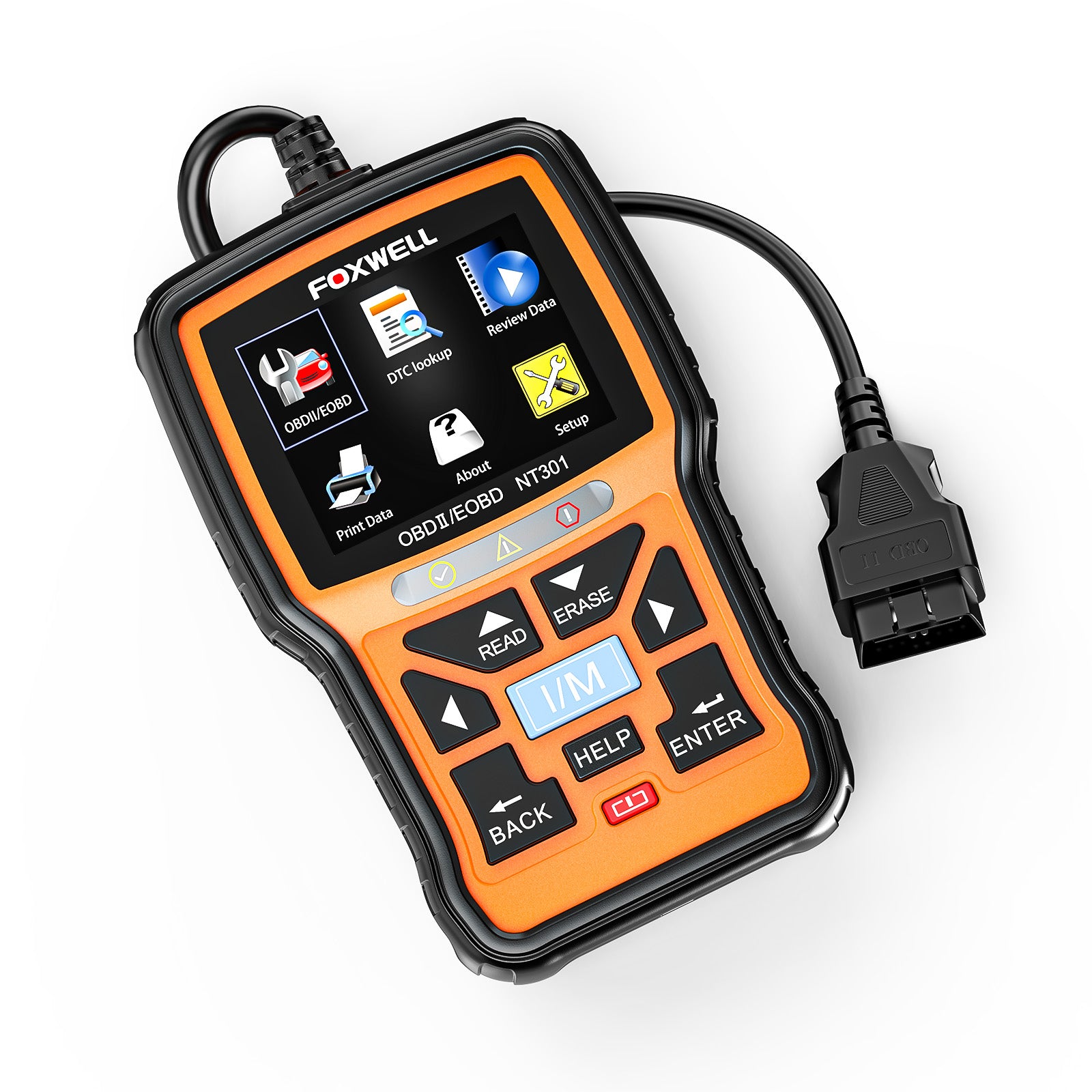
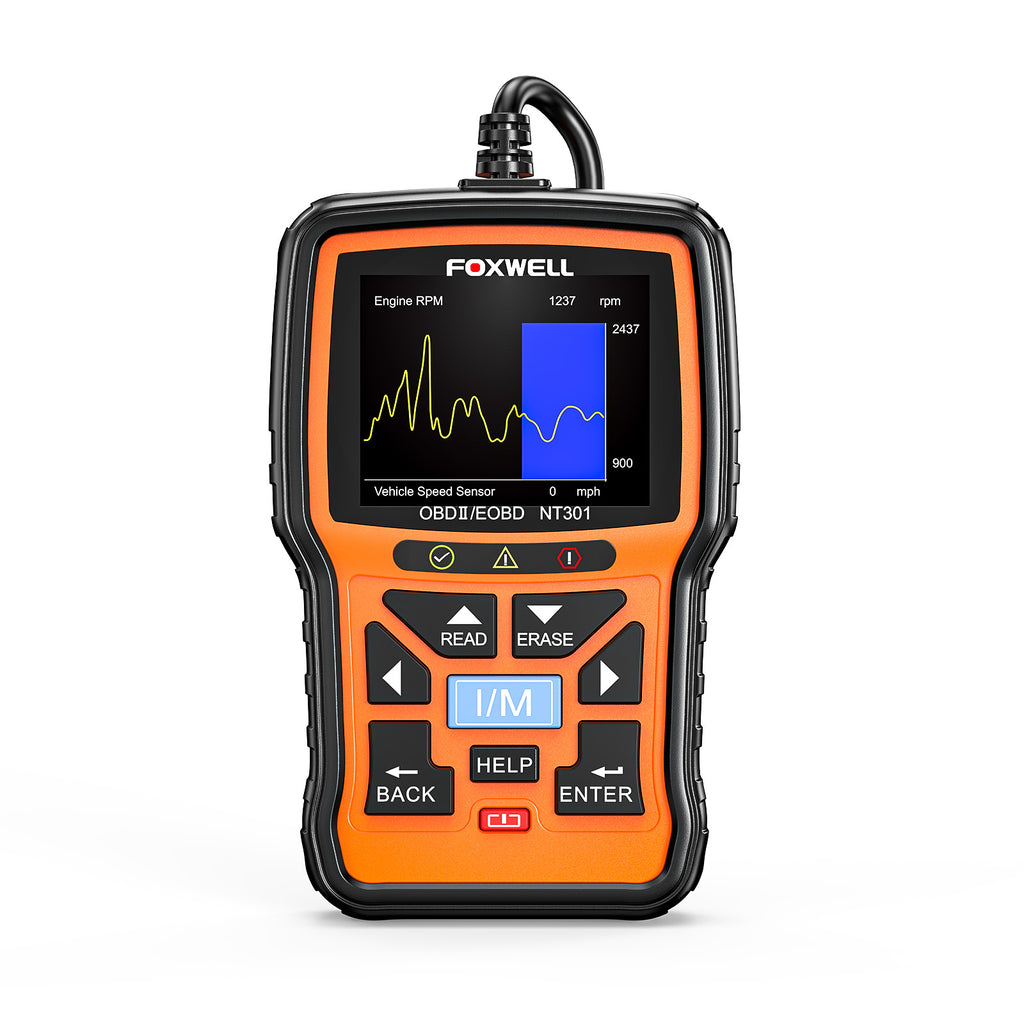
The FOXWELL NT301 is a handheld OBD2 code reader for checking engine and emissions systems. It can read diagnostic trouble codes, clear codes, show live data, display I/M readiness, and turn off the check engine light when the fault has been repaired.
The tool connects through the vehicle’s 16-pin OBD2 diagnostic port. Most US vehicles built from 1996 onward support standard OBD2 for emissions-related diagnosis. However, support can vary by vehicle, engine, market, and system.
The NT301 is useful for:
- Reading stored trouble codes
- Reading pending trouble codes
- Clearing diagnostic trouble codes
- Viewing live engine data
- Checking oxygen sensor information
- Viewing freeze-frame data
- Checking emissions readiness monitors
- Testing the malfunction indicator lamp
- Reviewing vehicle information
It is important to understand one limit. The NT301 is mainly an engine and emissions scanner. It may not access advanced systems such as airbags, anti-lock brakes, body control modules, transmission modules, or manufacturer-specific functions.
Think of the scanner as a translator. It can show what the vehicle computer detected, but it cannot repair the cause by itself.
FOXWELL NT301 Troubleshooting: Start With the Basics
Before testing complex faults, check the simple items first. Many FOXWELL NT301 problems are caused by low vehicle voltage, a dirty diagnostic port, or a loose connection.
Follow this basic inspection:
- Turn the ignition off.
- Find the OBD2 port under the dashboard.
- Check the port for dirt, bent pins, moisture, or loose plastic.
- Plug the NT301 connector in firmly.
- Turn the ignition key to the ON position.
- Keep the engine off unless the test requires live engine data.
- Wait for the scanner to power up and communicate.
The ignition must usually be switched to ON before the scanner can talk to the vehicle computer. On a push-button vehicle, press the button without pressing the brake pedal. The exact process may vary by model.
Do not force the connector. A bent terminal can damage the vehicle port or the scanner cable. If the plug feels unusually tight, inspect both sides before applying more pressure.
A useful workshop habit is to test the scanner on a second compatible vehicle. This separates a tool problem from a vehicle problem. If the NT301 works normally on another car, the first vehicle may have a power, wiring, or communication fault.

FOXWELL NT301 Has No Power
A blank screen is one of the most common reasons people search for FOXWELL NT301 Troubleshooting help. The NT301 normally receives power through the OBD2 port, so it does not use a separate internal battery for standard operation.
Check these points:
- Make sure the ignition is in the ON position.
- Push the connector fully into the OBD2 port.
- Test the vehicle battery voltage.
- Inspect the OBD2 port for damage.
- Check the vehicle fuse linked to the diagnostic connector.
- Try the scanner on another compatible vehicle.
- Look for damage to the scanner cable.
Many vehicles have a fuse that powers the diagnostic port. If that fuse is open, the scanner may remain completely dark. The fuse location depends on the vehicle, so check the vehicle owner’s manual or fuse panel diagram.
A weak battery can also cause strange behavior. The scanner may power on but shut down during communication if voltage drops too low. A healthy, fully charged 12-volt battery often measures close to 12.6 volts with the engine off, though battery readings can vary with temperature and condition.
Do not replace a fuse with a higher-rated fuse. That can damage wiring and create a fire risk. Use the correct rating and investigate why the original fuse failed.
If the NT301 stays blank on several known-good vehicles, the cable or scanner may need professional evaluation. Avoid opening the unit if it is still covered by a warranty.
FOXWELL NT301 Cannot Connect to the Vehicle
Sometimes the NT301 turns on but displays a message such as “Linking Error,” “Communication Error,” or “Unable to Connect.” This usually means the scanner has power but cannot exchange data with the vehicle.
Try this sequence:
- Turn the ignition off.
- Unplug the scanner.
- Wait about 30 seconds.
- Plug it back in.
- Turn the ignition to ON.
- Select the correct vehicle or diagnostic option.
- Start the communication process again.
If the problem continues, confirm that the vehicle uses standard OBD2 communication. Some older vehicles use nonstandard connectors or systems. Some imported vehicles may also use a different diagnostic system in their home market.
Check for aftermarket equipment. Remote starters, alarm systems, radio wiring, tracking devices, and poorly installed accessories can interfere with the diagnostic network. A damaged OBD2 port can also prevent communication.
The vehicle may have a network problem if multiple modules show communication faults. In that case, the scanner is reporting a symptom rather than causing the problem. A technician may need to test CAN bus wiring, module power, grounds, and network resistance.
FOXWELL NT301 Troubleshooting should always begin with a physical check. A scan tool cannot communicate through a port that has no power, no ground, or damaged data terminals.

FOXWELL NT301 Shows an Incorrect Vehicle or Protocol Error
The NT301 can support common OBD2 protocols, including systems used by many modern vehicles. Still, automatic protocol detection may fail when the vehicle has low voltage, wiring problems, or a nonstandard diagnostic setup.
If the scanner shows an incorrect vehicle, review the vehicle details carefully. Select the correct year, make, model, engine, and region when the menu asks for them.
Also check the following:
- Confirm the vehicle identification number if the scanner requests it.
- Make sure the ignition is on.
- Check battery voltage.
- Disconnect other scan tools or accessories.
- Inspect the port pins.
- Try a second scan attempt after cycling the ignition.
- Confirm that the vehicle is OBD2 compliant.
A protocol error does not always mean the scanner is defective. It can point to a vehicle-side issue. For example, a blown diagnostic fuse may still allow limited power through one circuit while blocking communication on another.
Vehicles sold outside the United States may have different coverage rules. A car can have a 16-pin connector and still require a manufacturer-specific tool for some functions. Connector shape alone does not guarantee full compatibility.
If the NT301 works on newer vehicles but not an older vehicle, check the older vehicle’s diagnostic standard and port wiring. Some early systems use a connector that looks similar but does not follow modern OBD2 pin assignments.
FOXWELL NT301 Will Not Read Trouble Codes
If the scanner connects but reports “No Codes,” that does not always mean the vehicle has no problem. It means the NT301 did not find stored or pending codes in the systems it can access.
Possible reasons include:
- The fault is not related to the engine or emissions system.
- The code is stored in a module the NT301 cannot access.
- The problem has not happened often enough to set a code.
- The battery was recently disconnected.
- Codes were cleared before scanning.
- The fault is intermittent.
- The scanner is using the wrong vehicle selection.
A check engine light that is off may still have pending codes. Use the scanner’s pending code option when available. Pending codes are early warnings and may not yet turn on the malfunction indicator lamp.
Freeze-frame data can help you understand when a code was set. It may show engine speed, coolant temperature, vehicle speed, fuel trim, and load at the moment of the fault. Record this information before clearing anything.
Do not assume “no code” means “no issue.” A vehicle can have poor brakes, a failing transmission, an airbag fault, or a mechanical engine problem without showing a code on a basic OBD2 scanner.
This is one of the most important FOXWELL NT301 Troubleshooting lessons: scan results are evidence, not a final diagnosis.

FOXWELL NT301 Displays a Trouble Code
A diagnostic trouble code identifies a system or condition that the vehicle computer noticed. It does not always identify the failed part.
Codes usually begin with a letter:
- P codes relate to the powertrain.
- B codes relate to the body.
- C codes relate to the chassis.
- U codes relate to network communication.
The NT301 may display a code such as P0420, P0301, P0171, or P0455. Read the full description, but treat it as a starting point.
For example, a misfire code can result from:
- A worn spark plug
- A weak ignition coil
- A fuel injector problem
- A vacuum leak
- Low fuel pressure
- Low compression
- Incorrect valve timing
A lean mixture code can result from an intake leak, dirty airflow sensor, low fuel pressure, or an exhaust leak near an oxygen sensor. Replacing the oxygen sensor immediately may not fix the real problem.
Use this diagnostic method:
- Write down every code.
- Save freeze-frame data.
- Check whether the code is current, stored, or pending.
- Inspect related wiring and connectors.
- Test the most likely causes.
- Repair the confirmed fault.
- Clear the code only after recording the information.
- Drive the vehicle through a suitable test cycle.
- Rescan to confirm the repair.
Do not erase codes before writing them down. Clearing codes also resets many emissions readiness monitors. This can matter before an emissions inspection.

FOXWELL NT301 Will Not Clear Codes
The NT301 can clear many engine and emissions codes after a successful connection. However, a code may return quickly if the fault remains active.
Before clearing codes, follow these steps:
- Turn off accessories such as lights and climate control.
- Keep the ignition on as directed by the scanner.
- Do not start the engine unless instructed.
- Confirm that the scanner is firmly connected.
- Record all codes and freeze-frame data.
- Use the erase function only after diagnosis.
If the check engine light returns immediately, the vehicle may still detect the same problem. This is normal behavior. Clearing a code does not repair the vehicle; it only removes stored information and turns off the warning when conditions allow.
Some codes cannot be cleared with a basic OBD2 tool. Permanent diagnostic trouble codes may remain until the vehicle completes its own drive cycles and confirms that the fault is fixed. Disconnecting the battery is not a reliable substitute and can erase useful settings.
A flashing check engine light often indicates a severe misfire that may damage the catalytic converter. Stop driving when it is unsafe, reduce engine load, and arrange professional diagnosis.
Good FOXWELL NT301 Troubleshooting means asking why the code appeared instead of repeatedly deleting it.

FOXWELL NT301 Live Data Problems
Live data helps you view sensor readings while the engine runs. It can show values such as:
- Engine coolant temperature
- Engine speed
- Vehicle speed
- Short-term fuel trim
- Long-term fuel trim
- Throttle position
- Intake air temperature
- Oxygen sensor data
- Engine load
- Fuel system status
Some readings may look unusual until you understand the operating conditions. Coolant temperature should rise as the engine warms. Fuel trim changes with load, engine temperature, air leaks, fuel delivery, and sensor input.
Do not judge one live-data value by itself. Compare related readings and watch how they change. For example, positive fuel trim suggests the computer is adding fuel, but the cause could be unmetered air, low fuel pressure, or inaccurate airflow measurement.
The NT301 may display data slowly on some vehicles. Large data lists can also make the screen harder to read. Select only the values that matter for the problem.
Live data is helpful, but it is not the same as a lab test. A sensor may show a believable value while responding too slowly. A technician may need a multimeter, pressure gauge, oscilloscope, smoke machine, or manufacturer-level scan tool for deeper testing.
FOXWELL NT301 Software and Update Troubleshooting
Software updates can improve vehicle coverage and correct known issues. The exact update process depends on the NT301 version and the manufacturer’s current support tools.
Before updating:
- Confirm the exact model number.
- Use the official FOXWELL support page for the correct software.
- Install the required update program on a compatible computer.
- Use a reliable USB cable.
- Keep the computer connected to power.
- Do not unplug the scanner during the update.
- Restart the scanner after the update finishes.
A common mistake is downloading software for a similar model. NT301, NT301 Plus, and other Foxwell scanners may have different files or update methods. Check the label on the tool before installing anything.
If the computer does not recognize the scanner, try another USB port and cable. Avoid USB hubs when possible. Restart the computer, reinstall the correct driver or update utility, and connect the tool only when the program requests it.
If an update fails, do not repeatedly disconnect the device during the process. Follow the recovery instructions from official support. Firmware errors can make the scanner unusable until the correct recovery procedure is completed.
FOXWELL NT301 Screen, Buttons, or Menu Problems
A frozen screen or unresponsive button can result from a temporary software lock, low voltage, cable movement, or a damaged keypad.
Try these steps:
- Unplug the scanner from the vehicle.
- Wait at least 30 seconds.
- Reconnect it with the ignition off.
- Turn the ignition to ON.
- Press one key at a time.
- Avoid pulling on the cable while navigating.
- Test the scanner on another vehicle.
Keep the scanner dry and away from extreme heat. Do not leave it on the dashboard in direct summer sunlight. Heat can affect electronic parts and the display.
If only one button fails, the keypad may be worn or damaged. If the screen has missing characters, dark areas, or flickers on multiple vehicles, the display or internal connection may need service.
Avoid using harsh cleaners. A soft, dry cloth is usually enough. Never spray liquid directly onto the scanner.
Safe and Accurate FOXWELL NT301 Troubleshooting Tips
A scan tool connects to important vehicle electronics, so safe use matters. Follow the vehicle manual and the scanner instructions for every test.
Use these best practices:
- Park safely before connecting the tool.
- Keep the transmission in Park or Neutral.
- Set the parking brake.
- Keep loose clothing away from moving parts.
- Do not touch hot exhaust parts.
- Do not clear codes before saving them.
- Do not test wiring by shorting terminals.
- Do not probe airbag circuits with an OBD2 scanner.
- Keep the scanner away from water.
- Stop if the vehicle behaves dangerously.
I have seen many owners focus on the code number and overlook the conditions around it. A better habit is to write down the mileage, weather, engine temperature, fuel level, and driving conditions. These details can reveal patterns that a single code cannot show.
Another common mistake is replacing the most expensive part named in a code description. Test first. A P0420 code, for example, does not prove that the catalytic converter is defective. Exhaust leaks, engine misfires, fuel mixture problems, and sensor issues can also affect the result.
When the fault involves safety systems, severe drivability problems, or repeated communication errors, professional testing is the safer choice.
When to Contact FOXWELL Support or a Repair Shop
Contact FOXWELL support when the scanner fails on several compatible vehicles, cannot complete an official update, or shows a hardware error. Keep the model number, serial information, software version, and error message ready.
Visit a repair shop when:
- The check engine light flashes.
- The engine runs poorly or stalls.
- The vehicle overheats.
- There is a fuel smell.
- The scan tool reports many network codes.
- The OBD2 port has damaged wiring.
- The code returns after a confirmed repair.
- The problem affects braking, steering, or airbag systems.
A repair shop may use a professional scan tool with access to manufacturer data, bidirectional controls, service resets, and advanced module tests. The NT301 remains useful for basic engine diagnosis, but it is not a replacement for every diagnostic tool.
The most reliable FOXWELL NT301 Troubleshooting process combines the scanner with visual inspection, electrical testing, service information, and safe road testing.
Frequently Asked Questions About FOXWELL NT301 Troubleshooting
Why does my FOXWELL NT301 have a blank screen?
The scanner may not be receiving power from the OBD2 port. Turn the ignition on, check the connector, inspect the diagnostic port, and test the related vehicle fuse.
Why will my FOXWELL NT301 not connect to my car?
The vehicle may have low battery voltage, a damaged OBD2 port, a blown fuse, or an unsupported diagnostic system. Unplug the tool, cycle the ignition, and try again after checking the connector.
Can the FOXWELL NT301 clear every check engine light?
No. It can clear many standard engine and emissions codes, but it may not access advanced modules or permanent codes. A warning light will return if the underlying fault remains.
Does “No Codes” mean my vehicle is fixed?
No. It only means the scanner did not find codes in the systems it could access. Mechanical problems, pending faults, and non-engine issues may still be present.
Why does my code come back after I erase it?
The vehicle has likely detected the same fault again. Check the code, inspect the related system, and complete a proper repair before clearing it again.
Can the FOXWELL NT301 diagnose ABS or airbag faults?
The standard NT301 is mainly designed for engine and emissions diagnosis. ABS, airbag, body, and transmission systems may require a model with advanced coverage or a professional scan tool.
Will disconnecting the car battery fix a scan tool error?
It may reset some vehicle electronics, but it is not a dependable repair. Disconnecting the battery can erase diagnostic information and reset learned settings, so save scan data first.
How do I update the FOXWELL NT301?
Use the official FOXWELL update method for your exact model. Confirm the model number, install the correct software, use a stable USB connection, and do not disconnect the tool during the update.
Conclusion
FOXWELL NT301 Troubleshooting is easier when you work from basic checks to advanced diagnosis. Start with power, the OBD2 connector, ignition position, battery voltage, and vehicle compatibility. Then save codes and freeze-frame data before clearing anything.
Remember that a trouble code points to a system, not always a failed part. Use live data carefully, test the likely cause, and seek professional help when the fault involves safety, network communication, or serious engine symptoms.
Use these steps the next time your NT301 fails to connect or returns a code. For more practical scan tool guides, explore related diagnostic resources and share your experience in the comments.