Innova 7100P Troubleshooting: Quick Fixes For Common Problems
Most Innova 7100P problems come from weak power, poor connections, outdated software, or vehicle systems the tool cannot access.
The Innova 7100P is a capable diagnostic scanner, but even good scan tools can show errors, fail to connect, or produce confusing results. This Innova 7100P troubleshooting guide explains the most common problems, safe fixes, code-reading tips, update steps, and limits of the device. The goal is simple: help you find the real cause without replacing parts based on a guess.
What the Innova 7100P Does
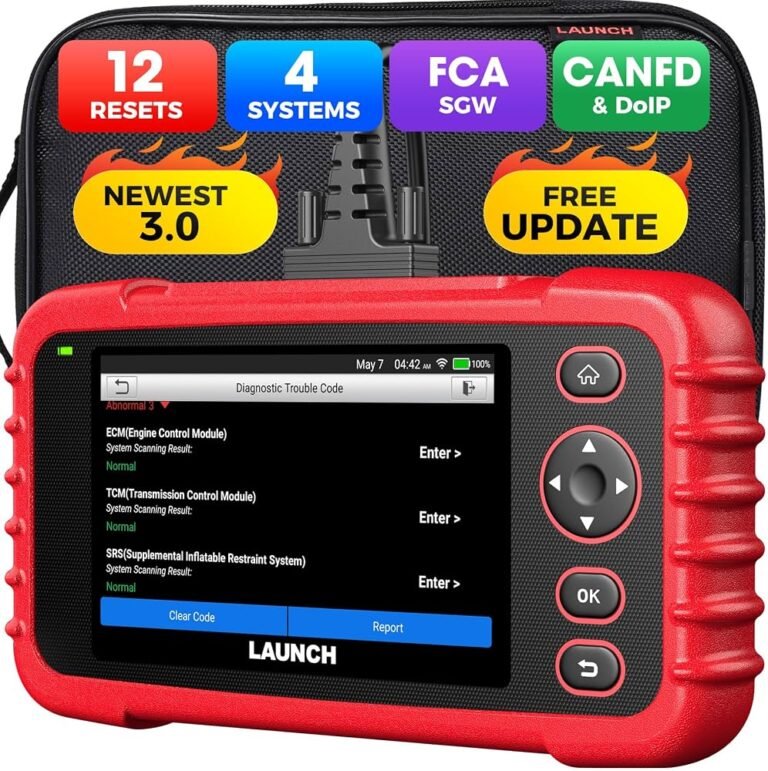
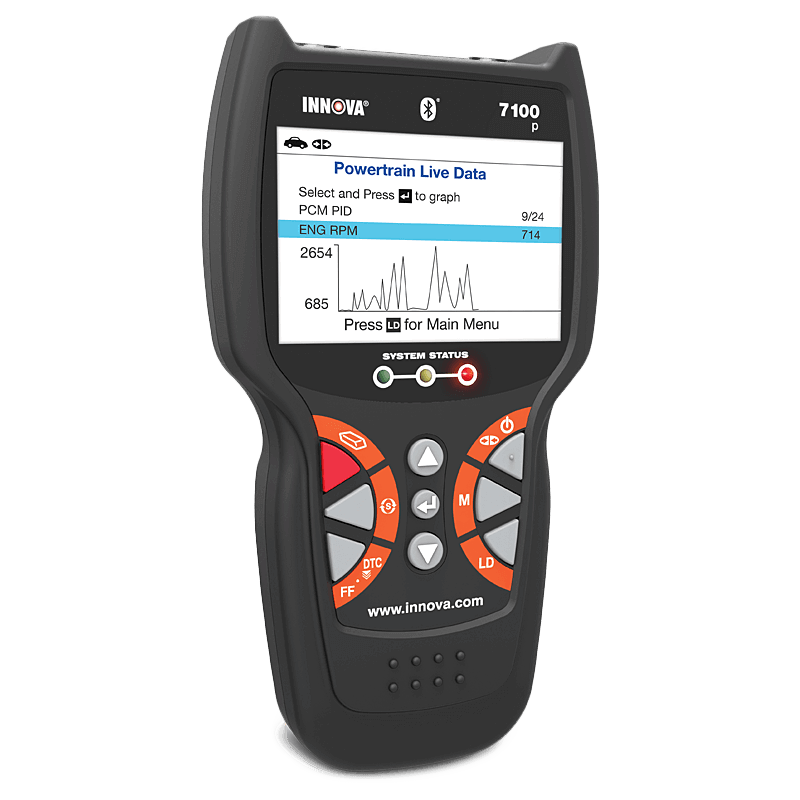
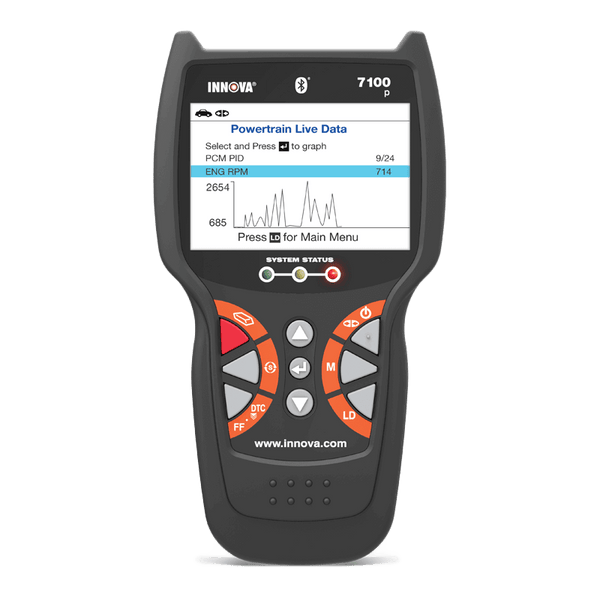
The Innova 7100P is an automotive scan tool for reading vehicle data and diagnostic trouble codes. It connects through the vehicle’s OBD-II diagnostic port and communicates with one or more onboard control modules.
Depending on the vehicle, software version, and supported system, the scanner may help with:
• Reading and clearing check engine codes
• Viewing live engine data
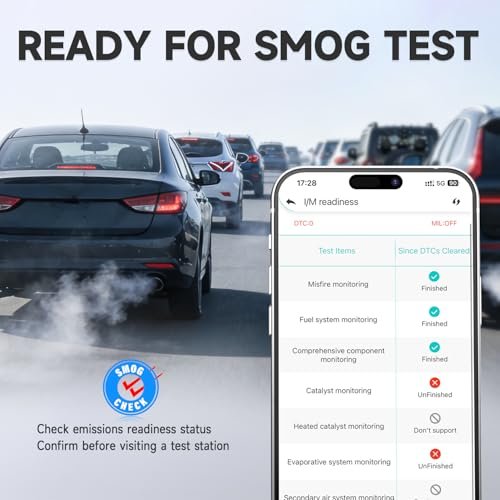
• Checking emissions readiness monitors
• Reading manufacturer-specific information
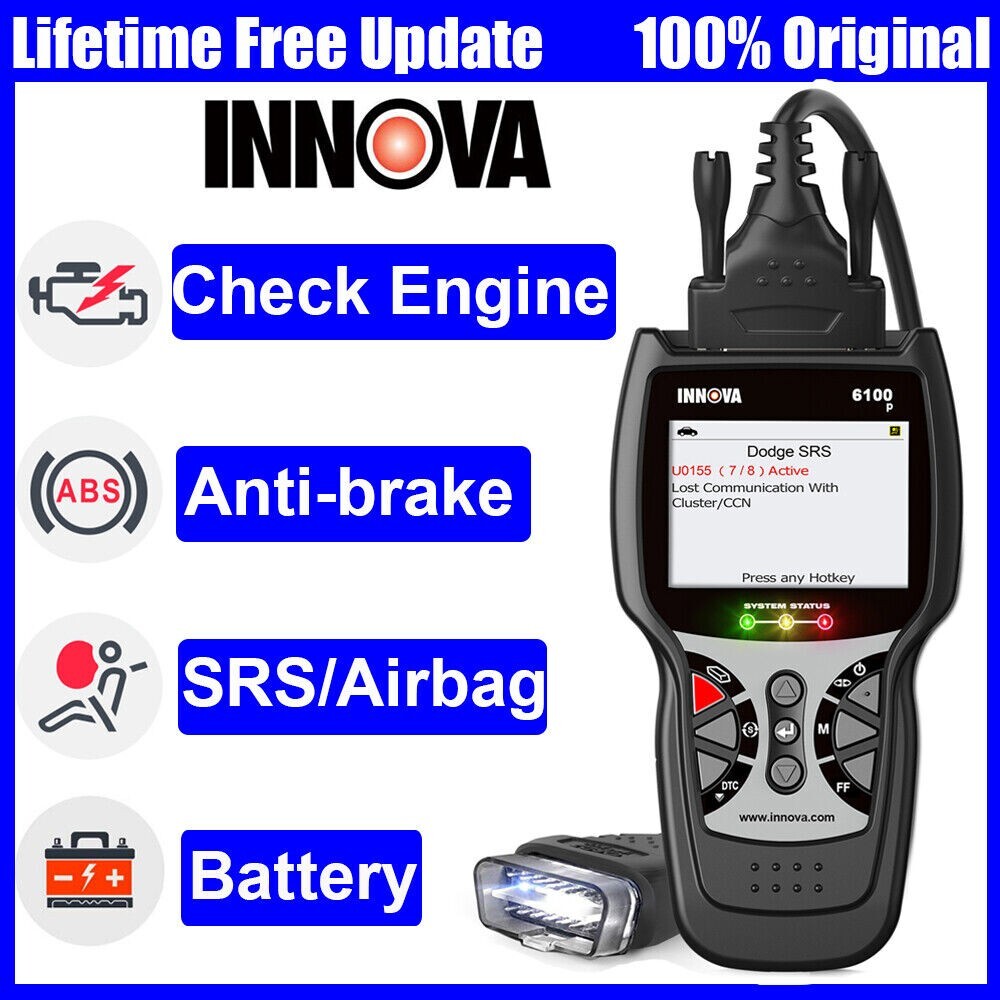
• Accessing selected ABS, airbag, transmission, or body systems
• Showing code definitions and repair information through supported services
The exact functions can vary by vehicle. A scanner may support a system on a 2020 model but not on a 2008 model. Always check vehicle coverage before assuming the tool is defective.
The Innova 7100P is best viewed as a fact-finding tool. It does not repair a vehicle by itself. It points you toward a system, circuit, or condition that needs testing.
Innova 7100P Troubleshooting: Start With Basic Checks
Many scanner problems are simple. Before testing advanced functions, check the tool, the vehicle, and the connection.
Check the vehicle battery
Low battery voltage can cause slow startup, failed communication, or random module errors. A healthy battery often measures about 12.4 to 12.7 volts with the engine off. With the engine running, many vehicles show about 13.7 to 14.7 volts.
These values are general guides, not a substitute for the vehicle service manual. Some modern charging systems use smart alternators and may show changing voltage.
Inspect the OBD-II port
The diagnostic port is usually under the driver’s side dash. Look for:
• Bent or pushed-back pins
• Dirt, rust, or moisture
• Loose wiring behind the port
• Aftermarket accessories blocking the connector
Never force the Innova 7100P into the port. A damaged terminal can create a connection problem or cause an electrical short.
Turn the ignition to the correct position
For most scans, place the key in the ON position without starting the engine. On push-button vehicles, press the button without pressing the brake pedal.
If the ignition is off, the scanner may turn on but fail to communicate. If the engine is running during a software update, the vehicle battery may drain or the update may fail.
Check the scanner cable and power
If the display stays blank, try these steps:
-
Remove the scanner from the vehicle.
-
Turn the ignition off.
-
Wait for about 30 seconds.
-
Reconnect the tool firmly.
-
Turn the ignition to ON.
-
Watch for the startup screen.
If the unit still has no power, test the OBD-II port. On many vehicles, the port receives power from a fuse. The fuse location differs by model.
Common Innova 7100P Problems and Fixes
Most Innova 7100P troubleshooting cases fall into a few clear groups. Start with the symptom that matches your problem.
The scanner will not turn on
A blank screen can result from a blown fuse, poor connector contact, a damaged cable, or an internal hardware fault.
Try the scanner on another compatible vehicle if possible. If it works there, the original vehicle may have a power or port problem. If it stays blank on several vehicles, contact Innova support before opening the case.
Do not apply outside power to the OBD-II connector. The tool is designed to receive power through the vehicle diagnostic port.
The scanner turns on but will not connect
A “link error” or “communication error” often means the tool cannot complete a connection with the vehicle computer.
Try the following:
• Confirm that the ignition is in the ON position.
• Turn off the radio, lights, and other accessories.
• Disconnect other devices from the vehicle’s diagnostic port.
• Unplug and reconnect the scanner.
• Select the correct vehicle manually if automatic identification fails.
• Check the vehicle battery voltage.
Some vehicles require a special connection process. Others may use more than one communication protocol. A failed link does not always mean the Innova 7100P is damaged.
The screen freezes
A frozen display may follow an interrupted scan, a low-voltage event, or a software issue. Disconnect the tool, wait briefly, and reconnect it with the ignition off.
If the freeze happens during one specific menu, record the vehicle year, make, model, engine, and function being used. That information helps support staff identify a coverage or software issue.
Avoid repeatedly unplugging the scanner while it is installing an update. An interrupted update can create a bigger problem than the original freeze.
The scanner keeps restarting
Repeated restarts usually point to unstable power, a loose OBD-II connection, or corrupted software. Test the tool on another vehicle and inspect the port for loose terminals.
A weak vehicle battery can also cause voltage drops when modules wake up. Charge or test the battery before blaming the scanner.
The scanner clears a code, but it comes back
Clearing a code only removes stored information. It does not repair the fault. If the vehicle detects the same problem again, the code will return.
For example, an oxygen sensor code may result from a damaged sensor, wiring fault, exhaust leak, vacuum leak, or fuel problem. Replacing the sensor without testing the circuit is a common and costly mistake.
How to Read Diagnostic Trouble Codes Correctly
A trouble code is a starting point, not a final diagnosis. The code tells you where the vehicle computer noticed a problem. It may not identify the failed part.
For example:
• P0301 usually points to a cylinder 1 misfire.
• P0420 may suggest low catalytic converter efficiency.
• P0455 often relates to a large evaporative emission system leak.
The code alone cannot prove which part has failed. A P0301 misfire may come from a spark plug, ignition coil, injector, vacuum leak, low compression, or wiring issue.
Use a logical test process:
-
Write down every stored and pending code.
-
Record freeze-frame data if available.
-
Note engine speed, coolant temperature, load, and vehicle speed.
-
Inspect related wires, hoses, connectors, and fuses.
-
Test the suspected circuit.
-
Repair the confirmed cause.
-
Clear the code and perform a road test.
-
Rescan the vehicle.
Freeze-frame data acts like a snapshot. It shows the conditions present when the fault was stored. That information can save time, especially when the issue occurs only during cold starts or hard acceleration.
Do not clear codes before recording them. Clearing them may erase useful evidence and reset readiness monitors.
Innova 7100P Troubleshooting for Live Data Problems
Live data can show sensor readings while the engine runs. It is useful, but it must be read in context.
A sensor value that looks unusual at idle may be normal during acceleration. Temperature, engine load, fuel control, and operating mode all affect readings.
When viewing live data, look for patterns:
• Does the value change smoothly?
• Does it respond when the throttle opens?
• Does it match a mechanical test?
• Does it agree with another related sensor?
• Does the reading stay fixed or show an impossible value?
A coolant temperature reading near room temperature before startup is often expected. A reading that jumps from cold to extremely hot within seconds may suggest a sensor or wiring issue.
Fuel trim data can also help. Large positive trim may suggest the engine computer is adding fuel because of a lean condition. Possible causes include vacuum leaks, low fuel pressure, or restricted injectors. These are examples, not automatic diagnoses.
The Innova 7100P can display useful information, but a professional diagnosis may still require a multimeter, test light, smoke machine, fuel pressure gauge, or oscilloscope.
When Innova 7100P Will Not Read ABS or Airbag Codes
Engine codes are often easier to access than body, ABS, or airbag codes. The ability to scan these systems depends on the vehicle and the tool’s coverage.
If the Innova 7100P cannot access ABS or SRS, check the following:
• Confirm that the vehicle is listed in the current coverage information.
• Use the correct vehicle identification details.
• Check the battery voltage.
• Inspect ABS and airbag fuses.
• Look for aftermarket alarm or remote-start wiring.
• Do not probe yellow airbag connectors without proper training.
Airbag systems can remain dangerous even when the ignition is off. Never test an airbag circuit with a standard test light. Follow the vehicle repair manual and safety procedures.
A warning light may also come from a fault that the scanner cannot access. In that case, a different scan tool with broader manufacturer-level coverage may be needed.

Updating the Innova 7100P
Software updates may improve vehicle coverage, fix bugs, and add code information. The update method can vary by device version and service plan, so use the official instructions that came with the scanner.
Before updating:
• Charge the scanner if it has an internal battery.
• Use a stable internet connection.
• Keep the computer or mobile device connected to power.
• Do not unplug the scanner during the update.
• Close other programs that may interfere with the update.
• Note the current software version.
If an update fails, restart the computer or mobile device and try again. Use a different USB cable if the tool connects by USB. Some cables provide power but do not carry data.
If the scanner becomes unresponsive after an update, do not attempt random firmware files from online forums. Incorrect firmware can permanently damage the device. Contact official support and provide the update error message.

A Practical Innova 7100P Troubleshooting Workflow
A repeatable process helps prevent guesswork. I have found that the best results come from treating the scanner like a flashlight: it shows the area to inspect, but it does not replace the inspection itself.
Use this workflow:
-
Confirm the customer complaint or vehicle symptom.
-
Check battery voltage and warning lights.
-
Inspect the diagnostic port and scanner connector.
-
Turn the ignition on correctly.
-
Scan for all available modules.
-
Save codes and freeze-frame data.
-
Search for related technical service information.
-
Perform a visual inspection.
-
Test the circuit before replacing a component.
-
Repair the confirmed fault.
-
Clear codes only after recording them.
-
Complete a road test and rescan.
One mistake I often see is replacing a part because its name appears in a code description. For example, a code may mention an oxygen sensor, but the real fault may be a broken wire or exhaust leak. Testing first usually costs less than guessing.
Keep a simple record of the code, mileage, conditions, test results, and repair. This makes intermittent faults much easier to track.
When to Stop Testing and Seek Professional Help
Basic Innova 7100P troubleshooting is safe for many engine and emissions problems. Some situations need professional equipment or training.
Seek help when:
• The vehicle has an airbag warning light.
• The scanner cannot communicate with several modules.
• The battery or charging system has unstable voltage.
• The code returns immediately after repair.
• The engine has low compression symptoms.
• Wiring is damaged near high-current circuits.
• The vehicle has water damage.
• The scanner shows an internal hardware error.
Modern vehicles use networks that connect many control modules. A fault in one module, fuse, ground, or communication wire can affect several systems. A professional technician may use wiring diagrams, a lab scope, network tests, and manufacturer software.
The Innova 7100P is helpful for many tasks, but it may not replace factory-level diagnostic equipment. Coverage limitations are normal and should be considered before buying additional parts or tools.
Tips to Prevent Future Scanner Problems
Good habits protect both the scanner and the vehicle.
• Keep the scanner firmware current.
• Store it in a dry, clean case.
• Do not pull it from the port by the cable.
• Avoid scanning during very low battery conditions.
• Use a battery charger for long diagnostic sessions when appropriate.
• Record codes before clearing them.
• Do not install unofficial software.
• Keep the vehicle ignition stable during tests.
• Inspect the OBD-II port after repairs or accessory installation.
If the tool displays a strange result, repeat the scan. One unusual reading is less useful than a pattern seen across several tests.
Frequently Asked Questions About Innova 7100P Troubleshooting
Why will my Innova 7100P not connect to my car?
Make sure the ignition is on, the scanner is firmly connected, and the vehicle battery is charged. If the tool still will not connect, inspect the OBD-II fuse and verify that your vehicle is supported.
Can the Innova 7100P clear a check engine light?
It may clear supported diagnostic trouble codes after you record them. The warning light can return if the underlying problem remains.
Why does the Innova 7100P show a code that does not match the failed part?
A trouble code identifies a detected fault area, not always the failed component. Wiring, connectors, air leaks, low voltage, and related parts can create the same code.
Can the Innova 7100P read ABS and airbag codes?
It may read selected ABS or SRS systems on supported vehicles. Coverage varies by year, make, model, and software version, so confirm compatibility before testing.
How do I fix a frozen Innova 7100P screen?
Disconnect the scanner, turn the ignition off, wait about 30 seconds, and reconnect it. If the screen keeps freezing, test the device on another compatible vehicle and contact support if the problem continues.
Will updating the Innova 7100P improve vehicle coverage?
Updates may add coverage, improve code information, or correct software problems. They cannot make every vehicle system compatible, so coverage limits still apply.
Should I replace a part as soon as a code appears?
No. First inspect the related wiring, connectors, fuses, and operating conditions. Confirm the failed component with a proper test before replacing it.
Conclusion
Effective Innova 7100P troubleshooting starts with basic checks, stable power, correct ignition settings, and a clean connection. Read codes as clues, save freeze-frame data, test the related circuit, and remember that clearing a code does not fix the cause.
The scanner can guide your diagnosis, but careful testing provides the answer. Use the workflow in this guide, follow the vehicle service information, and ask a qualified technician for help when safety or network faults are involved. If you have solved an Innova 7100P issue, share the symptoms and fix in the comments to help other vehicle owners.