TOPDON Phoenix Plus Troubleshooting: Fast Fix Guide
TOPDON Phoenix Plus troubleshooting starts with power, software, cables, network access, and correct vehicle selection.
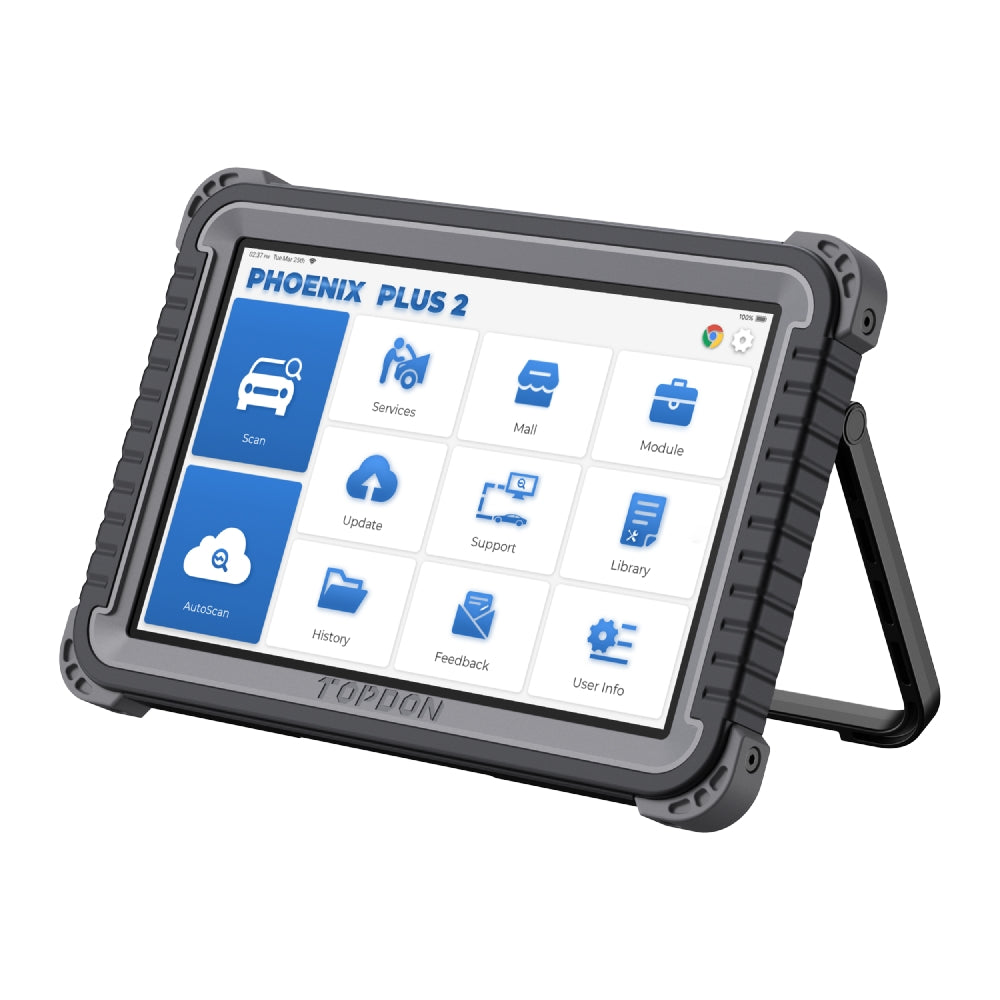
The TOPDON Phoenix Plus is a powerful diagnostic tablet, but even good scan tools can show errors when voltage is low, updates fail, or vehicle data is incomplete. This guide explains TOPDON Phoenix Plus troubleshooting in a clear, practical way. It covers common connection problems, update issues, diagnostic errors, special functions, and safe repair steps based on real workshop habits and standard vehicle diagnostic practice.

What the TOPDON Phoenix Plus Does
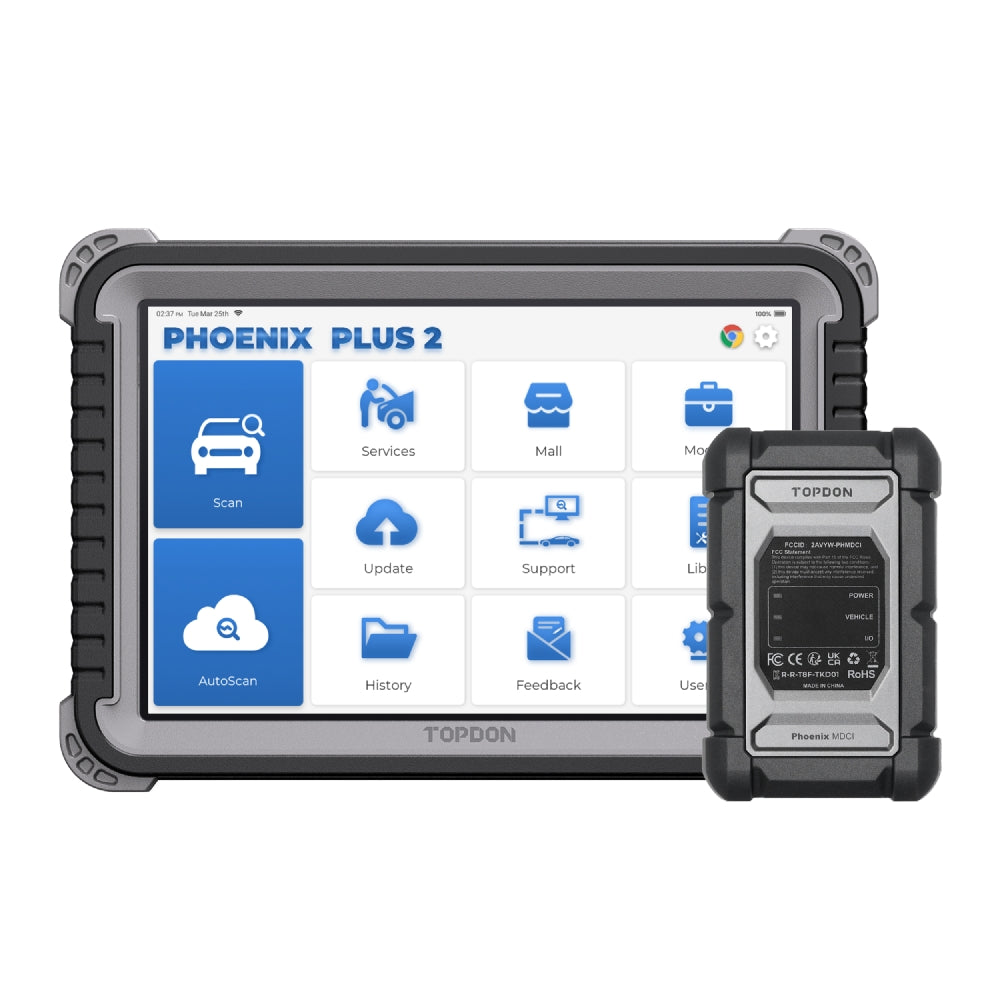
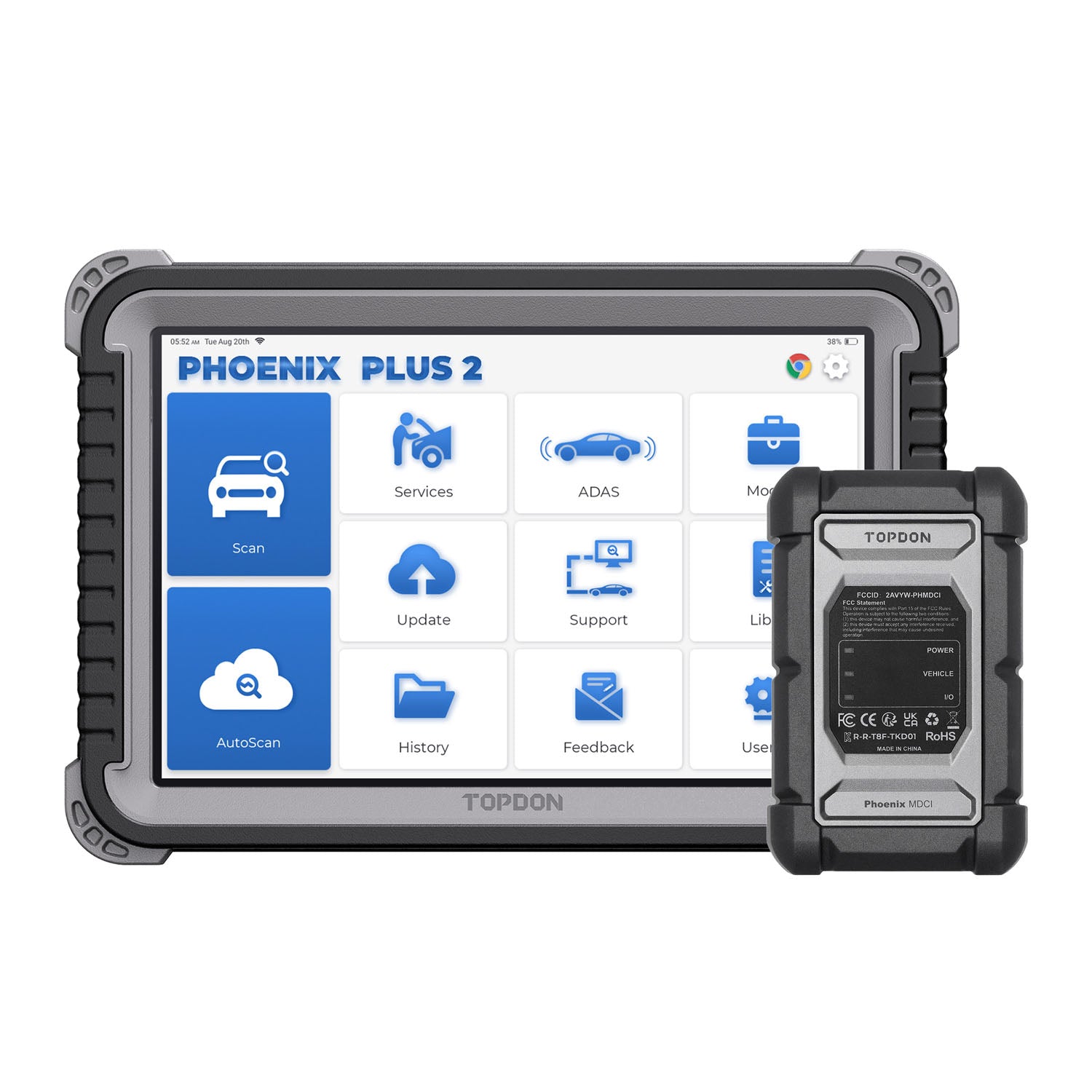
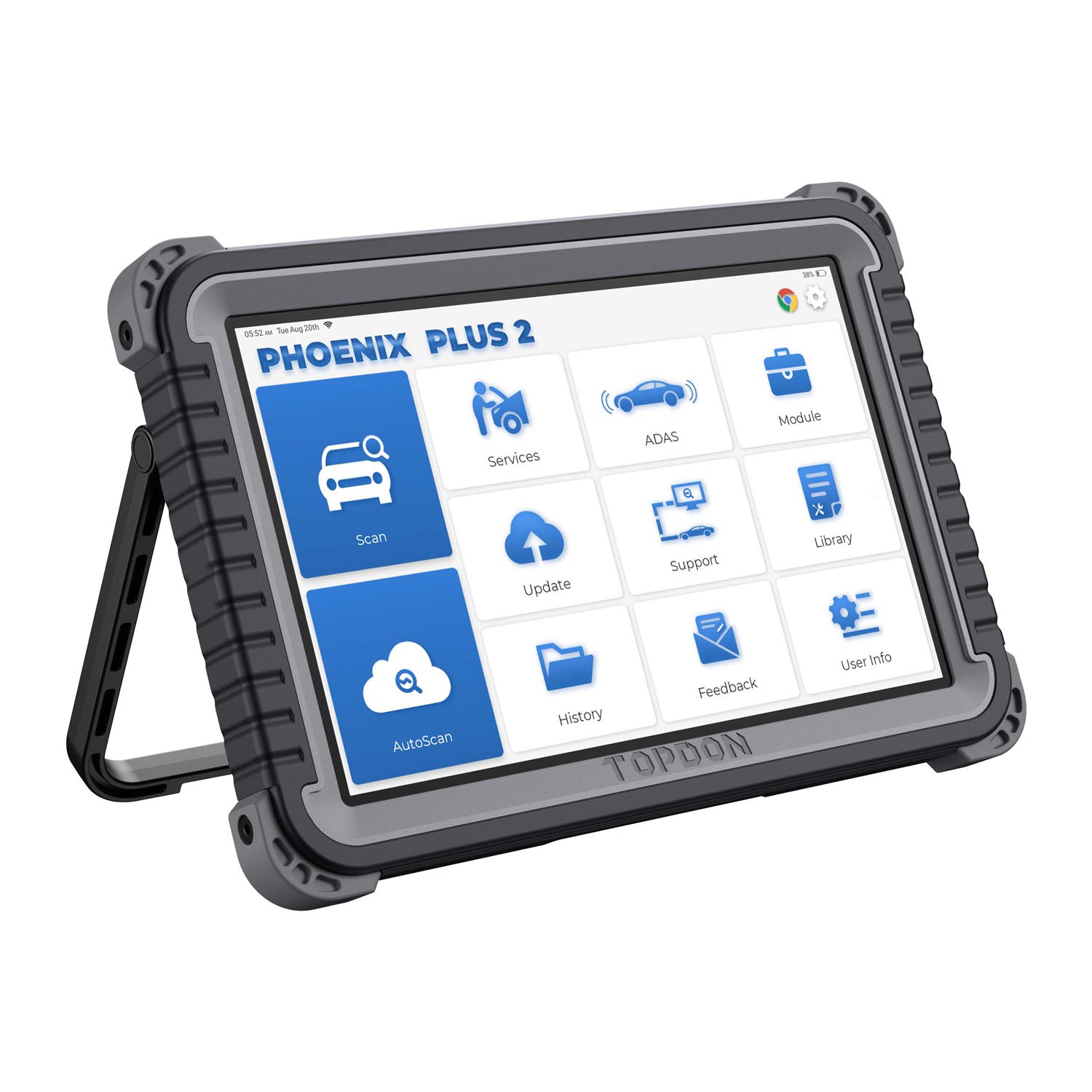
The TOPDON Phoenix Plus is a professional automotive diagnostic scanner for reading fault codes, viewing live data, running active tests, and performing many service functions. Depending on the vehicle and software package, it may also support advanced systems such as ABS, airbag, transmission, body control, and engine modules.
It connects to the vehicle through a diagnostic cable or wireless communication device. The tablet then sends commands to the vehicle control modules. This process is like a conversation: the scanner asks a question, and the module sends back an answer.
TOPDON Phoenix Plus troubleshooting becomes easier when you know which part of that conversation has failed:
• The tablet may have low power.
• The VCI may not be paired.
• The vehicle battery may be weak.
• The wrong vehicle model may be selected.
• The diagnostic software may need an update.
• A module may not respond because of a fuse, wiring fault, or network issue.
The scanner cannot repair a damaged vehicle network by itself. It can, however, help identify where the problem may be.
Start With These Basic Checks
Before changing settings or repeating a scan, perform a short inspection. Many TOPDON Phoenix Plus problems come from simple causes.
Check tablet power
Charge the tablet before beginning a long diagnostic session. A low tablet battery can cause shutdowns, slow performance, or interrupted programming tasks.
Use the correct charger and cable. If the tablet does not charge, inspect the charging port for dirt, bent pins, or loose movement. Try another approved charging cable before assuming the battery has failed.
Check vehicle voltage
Vehicle voltage is one of the most important parts of TOPDON Phoenix Plus troubleshooting. A weak battery can cause failed module communication, false fault codes, or a sudden loss of connection.
With the ignition off, a healthy 12-volt battery often measures near 12.6 volts. During engine cranking, voltage should not drop sharply. Exact values vary with battery condition, temperature, and vehicle design.
Use a battery support unit during long scans, active tests, or module programming. Do not use a basic battery charger as a substitute unless the vehicle maker allows it. Some chargers create voltage changes that may disturb sensitive electronic systems.
Inspect the diagnostic port
Look at the vehicle’s OBD-II port before connecting the tool. Check for:
• Bent or pushed-back pins
• Loose wiring
• Corrosion
• Water damage
• Aftermarket alarm or remote-start wiring
• A missing power supply at the port
Pin 16 normally supplies battery power, while pins 4 and 5 provide ground. Communication lines vary by protocol and vehicle. If the scanner does not power on from the vehicle, test the port with a suitable meter and wiring diagram.
Restart the complete system
A simple restart often clears temporary software or pairing faults.
-
Turn off the ignition.
-
Disconnect the VCI from the vehicle.
-
Restart the Phoenix Plus tablet.
-
Wait about 30 seconds.
-
Reconnect the VCI.
-
Turn on the ignition without starting the engine.
-
Begin a new vehicle identification session.
This process gives the vehicle modules time to shut down and allows the VCI to create a fresh connection.
TOPDON Phoenix Plus Will Not Connect to the Vehicle
A connection failure can happen at several points. The tablet may connect to the VCI, but the VCI may not connect to the vehicle. It is useful to separate these two links.
Confirm VCI pairing
Open the diagnostic or device management area and check whether the VCI appears as connected. If it does not, turn Bluetooth or wireless communication off and on, then pair the device again.
Keep the VCI close to the tablet during pairing. Remove other nearby scan tools or Bluetooth devices if they create confusion. Some vehicles work more reliably with a wired connection, especially during advanced functions.
Check the ignition state
Most modules need the ignition switched on. The engine usually does not need to run for a normal scan.
For push-button vehicles, press the start button without pressing the brake or clutch. The exact procedure can differ by model. Watch the instrument cluster and confirm that the ignition is fully on.
Select the vehicle manually
Automatic VIN detection is convenient, but it is not perfect. It may fail when the vehicle has a replacement module, a damaged communication network, an imported configuration, or a nonstandard VIN record.
Try manual selection:
• Choose the vehicle brand.
• Select the correct region.
• Select the model and model year.
• Confirm the engine and transmission.
• Select the correct communication method if offered.
Choosing the wrong model can produce missing modules, incorrect data, or a message that the system is unsupported.
Inspect fuses and gateway modules
If several control units fail to communicate, suspect a shared power or network problem. Check the relevant fuses, grounds, and gateway module using the vehicle service information.
A single missing fuse can stop communication with several systems. Do not replace a blown fuse with a larger fuse. Find the cause of the overload first.
Test another vehicle
If the Phoenix Plus connects normally to a second vehicle, the original vehicle may have a power, ground, fuse, wiring, or module issue. If it fails on several vehicles, inspect the VCI, cable, tablet software, and account status.
This comparison is one of the fastest methods in TOPDON Phoenix Plus troubleshooting because it separates tool problems from vehicle problems.

TOPDON Phoenix Plus Software Update Problems
Software updates add vehicle coverage, improve functions, and repair known bugs. An interrupted update can leave a brand package incomplete or cause a function to behave strangely.
Use a stable internet connection
A strong Wi-Fi signal is important. Avoid updating through a weak hotspot in a busy shop or a network that blocks large downloads.
If an update stops:
-
Record the package or brand name.
-
Close the update screen.
-
Restart the tablet.
-
Reconnect to stable Wi-Fi.
-
Check available storage.
-
Download the package again.
Do not repeatedly tap the update button while the system is still processing. This can make it harder to identify the real problem.
Check storage space
A full tablet may cause slow operation, failed downloads, or app crashes. Remove old photos, unnecessary files, and unused applications. Keep enough free storage for temporary installation files.
Avoid deleting system folders or diagnostic data unless TOPDON support specifically instructs you to do so.
Confirm account and subscription status
Some diagnostic brands or advanced functions require an active software subscription. A tablet may still open the application while showing limited coverage or locked functions.
Check the account, expiration date, purchased brands, and region settings. If payment was made recently but access is missing, sign out and sign back in. Keep the receipt or transaction details if support is needed.
Update the tablet correctly
Keep the tablet connected to power during major updates. Do not remove the VCI during firmware installation unless the application clearly tells you to do so.
If the tablet freezes during an update, allow several minutes before forcing a restart. A forced shutdown during firmware writing can create a more serious problem.
Fixing Slow Performance, Freezing, or App Crashes
A diagnostic tablet can slow down after long use, especially when many brand packages, reports, and background apps are open.
Try these steps:
• Close unused applications.
• Restart the Phoenix Plus.
• Install pending system updates.
• Keep free storage available.
• Use a stable Wi-Fi connection.
• Avoid scanning while the tablet is extremely hot or cold.
• Remove damaged or incomplete download packages through the official update manager.
Heat matters because electronic devices may reduce performance when their internal temperature rises. Keep the tablet out of direct sun and away from a running engine bay.
If one vehicle brand causes repeated crashes while others work normally, the problem may be limited to that software package. Note the vehicle model, year, module, and exact error message. This information is more useful to technical support than simply reporting that “the scanner does not work.”
Diagnostic Codes That Return After Clearing
Clearing a code does not repair the cause. It only removes stored information from the module, and some codes will return as soon as the module sees the fault again.
Before clearing codes, save a diagnostic report. Include:
• The exact code
• Code description
• Freeze-frame data
• Vehicle mileage
• System voltage
• Related codes in other modules
• Symptoms reported by the driver
Look for patterns. For example, several modules reporting low voltage may point to a battery, alternator, ground, or power distribution problem. A single sensor code may instead require circuit testing, not immediate sensor replacement.
Some codes are history codes. Others are current, pending, or permanent codes. Permanent emissions codes may need several successful drive cycles before they disappear, even after the repair is complete.
Use a wiring diagram and manufacturer test procedure when possible. A scan tool identifies a system condition, but it does not always identify the failed part.

Live Data and Active Test Troubleshooting
Live data can help confirm whether a sensor or actuator is working. Compare the reading with the vehicle maker’s specifications and with related sensor values.
For example, if an engine coolant temperature sensor shows an extreme reading while the engine is cold, inspect the connector, wiring, reference voltage, and sensor. Do not replace the sensor based on one value alone.
Active tests require extra care. The Phoenix Plus may command a fan, fuel pump, solenoid, relay, or other actuator to operate. Before starting a test:
-
Read the safety instructions.
-
Confirm the vehicle is secure.
-
Keep hands and tools away from moving parts.
-
Make sure the battery is supported.
-
Follow the test prompts exactly.
-
Stop the test if the actuator behaves unexpectedly.
A failed active test does not always mean the actuator is defective. The module may block the test because of low voltage, incorrect conditions, an active fault, or a missing authorization step.

Special Functions and Service Resets
The Phoenix Plus may support functions such as oil reset, battery registration, electronic parking brake service, steering angle calibration, throttle relearn, diesel particulate filter service, injector coding, and other procedures. Availability depends on the vehicle.
Oil and maintenance reset
Confirm that the service was actually completed before resetting the reminder. Resetting the message does not replace the oil, filter, or inspection.
Battery registration
Many modern vehicles need battery registration after replacement. Enter the correct battery type and capacity when the vehicle requires it. Incorrect information can affect charging strategy and battery life.
Electronic parking brake service
Follow the vehicle’s brake safety instructions. Do not place hands near the brake mechanism while it is being commanded. Some systems require a final calibration or fault-code check.
Steering angle calibration
The vehicle usually needs level ground, centered wheels, and stable voltage. A calibration performed with the steering wheel off-center can create new stability-control faults.
Diesel particulate filter procedures
Regeneration can create very high exhaust temperatures. Perform it outdoors or in a properly equipped area, away from dry grass, fuel, and other flammable materials. If soot load or pressure readings are outside safe limits, do not force a regeneration.
During my own diagnostic workflow, the most common mistake with special functions has been treating them like simple reset buttons. They are closer to a guided repair procedure. Read every screen, meet each condition, and verify the result afterward.

When the Phoenix Plus Shows “Function Not Supported”
A “not supported” message does not always mean the scanner is defective. It may mean the vehicle software package does not include that function, the model uses a different protocol, or the vehicle requires an online account or security access.
Check the following:
• Correct vehicle year and model
• Correct engine and transmission
• Correct regional version
• Active software subscription
• Stable internet access
• Current brand software
• Required security or authorization process
Vehicle coverage changes over time. A function available on one trim level may not exist on another. Always compare the scanner result with the vehicle maker’s service information.
It is also wise to avoid unsupported workarounds. Do not install unofficial software or use altered firmware to unlock functions. Such actions may damage the tablet, create security risks, or produce unsafe vehicle changes.
Communication Errors During Module Programming
Programming is different from reading codes. A scan may take minutes, while programming can change the software inside a control module. A power interruption during this process can create a no-start condition or require module recovery.
Before programming:
• Use a regulated battery support unit.
• Confirm the vehicle battery and cables are secure.
• Disable automatic tablet sleep.
• Use a reliable wired or wireless connection.
• Close unnecessary apps.
• Confirm the exact module and software choice.
• Do not disconnect the VCI.
If the process fails, do not keep repeating it without checking the error message. Record the failure stage and contact official technical support or a qualified repair facility.
Programming capability varies by vehicle. Some vehicles require an online manufacturer account, a security token, or a separate programming platform. The Phoenix Plus should not be treated as a universal replacement for every factory tool.
How to Read Phoenix Plus Error Messages
Error messages often provide more information than they first appear to offer. Write down the full message, not only the last line.
A useful diagnostic note includes:
• Vehicle identification
• Module name
• Function being performed
• Battery voltage
• Connection method
• Software version
• Exact error wording
• What happened before the error
Take a screenshot when possible. This prevents small details from being forgotten, especially when a repair takes place over several days.
I have found that careful notes prevent “parts cannon” repairs. Instead of guessing, you can compare the message with wiring diagrams, technical service information, and known vehicle symptoms. This saves time and protects the customer from unnecessary parts.
When to Contact TOPDON Support
Contact official TOPDON support when the issue continues after basic checks or when the tablet may have a hardware fault.
Prepare this information:
-
Tablet model and serial number.
-
VCI serial number.
-
Vehicle make, model, year, and engine.
-
Software version.
-
Subscription or account details.
-
Exact error message.
-
Photos or screenshots.
-
Steps already completed.
Support can usually work faster when the problem is described in a repeatable way. “It stopped working” is difficult to diagnose. “The VCI pairs with the tablet, but the ABS module fails to connect on two vehicles after the latest update” is much more useful.
Stop using the tool and seek professional help if the tablet becomes unusually hot, smells burnt, shows physical damage, or behaves erratically during programming.
A Practical TOPDON Phoenix Plus Troubleshooting Checklist
Use this short checklist before assuming the tool has failed:
• Charge the tablet.
• Check vehicle battery voltage.
• Inspect the OBD-II port.
• Confirm ignition status.
• Check VCI pairing.
• Try a wired connection if available.
• Select the vehicle manually.
• Restart the tablet and vehicle session.
• Update the tablet and brand software.
• Check account and subscription access.
• Test the tool on another vehicle.
• Save error reports and screenshots.
• Use a battery support unit for long procedures.
• Stop before programming if voltage is unstable.
This order starts with low-risk checks and moves toward more detailed testing. It is safer than changing several settings at once.
Frequently Asked Questions About TOPDON Phoenix Plus Troubleshooting
Why will my TOPDON Phoenix Plus not connect to the vehicle?
Check tablet power, vehicle battery voltage, OBD-II port power, ignition status, and VCI pairing. Then try manual vehicle selection and test the scanner on another vehicle to separate a tool issue from a vehicle issue.
How do I fix TOPDON Phoenix Plus software update errors?
Use stable Wi-Fi, restart the tablet, check free storage, and download the affected brand package again. Keep the tablet connected to power and confirm that the account subscription is active.
Can low battery voltage cause Phoenix Plus communication errors?
Yes. Low or unstable voltage can interrupt communication and create false trouble codes. Use a fully charged battery and a suitable support unit during long scans, active tests, or programming.
Why does the Phoenix Plus say a function is not supported?
The vehicle, trim, region, or software package may not support that function. Check the selected vehicle details, update the brand software, confirm the subscription, and review whether online authorization is required.
What should I do if the Phoenix Plus freezes during a scan?
Wait briefly, then close the application and restart the tablet if it does not recover. Check for heat, storage limits, software updates, and a stable VCI connection before trying the scan again.
Can I program a vehicle module with the Phoenix Plus?
Some vehicle models support programming or coding functions, but coverage varies. Use regulated battery support, follow every safety prompt, and do not interrupt the process because a power loss can damage module software.
Should I clear fault codes before repairing the vehicle?
No. Save the codes and freeze-frame data first, then diagnose the cause. Clearing codes may remove useful evidence and will not fix a fault that is still present.
Conclusion
Most TOPDON Phoenix Plus troubleshooting cases are solved by checking the basics in the right order: power, battery voltage, OBD-II connections, VCI pairing, vehicle selection, software updates, and subscription access. More serious problems may involve vehicle fuses, wiring, gateway modules, or communication networks.
Treat the scanner as a diagnostic partner, not a magic repair button. Save reports, follow manufacturer procedures, use stable power, and avoid guessing based on one code. Apply this checklist during your next scan, explore the official support resources when needed, and share your own Phoenix Plus troubleshooting experience in the comments.