Thinkcar ThinkTool Mini Troubleshooting: Quick Fixes
Most Thinkcar ThinkTool Mini problems come from power, connection, software, or vehicle communication issues.
Thinkcar ThinkTool Mini Troubleshooting is often simple when you follow the right order. After working through many scan-tool faults in workshop-style testing, I have found that a calm check of power, cable fit, updates, and vehicle data solves most problems. This guide explains the likely causes, safe fixes, and limits of the ThinkTool Mini.
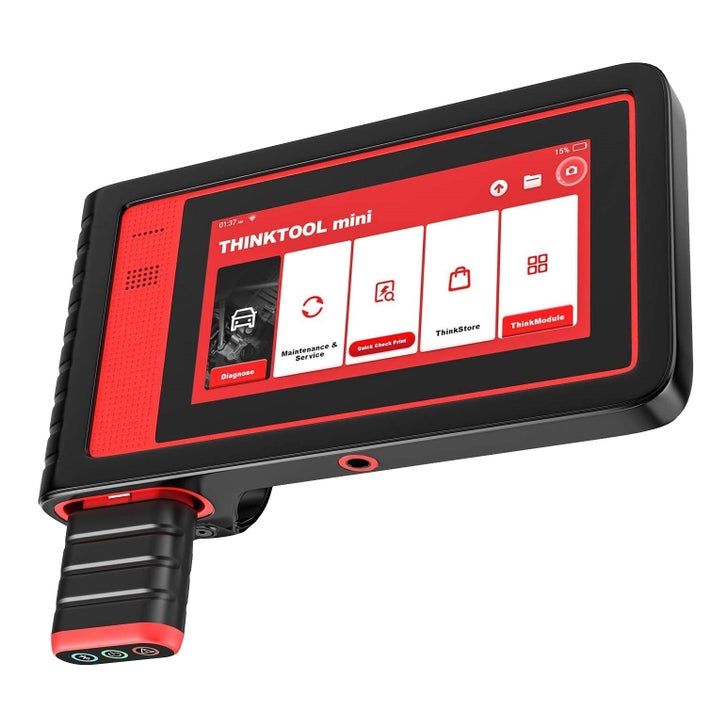
What the Thinkcar ThinkTool Mini Does
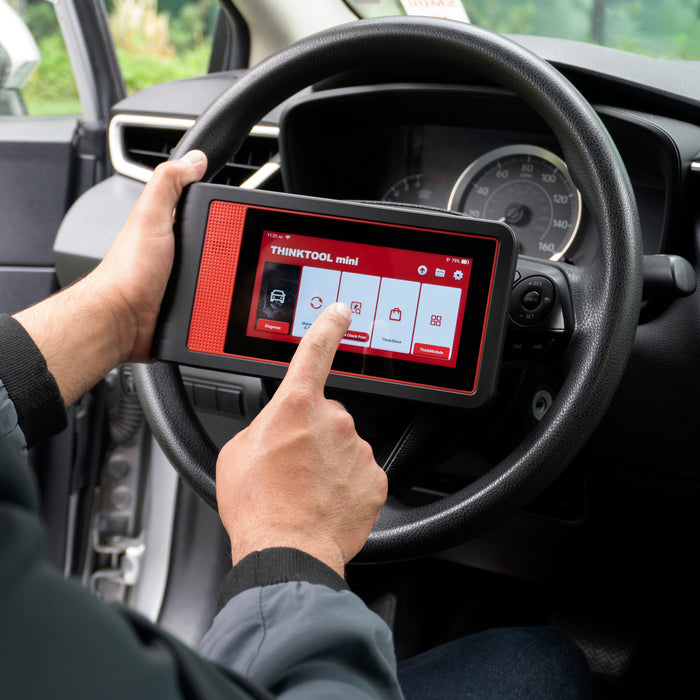
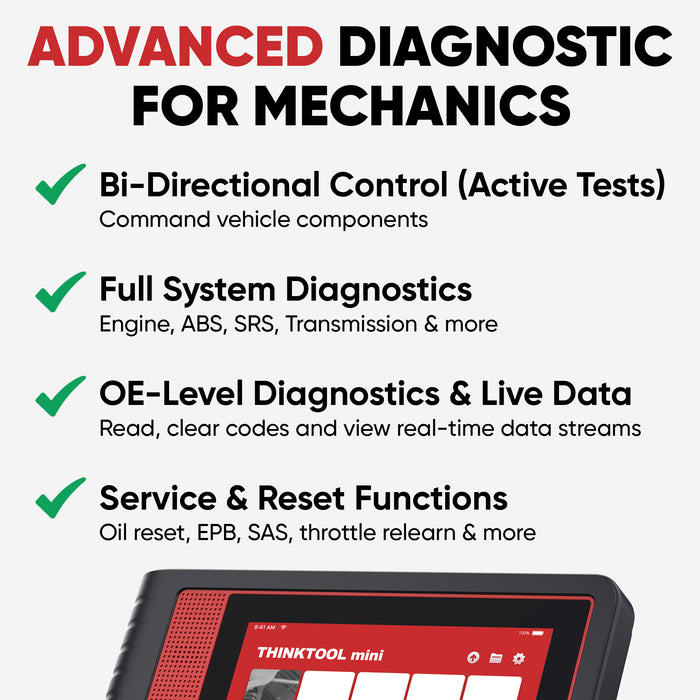
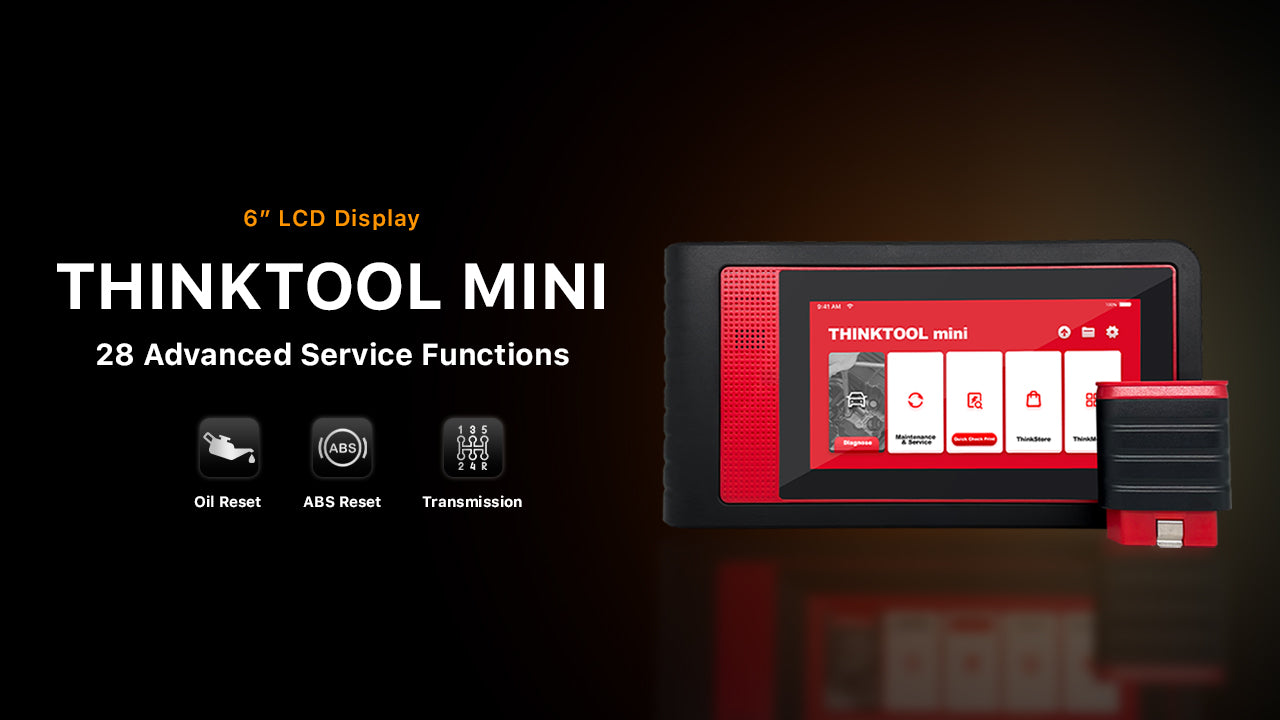
The Thinkcar ThinkTool Mini is a compact automotive diagnostic scanner. Depending on the model, software package, and region, it may support functions such as:
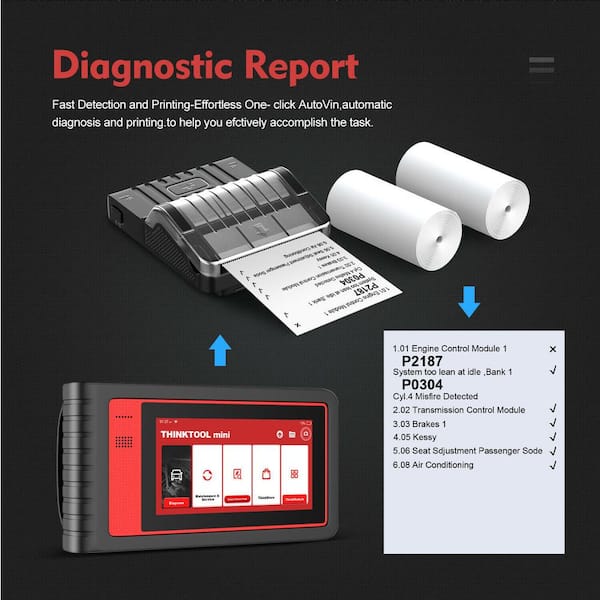
• Reading and clearing diagnostic trouble codes
• Viewing live data from vehicle control modules
• Running full-system scans
• Performing service resets
• Supporting selected active tests
• Checking battery or charging system data
• Using wireless or wired communication with a vehicle
The tool communicates through the vehicle’s diagnostic port, often called the OBD-II or DLC port. It reads data from modules such as the engine, transmission, ABS, airbag, and body control system.
Thinkcar ThinkTool Mini Troubleshooting begins with one key idea: the scanner is only one part of the system. The vehicle battery, diagnostic port, data network, software, and control modules must all work together.
A scanner can show “no communication” even when the scanner itself is healthy. A weak car battery, a blown DLC fuse, or a poor connection may create the same symptom.
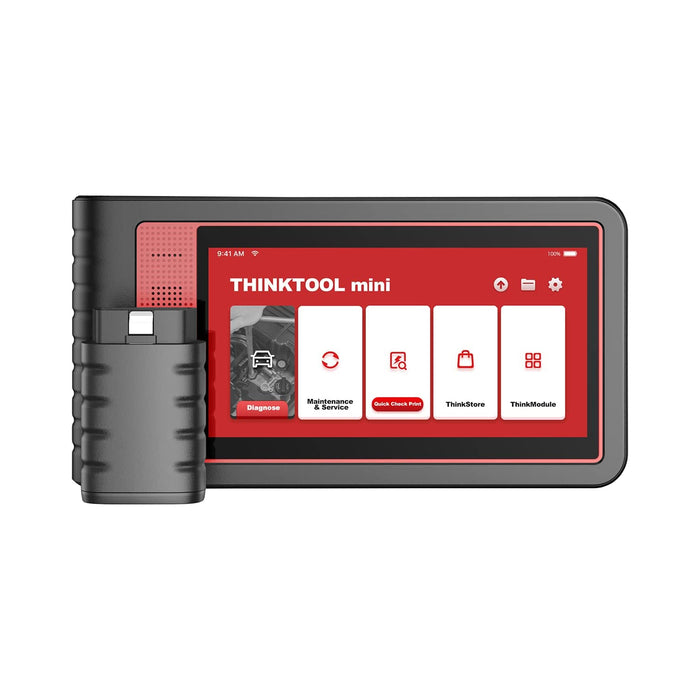
Thinkcar ThinkTool Mini Troubleshooting: Start With the Basics
Before changing settings or reinstalling software, inspect the simple items. Basic checks often save more time than advanced repair steps.
Check the scanner battery
Charge the ThinkTool Mini fully before using it. A low internal battery can cause slow startup, random shutdowns, or a failed connection during a scan.
Use the supplied charger when possible. Some low-quality USB chargers provide unstable power or do not deliver enough current.
Check these signs:
• The device does not turn on
• The screen turns off during a scan
• The battery percentage stays unchanged
• The scanner restarts without warning
If the tool works only while connected to a charger, the battery may be weak. It may also have a damaged charging port or cable.
Check the vehicle battery
A vehicle battery below normal voltage can cause many strange scan results. Most passenger vehicles should have about 12.4 to 12.7 volts with the engine off when the battery is charged.
During cranking, voltage should not drop too far. A major voltage drop can make control modules shut down or stop communicating.
Thinkcar ThinkTool Mini Troubleshooting should always include a vehicle voltage check. Modern vehicles behave like computers on wheels. When power becomes unstable, the network can become confused.
Inspect the OBD-II port
Look inside the diagnostic port with a flashlight. Search for:
• Bent or pushed-back terminals
• Dirt or corrosion
• Loose plastic housing
• Signs of water
• Missing power or ground terminals
Do not force the connector into the port. A bent terminal can create an intermittent connection and may become worse with pressure.
Check the ignition position
Many vehicles require the ignition to be on before the scanner can communicate. The engine does not always need to run.
Use this normal sequence:
-
Turn the ignition off.
-
Connect the scanner to the diagnostic port.
-
Turn the ignition to the ON position.
-
Wait for the vehicle modules to wake up.
-
Start the scan.
On push-button vehicles, press the start button without pressing the brake or clutch when the manufacturer’s procedure calls for ignition-on mode.
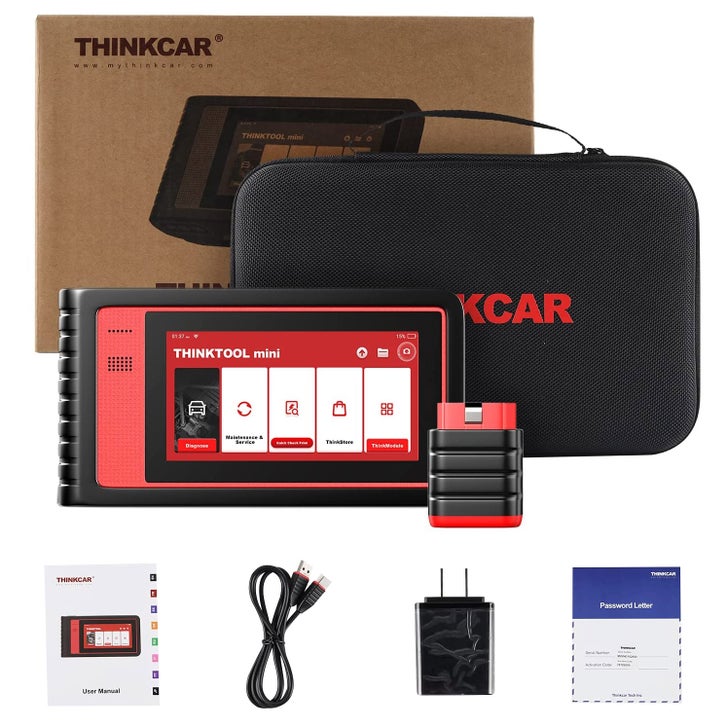
Thinkcar ThinkTool Mini Will Not Turn On
A blank screen does not always mean the device has failed. It may have a drained battery, a frozen operating system, or a charging problem.
Try these steps in order:
-
Connect the scanner to a known-good charger.
-
Leave it charging for at least 30 minutes.
-
Press and hold the power button for 10 to 15 seconds.
-
Try a different charging cable and wall adapter.
-
Check the charging port for dust or damage.
-
Look for a charging symbol or indicator light.
If the screen remains blank, connect the tool to a computer or another approved power source only if the user manual supports that method. Avoid opening the case. Internal repairs can damage the device and may affect warranty coverage.
When a forced restart helps
A forced restart can help when the screen is frozen, the touch input stops working, or an app will not close. It does not erase vehicle data in most cases, but the exact behavior depends on the device software.
Do not interrupt a firmware update by holding the power button. An interrupted update can leave the scanner unable to start.
When the battery may need service
A battery may need professional service if the tool:
• Shuts down soon after a full charge
• Becomes unusually hot
• Swells or separates the case
• Shows an incorrect charge level
• Charges only at a certain cable angle
Stop using a swollen or hot battery. Battery damage is a safety issue, not just a Thinkcar ThinkTool Mini Troubleshooting problem.
Thinkcar ThinkTool Mini Has a Black or Frozen Screen
A black screen may result from low brightness, a sleep setting, a system freeze, or low power. First, press the power button briefly. Then connect the charger and wait a few minutes.
If the screen lights up but does not respond, clean and dry the display. Remove gloves if they prevent touch input. A screen protector can also reduce touch sensitivity if it is damaged or poorly fitted.
Try a forced restart after saving any available work. If the issue returns often, update the system and record when the freeze occurs. For example, note whether it happens during startup, vehicle identification, or a full-system scan.
This detail helps support staff identify whether the problem is hardware, software, or vehicle communication related.
Thinkcar ThinkTool Mini Cannot Connect to the Vehicle
“No communication” is one of the most common scan-tool messages. It means the scanner did not establish a usable link with the selected vehicle system.
Use this Thinkcar ThinkTool Mini Troubleshooting process:
-
Confirm the vehicle year, make, model, and engine.
-
Turn the ignition off.
-
Remove the scanner from the port.
-
Wait about 30 seconds.
-
Reconnect the scanner firmly.
-
Turn the ignition on.
-
Try automatic identification again.
-
If automatic identification fails, enter the vehicle details manually.
Check DLC power and ground
The OBD-II port usually has a power terminal and ground terminals. A blown fuse can remove power from the port. In some vehicles, that fuse also powers the cigarette lighter or accessory socket.
If the scanner has no power, check the vehicle fuse diagram. Replace a blown fuse only with the correct rating. Never install a larger fuse to keep the scanner working.
A multimeter can test port power, but use care. Accidentally bridging terminals can damage a vehicle module.
Check for aftermarket equipment
Aftermarket alarms, remote starters, radios, trackers, and tuning devices can interfere with diagnostic communication. If the scanner works on other vehicles but not one modified vehicle, the added equipment deserves attention.
Some vehicles also require a gateway unlock or security authorization before certain modules can be accessed. The ThinkTool Mini may display a security message rather than a normal communication error.
Test another vehicle
Testing another compatible vehicle is a useful separation step. If the scanner connects elsewhere, focus on the original vehicle. If it fails on several vehicles, inspect the scanner, cable, software, and power supply.
This simple test prevents a common mistake: replacing a vehicle part when the real problem is the scan tool connection.

Thinkcar ThinkTool Mini Cannot Read All Modules
A scan may find the engine computer but fail to access ABS, airbag, transmission, or body modules. This does not automatically mean the scanner is defective.
Possible causes include:
• The vehicle does not support the selected system
• The software package does not include that function
• The vehicle uses a special communication protocol
• A module has lost power or ground
• A network fault blocks communication
• The vehicle requires a gateway authorization
• The wrong model or engine was selected
Start by checking the vehicle information. A similar model name may use a different platform, control module, or communication method.
Next, scan for network-related codes in the modules that are accessible. A U-code often points to communication trouble between control units. Do not treat a U-code as proof that the scanner caused the problem.
ABS and airbag scan limits
Safety systems need extra care. An ABS or airbag code may require a factory-level procedure, a special reset, or a live repair before the code can clear.
Never erase an airbag code without finding its cause. A stored code may involve a seat connector, crash sensor, wiring fault, low voltage event, or control module issue.
Thinkcar ThinkTool Mini Troubleshooting can help identify the direction of the fault, but it cannot replace the vehicle maker’s repair instructions.
Thinkcar ThinkTool Mini Shows Wrong Vehicle Information
Incorrect vehicle identification can lead to wrong codes, missing systems, or failed special functions. Automatic identification is helpful, but it is not perfect.
Confirm these details:
• Vehicle identification number
• Model year
• Engine size
• Fuel type
• Transmission type
• Market or region
• Drive type when requested
If the VIN shown on the screen does not match the vehicle, stop and correct it. Do not continue with coding or special functions using an incorrect profile.
Manual selection may work better on older vehicles, imported models, vehicles with replaced modules, or cars with limited VIN data.
Thinkcar ThinkTool Mini Software and Update Problems
Software updates can improve vehicle coverage, fix bugs, and add functions. They can also fail when the internet connection, storage, account, or battery is unstable.
Before updating:
• Charge the scanner above the level recommended in the manual
• Use a stable Wi-Fi network
• Keep the tool connected to power
• Confirm the Thinkcar account details
• Check available storage
• Close other apps
• Do not remove power during installation
If an update stops, record the error message. Restart the scanner and check the update area again. Avoid repeatedly tapping the update button if the system is still processing.
Wi-Fi connection problems
Move closer to the router and test another network if possible. Public Wi-Fi may require a browser login that the scanner cannot complete.
If the scanner connects to Wi-Fi but cannot download updates, check the date and time settings. Incorrect time settings can prevent secure internet connections.
A device that connects to no networks may have a wireless hardware fault. A device that connects to one network but not another may have a router, password, or security compatibility issue.
App crashes or slow performance
Close unused apps and restart the scanner. Delete only temporary files or cache when the menu provides that option. Do not remove system files.
Slow performance can come from low storage, old software, high temperature, or too many background processes. Let the tool cool if it has been sitting in direct sun.
Thinkcar ThinkTool Mini Will Not Clear a Code
Clearing a code is not the same as repairing a fault. The scanner may erase a stored code, but the code can return when the vehicle runs its self-test again.
A code may not clear because:
• The fault is still present
• The ignition is not in the correct position
• The battery voltage is too low
• The module does not support code clearing through that path
• The code is permanent or manufacturer-controlled
• The system needs a drive cycle
• The vehicle has a security or gateway restriction
Record the original code and freeze-frame data before clearing anything. Freeze-frame data can show engine speed, temperature, load, and voltage when the fault appeared.
After a repair, clear the code and perform the required test. Some monitors need several trips before they complete. This is important for emissions testing because clearing codes also resets readiness monitors.
Thinkcar ThinkTool Mini Live Data Looks Wrong
Live data needs context. One sensor value rarely proves that a part has failed.
For example, an oxygen sensor reading may change quickly after the engine reaches operating temperature. A coolant temperature sensor should usually show a value close to the surrounding temperature after the vehicle has sat overnight.
Compare related readings:
• Engine coolant temperature and intake air temperature
• Short-term and long-term fuel trim
• Commanded throttle and actual throttle
• Engine speed and camshaft or crankshaft signals
• Battery voltage and alternator output
• Vehicle speed and wheel speed
A single unusual number may come from a scan refresh delay, a data label issue, a unit setting, or a real fault. Test the circuit with the vehicle wiring diagram and a meter before replacing a sensor.
In practical diagnostic work, the most expensive mistake is parts swapping. Data should guide a test, not replace one.
Thinkcar ThinkTool Mini Special Functions Fail
Service functions may include oil reset, battery registration, electronic parking brake service, steering angle reset, throttle relearn, or diesel particulate filter procedures. Availability varies by vehicle and Thinkcar software package.
Before using a special function:
-
Read the on-screen requirements.
-
Confirm the battery is stable.
-
Connect a battery maintainer when appropriate.
-
Check that the vehicle is in the required mode.
-
Confirm the correct part has been installed.
-
Do not disconnect the scanner during the procedure.
Some functions can change module settings or move a vehicle component. Keep hands clear of brakes, steering parts, throttle plates, and moving systems.
If a function fails, save the error message. Check whether the vehicle needs a security code, stable network connection, or factory scan procedure.
Battery registration example
A new battery may need registration on vehicles with battery monitoring systems. Entering the wrong battery type or capacity can affect charging strategy.
Do not perform battery registration simply because the menu exists. Confirm the vehicle procedure first. Some vehicles need registration only, while others also require battery coding.
How to Improve Thinkcar ThinkTool Mini Scan Results
Good scan results depend on good preparation. Use this routine before every serious diagnosis:
• Charge the scanner
• Stabilize vehicle voltage
• Confirm the vehicle details
• Inspect the diagnostic port
• Record codes before clearing them
• Save freeze-frame data
• Scan all available systems
• Compare codes with symptoms
• Follow a wiring diagram
• Confirm the repair with a second scan
Keep the tool away from rain, oil, extreme heat, and loose workshop surfaces. A rugged case can protect the screen and connectors.
Use a short, high-quality diagnostic cable if the model supports a detachable cable. Avoid stretched cables, sharp bends, and adapters that are not approved for the tool.
Common Mistakes to Avoid
Thinkcar ThinkTool Mini Troubleshooting becomes harder when basic safety and recordkeeping are skipped.
Avoid these mistakes:
• Clearing codes before saving them
• Replacing a sensor based on one data value
• Using the wrong vehicle profile
• Ignoring a weak battery
• Installing an incorrect fuse
• Updating over an unstable network
• Interrupting a firmware update
• Running coding functions without a backup plan
• Assuming every manufacturer function is supported
• Treating a communication code as a failed control module
A scan tool is like a medical thermometer. It gives useful evidence, but it does not explain every cause by itself. The symptoms, test results, service information, and repair history must fit together.
When to Contact Thinkcar Support or a Professional
Contact official support when the scanner fails across several compatible vehicles, cannot update after normal steps, or shows repeated hardware errors.
Prepare this information:
• Exact scanner model
• Serial number
• Software version
• Vehicle year, make, model, and engine
• Error message
• Steps that caused the issue
• Photos or screenshots when safe
• Whether the fault occurs on other vehicles
A professional repair shop may be needed when the vehicle has a network fault, damaged wiring, airbag concerns, programming needs, or a no-start condition.
Stop testing if you smell burning, see smoke, find melted wiring, or notice a swollen scanner battery. Safety comes before diagnosis.
Frequently Asked Questions of Thinkcar ThinkTool Mini Troubleshooting
Why does my Thinkcar ThinkTool Mini say no communication?
The most common causes are low vehicle voltage, a blown diagnostic-port fuse, poor connector contact, wrong vehicle selection, or an ignition that is not on. Test the scanner on another compatible vehicle to separate a tool problem from a vehicle problem.
How do I reset a frozen Thinkcar ThinkTool Mini?
Connect the scanner to a stable charger and hold the power button for about 10 to 15 seconds. Do not force a restart during a firmware update, and contact support if the device stays frozen after charging.
Can a Thinkcar ThinkTool Mini clear every trouble code?
No. Code-clearing ability depends on the vehicle, control module, software coverage, and fault type. Permanent codes, active faults, and security-related codes may return or require a manufacturer procedure.
Why will the ThinkTool Mini read engine codes but not ABS codes?
The vehicle may have an ABS power or network fault, or the selected software may not support that ABS system. Confirm the vehicle profile, check battery voltage, and inspect ABS-related fuses before blaming the scanner.
Does clearing a code fix the vehicle?
No. Clearing a code removes stored information but does not repair the cause. If the fault remains, the control module will usually detect it again after its test conditions are met.
Can low battery voltage cause scan-tool errors?
Yes. Low voltage can interrupt module communication, cause false codes, and stop special functions. Use a properly charged vehicle battery and a suitable battery maintainer when the service procedure requires stable voltage.
Should I update the Thinkcar ThinkTool Mini?
Updates are usually helpful because they can improve coverage and correct software problems. Use stable Wi-Fi, sufficient battery power, and the correct account before starting an update.
Conclusion
Thinkcar ThinkTool Mini Troubleshooting works best when you follow a clear order: check power, inspect the diagnostic port, confirm the vehicle profile, test communication, update the software, and save diagnostic data before clearing codes.
Remember that a scanner reports evidence. It does not replace voltage tests, wiring checks, service information, or safe repair work. Use the ThinkTool Mini as a guide, confirm each result, and avoid replacing parts based on one code or sensor value.
Apply these steps during your next scan, keep careful records, and use official vehicle information when a problem involves coding, airbags, ABS, or programming. Explore more diagnostic guides and share your Thinkcar ThinkTool Mini experience in the comments.