FOXWELL NT510 Troubleshooting: Quick Fix Guide
Most FOXWELL NT510 problems come from weak power, poor cables, old software, or incorrect vehicle selection.
FOXWELL NT510 troubleshooting is much easier when you test the basics before blaming the scan tool. This guide explains the most common NT510 faults, what each symptom means, and how to fix it safely. It also shares practical lessons from real diagnostic work, where a simple battery check often solved what looked like a serious scanner failure.

FOXWELL NT510 Troubleshooting at a Glance
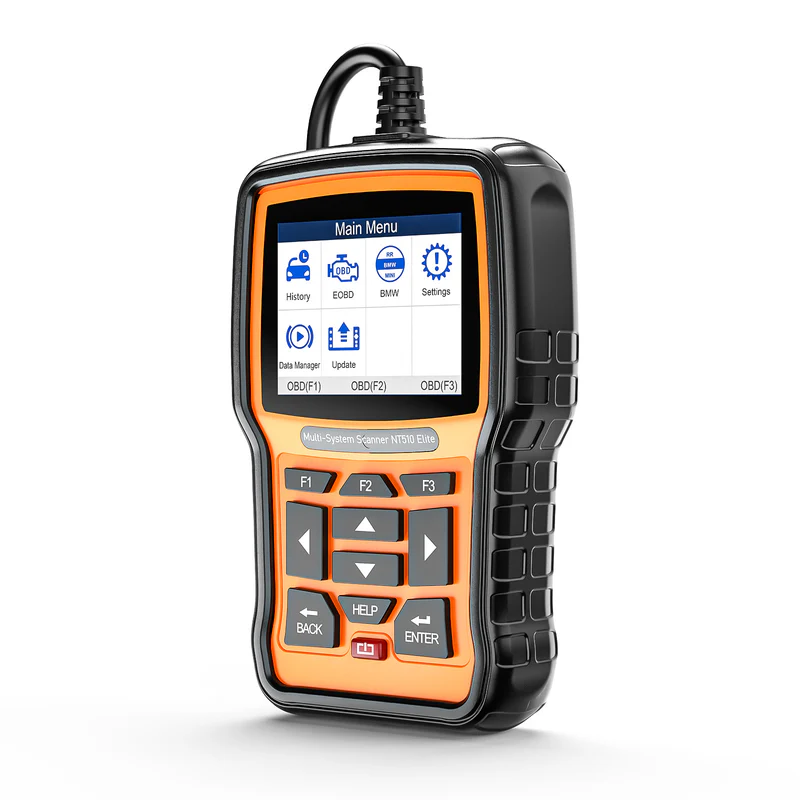
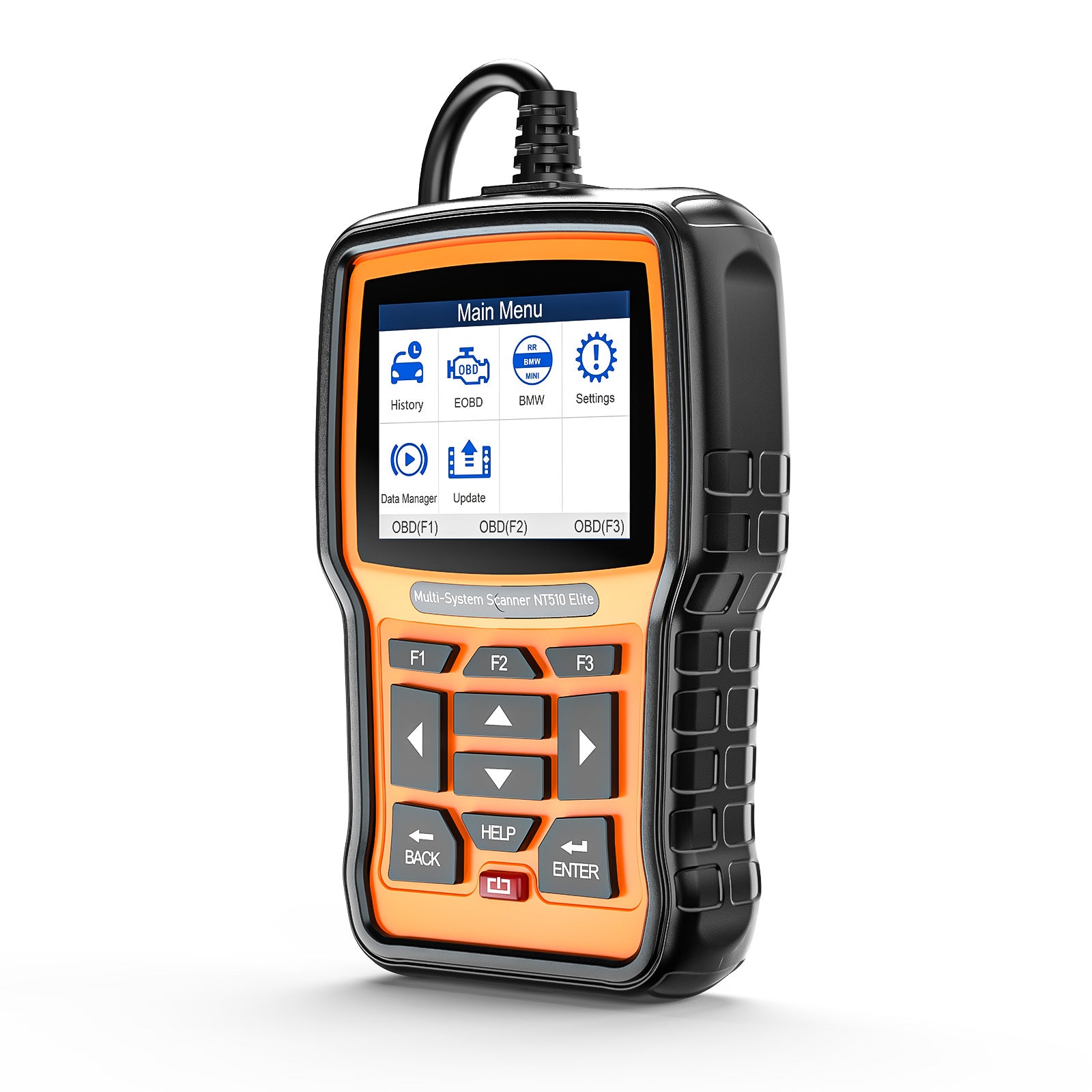
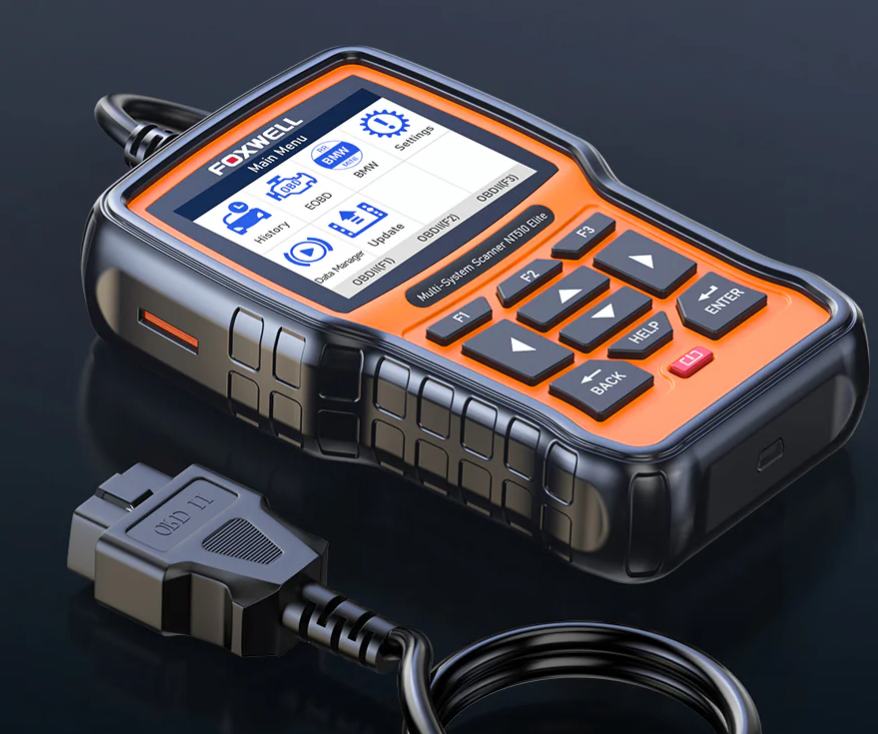
The FOXWELL NT510 is a handheld automotive scan tool designed for deeper vehicle diagnosis than a basic code reader. Depending on the purchased brand license and vehicle, it may access systems such as the engine, transmission, ABS, airbag, body control, and service functions.
Still, the tool cannot solve every fault by itself. It depends on four things:
• Stable vehicle power
• A working OBD-II data link
• Correct vehicle and system selection
• Current software and proper diagnostic procedures
When FOXWELL NT510 troubleshooting starts, follow a simple rule: check power first, connection second, and software third. This order prevents wasted time and avoids replacing a working scanner.
A professional scan tool is like a translator. If the car has no power, the cable cannot connect. If the wrong vehicle is selected, the translator may understand the wrong language. If the software is outdated, it may miss newer commands or vehicle data.

FOXWELL NT510 Will Not Turn On
A FOXWELL NT510 normally receives power through the vehicle’s diagnostic socket. Most versions do not use a separate internal battery for normal operation. If the screen stays black, the problem often starts at the vehicle’s OBD-II port.
Check the vehicle battery
A low battery can cause strange scan tool behavior. The engine may still crank, but the voltage can drop too far during key-on testing.
Use a digital multimeter if possible:
• Around 12.4 to 12.7 volts with the engine off usually indicates a charged battery.
• Around 12.0 volts suggests a weak or partly discharged battery.
• Below about 11.8 volts may cause modules and scan tools to act unpredictably.
These values are general guides, not a replacement for a full battery load test. A failing battery can show good voltage at rest and still collapse under load.
Inspect the OBD-II power supply
The diagnostic connector usually supplies power through pin 16 and ground through pins 4 and 5. Do not force a probe into the terminals, as this can spread the contacts or create a short.
Check for:
• Blown cigarette lighter or diagnostic socket fuses
• Loose or damaged OBD-II terminals
• Dirt, water, or corrosion inside the connector
• Aftermarket wiring near the diagnostic port
• A disconnected battery ground cable
If another scan tool also fails to power up, the vehicle is more likely the problem. If another tool works but the NT510 does not, inspect the NT510 cable and connector closely.
Try another vehicle
Testing the scanner on a second compatible vehicle is a useful isolation step. If the NT510 powers up there, focus on the first vehicle’s fuse, connector, or battery.
If the scanner remains dead on several vehicles, stop using it until you inspect the cable. A damaged cable can cause power loss or intermittent operation.
FOXWELL NT510 Cannot Connect to the Vehicle
A powered NT510 may still display a message such as “linking error,” “communication error,” or “unable to connect.” This does not always mean the tool is defective.
Confirm the ignition position
Turn the key to the ON position without starting the engine. On push-button vehicles, press the button without pressing the brake or clutch, unless the vehicle maker requires another procedure.
Some modules wake slowly. Wait 20 to 30 seconds after switching the ignition on, then try the scan again.
Select the vehicle correctly
Automatic vehicle identification is convenient, but it can select the wrong model year or engine. Manual selection is often more reliable.
Verify:
• Make and model
• Model year
• Engine size
• Fuel type
• Transmission
• Region or market
• Specific control system
A 2015 vehicle may use different communication software from a 2016 version, even when the body looks almost identical.
Check for aftermarket equipment
Remote starters, alarm systems, stereo wiring, tracking devices, and modified OBD-II ports can interfere with communication. If the problem began after an accessory was installed, inspect that work first.
Some vehicles also need a gateway or security procedure before a scan tool can access certain modules. Do not bypass vehicle security systems or connect unknown wiring to the diagnostic port.
Try a full vehicle scan
If the NT510 cannot enter one module but can access others, the scanner is probably communicating correctly. The fault may be limited to that module, its fuse, wiring, or its network connection.
For example, if the engine module opens but the ABS module does not, inspect the ABS fuse, ABS power supply, and wheel speed system. Do not assume the scanner has failed.

FOXWELL NT510 Shows “No Fault Codes”
A clean scan does not always mean the vehicle has no problem. It means the selected module has no stored codes that the tool can read at that time.
Check the correct control module
A basic engine scan may not reveal a fault in the airbag, ABS, transmission, or body control module. Enter each available system separately when the vehicle supports it.
Common examples include:
• Engine or powertrain
• Automatic transmission
• Anti-lock braking system
• Supplemental restraint system
• Body control module
• Electronic parking brake
• Tire pressure monitoring system
• Steering angle system
Look at live data
Some faults do not set a code right away. Live data can show a sensor reading that is outside normal behavior.
Useful data may include:
• Engine coolant temperature
• Short-term and long-term fuel trim
• Throttle position
• Mass airflow
• Oxygen sensor activity
• Vehicle speed
• Wheel speed
• Battery voltage
Compare readings with the engine cold, at idle, and during a road test. A single number has little value without context.
Understand pending and permanent codes
Pending codes may represent a fault that has not happened enough times to turn on the warning light. Permanent codes may remain after a repair until the vehicle completes its monitor tests.
A code can also be stored as history. Always note the code type, freeze-frame data, and the conditions present when it appeared.
In my diagnostic work, one common mistake was treating “no codes” as a final answer. A customer had an intermittent stalling issue, but the engine module was clear. A review of fuel pressure, battery voltage, and live sensor data found the cause without a stored code.
FOXWELL NT510 Displays Fault Codes That Seem Wrong
A diagnostic trouble code identifies a system or circuit. It does not always identify the failed part.
For example, a code for an oxygen sensor circuit may be caused by:
• A damaged sensor
• A blown heater fuse
• Broken wiring
• Poor ground
• An exhaust leak
• Low system voltage
• A problem in the engine control module
Treat the code as a clue, not a verdict. Read the full code description, record freeze-frame data, and test the related circuit before buying parts.
Use a repair plan
A practical repair process looks like this:
-
Save all codes before clearing anything.
-
Record mileage, voltage, and freeze-frame data.
-
Check technical service information for the vehicle.
-
Inspect connectors, fuses, grounds, and wiring.
-
Test the suspected circuit with a meter or approved test tool.
-
Repair the confirmed cause.
-
Clear codes and perform a verification drive.
-
Rescan the vehicle after the drive.
Avoid clearing codes before saving them. Clearing can erase useful evidence and reset readiness monitors.

FOXWELL NT510 Freezes or Restarts
A frozen screen can result from a temporary software issue, unstable vehicle voltage, or a damaged cable connection.
Restart the tool safely
Disconnect the NT510 from the vehicle and wait for a short period. Reconnect it with the ignition off, then turn the ignition on after the tool starts.
If the screen responds, exit the diagnostic session normally. Do not unplug the cable while the tool is writing an update or changing important module settings.
Check voltage stability
Voltage spikes and drops can interrupt communication. This is especially important when using special functions, such as battery registration, electronic parking brake service, or steering angle calibration.
Use a battery charger designed for diagnostic support when the vehicle maker recommends it. Do not use an unregulated charger that can create a high voltage spike.
Inspect the cable
Look for:
• Bent connector pins
• Cuts or crushed areas
• Loose strain relief
• Intermittent power when the cable moves
• Damage near the OBD-II plug
A cable may work during a short engine scan but fail during a longer test. Gently moving the cable while watching the screen can reveal an intermittent connection, but never pull hard on the plug.

FOXWELL NT510 Update Problems
Software updates can add vehicle coverage, improve functions, and correct known bugs. They can also fail if the internet connection, computer software, or registration details are not correct.
Prepare before updating
Use the official FOXWELL update process for your exact NT510 version. The NT510 family may have different brand packages and software options, so do not install files intended for another model.
Before starting:
• Confirm the tool’s serial number.
• Use a reliable Windows computer if required by the update method.
• Install the correct FOXWELL update utility.
• Use a stable internet connection.
• Keep the tool connected during the entire update.
• Avoid shutting down the computer.
• Do not disconnect the USB cable during installation.
A short interruption can leave the scanner unable to boot or unable to load vehicle software.
If the update fails
Restart the computer and update program. Then check the USB cable, USB port, account details, and available storage. Some security programs may block the update utility, so review firewall settings only when you understand the risk.
If the NT510 shows a recovery screen, follow the official recovery instructions for that serial number. Do not copy random firmware files from forums. Incorrect firmware can make the problem worse.
A failed update is different from missing vehicle coverage. If the tool updates correctly but a function is unavailable, check whether the brand license includes that vehicle system.
FOXWELL NT510 Special Functions Do Not Work
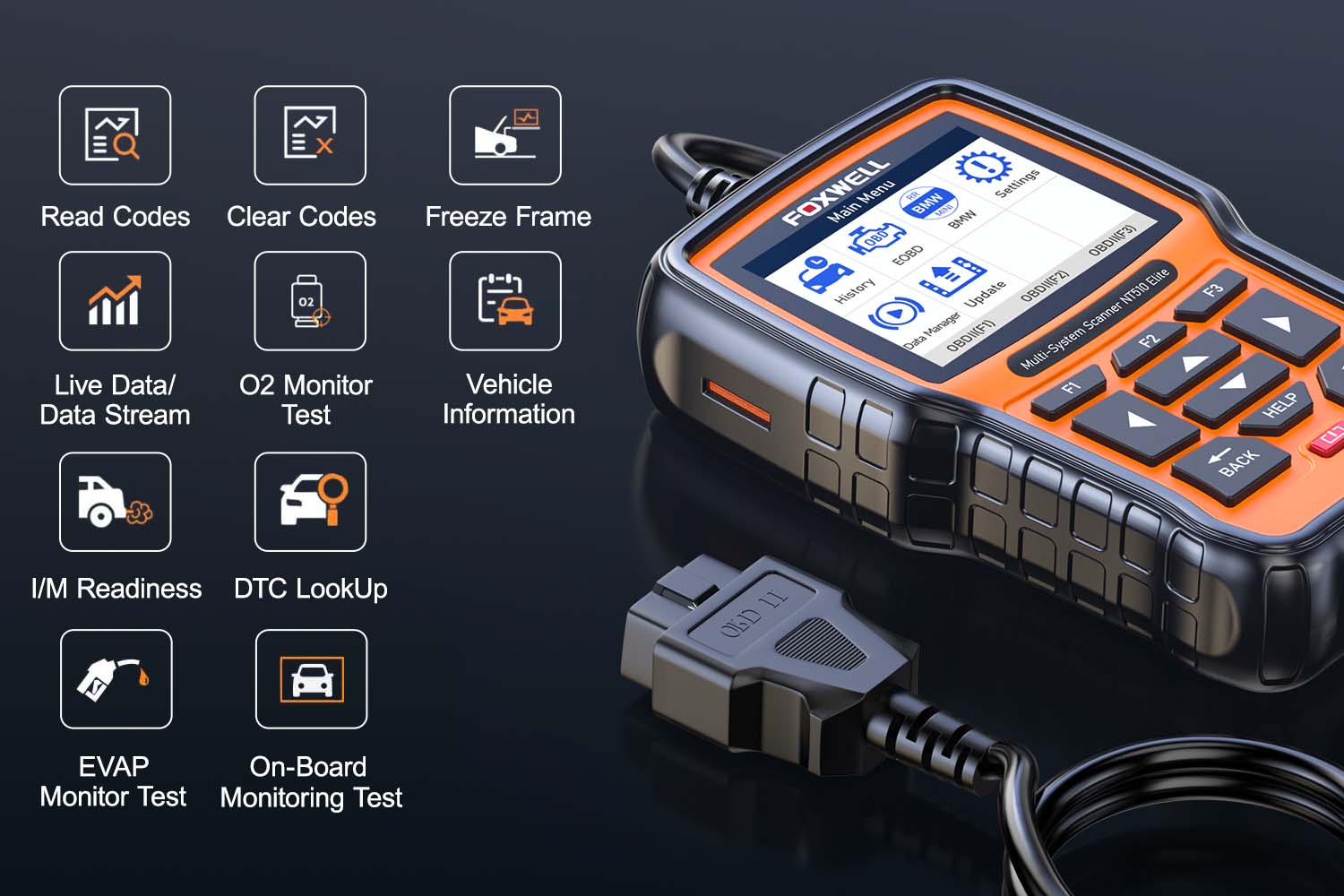
The NT510 may support service functions such as oil reset, battery registration, throttle relearn, electronic parking brake service, injector coding, or steering angle reset. Availability depends on the vehicle, year, module, software version, and purchased license.
Why a function may be unavailable
Possible reasons include:
• The function is not supported on that vehicle.
• The selected vehicle profile is incorrect.
• The vehicle software is outdated.
• The function requires a security access step.
• Battery voltage is too low.
• Another fault must be repaired first.
• The function needs a separate manual procedure.
For example, an electronic parking brake service command may fail if the brake module has an active motor fault. A battery registration command may not replace the need to install the correct battery type and capacity.
Use service functions carefully
Read every screen prompt. Keep the vehicle stable, connect a support charger when appropriate, and do not interrupt the procedure.
Before making a coding or reset change, record the original value. Some changes cannot be undone easily without factory-level equipment.
The NT510 is a useful service tool, but it is not a substitute for the vehicle manufacturer’s repair information. When a procedure affects brakes, airbags, steering, or engine control, follow the exact service steps for that vehicle.
FOXWELL NT510 Airbag and ABS Troubleshooting
Safety systems require extra care. An ABS or airbag warning light may come from a simple low-voltage event, but it may also indicate a serious safety fault.
ABS communication and code checks
If the NT510 cannot access ABS, inspect the ABS fuse, battery voltage, wheel speed sensor wiring, and module connector. Do not replace a wheel speed sensor only because the code mentions that sensor.
A broken tone ring, damaged wheel bearing, or wiring fault can create the same symptom. Compare live wheel speed data during a slow test drive when safe.
Airbag system warnings
Never test airbag circuits with a standard test light or apply power to an airbag connector. Follow the vehicle service manual and observe the required wait time after disconnecting the battery.
The NT510 can read and clear some SRS codes on supported vehicles, but clearing a code does not repair the fault. If the warning returns, the system still needs diagnosis.
Do not work around an airbag system if you are unsure of the procedure. Accidental deployment can cause severe injury.
FOXWELL NT510 Data and Diagnostic Limits
Good FOXWELL NT510 troubleshooting also means knowing what the tool cannot do.
The NT510 may not:
• Access every module on every vehicle
• Read manufacturer-specific data without the correct license
• Program replacement control modules
• Perform every immobilizer function
• Replace a factory scan tool for advanced coding
• Diagnose mechanical faults without physical tests
• Repair wiring, sensors, or modules
Coverage changes over time. A vehicle may support engine code reading but not advanced body or security functions. Always confirm compatibility before purchase or repair work.
Diagnostic codes also have limits. A code does not prove that a component is bad. The correct answer often comes from combining scan data with voltage tests, pressure tests, wiring checks, and a physical inspection.
A Practical FOXWELL NT510 Troubleshooting Workflow
Use this workflow when the scanner behaves strangely or fails to complete a test.
-
Check the vehicle battery voltage.
-
Inspect the OBD-II connector and related fuses.
-
Confirm the ignition is in the correct position.
-
Disconnect accessories that may affect the diagnostic network.
-
Restart the NT510 and retry the connection.
-
Select the vehicle manually.
-
Scan more than one control module.
-
Save codes and freeze-frame data.
-
Check for NT510 software updates.
-
Test the suspected vehicle circuit before replacing parts.
-
Clear codes only after repairs are complete.
-
Perform a road test and scan again.
This method works because it separates tool faults from vehicle faults. It is much like checking whether a phone is broken before blaming the network: test the device, the connection, and the service one at a time.
Mistakes to Avoid During FOXWELL NT510 Troubleshooting
Several habits create more problems than they solve.
• Do not clear codes before recording them.
• Do not select a similar vehicle just to enter the system.
• Do not update the tool with unofficial firmware.
• Do not perform coding with a weak battery.
• Do not replace a part based on a code alone.
• Do not use a test light on airbag circuits.
• Do not unplug the scanner during a software update.
• Do not assume a failed special function means the tool is broken.
• Do not ignore technical service bulletins or wiring diagrams.
One lesson has stayed consistent in my testing: the fastest repair is usually the most careful first test. Five minutes spent checking voltage and connector condition can prevent hours of guessing.
When to Contact FOXWELL Support
Contact official FOXWELL support when the tool fails on several compatible vehicles, cannot complete a correct update, or shows a persistent hardware error.
Have these details ready:
• NT510 serial number
• Vehicle make, model, year, and engine
• Exact error message
• Software version
• Steps that caused the problem
• Photos of the connector or screen, if useful
• Whether another scan tool works on the vehicle
This information helps support staff separate a coverage issue, software issue, cable issue, and vehicle network fault. Clear details are more useful than simply reporting that the scanner “does not work.”
Frequently Asked Questions About FOXWELL NT510 Troubleshooting
Why will my FOXWELL NT510 not turn on?
Check the vehicle battery, OBD-II fuse, diagnostic socket, and cable first. If the NT510 stays dark on several compatible vehicles, the cable or scanner may need professional support.
Why does the FOXWELL NT510 say it cannot connect?
The ignition may be off, the vehicle selection may be wrong, or the selected module may have a power or network fault. Try manual vehicle selection and test another control module.
Can a FOXWELL NT510 clear an ABS or airbag light?
It can clear some ABS and SRS codes on supported vehicles after the fault is repaired. If the warning light returns, the underlying safety system problem remains.
How do I fix a FOXWELL NT510 update failure?
Use the correct official update utility, verify the serial number, and keep the USB connection stable. Never install firmware made for another FOXWELL model.
Why does my FOXWELL NT510 show no codes when the car has a problem?
The fault may not be stored, or it may exist in another module. Scan the engine, ABS, airbag, transmission, and body systems when supported, then use live data and physical tests.
Can low battery voltage affect FOXWELL NT510 results?
Yes. Low or unstable voltage can prevent communication, cause false codes, and interrupt special functions. Charge or test the battery before deeper diagnosis.
Does the FOXWELL NT510 work with every vehicle?
No. Coverage depends on the vehicle, model year, system, software version, and purchased brand license. Confirm the exact coverage before relying on a specific special function.
Conclusion
Effective FOXWELL NT510 troubleshooting begins with simple checks: stable battery power, a sound OBD-II connection, correct vehicle selection, and current software. After that, save diagnostic data, test the suspected circuit, and treat every code as a clue rather than a confirmed failed part.
The NT510 can be a strong diagnostic aid, but safe results depend on good testing habits and accurate vehicle information. Follow the workflow in this guide, use official update tools, and seek professional help for airbag, brake, security, or programming work when needed. Explore the vehicle’s service information, keep your scanner updated, and share your troubleshooting experience in the comments.