FIXD OBD2 Scanner Troubleshooting: Easy Fixes That Work
FIXD OBD2 Scanner troubleshooting starts with checking power, Bluetooth, app settings, and the vehicle’s diagnostic port.
A FIXD OBD2 Scanner can turn a confusing dashboard warning into useful information, but connection errors, missing codes, and sensor alerts can still cause stress. This guide explains FIXD OBD2 Scanner troubleshooting in a clear, practical way, based on common OBD-II behavior, real repair patterns, and safe diagnostic habits.

What Is the FIXD OBD2 Scanner?
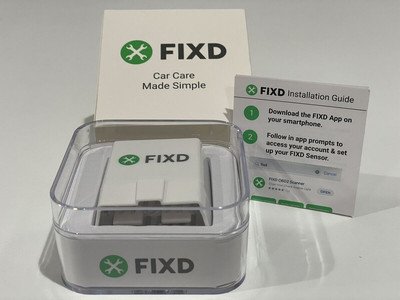
The FIXD OBD2 Scanner is a small diagnostic device that connects to a vehicle’s OBD-II port. It sends vehicle data to the FIXD mobile app through Bluetooth. The app can read diagnostic trouble codes, explain many common faults, and help track maintenance needs.
Most vehicles sold in the United States from 1996 onward use the OBD-II system. The port is often under the driver’s side dashboard, near the steering column. It may look like a wide, 16-pin plug.
The scanner does not repair a car. It acts more like a translator. The vehicle creates a fault code, and the scanner helps turn that code into information you can understand.
FIXD OBD2 Scanner troubleshooting is usually simple because most problems come from one of these areas:
• The scanner is not receiving power.
• Bluetooth is disabled or blocked.
• The FIXD app lacks permission.
• The scanner is not fully inserted.
• The vehicle uses a code or system the device cannot read.
• The check engine light is off, so no active code is available.
FIXD OBD2 Scanner Not Connecting
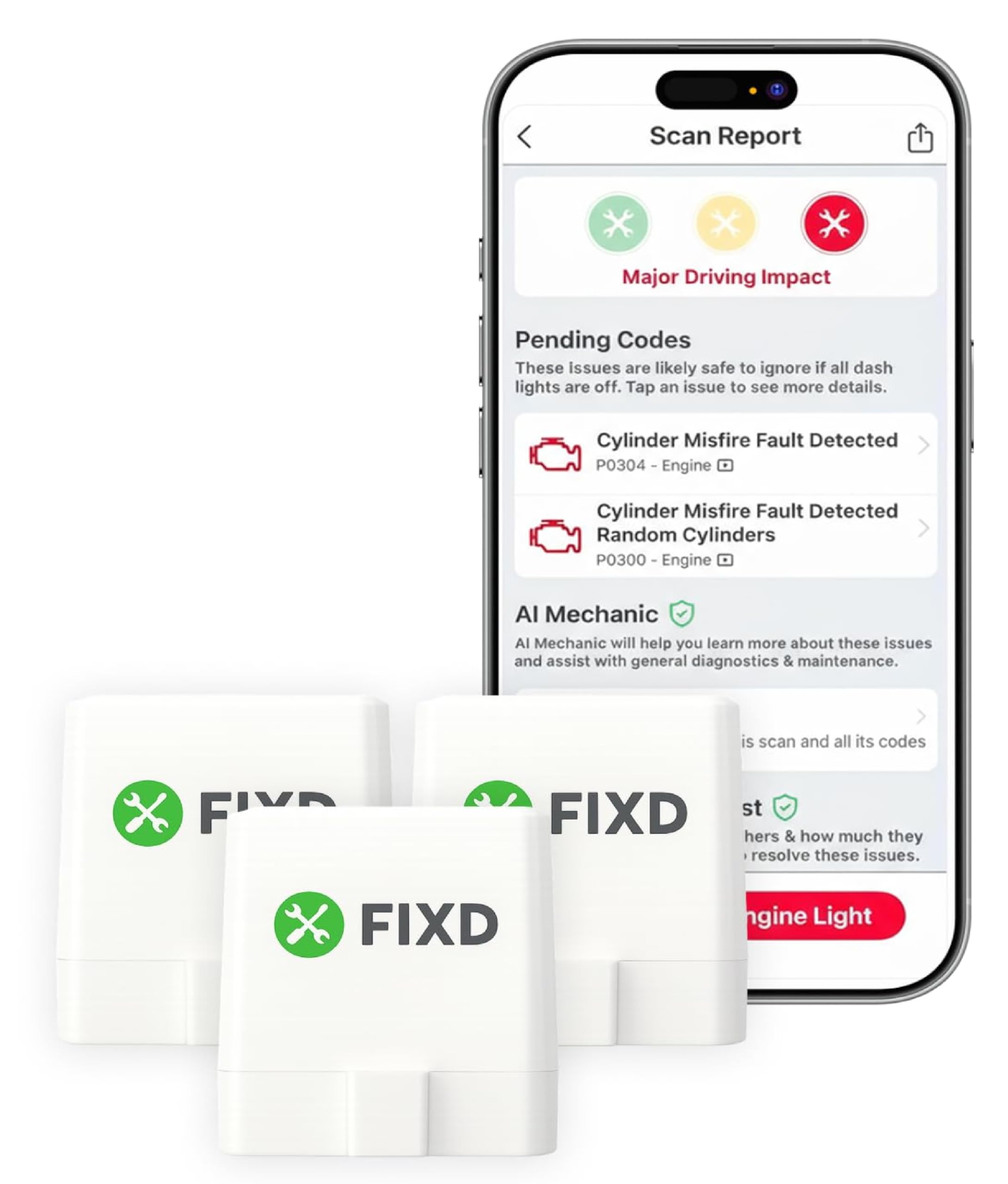
A connection problem is one of the most common reasons people search for FIXD OBD2 Scanner troubleshooting help. Start with the basics before assuming the scanner is defective.
Check the scanner light
Insert the FIXD device into the vehicle’s OBD-II port with the ignition switched on. Do not start the engine at first. The scanner should receive power when the vehicle’s electrical system is active.
If the scanner has no light or response:
• Remove it and insert it again.
• Turn the ignition fully to the “on” position.
• Try starting the engine.
• Check whether another device is using the port.
• Inspect the port for bent pins, dirt, or loose wiring.
Some vehicles power the OBD-II port only when the ignition is on. Others may keep it powered after the car is turned off. This difference is normal.
Confirm Bluetooth access
The FIXD device communicates with the phone through Bluetooth. Open your phone settings and confirm that Bluetooth is on. Then open the FIXD app and follow its connection process.
Do not pair the sensor through the phone’s regular Bluetooth menu unless the app specifically instructs you to do so. Many Bluetooth accessories work best when pairing begins inside their own app.
On newer phones, the app may also need permission to use nearby devices or location services. These permissions can affect Bluetooth discovery, even when location tracking is not being used for navigation.
Restart both devices
A simple restart can clear a temporary connection problem.
-
Close the FIXD app completely.
-
Turn Bluetooth off for about 10 seconds.
-
Restart the phone.
-
Turn the ignition off.
-
Reinsert the scanner.
-
Open the FIXD app and try again.
In my experience with Bluetooth diagnostic tools, restarting the phone solves more connection problems than repeated tapping inside the app. It gives the phone and scanner a clean start.

FIXD Scanner Has No Power
If the FIXD OBD2 Scanner does not light up, the problem may be with the vehicle’s port rather than the scanner. The OBD-II connector receives power from the car’s electrical system.
Test the ignition position
Insert the scanner, then turn the key to the second position. This is the position where the dashboard lights come on but the engine does not run. In a push-button vehicle, press the start button without pressing the brake pedal.
If the scanner remains inactive, start the engine and check again. Some vehicles provide power only during a specific ignition state.
Inspect the OBD-II port
Use a flashlight to look inside the port. Watch for:
• Bent or pushed-back metal terminals.
• Dust, food, or small objects.
• Signs of water or corrosion.
• A loose connector behind the dashboard.
Never force the scanner into place. A damaged terminal can prevent power and may create a larger electrical problem.
Check the vehicle fuse
The OBD-II port often shares a fuse with the cigarette lighter, accessory socket, or interior electronics. If those items also stopped working, a blown fuse is possible.
Use the vehicle owner’s manual to find the correct fuse. Replace it only with the same amperage rating. A higher-rated fuse can damage wiring and create a fire risk.
If the replacement fuse blows again, stop testing and ask a qualified technician to inspect the circuit.

FIXD App Cannot Find the Scanner
The app may fail to find the scanner even when the device has power. This often points to a permission, account, or software issue.
Try these steps:
-
Update the FIXD app through the Apple App Store or Google Play.
-
Confirm that the phone’s operating system supports the current app version.
-
Enable Bluetooth and nearby-device permissions.
-
Keep the phone close to the scanner during setup.
-
Close other apps that use Bluetooth diagnostic equipment.
-
Sign out of the FIXD app and sign in again.
-
Remove the scanner from the vehicle and repeat the setup process.
Avoid testing several phones at the same time. The scanner may connect to one phone while the other phone continues searching. This can make the problem look worse than it is.
If you recently changed phones, transfer the scanner through the FIXD account rather than creating a second account. Account confusion can prevent vehicle data from appearing correctly.

FIXD Scanner Reads No Codes
A scanner may connect successfully and still show no trouble codes. That does not mean the scanner failed.
The vehicle computer stores a code only when it detects a fault that meets certain conditions. A warning light may not appear after one brief event. The problem may need to happen more than once before the computer saves a confirmed code.
“No codes found” can mean:
• The check engine light is not active.
• The issue was temporary.
• The code was recently cleared.
• The vehicle has not completed its readiness checks.
• The problem is outside the engine control system.
• The scanner cannot access that vehicle module.
OBD-II mainly focuses on emissions-related systems and the powertrain. It may not read every airbag, anti-lock brake, body, transmission, or manufacturer-specific module.
This limitation matters. A clean scan does not prove that the entire vehicle is healthy. It only shows that the scanner found no readable code in the systems it can access.

FIXD Scanner Shows a Check Engine Code
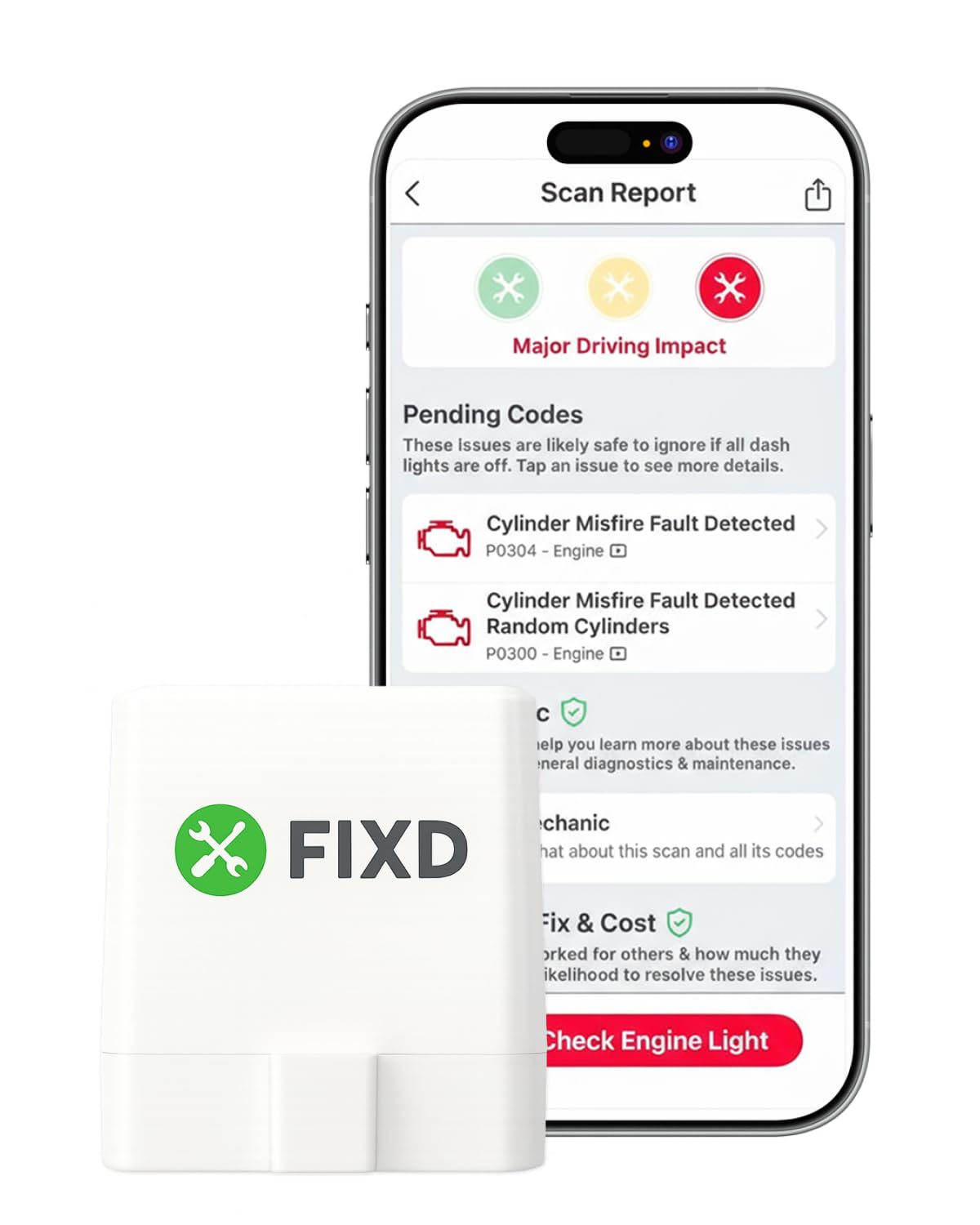
A diagnostic trouble code, or DTC, usually contains one letter and four numbers. For example, P0420 relates to catalytic converter efficiency, while P0301 points to a cylinder one misfire.
The code is a clue, not a final diagnosis. A P0301 code does not automatically mean the ignition coil is bad. The cause could be a spark plug, fuel injector, vacuum leak, wiring fault, or low engine compression.
Use this process:
-
Record the exact code.
-
Note whether the light is steady or flashing.
-
Check the vehicle’s symptoms.
-
Look for related codes.
-
Inspect simple causes first.
-
Test parts before replacing them.
A flashing check engine light often indicates an active misfire that may damage the catalytic converter. Reduce driving and seek professional help quickly. A steady light is usually less urgent, but it still deserves diagnosis.
One mistake I have seen often is replacing expensive parts based on a code description alone. A code points toward a system. It does not identify every failed part in that system.

FIXD Scanner Shows Multiple Codes
Several codes can appear at once, especially after a weak battery, jump-start, wiring issue, or major electrical interruption. Some codes may be secondary symptoms.
Start with the code that appeared first, if the app provides freeze-frame or history information. Also look for a shared cause, such as:
• Low battery voltage.
• A loose ground connection.
• A damaged wiring harness.
• A blown fuse.
• Water inside a connector.
• An unplugged sensor.
For example, a low-voltage event can trigger communication codes in several vehicle modules. Replacing multiple sensors would waste money if the real issue is a weak battery or poor ground.
Do not clear all codes before recording them. Clearing codes removes useful evidence and resets many emissions readiness monitors.
FIXD Scanner Will Not Update Vehicle Data
The FIXD app may connect but fail to refresh mileage, fuel data, maintenance details, or vehicle status. This can happen when the engine is off or when the scanner cannot communicate with the vehicle computer.
Try refreshing the app with:
• The ignition switched on.
• The engine running.
• The phone near the scanner.
• A stable internet connection.
Some information comes from the vehicle, while other information depends on app settings or manual entries. Fuel economy estimates may also vary because they are based on available vehicle data and user input.
If the app shows an old reading, close and reopen it. Then allow enough time for the scanner to complete its data exchange. Turning the ignition off too quickly can interrupt the scan.

FIXD Scanner Disconnects While Driving
A scanner that disconnects may have a loose fit, weak Bluetooth signal, or unstable vehicle power. The OBD-II port is not always positioned in a way that protects the device from a driver’s knee or foot.
Check the following:
• Push the scanner in firmly, but do not force it.
• Keep the phone within normal Bluetooth range.
• Remove thick objects that block the phone.
• Turn off battery-saving mode for the FIXD app.
• Make sure the phone does not automatically switch Bluetooth devices.
• Inspect the port for movement or loose wiring.
Do not use a cable adapter unless it is known to support the required OBD-II connections. Some extension cables or splitters can cause communication problems.
For safety, set up the app before driving. Never handle the phone while the vehicle is moving.
FIXD Scanner Works in One Vehicle but Not Another
A scanner may work in one car and fail in another because vehicles differ in port power, communication protocols, software, and supported modules.
Both vehicles may have an OBD-II port, but that does not guarantee identical access. Some older vehicles use unusual communication behavior. Some newer vehicles limit access to certain data for security reasons.
Check these items:
• The vehicle model year.
• The engine type.
• The location and condition of the OBD-II port.
• Whether the check engine system is supported.
• Whether another diagnostic device is connected.
• Whether the vehicle battery is fully charged.
If the scanner works normally in one vehicle, it is less likely to be completely defective. Test the second vehicle’s port with another compatible scanner or have a repair shop check the connector.
How to Reset the FIXD OBD2 Scanner
A reset can help when the scanner remains stuck, fails to reconnect, or shows outdated information. The exact process may vary by device version and app update.
A safe general reset process is:
-
Remove the scanner from the OBD-II port.
-
Close the FIXD app.
-
Restart the phone.
-
Turn Bluetooth off and on.
-
Reinsert the scanner with the ignition on.
-
Open the app and repeat the connection steps.
If the app offers a device removal or reset option, use that feature. Avoid opening the scanner or trying to modify its circuit. Internal damage can make future support difficult.
After a reset, you may need to add the vehicle again or confirm the account details.
When FIXD OBD2 Scanner Troubleshooting Does Not Work
Some problems need professional diagnosis. Contact FIXD support or a qualified automotive technician when:
• The scanner has no power in several known-good vehicles.
• The OBD-II port has damaged pins.
• A fuse blows repeatedly.
• The app cannot connect after updates and resets.
• The vehicle has a flashing check engine light.
• The car will not start or runs very poorly.
• You suspect an airbag, brake, or high-voltage battery problem.
• The scanner reports communication errors across several systems.
A basic code reader cannot replace a multimeter, wiring diagram, fuel pressure gauge, oscilloscope, or professional scan tool. This is an important limitation of FIXD OBD2 Scanner troubleshooting.
The best diagnosis combines the code with symptoms, visual inspection, electrical tests, and service information. Treat the scanner as the first mile of the journey, not the entire road.
Tips for Accurate FIXD OBD2 Scanner Results
Good scan habits make the information more useful and reduce false conclusions.
• Keep the vehicle battery charged.
• Record codes before clearing them.
• Note the date, mileage, and driving symptoms.
• Scan before replacing parts.
• Check for technical service bulletins through a repair professional.
• Use the correct fuel cap if an evaporative emissions code appears.
• Avoid driving with a flashing check engine light.
• Do not unplug sensors while the ignition is on.
• Keep the FIXD app updated.
• Follow the vehicle manufacturer’s repair procedures.
A loose gas cap can trigger an emissions code, but not every evaporative emissions fault comes from the cap. Look for cracked hoses, damaged valves, and wiring problems if the code returns.
Similarly, a low battery can create strange codes. Test battery voltage and charging performance before chasing several unrelated electronic faults.
Common Mistakes to Avoid
FIXD OBD2 Scanner troubleshooting becomes harder when simple mistakes add new variables.
Clearing codes too soon
Clearing a code turns off the warning light but does not fix the fault. It also resets readiness monitors, which may matter during an emissions inspection.
Replacing parts without testing
A sensor code may result from a wiring issue, vacuum leak, or power problem. Test the circuit before buying a new sensor.
Ignoring symptoms
A code and a vehicle symptom should be considered together. Rough running, hard starting, poor fuel economy, and stalling can help narrow the cause.
Assuming “no code” means “no problem”
Some faults do not meet the conditions needed to set a code. Mechanical problems may also exist without an electronic warning.
Driving with a serious warning
A flashing check engine light, oil pressure warning, overheating, or brake warning requires more attention than a routine stored code. Stop safely when needed and arrange proper service.
Frequently Asked Questions About FIXD OBD2 Scanner Troubleshooting
Why is my FIXD OBD2 Scanner not connecting?
Check that the scanner has power, Bluetooth is enabled, and the FIXD app has nearby-device permissions. Restart the phone, turn the ignition on, and begin pairing inside the app.
Why does my FIXD scanner show no codes?
The vehicle may have no active emissions codes, or the problem may not have occurred often enough to trigger one. The scanner may also be unable to read certain airbag, brake, body, or manufacturer-specific systems.
Can FIXD clear a check engine light?
The app may provide a code-clearing option for supported vehicles, but clearing the code does not repair the cause. The light will return if the vehicle detects the same fault again.
Can I leave the FIXD scanner plugged in?
Some vehicles may keep the OBD-II port powered after the engine is off, which can slowly drain the battery over time. Remove the scanner during long periods of storage or whenever the vehicle manufacturer advises against leaving devices connected.
Why does my FIXD scanner disconnect while driving?
A loose OBD-II connection, weak Bluetooth signal, phone battery-saving setting, or unstable vehicle power can cause disconnects. Check the port and app permissions, and keep the phone close to the scanner.
Can FIXD diagnose every car problem?
No. FIXD can read many engine and emissions-related codes, but it is not a complete replacement for a professional scan tool or mechanical inspection. It may not access every vehicle module or identify the exact failed part.
Is it safe to drive with a check engine light?
A steady light may allow limited driving, but the vehicle should be checked soon. Stop driving when the light flashes or the car shakes, loses power, overheats, or shows another serious warning.
Conclusion
FIXD OBD2 Scanner troubleshooting usually starts with power, Bluetooth, app permissions, port condition, and the vehicle’s ignition state. If the scanner reads a code, treat it as a diagnostic clue rather than a guaranteed parts list. Record the code, check the symptoms, inspect simple causes, and avoid clearing evidence too early.
The scanner is a helpful first step for understanding a check engine light, but serious faults still need proper testing. Use these steps the next time your FIXD device fails to connect or displays a confusing result, then explore your vehicle’s service information or ask a qualified technician for help.