BlueDriver OBD2 Scanner Troubleshooting: Easy Fixes
Most BlueDriver OBD2 scanner problems come from weak power, poor Bluetooth access, outdated software, or unsupported vehicle systems.
BlueDriver OBD2 Scanner Troubleshooting is usually simple when you test one link at a time: the car, adapter, phone, app, and data connection. I have used Bluetooth scan tools on many common vehicle faults, and the same mistakes appear often. This guide explains how to find the cause, fix it safely, and know when a problem needs a professional mechanic.
How the BlueDriver OBD2 Scanner Works
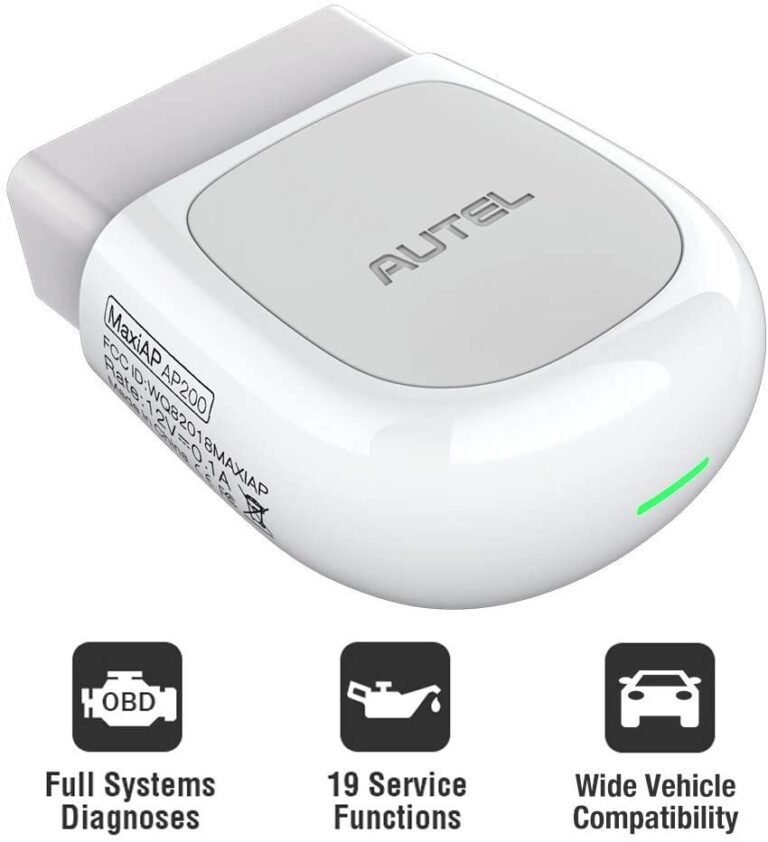
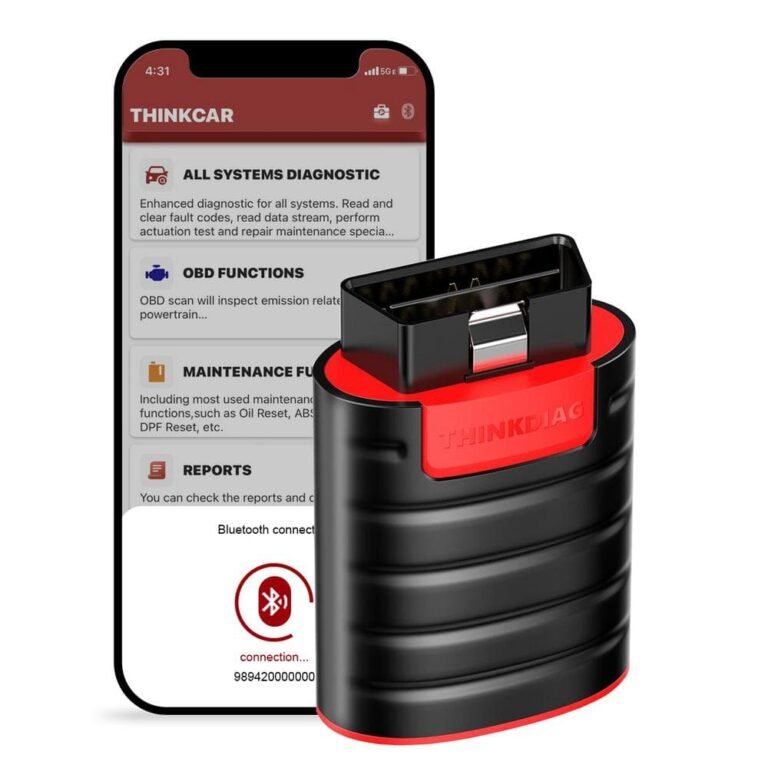
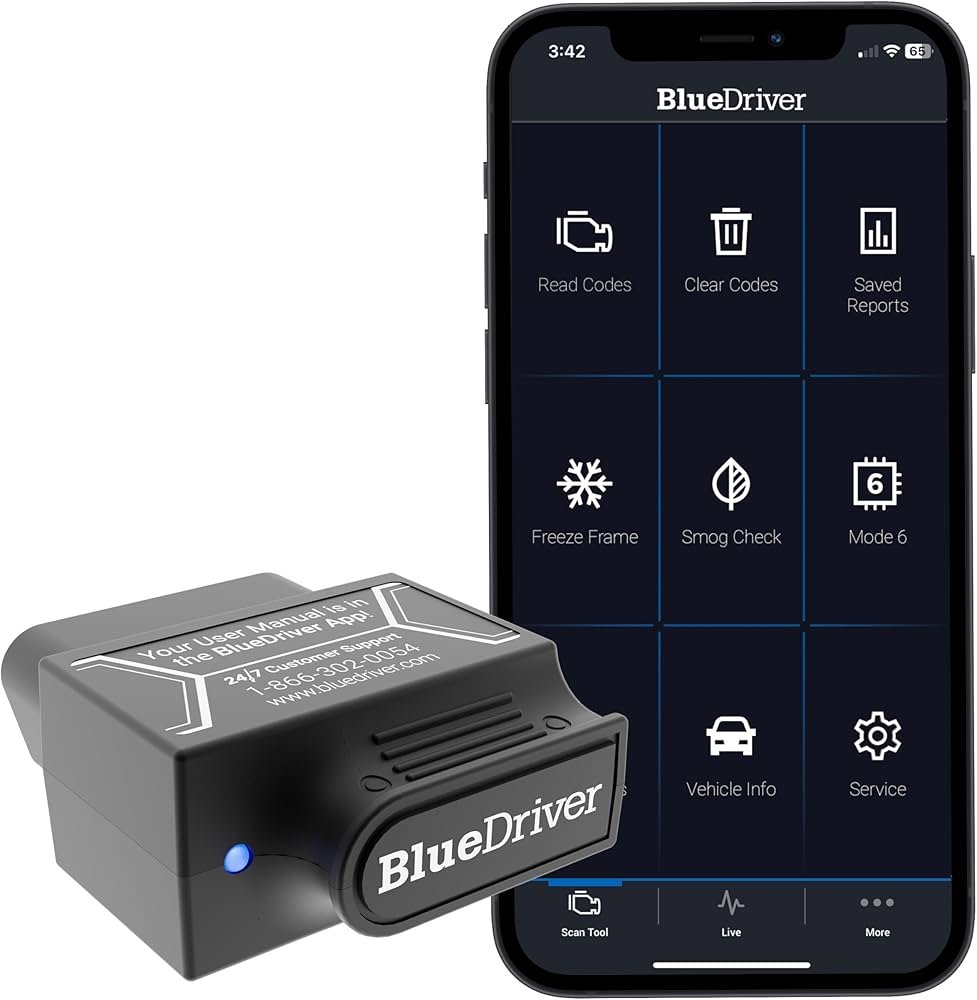
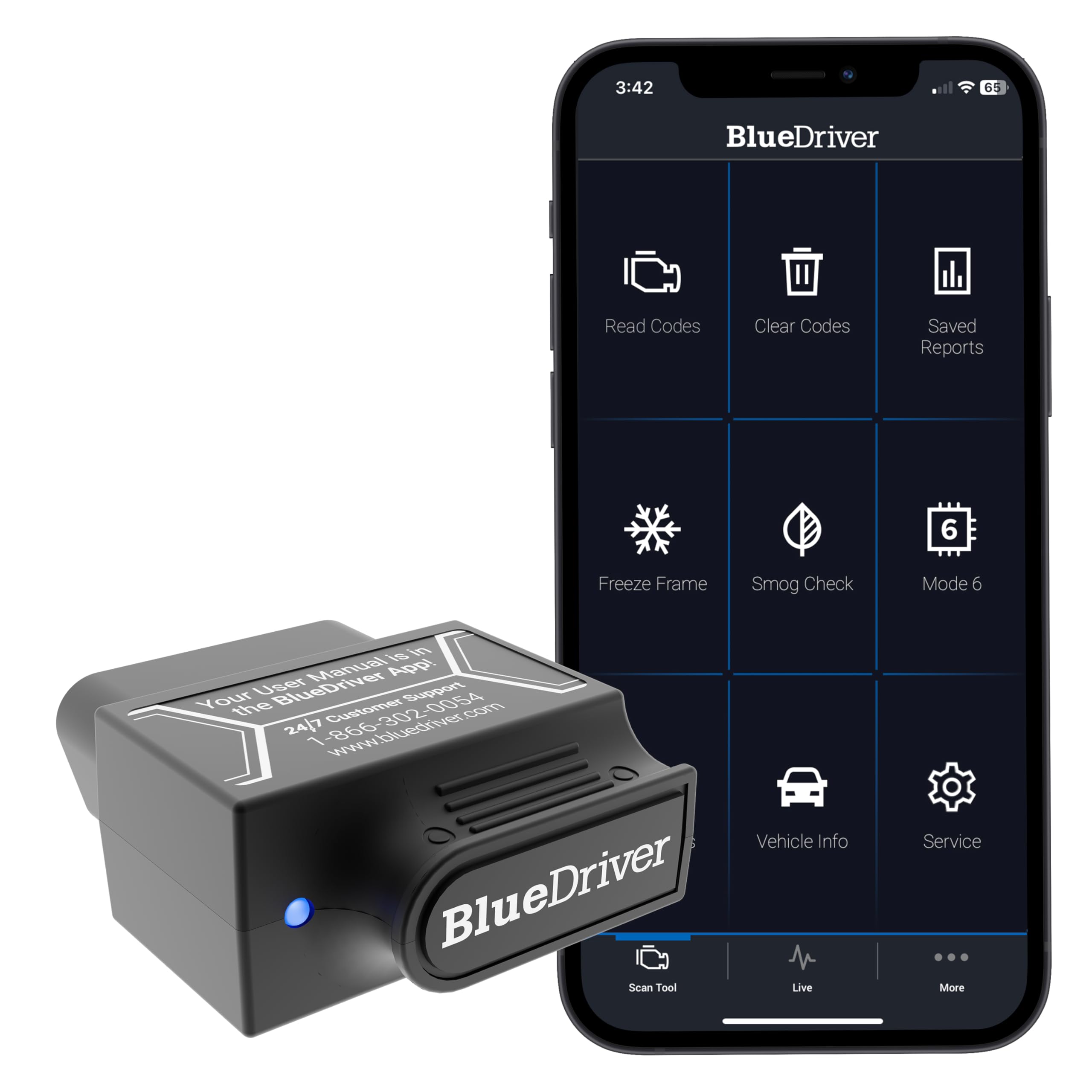
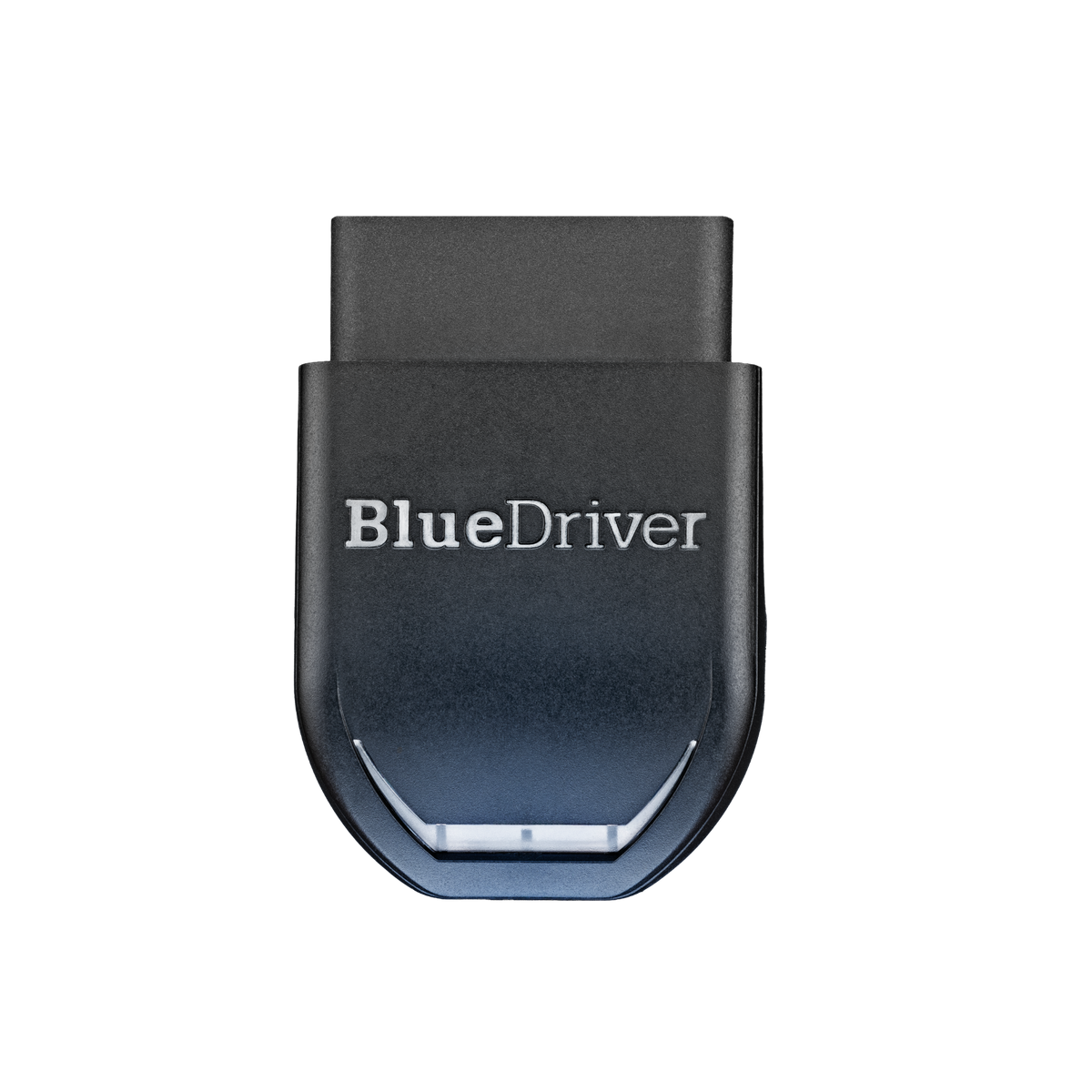
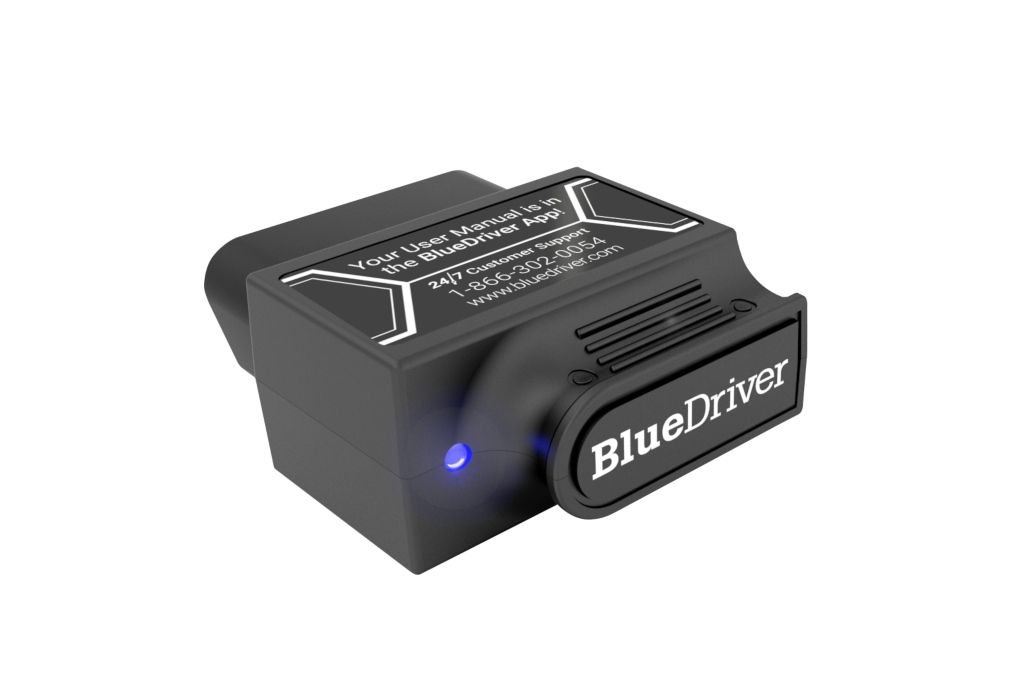
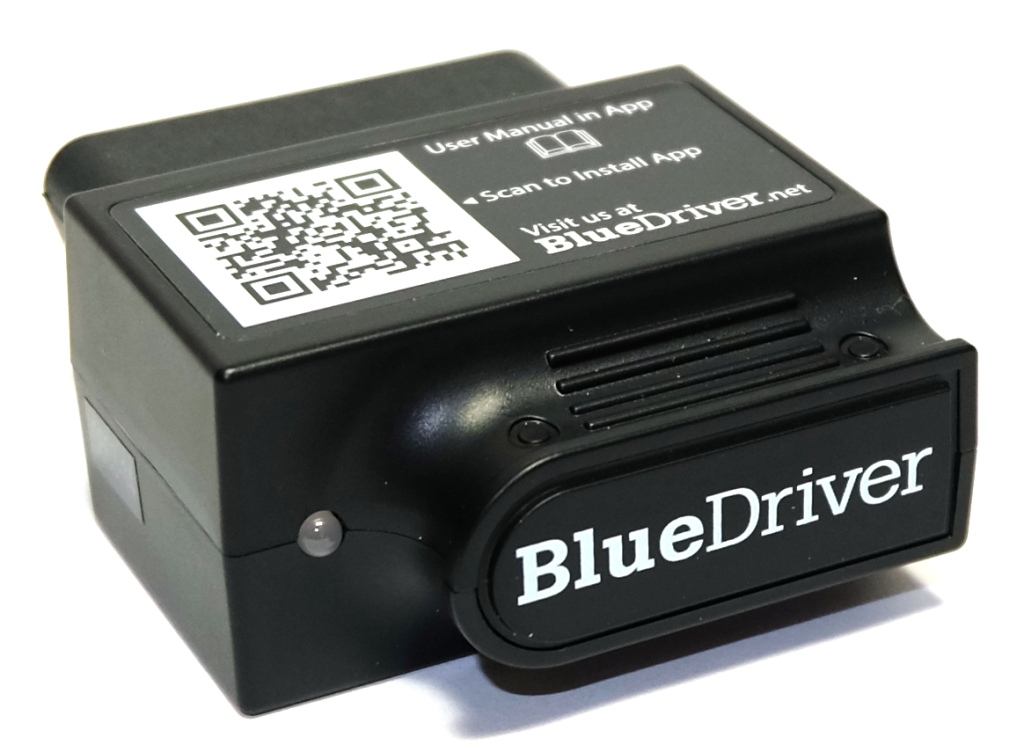
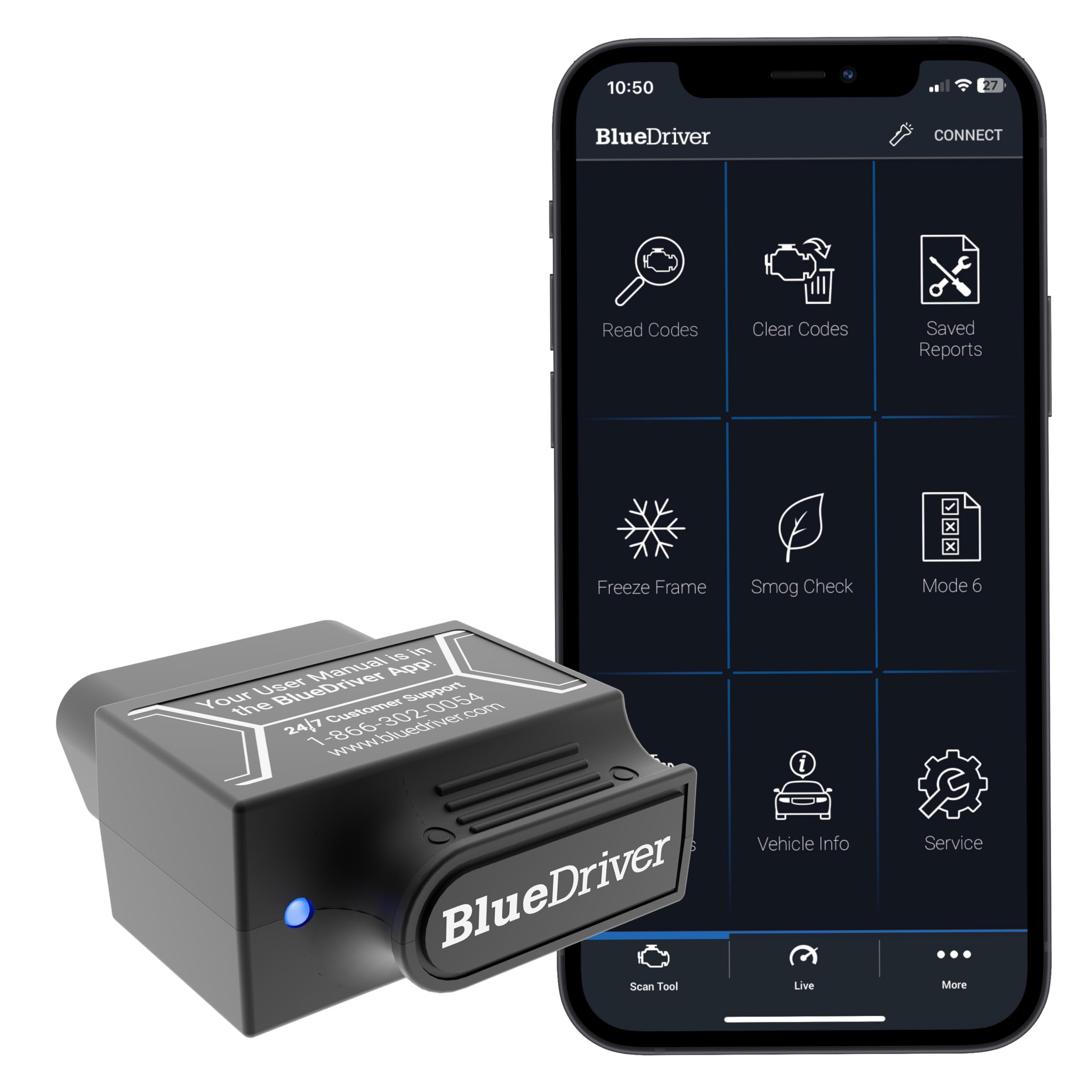
BlueDriver is a small diagnostic adapter that plugs into your vehicle’s OBD-II port. It sends data to the BlueDriver app on a compatible iPhone or Android device through Bluetooth.
The adapter reads information from the vehicle’s onboard computer. Depending on the vehicle and system, it may show:
• Check engine trouble codes
• Freeze-frame data
• Live sensor readings
• Emissions readiness monitors
• Possible causes and repair reports
• Some enhanced manufacturer codes
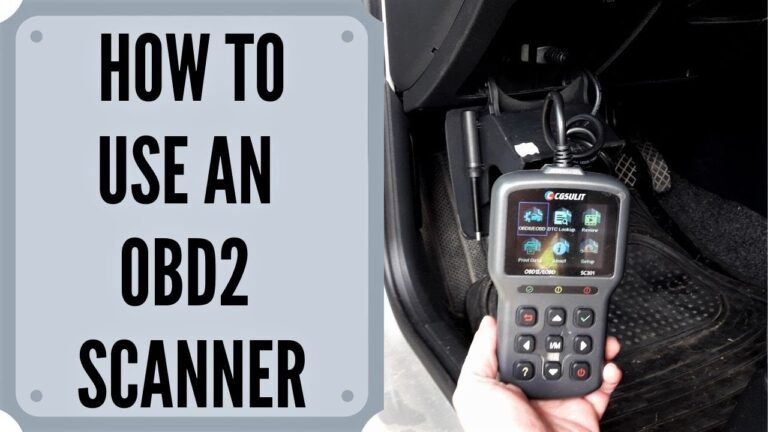
The OBD-II port normally sits below the dashboard near the steering column. In some cars, it may hide behind a small cover or sit near the center console.
A key point in BlueDriver OBD2 Scanner Troubleshooting is that the adapter does not repair the car. It reports what the vehicle computer sees. A code is a clue, not a final diagnosis.
For example, code P0171 may indicate a lean engine condition. The cause could be a vacuum leak, dirty mass airflow sensor, weak fuel delivery, or another issue. Replacing the first part listed online can waste money.

Start With the Basic BlueDriver OBD2 Scanner Troubleshooting Checks
Before changing phone settings or clearing codes, run a simple physical check. Many connection problems come from the OBD-II port, not the app.
Follow these steps:
-
Park safely and switch off the engine.
-
Find the OBD-II port under the dashboard.
-
Push the BlueDriver adapter firmly into the port.
-
Turn the ignition to the “On” position without starting the engine.
-
Open the BlueDriver app.
-
Wait for the adapter to connect.
-
Start a scan only after the app shows a connection.
The adapter needs power from the vehicle. Most OBD-II ports receive power when the key is in the “On” position. Some cars provide power even when the ignition is off, but you should still follow the normal connection process.
If the adapter shows no light, feels loose, or loses power when you move it, inspect the port. A damaged socket, blown fuse, or loose terminal can stop communication.
My first rule with BlueDriver OBD2 Scanner Troubleshooting is simple: do not assume the app is at fault until you confirm that the adapter has power.
BlueDriver Will Not Connect to the Vehicle
If BlueDriver cannot connect to the vehicle, check the adapter, ignition, and vehicle compatibility first.
Try this reset process:
• Unplug the BlueDriver adapter.
• Close the BlueDriver app completely.
• Turn off the vehicle.
• Wait for about one minute.
• Plug the adapter back into the OBD-II port.
• Turn the ignition to “On.”
• Open the app and try again.
Do not start the engine during the first connection attempt unless the app asks for it. Many scans work with the ignition on and the engine off. Live data tests may require the engine to run later.
Check whether other devices are connected to the phone. Bluetooth scanners can struggle when several devices compete for the same connection. Turn off Bluetooth headphones, smart watches, or another diagnostic adapter for a moment.
Also check the phone’s Bluetooth permissions. On some Android phones, the app needs nearby-device permission. Older Android versions may also require location permission for Bluetooth scanning. If these permissions are blocked, the app may appear unable to find the adapter.
BlueDriver OBD2 Scanner Troubleshooting becomes easier when you make only one change at a time. If you change the ignition, phone, app, and adapter together, you will not know which step fixed the issue.
Fix Bluetooth and Phone Connection Problems
Bluetooth problems are among the most common BlueDriver OBD2 Scanner Troubleshooting issues. The adapter may be powered, yet the phone may not complete the connection.
Use these checks:
• Keep the phone close to the adapter.
• Turn Bluetooth off and on again.
• Restart the phone.
• Update the BlueDriver app.
• Install pending phone software updates.
• Remove old or duplicate BlueDriver entries from the phone’s Bluetooth menu if they appear.
• Allow the app to use nearby devices.
• Disable battery-saving restrictions for the BlueDriver app.
A common mistake is pairing the adapter through the phone’s normal Bluetooth settings before opening the app. Depending on the device and app version, BlueDriver may manage the connection inside the app. If manual pairing creates trouble, forget the saved device and reconnect through the app.
On Android, battery optimization can stop the app from maintaining a stable connection. Open the app settings, find battery use, and select an option that allows BlueDriver to run without strict background limits.
On iPhone, check Bluetooth access under the privacy settings. If the app does not have permission, it cannot communicate with the adapter.
In my experience, a full phone restart fixes more connection problems than repeatedly tapping the scan button. It clears temporary Bluetooth errors and gives the app a clean start.

What to Do When BlueDriver Shows “No Communication”
A “no communication” message means the adapter cannot exchange data with one or more vehicle control modules. This is different from a phone connection problem.
First, confirm that the adapter connects to the phone. If the phone sees BlueDriver but the vehicle does not respond, inspect the car side of the system.
Check the following:
-
Confirm that the ignition is in the “On” position.
-
Try the scan with the engine off.
-
Check the OBD-II port for dirt, bent pins, or physical damage.
-
Test whether the port has power.
-
Inspect the vehicle’s interior fuse panel.
-
Check for aftermarket alarms, remote starters, or tracking devices near the OBD-II port.
-
Try another compatible vehicle if one is available.
The OBD-II port commonly receives power through a fuse shared with the cigarette lighter or accessory socket. If that accessory also does not work, a blown fuse may explain the problem.
Some vehicles use special communication networks or have unusual wiring. Older, modified, imported, or heavily customized vehicles may not communicate in the same way as a standard US-market OBD-II vehicle.
Do not force the adapter into the port. Bent pins can cause expensive network problems. If the port looks damaged or other scan tools also fail, stop testing and have the vehicle inspected.
BlueDriver Connects but Cannot Read Codes
Sometimes the adapter connects, but the app reports no codes or cannot complete the scan. This can happen for several reasons.
The vehicle may simply have no stored diagnostic trouble codes. A successful scan with no codes is not a failure. It means the systems that BlueDriver checked did not report a stored fault at that time.
Other causes include:
• The ignition is not fully switched on.
• The vehicle battery voltage is low.
• Another device is using the diagnostic network.
• The selected vehicle profile is incorrect.
• The app needs an update.
• The car uses a system that is not supported.
• The engine control module is asleep or not responding.
Try turning the ignition off, waiting 30 seconds, and then trying again. If the engine battery is weak, connect a proper battery charger or test the battery before repeated scans. Low voltage can create communication errors and false codes.
BlueDriver is strongest with standard OBD-II engine and emissions data. Enhanced access to systems such as ABS, air bags, transmission, or body modules can vary by make, model, year, and region.
This limitation matters in BlueDriver OBD2 Scanner Troubleshooting. A missing module report does not always mean that the vehicle has no problem. It may mean that the adapter or app does not support that module on that vehicle.

BlueDriver App Crashes, Freezes, or Loads Slowly
An app that crashes or freezes may have a software, phone storage, or permission problem.
Try these actions in order:
• Close the app and reopen it.
• Restart the phone.
• Update the app from the official app store.
• Free up phone storage.
• Turn off a VPN temporarily.
• Check the phone’s internet connection when downloading reports or updates.
• Reinstall the app if the problem continues.
Before reinstalling, save any scan reports or repair notes you want to keep. App data may not remain after removal.
A slow loading screen can also result from weak mobile data or Wi-Fi. The adapter may connect to the car through Bluetooth, while some app features need internet access to download vehicle information, repair reports, or updates.
Avoid using a heavily restricted guest profile on the phone. Security tools and work-device policies can block Bluetooth, storage, or network access.
One lesson I learned early is to update the app before assuming the adapter is defective. Diagnostic software changes often, and an older version may behave poorly with a newer phone operating system.

BlueDriver Cannot Clear a Trouble Code
BlueDriver may read a code but fail to clear it. This usually happens when the cause is still present, the ignition state is wrong, or the vehicle does not permit that reset.
Before clearing a code:
-
Record the code number.
-
Save the freeze-frame data.
-
Note the mileage and symptoms.
-
Repair or test the likely cause.
-
Start the vehicle and confirm that the fault does not return.
-
Use the app’s clear function only when safe.
Clearing a code does not fix the problem. It also resets many emissions readiness monitors. If you clear codes before an emissions inspection, the vehicle may not be ready for testing even if the check engine light stays off.
The light may return immediately when the control module detects the same fault. That is useful information. It tells you the issue remains active.
Some warning lights cannot be cleared through a standard OBD-II service. Air bag, ABS, maintenance, and body-system warnings may need a scan tool with specific manufacturer access.
If the check engine light is flashing, do not treat it as a normal reset problem. A flashing light can indicate a severe misfire that may damage the catalytic converter. Reduce driving and arrange prompt diagnosis.
BlueDriver Gives a Code That Does Not Match the Problem
A diagnostic trouble code describes a detected condition. It does not always identify the failed part.
For example:
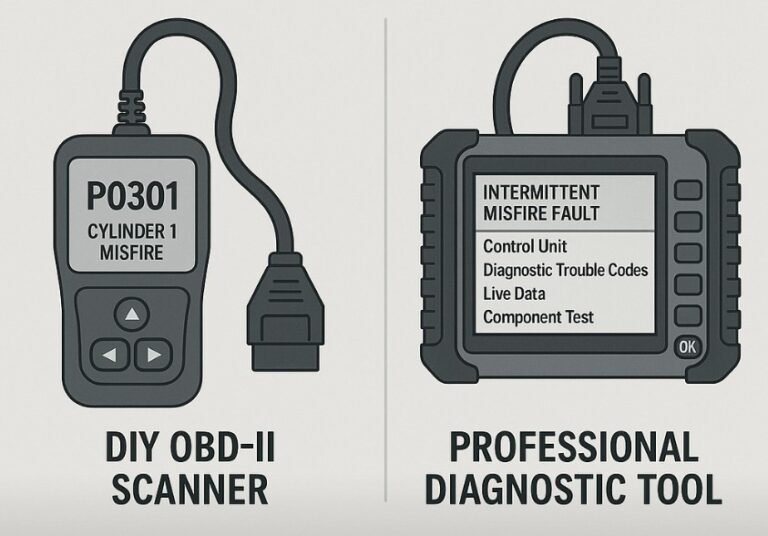
• P0301 points to a cylinder one misfire, but the cause could be a spark plug, coil, injector, fuel issue, compression problem, or vacuum leak.
• P0420 suggests catalyst efficiency below the expected level, but an exhaust leak or faulty oxygen sensor can also contribute.
• P0455 suggests a large evaporative emissions leak, but the cause may be a loose gas cap, cracked hose, purge valve, or vent valve.
Use the code as the starting point. Check the related wiring, connectors, fuses, hoses, and live data before buying parts.
Freeze-frame data can help. It may show engine speed, coolant temperature, load, fuel trim, and vehicle speed when the code appeared. This information gives the fault a time and place.
In practical BlueDriver OBD2 Scanner Troubleshooting, live data is often more helpful than the code alone. If fuel trim rises sharply at idle but improves at higher speed, a vacuum leak becomes more likely. This is an example, not a guaranteed diagnosis.
When safety systems are involved, use a factory service manual or qualified technician. A scan result should support a repair plan, not replace proper testing.
BlueDriver Live Data Looks Wrong
Live data can seem confusing because sensor values change with engine speed, temperature, load, and driving conditions. One number alone rarely proves a part has failed.
Before judging a reading, warm the engine if the test requires normal operating temperature. Then compare related values.
Useful examples include:
• Short-term and long-term fuel trim
• Engine coolant temperature
• Oxygen sensor or air-fuel sensor data
• Mass airflow readings
• Throttle position
• Engine speed
• Vehicle speed
• Intake manifold pressure
A coolant temperature reading that stays near freezing after a fully warm engine may suggest a sensor or wiring issue. However, the same reading could come from a cold engine if the test started too soon.
Fuel trim also needs context. Large positive trim can suggest that the engine computer is adding fuel. Possible causes include unmetered air, low fuel pressure, or inaccurate airflow data.
Do not compare live data from different vehicles as if they use the same normal range. Engine design, software, altitude, fuel, and operating temperature all matter.
BlueDriver OBD2 Scanner Troubleshooting works best when you record readings during a repeatable test. Note the engine temperature, idle speed, and load each time.
BlueDriver Reports an Unsupported Vehicle or Feature
BlueDriver supports many OBD-II vehicles, but no consumer scanner supports every vehicle system. Standard US OBD-II requirements generally apply to passenger vehicles sold in the United States from the 1996 model year onward, but coverage still varies by manufacturer and system.
Possible reasons for limited support include:
• The vehicle is not a standard US-market model.
• The model year or engine is outside the supported range.
• The vehicle uses a proprietary diagnostic system.
• The requested module is not part of standard emissions diagnostics.
• The app has limited enhanced coverage for that make and model.
• The vehicle has been modified.
Standard engine codes may work while ABS, air bag, transmission, or body modules do not. This is normal for many aftermarket OBD2 scanners.
Check the app’s supported vehicle information before buying a replacement adapter or blaming the car. If you need advanced module coding, bi-directional controls, key programming, or dealer-level functions, you may need a professional scan platform.
Clear expectations are an important part of BlueDriver OBD2 Scanner Troubleshooting. The tool is valuable, but it is not a universal replacement for factory equipment.
Check Vehicle Power and the OBD-II Port
A weak vehicle battery can cause unstable scans. During a scan, the control modules need steady voltage. Low voltage may cause the adapter to disconnect or produce several unrelated codes.
Inspect these items:
• Battery terminals
• Battery condition
• Interior and accessory fuses
• OBD-II port terminals
• Ground connections
• Aftermarket electrical equipment
You can use a multimeter to check battery voltage, but only if you know how to test safely. A fully charged resting battery is often near 12.6 volts, while a much lower reading may suggest low charge or battery trouble. Charging and testing conditions can change the result.
Never short the terminals or probe the OBD-II port carelessly. The port contains communication pins as well as power and ground. An incorrect test can damage a module.
If the vehicle recently had a dead battery, jump-start, stereo installation, or electrical repair, scan problems may be linked to that event. Write down what happened before the issue began.
This type of background detail often saves time. A scan error after an accessory installation points toward a different cause than a scan error that appeared after a software update.
When to Contact BlueDriver Support or a Mechanic
You can solve many BlueDriver OBD2 Scanner Troubleshooting problems at home. However, some cases need expert help.
Contact product support when:
• The adapter has no light in several compatible vehicles.
• The app cannot detect the adapter after phone resets and permission checks.
• The adapter repeatedly disconnects with stable vehicle power.
• The app shows a clear software error.
• You need help confirming vehicle coverage.
Contact a mechanic when:
• The OBD-II port is damaged.
• Other scan tools also cannot communicate.
• The check engine light is flashing.
• The vehicle stalls, overheats, or loses power.
• Air bag or brake warnings are active.
• You suspect a wiring or control-module fault.
Keep a clear record for support or repair work. Include the vehicle year, make, model, engine, phone type, operating system, app version, adapter light behavior, and exact error message.
Do not share sensitive personal information in screenshots. A clear, factual report helps the next person diagnose the issue without repeating the same tests.
Best Practices for Reliable BlueDriver Scans
Good habits prevent many scan errors and improve the value of the results.
Use these tips:
• Keep the app and phone software current.
• Maintain a healthy vehicle battery.
• Plug the adapter in firmly.
• Avoid driving while reading complex data unless another person operates the phone.
• Save codes before clearing them.
• Record freeze-frame data.
• Use live data during repeatable tests.
• Check repair information before replacing parts.
• Remove the adapter when the vehicle is parked for a long period if it continues to draw power.
• Keep the adapter dry and protected from heat.
Do not leave a Bluetooth scanner plugged in forever without checking its effect on the vehicle. Many cars shut down the diagnostic network, but some accessories can contribute to battery drain.
A scan tool is like a stethoscope. It helps you hear where the problem may be, but you still need examination and testing to find the real cause.
Common Mistakes to Avoid
Many failed scans happen because the user skips basic steps or expects too much from the device.
Avoid these mistakes:
• Clearing codes before saving the evidence
• Replacing a part based only on a code description
• Scanning with a weak battery
• Using the wrong vehicle profile
• Blocking Bluetooth permissions
• Pairing through the wrong phone menu
• Assuming no code means no problem
• Treating a pending code as a confirmed failure
• Ignoring a flashing check engine light
• Using a standard OBD2 scanner for advanced programming
Pending codes deserve attention. They indicate that the vehicle computer noticed a possible fault but may not have confirmed it through its required test cycle.
Permanent codes also cannot always be erased manually. The vehicle must confirm that the fault has been repaired through its own monitoring process.
These details make BlueDriver OBD2 Scanner Troubleshooting more accurate. Patience is often cheaper than guessing.
BlueDriver OBD2 Scanner Troubleshooting Checklist
Use this short checklist when the scanner fails:
-
Confirm that the vehicle supports the needed OBD-II function.
-
Locate the correct diagnostic port.
-
Check the adapter’s power light.
-
Turn the ignition to “On.”
-
Confirm Bluetooth and app permissions.
-
Close other Bluetooth connections.
-
Restart the app and phone.
-
Update the app.
-
Check battery voltage and related fuses.
-
Try the adapter on another compatible vehicle.
-
Record the exact error message.
-
Contact support or a mechanic if the problem continues.
Work from the simplest cause to the most complex. This approach avoids wasted time and protects you from unnecessary repairs.
Frequently Asked Questions About BlueDriver OBD2 Scanner Troubleshooting
Why is my BlueDriver not connecting to my phone?
Check Bluetooth, nearby-device permissions, app updates, and battery-saving settings. Restart the phone, close other Bluetooth connections, and reconnect through the BlueDriver app.
Why does BlueDriver have power but not communicate with my car?
The ignition may be off, the OBD-II port fuse may be blown, or the vehicle system may not be supported. Inspect the port and check whether another compatible scan tool can communicate with the car.
Can BlueDriver clear a check engine light?
BlueDriver can clear many standard engine and emissions codes after you save the diagnostic information. The light will return if the underlying problem remains, and some system warnings require specialized tools.
Why does BlueDriver show no trouble codes when my car has a problem?
Not every problem creates a stored OBD-II code. Mechanical faults, intermittent issues, unsupported modules, and problems outside emissions control may not appear in a standard scan.
Does BlueDriver work with ABS and air bag codes?
Coverage for ABS, air bag, transmission, and body modules varies by vehicle. Check the app’s vehicle support information because standard engine OBD-II access does not guarantee access to every module.
Can a weak car battery cause BlueDriver connection problems?
Yes. Low or unstable voltage can interrupt communication and create unrelated warning codes. Test or charge the battery before repeating a difficult scan.
Should I leave BlueDriver plugged into my car?
It is better to remove the adapter during long periods of parking unless you know the vehicle safely shuts down its diagnostic network. Leaving accessories connected can contribute to battery drain in some vehicles.
Conclusion
BlueDriver OBD2 Scanner Troubleshooting starts with the basics: confirm adapter power, use the correct ignition position, check Bluetooth permissions, update the app, and inspect the vehicle’s OBD-II port and battery. Then look at support limits, freeze-frame data, live readings, and the difference between a code and a confirmed diagnosis.
Use the scanner as a guide, not a guess machine. Save your data before clearing codes, test the likely cause, and seek professional help for safety faults or serious drivability symptoms. If this guide helped, explore more vehicle diagnostic resources and share your scan experience in the comments.