Launch X431 V Troubleshooting: Quick Fix Guide
Most Launch X431 V problems come from weak power, poor connections, outdated software, or an incorrect vehicle system choice.
Launch X431 V troubleshooting is much easier when you treat the tablet like a complete diagnostic system, not just a code reader. The tablet, diagnostic cable, vehicle battery, software, network connection, and selected control module all affect the result. This guide explains the most common faults, safe repair steps, and practical checks that help technicians find the real cause faster.
What the Launch X431 V Does
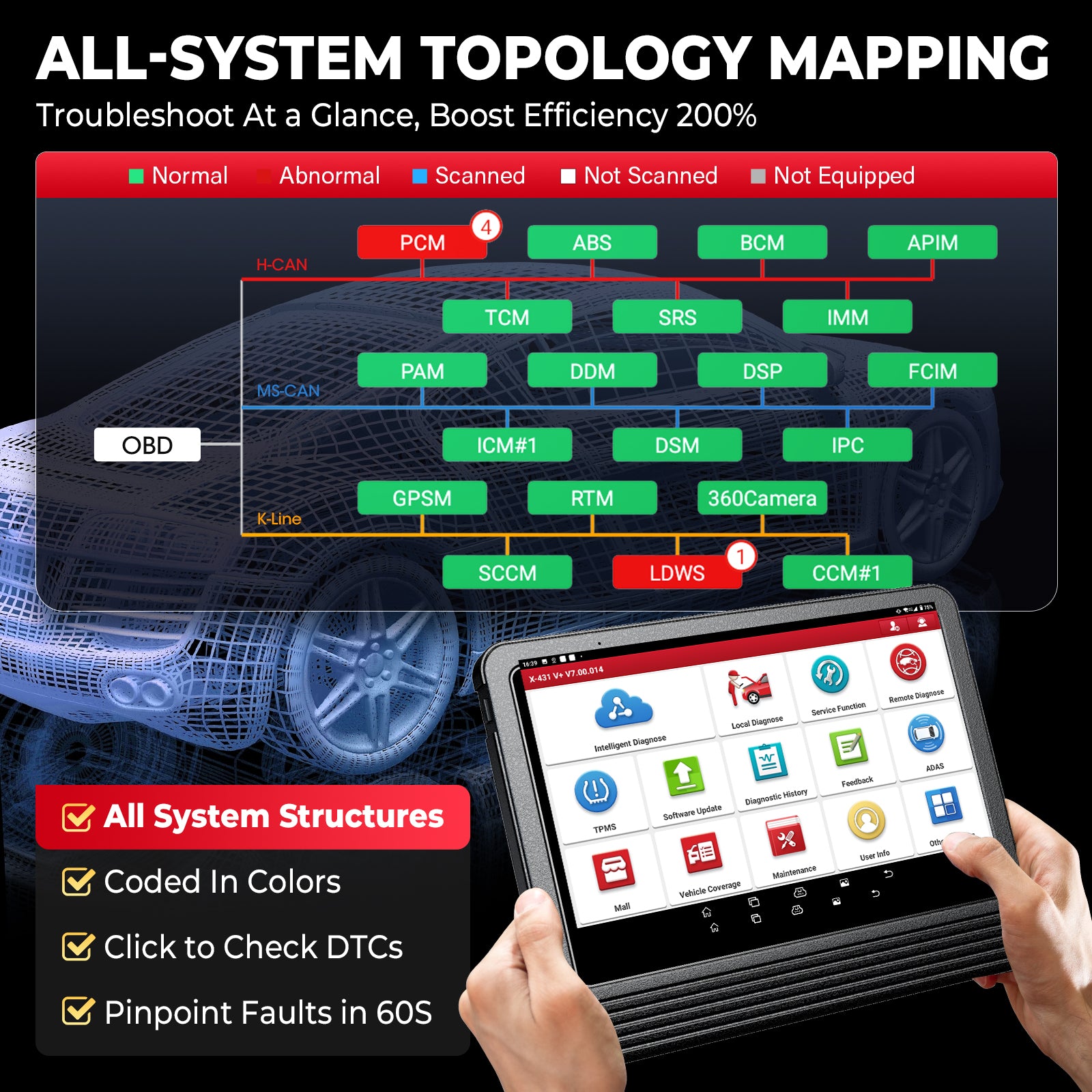
The Launch X431 V is an Android-based professional scan tool. Depending on the model and software package, it can read and clear trouble codes, show live data, run active tests, perform special functions, and support system resets.
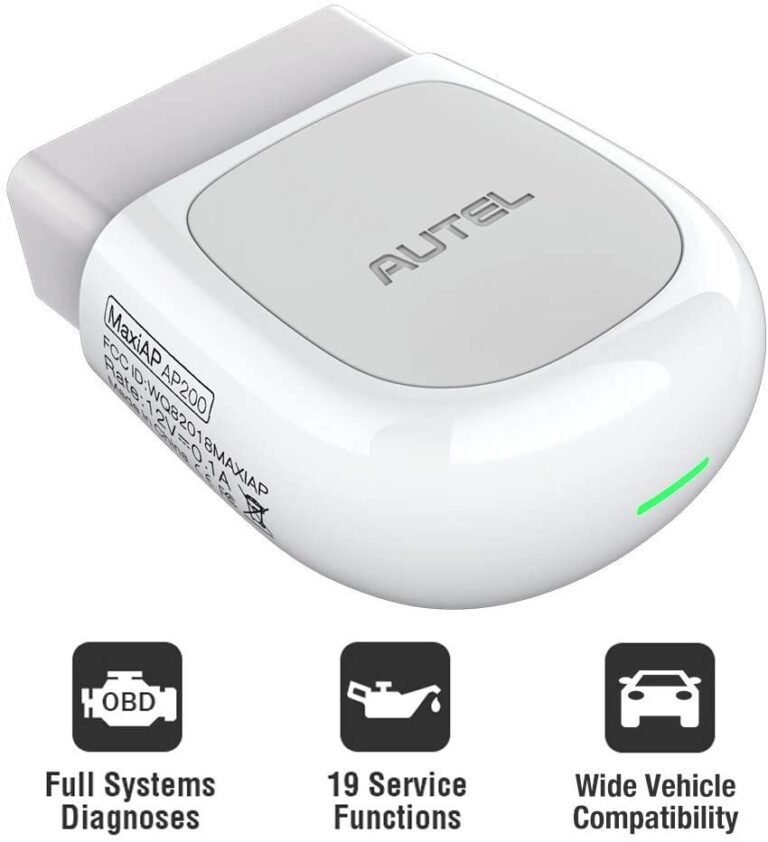
It communicates with a vehicle through the VCI, or Vehicle Communication Interface. The VCI connects to the diagnostic port and sends data to the tablet through Bluetooth or another supported wireless method.
Launch X431 V troubleshooting often starts with identifying which part has failed:
• The tablet may have a battery, screen, app, or software problem.
• The VCI may have a pairing, firmware, or power problem.
• The vehicle may have low battery voltage, a damaged diagnostic socket, or a communication fault.
• The selected vehicle software may be wrong or out of date.
Think of the system as a phone call. The tablet is one person, the VCI is the phone network, and the vehicle is the other person. If one link fails, no useful conversation can happen.
 display: block; margin: 0 auto;”
loading=”lazy”
/>
Start With Basic Safety and Power Checks
Before deeper Launch X431 V troubleshooting, check the simple items first. Many scan problems are caused by low voltage or a loose connection rather than a failed scan tool.
Keep the vehicle battery above about 12.4 volts with the ignition off when possible. During a scan, voltage should not fall sharply. A weak battery can cause failed module tests, lost communication, or corrupted programming operations.
Use a battery support unit during coding, programming, or long active tests. A normal battery charger may not provide stable voltage. Never disconnect the diagnostic cable while the tool is writing data to a control module.
Follow this basic check:
-
Park the vehicle safely and switch off high-current accessories.
-
Inspect the OBD-II port for bent pins, dirt, water, or loose terminals.
-
Plug the VCI fully into the port.
-
Turn the ignition on without starting the engine, unless the tool instructs you to start it.
-
Check whether the VCI power light turns on.
-
Confirm that the tablet has enough battery power.
-
Try a second known-good vehicle if available.
If the VCI has no light on several vehicles, the VCI, cable, or tablet connection may be the problem. If it works on another vehicle, focus on the original vehicle’s power supply, ground, diagnostic socket, or network.

Fix Launch X431 V Connection Problems
Connection errors are among the most common reasons people search for Launch X431 V troubleshooting. The tablet may show messages such as “VCI not connected,” “Bluetooth connection failed,” or “communication error.”
Start by opening the tablet’s VCI connection screen. Do not pair the VCI only through the Android Bluetooth settings unless the product instructions specifically require it. The Launch diagnostic application usually manages the correct connection.
Try these steps:
• Turn Bluetooth off and on again.
• Restart the tablet and the VCI.
• Move away from other Bluetooth devices.
• Keep the VCI close to the tablet during pairing.
• Remove old or duplicate VCI entries from the application.
• Confirm that the VCI serial number matches the device you are using.
• Reconnect the VCI after selecting the correct vehicle.
Some VCI units use a USB connection for certain operations. If wireless communication fails, use the approved USB cable if your model supports it. A damaged cable can still charge a device while failing to transfer data.
In my experience, technicians often replace the tablet before checking the VCI connection screen. That is an expensive mistake. First confirm whether the application can see the VCI. Then test the vehicle connection.

Resolve Tablet Power, Charging, and Start-Up Issues
A Launch X431 V tablet that will not turn on may have a discharged battery, a damaged charger, a frozen operating system, or a software fault. Connect it to a reliable charger and allow it to charge for at least 30 minutes.
Use the original charger or one with the correct voltage and current rating. Low-quality chargers may cause slow charging, repeated restarts, or a battery percentage that never rises.
If the screen is frozen, hold the power button for several seconds. The exact restart method can vary by model, so use the device manual when possible. Do not perform a factory reset as your first step because it may remove user settings, downloaded vehicle software, or account information.
Check these signs:
• The charging icon appears but the battery level does not increase.
• The tablet turns off when the VCI is connected.
• The tablet restarts during a scan.
• The screen responds slowly after a system update.
• The device becomes hot while charging.
A failing battery can create misleading Launch X431 V troubleshooting symptoms. For example, the tool may lose communication with a vehicle because the tablet voltage drops during a long scan. Test the tablet with a full charge before judging the scan software.

Repair Software Update and Download Errors
Software updates add vehicle coverage, improve functions, and correct communication issues. However, an interrupted update can leave a vehicle brand package incomplete or cause the application to behave oddly.
Use a stable Wi-Fi network. Avoid updating through a weak public network or mobile hotspot that may disconnect. Keep the tablet connected to power and do not close the update application while files are installing.
If an update fails, follow this order:
-
Restart the tablet.
-
Confirm the date, time, and time zone are correct.
-
Check available storage space.
-
Test the Wi-Fi connection with another application.
-
Sign in again if the application requests account verification.
-
Download the affected software package again.
-
Update the diagnostic application and VCI firmware when prompted.
Do not install random firmware files from unofficial websites. Incorrect firmware can disable the VCI or create compatibility problems. Product coverage also varies by model, region, subscription, and vehicle. A missing function does not always mean the tool is defective.
When Launch X431 V troubleshooting involves subscription or activation, verify that the device is linked to the correct account. Keep proof of purchase and the serial number available when contacting technical support.

Diagnose “No Communication” Messages
A “no communication” message means the scan tool did not establish a usable link with the selected control module. It does not automatically prove that the vehicle module is bad.
First, confirm the basics:
• Select the exact vehicle year, model, engine, and system.
• Turn the ignition on as instructed.
• Check the vehicle battery voltage.
• Verify that the OBD port has power and ground.
• Inspect the VCI connection.
• Try an automatic vehicle identification method and a manual selection.
A vehicle may have several networks, such as CAN, LIN, and older communication systems. If one network has a short circuit, many modules may stop responding. Aftermarket radios, alarms, remote starters, trackers, and poorly installed accessories are common sources of network problems.
Use a wiring diagram and a digital multimeter when testing the diagnostic port. On a standard OBD-II connector, terminal 16 usually supplies battery power, while terminals 4 and 5 provide grounds. Do not assume every vehicle uses the same layout for every function. Verify the pinout before testing.
If the tool communicates with the engine computer but not the airbag module, the fault may be limited to the airbag power supply, network wiring, module, or software coverage. This is a system-specific problem, not a general tablet failure.

Handle Incorrect Trouble Codes and Live Data
A diagnostic trouble code is a clue, not a final diagnosis. For example, an oxygen sensor code may result from a wiring fault, an exhaust leak, a fuel problem, or a damaged sensor. Clearing the code without testing the cause often leads to a repeat failure.
Good Launch X431 V troubleshooting follows a clear process:
-
Record every stored, pending, and permanent code.
-
Save freeze-frame data when available.
-
Note the vehicle mileage and operating conditions.
-
Check related codes before replacing parts.
-
Review live data with the engine at the correct temperature.
-
Perform a visual and electrical inspection.
-
Clear codes only after recording them.
-
Run the required drive cycle or system test.
Live data must be interpreted in context. A coolant temperature reading of 80°C may be normal on one vehicle and suspicious on another, depending on engine design and operating conditions.
Do not trust one data value by itself. Compare sensor readings with physical conditions. If the engine is cold but the scan tool shows an unusually high coolant temperature, test the sensor circuit and reference voltage.
In workshop testing, the biggest mistake is parts swapping. A scan tool can point toward a system, but tests with a meter, pressure gauge, scope, or smoke machine may still be needed.

Correct Active Test and Special Function Failures
Active tests command a component to operate. Special functions may include battery registration, throttle relearn, steering angle reset, injector coding, electronic parking brake service, or diesel particulate filter regeneration.
These functions require extra care because the tool is not only reading information. It is asking the vehicle to change its operating state.
Before starting an active test:
• Use a stable battery support unit.
• Read the tool’s on-screen instructions.
• Confirm that the vehicle meets temperature and gear requirements.
• Make sure the parking brake and safety conditions are correct.
• Record existing settings and codes.
• Keep the diagnostic connection stable.
A failed special function may occur because the vehicle does not meet the required conditions. For example, an electronic parking brake service procedure may fail if the battery is weak, the brake pedal is pressed, or a related ABS fault is active.
Some functions also require security access, an online account, a PIN, or a separate authorization. The Launch X431 V may display the function but still require additional permissions from the vehicle manufacturer.
Never interrupt module programming unless the instructions specifically allow it. A failed reset is usually recoverable, but an interrupted programming session can create a much more serious problem.
Improve Slow Performance and App Crashes
Slow performance can result from low storage, too many background applications, an outdated app, or a damaged software package. It can also happen when the tablet is connected to a poor Wi-Fi network during online functions.
Close unused applications and restart the tablet before a long diagnostic session. Remove unnecessary files, but avoid deleting diagnostic data that you may need for repair records.
Useful checks include:
• Keep free storage space available.
• Install system and diagnostic application updates.
• Restart the tablet regularly.
• Use a stable Wi-Fi connection.
• Avoid running several large applications at once.
• Keep the tablet away from extreme heat.
• Protect the screen and charging port from shop dust and fluids.
If one vehicle brand application crashes while others work, reinstall or update that package. If every application crashes, the issue may involve the Android system, storage, battery, or hardware.
A factory reset should be a final step. Before using it, back up important reports and confirm that your activation details are available. After the reset, you may need to sign in and download the vehicle software again.

A Practical Launch X431 V Troubleshooting Workflow
A repeatable process saves more time than guessing. Use the following workflow whenever a scan fails.
Step 1: Confirm the customer concern
Ask what happened, when it started, and whether another repair or accessory installation came first. A recent battery replacement, radio installation, or jump-start can provide an important clue.
Step 2: Check vehicle power
Measure battery voltage and inspect the main grounds. A scan tool cannot repair an unstable electrical system.
Step 3: Inspect the diagnostic port
Look for damaged terminals, missing power, poor ground, or signs of water. Test the port before blaming the scan tool.
Step 4: Check the tablet and VCI
Confirm battery charge, Bluetooth status, VCI lights, serial number, and application connection. Test with another vehicle if possible.
Step 5: Select the vehicle correctly
Use the vehicle identification number when supported, but verify the result. Automatic identification is helpful, not infallible.
Step 6: Scan all systems
A full scan can reveal a network or power fault that a single-module scan may miss. Save the report before clearing anything.
Step 7: Verify the code
Use wiring information, live data, technical service information, and physical tests. The code points to a fault area, not always a failed component.
Step 8: Document the repair
Save scan reports, test results, and before-and-after data. Clear records help prove that the repair worked and make future service easier.
This workflow is the safest form of Launch X431 V troubleshooting because it separates tool faults from vehicle faults. It also reduces the risk of replacing expensive parts without evidence.
When to Contact Launch Technical Support
Contact technical support when the tablet cannot activate, the VCI is not recognized on multiple vehicles, an update repeatedly fails, or a supported function is missing after correct installation.
Prepare useful details before calling or submitting a support request:
• Tablet model and serial number.
• VCI serial number.
• Vehicle year, make, model, engine, and market.
• Diagnostic software version.
• Exact error message.
• Photos or screenshots.
• Battery voltage during the test.
• Steps that reproduce the problem.
Support can work faster when the report is specific. “It does not work” gives little direction, while “The VCI powers on, pairs with the tablet, but loses communication with the ABS module after identification” is much more useful.
Remember that Launch X431 V coverage is not identical for every vehicle. Functions may depend on software version, region, subscription status, vehicle security systems, and manufacturer access rules. A support agent may confirm that a limitation is normal rather than a hardware fault.
Mistakes to Avoid During Diagnosis
The wrong troubleshooting habit can turn a small issue into a costly repair. Avoid these common mistakes:
• Clearing codes before saving freeze-frame data.
• Programming a module with a weak battery.
• Using an incorrect vehicle profile.
• Pairing the VCI through the wrong menu.
• Updating software on an unstable Wi-Fi connection.
• Replacing a sensor based only on one trouble code.
• Unplugging the VCI during a special function.
• Using unofficial firmware or modified applications.
• Ignoring aftermarket electrical accessories.
• Assuming that a missing function means the tablet is broken.
One useful lesson is to change only one variable at a time. If you update the app, replace the cable, change the vehicle selection, and reset the tablet together, you will not know which action solved the problem.
Good Launch X431 V troubleshooting is like finding a leak in a water pipe. Test each section in order until the fault is isolated.
Frequently Asked Questions About Launch X431 V Troubleshooting
Why does my Launch X431 V say the VCI is not connected?
Check Bluetooth, VCI power, application permissions, and the serial number shown in the diagnostic app. Restart both devices and test the VCI on another vehicle to separate a tool issue from a vehicle issue.
Why will the Launch X431 V not communicate with a vehicle?
Possible causes include low battery voltage, a damaged OBD port, incorrect vehicle selection, a network fault, or outdated software. Check power and ground at the diagnostic connector before replacing the VCI.
How do I fix Launch X431 V software update errors?
Use stable Wi-Fi, connect the tablet to power, check storage space, and confirm the date and time. Restart the tablet and download the affected vehicle package again through the official application.
Can a weak car battery cause scan tool problems?
Yes. Low voltage can cause lost communication, failed active tests, false codes, and interrupted programming. Use a battery support unit for coding and other long procedures.
Should I factory reset my Launch X431 V?
A factory reset should be a last resort because it can remove settings, reports, and downloaded software. Back up important data and confirm your account details before resetting the tablet.
Why does the scan tool read engine codes but not airbag codes?
The airbag system may have a separate power or communication fault, or the selected software may not support that function for the vehicle. Check related fuses, wiring, battery voltage, and system coverage.
Can I clear a trouble code without fixing the problem?
You can often clear a code, but it may return if the fault remains. Always record the code and freeze-frame data first, then repair and verify the cause.
Conclusion
Launch X431 V troubleshooting works best when you use a calm, step-by-step process. Check power, the diagnostic port, the VCI, Bluetooth, software, vehicle selection, and network communication before blaming a control module or replacing parts.
Use stable voltage for special functions, save diagnostic reports, and treat trouble codes as clues rather than proof. With careful testing, the Launch X431 V can become a reliable part of your diagnostic workflow instead of another source of confusion. Keep this guide nearby, follow the checks in order, and explore the tool’s official support resources when a problem remains unresolved.