Autel MaxiSYS Ultra Troubleshooting: Fast Fixes
Autel MaxiSYS Ultra troubleshooting often starts with power, updates, network access, cable checks, and correct vehicle communication.
The Autel MaxiSYS Ultra is a powerful diagnostic platform, but even advanced tools can lose connection, freeze, misread data, or fail during coding. This guide explains Autel MaxiSYS Ultra troubleshooting in a clear, practical way, based on common shop problems, proven diagnostic habits, and safe repair steps.
What Is the Autel MaxiSYS Ultra?
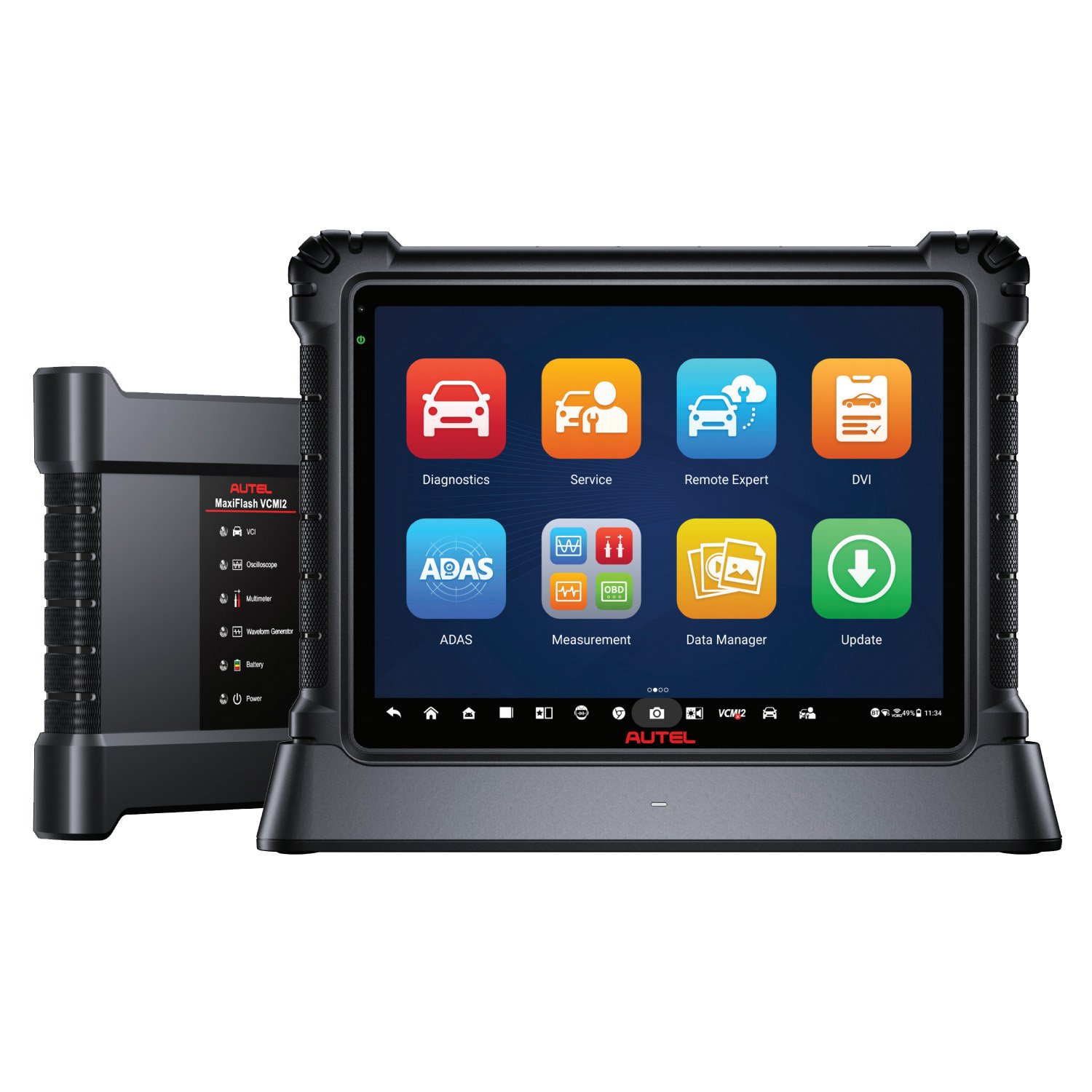
The Autel MaxiSYS Ultra is a professional scan tool for advanced vehicle diagnosis. It can read and clear fault codes, view live data, run active tests, perform coding, support guided functions, and communicate with many vehicle control modules.
Its large display and advanced topology functions make it useful for complex faults. However, the tool depends on several systems working together:
• The tablet must have enough battery power.
• The diagnostic cable and VCI must communicate correctly.
• The vehicle must provide stable voltage.
• The software must support the vehicle and function.
• The internet connection must work for online features.
• The technician must choose the correct vehicle profile.
This is why Autel MaxiSYS Ultra troubleshooting should follow a process. Guessing can waste time and may create a new problem during programming or coding.

Common Autel MaxiSYS Ultra Problems
Most problems fall into a few clear groups. Finding the group first makes Autel MaxiSYS Ultra troubleshooting much faster.
The tablet will not turn on
A dead battery is the first thing to check. Connect the charger and leave the tablet connected for at least 20 to 30 minutes before trying again.
Also check the charging port, power adapter, and wall outlet. If the charging symbol never appears, the issue may involve the charger, port, battery, or internal power circuit.
The scan tool freezes or runs slowly
Slow performance often comes from low storage, outdated software, too many open apps, or a weak battery. Restart the tablet and close unused programs.
If the problem returns, check available storage and remove old reports or unused files. A system update may also improve stability, but keep the tablet connected to power during the update.
The tool cannot identify the vehicle
Confirm the vehicle identification number manually if automatic VIN detection fails. Some vehicles do not transmit a complete VIN through the diagnostic connector.
Check the ignition state as well. Most vehicles need the ignition on, with the engine off, before the scanner can identify all modules.
The scanner cannot communicate with a control module
This may point to a poor cable connection, low vehicle voltage, a blown fuse, a gateway lock, or a fault on the vehicle communication network. Do not assume the scan tool is defective.
Try a full vehicle scan first. Then compare the result with a direct module scan. This can show whether the problem affects one module or the entire network.
Coding or programming stops
Coding and programming need stable power, strong communication, and the correct software package. A weak vehicle battery is one of the most common causes of failed programming.
Use a suitable battery support unit when the vehicle manufacturer requires it. Never disconnect the cable or switch off the ignition during a software operation unless the on-screen instructions tell you to do so.
A Step-by-Step Autel MaxiSYS Ultra Troubleshooting Process
A fixed process prevents random testing. I use the same order each time because it starts with simple causes and moves toward deeper faults.
Step 1: Check the tablet
Inspect the battery level and connect the charger if needed. Restart the MaxiSYS Ultra before testing again.
Look for cracked screens, damaged ports, or signs of impact. Physical damage can affect charging, touch control, and communication.
Step 2: Check the vehicle
Measure battery voltage with a digital multimeter if the vehicle acts strangely. A healthy resting battery is often near 12.6 volts, while a much lower reading may cause unstable module communication.
Turn off heavy electrical loads. Keep the vehicle battery supported during long scans, active tests, coding, and programming.
Step 3: Inspect the diagnostic connection
Push the main cable firmly into the tablet or VCI and the vehicle diagnostic port. Check for bent pins, dirt, loose terminals, or signs of corrosion.
Do not force a connector. A damaged terminal can spread inside the port and create an intermittent fault that is hard to find.
Step 4: Confirm the vehicle profile
Choose the correct year, make, model, engine, and region. A similar model can use a different communication network or control module.
If automatic identification seems wrong, exit the session and enter the vehicle manually. Correct vehicle selection is a basic but critical part of Autel MaxiSYS Ultra troubleshooting.
Step 5: Test communication
Run a system scan and note which modules respond. If most modules communicate but one does not, inspect that module’s power, ground, fuse, and network wires.
If no modules communicate, test the diagnostic port power and ground. On many vehicles, the scan tool relies on power at the connector, but the exact pin layout can vary by vehicle.
Step 6: Record the fault
Save the vehicle report before clearing codes. Record the code, status, freeze-frame data, and related symptoms.
A code is a clue, not a final diagnosis. For example, a communication code may result from low voltage, a damaged wire, a failed module, or a separate module holding the network down.

Autel MaxiSYS Ultra Troubleshooting for Connection Errors
Connection errors can occur between the tablet, VCI, cable, and vehicle. Treat this chain like a phone call: every link must work before the message can pass through.
Bluetooth connection problems
Place the VCI close to the tablet during pairing. Remove other Bluetooth devices that may cause confusion, then restart both the tablet and VCI.
Check the VCI status inside the MaxiSYS application. If the VCI appears paired in the tablet settings but not inside the diagnostic app, remove the pairing and connect it through the Autel software instead.
USB connection problems
Try another approved USB cable if the tool supports a wired connection. Some cables provide charging only and do not carry data.
Inspect the port for dust or damage. A cable that works only when held at an angle should be replaced, not trusted for programming.
Vehicle communication problems
First, verify the ignition and battery condition. Next, check whether the vehicle has aftermarket alarms, remote starters, trackers, or audio systems that may affect the network.
For a suspected CAN bus fault, professional testing may include checking network resistance with the vehicle powered down. Many systems show about 60 ohms across the main CAN network, but the correct test method depends on the vehicle design. Always follow the service manual.
Intermittent communication
Intermittent faults need patience. Move the cable gently while watching communication status, but never pull on the connector.
Check for water near the diagnostic port and body control module. Moisture, loose grounds, and poor aftermarket wiring are frequent causes of communication loss.

Fixing Software, Update, and Login Issues
Software is central to Autel MaxiSYS Ultra troubleshooting. The tablet needs the right application, current vehicle data, and a valid account for some online functions.
Update the system safely
Connect to a reliable Wi-Fi network. Keep the tablet charged or connected to its power adapter during updates.
Install updates one at a time when possible. If an update fails, restart the tablet, check storage space, confirm the date and time, and try again.
Fix download errors
A weak Wi-Fi signal can interrupt large vehicle software downloads. Move closer to the router or use a stable business network.
Check that the tablet has free storage. Delete old diagnostic reports only after exporting any records that you need for customer files.
Resolve account problems
Confirm that the correct Autel account is active. Password errors, expired subscriptions, or a mismatch between the account and device can block updates and online functions.
Avoid using unknown third-party files or unofficial software. They can cause security risks, unstable operation, or loss of support.
When an app crashes
Restart the diagnostic application first. If the crash continues, clear the app cache through the tablet settings, then reopen the application.
Do not erase application data until reports and important records are backed up. A full reset should be a last step, not the first response.

Autel MaxiSYS Ultra Troubleshooting for Active Tests
Active tests command a vehicle component to operate. Examples include turning on a cooling fan, cycling a fuel pump, moving a throttle, or commanding a relay.
A failed active test does not always mean the scan tool failed. The vehicle may block the function because of low voltage, engine status, safety conditions, a stored fault, or missing authorization.
Before running an active test:
• Read the vehicle instructions on screen.
• Confirm the engine and ignition state.
• Keep clear of moving parts and hot components.
• Check fuel, coolant, and battery safety conditions.
• Watch live data while the test runs.
• Stop if the vehicle responds in an unsafe way.
If the test says “not supported,” confirm the exact vehicle and module. Some functions are available only on certain engines, regions, software levels, or equipment packages.
If the test begins but stops, save the result. Then check for new fault codes and compare the command with the actual response. This helps separate a tool issue from a failed relay, motor, wiring circuit, or control module.

Coding, Adaptation, and Programming Problems
Coding changes how a module is configured. Adaptation may teach a module a new value or operating position. Programming can replace or update the software inside the module.
These tasks have different risks. Read the vehicle procedure carefully and use stable power support.
Common causes of failure include:
• Low battery voltage.
• Poor internet access.
• Wrong vehicle selection.
• Incorrect replacement module.
• Lost VCI communication.
• Ignition state changes.
• Unsupported software or hardware.
• A vehicle network fault.
If programming fails, do not repeatedly restart the process without checking the cause. A partially programmed module may need recovery through the manufacturer’s process or an authorized repair channel.
I learned this lesson early: a customer wanted a quick module setup, but the vehicle battery was weak. The scan tool started normally, yet voltage dropped during the procedure. Since then, I treat battery support as essential, not optional, for long online operations.

How to Handle Frozen Screens and System Crashes
A frozen screen can result from a temporary application error, a full storage drive, low memory, or a failed communication session.
Try these steps in order:
-
Wait several minutes if the tool is processing a large scan.
-
Disconnect from the vehicle only when it is safe to do so.
-
Press and hold the power button to restart the tablet.
-
Reconnect the charger and allow the system to boot fully.
-
Check storage, updates, and application performance.
-
Run a short scan on a known-good vehicle.
A hard reset may erase unsaved information. Save reports often during complicated jobs, especially before coding or programming.
If the tablet repeatedly crashes on different vehicles, document the pattern. Record the software version, vehicle model, function used, and error message. Clear notes help technical support find the cause much faster.

When to Contact Autel Support or a Specialist
Some problems need more than basic Autel MaxiSYS Ultra troubleshooting. Contact technical support when the device shows repeated hardware errors, will not charge, loses VCI pairing, or fails across several known-good vehicles.
Before calling, prepare:
• The tablet serial number.
• The MaxiSYS software version.
• The VCI model and firmware version.
• The vehicle year, make, and model.
• The exact function that failed.
• Any error message or code.
• Photos of damaged connectors or screens.
A vehicle specialist may be the better choice when the real issue is a network, power, gateway, or module fault. The scanner can report the symptom, but it cannot repair a broken wire or restore a missing ground.
Be honest about limitations. No scan tool supports every vehicle function, and software coverage can vary by market, model year, subscription, and manufacturer security rules.
Best Practices to Prevent Future Problems
Good maintenance reduces the need for Autel MaxiSYS Ultra troubleshooting. Treat the tool as shop equipment, not just a tablet.
Use these habits:
• Keep the operating system and vehicle software current.
• Charge the tablet before a long diagnostic session.
• Store the VCI and cable where they cannot be crushed.
• Clean connectors with suitable electronic contact products.
• Use a battery support unit for programming tasks.
• Back up reports after major jobs.
• Avoid drops, heat, water, and direct sunlight.
• Use secure Wi-Fi for updates and online functions.
• Do not install unrelated apps unless they are necessary.
• Check the vehicle battery before blaming the scanner.
A short pre-scan check can save an hour. Confirm voltage, ignition state, cable seating, and vehicle selection before deeper testing begins.
A Practical Diagnostic Example
Imagine a 2020 vehicle that shows no communication with the body control module. The technician starts Autel MaxiSYS Ultra troubleshooting by checking the tablet and VCI. Both work correctly on another vehicle.
Next, the technician measures the vehicle battery and finds low voltage. After charging the battery, the body module still does not respond. The technician then checks the related fuse, power feed, ground, and network wires.
This example shows why a scan tool message is only the beginning. The correct repair may involve the vehicle power system, not the MaxiSYS Ultra.
A second example involves a failed software update. The tablet has enough battery, but storage is nearly full and the Wi-Fi signal is weak. After backing up reports, freeing storage, and using a stronger connection, the update completes normally.
Frequently Asked Questions About Autel MaxiSYS Ultra Troubleshooting
Why will my Autel MaxiSYS Ultra not turn on?
Connect the tablet to its charger for 20 to 30 minutes, then try a forced restart. If no charging symbol or screen response appears, inspect the adapter, charging port, and battery, then contact support if needed.
Why does the Autel MaxiSYS Ultra lose connection with the vehicle?
Common causes include low vehicle voltage, a loose cable, poor VCI pairing, incorrect vehicle selection, or a vehicle network fault. Test the tool on another vehicle to determine whether the problem follows the scanner or stays with the car.
Can a weak car battery cause scan tool errors?
Yes. Low voltage can cause modules to shut down, communication to drop, and programming operations to fail. Measure battery voltage and use stable battery support during long tests or software procedures.
How do I fix Autel MaxiSYS Ultra update problems?
Use reliable Wi-Fi, confirm the tablet has enough free storage, and keep it connected to power. Restart the tablet and retry the update, but avoid unofficial software files.
Why does the MaxiSYS Ultra say a function is not supported?
The function may not be available for that vehicle, region, module, software version, or equipment level. Confirm the vehicle profile and check the manufacturer’s service information before assuming the tool is faulty.
Should I reset the Autel MaxiSYS Ultra to factory settings?
A factory reset should be a last resort because it can remove saved settings, accounts, and local records. Back up reports and contact support after simpler steps fail.
Can the Autel MaxiSYS Ultra program every vehicle module?
No. Coverage depends on the vehicle, module, market, software version, security access, and manufacturer requirements. Some programming tasks require factory equipment or an authorized online account.
Conclusion
Effective Autel MaxiSYS Ultra troubleshooting begins with simple checks: power, battery voltage, cables, VCI connection, vehicle selection, and software status. From there, inspect communication networks, fuses, grounds, security limits, and programming conditions.
The most important habit is to separate a scan tool problem from a vehicle problem. Test the device on a known-good vehicle, save reports, protect power during programming, and follow the vehicle service procedure.
Use this process on your next diagnostic job, keep your MaxiSYS Ultra updated, and explore the official support resources when a fault goes beyond normal workshop testing.