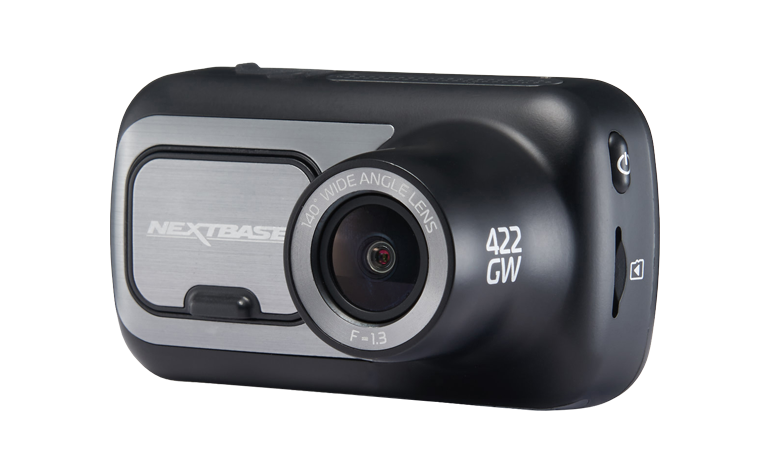
Nextbase 422GW Troubleshooting: Easy Fixes That Work
Most Nextbase 422GW problems come from power, memory card, firmware, or connection issues.
Nextbase 422GW Troubleshooting is often simple when you check the camera in the right order. This guide covers common faults, safe fixes, real-world lessons, and signs that your dash cam may need service or replacement.
Start With These Basic Checks
Before changing settings or formatting the memory card, check the simple causes first. Many dash cam faults look serious but come from a loose cable, a weak car adapter, or a damaged microSD card.
Follow these steps:
- Turn off the car and remove the dash cam from its mount.
- Remove the microSD card.
- Inspect the power cable for cuts, bends, or loose ends.
- Plug the camera into a reliable USB power source.
- Press the power button and watch the screen.
- Test the camera without the memory card.
- Check whether the problem still occurs.
If the camera works without the card, the card is likely full, corrupt, slow, or failing. If it still does not turn on, focus on the power supply, battery, reset process, or hardware.
A useful test is to use a known-good USB cable and a wall charger. This removes the car’s power socket from the problem. Avoid judging the camera by testing it only while driving, since a loose socket can make the fault appear random.
I have found that starting with this basic test saves time. People often spend an hour changing settings when the real issue is a poor cable or an old memory card.
Nextbase 422GW Won’t Turn On
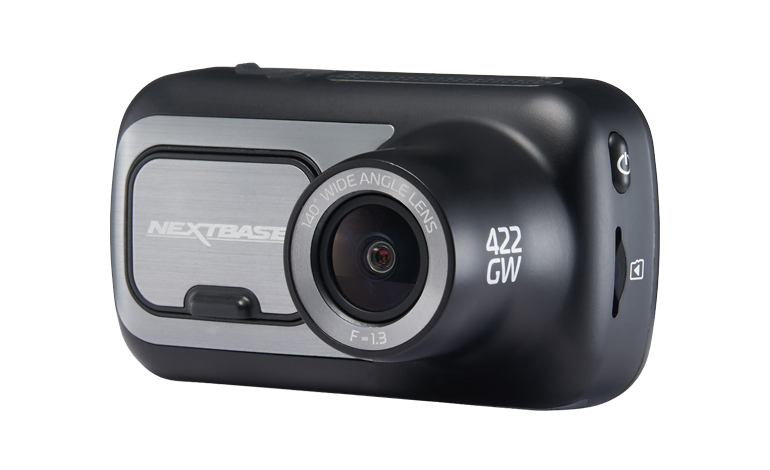
A Nextbase 422GW that will not turn on may have a flat internal battery, no external power, or a frozen system. The internal battery is mainly for saving files and shutting down safely. It is not designed to power the camera for long periods.
Try this process:
- Remove the microSD card.
- Connect the camera to a wall charger with a suitable USB cable.
- Leave it connected for at least 30 minutes.
- Press and hold the power button for several seconds.
- Use a paper clip to press the reset button, if your model has one.
- Reconnect the camera and try again.
Do not force the power connector. A damaged port can stop charging and may need professional repair.
If the camera turns on with a wall charger but not in the car, inspect the 12-volt adapter, USB cable, and vehicle socket. Some cars turn accessory power off soon after the engine stops. That behavior can affect parking mode and may be normal for the vehicle.
If the screen stays black but the camera makes sounds or shows a light, the screen may be frozen or faulty. A reset can help, but repeated black screens suggest a hardware issue.

Nextbase 422GW Keeps Restarting
Repeated restarts are one of the most common Nextbase 422GW Troubleshooting complaints. The usual causes are an unstable power source, a failing memory card, excessive heat, or damaged firmware.
Use this order:
- Remove the memory card and test the camera.
- Try a different power cable.
- Test a different vehicle socket or wall charger.
- Turn off extra features for a short test.
- Format or replace the microSD card.
- Update the camera firmware.
A restart that stops when the card is removed strongly points to card trouble. The camera must write video data every few minutes. If the card cannot accept that data, the camera may freeze or reboot like a computer with a damaged drive.
Heat can also cause restarts. Do not leave the camera in direct sun for long periods with the car parked. Keep vents clear, and remove the camera from the windshield during extreme heat when practical.
If the camera restarts even with no card and a stable charger, stop using it until you confirm the power supply. A damaged battery or internal circuit may be involved.
Memory Card Errors and Recording Problems
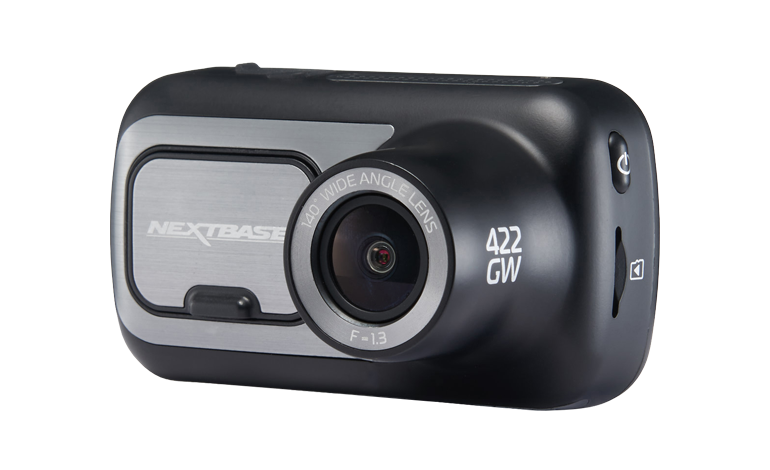
The microSD card is central to reliable dash cam use. The Nextbase 422GW records large video files, so it needs a fast, high-quality card made for continuous recording.
Use a card that meets the camera’s recommended capacity and speed. A high-endurance microSD card is usually a better choice than a basic card made for occasional phone photos. Check the current Nextbase requirements before buying, because supported card limits and recommendations can change with firmware.
Common card symptoms include:
- “Card error” messages
- Missing video files
- The camera asking you to format the card often
- Video clips that stop early
- A frozen screen
- Random restarts
- Recording that starts and stops
First, copy important files to a computer. Formatting deletes the contents of the card. Then format the card in the camera if the menu allows it. In-camera formatting creates the file structure the dash cam expects.
Replace the card if errors return soon after formatting. Do not keep using a card that has already failed during an accident or important journey. A card can appear normal on a computer and still fail under continuous recording.
A practical habit is to format the card on a regular schedule after saving any clips you need. Also replace high-use cards when they begin showing errors or unusual recording gaps.
How to Format the Nextbase 422GW Memory Card
Formatting can fix file system errors, but it should be done carefully. Save evidence first, including footage from a crash, theft, or insurance claim.
In-camera formatting
The exact menu names may vary by firmware, but the process usually looks like this:
- Turn on the camera.
- Open the settings menu.
- Find the format option.
- Confirm the warning.
- Wait until the camera finishes.
- Restart the camera.
- Record a short test clip.
Do not remove power during formatting. If the camera freezes during the process, disconnect it only after waiting several minutes, then try again with a different card.
Computer formatting
Use computer formatting only when the camera cannot format the card. Choose the file system recommended in the current manual or support instructions. Many dash cams use FAT32, but card capacity and firmware can affect the correct choice.
Avoid using a random format tool without checking compatibility. A card may work in a computer but fail in the 422GW because the camera needs a specific file system, partition style, or card speed.
Nextbase 422GW Not Recording
If the Nextbase 422GW shows a live image but does not save clips, check the recording icon and memory card status. Some users mistake a preview screen for active recording.
Check the following:
- Confirm that recording starts after the camera receives power.
- Look for the red recording symbol or timer.
- Make sure the card is inserted fully.
- Check whether the card is locked through an adapter.
- Format the card in the camera.
- Test a different high-endurance card.
- Confirm that loop recording is enabled if available.
Loop recording allows the camera to overwrite older files when the card becomes full. Protected files, such as those created after an impact, may not be overwritten. If too many files are protected, the card can fill and stop normal recording.
Check the date and time as well. Incorrect timestamps can make useful footage hard to organize and may reduce its value in an insurance or legal review. GPS data can also take time to lock, especially in a garage or between tall buildings.
Always test the camera after making changes. Record a short clip, turn the camera off, and then confirm that the file can be played on another device.
Video Quality, Audio, and Image Problems
The 422GW can record clear footage, but poor setup can reduce image quality. A dirty lens, windscreen glare, incorrect angle, or low light may look like a camera fault.
Clean the lens with a soft microfiber cloth. Clean the area of the windshield in front of the lens too. Do not spray cleaner directly on the camera.
For a better image:
- Mount the camera near the center of the windshield.
- Keep the lens inside the windscreen’s wiped area.
- Aim the lens slightly toward the road, not the sky.
- Remove fingerprints and dust.
- Check exposure settings if the image is too dark or bright.
- Use a polarizing filter only if it is made for the camera and aligned correctly.
Night footage naturally contains more noise than daylight footage. Headlights, street lamps, rain, and a dirty windscreen can create glare. A filter may reduce reflections, but it can also make night video darker.
If audio is missing, check whether the microphone is muted in settings. Some drivers disable audio for privacy. Remember that local recording and privacy laws differ, especially when passengers or conversations are captured.
GPS, Speed, and Location Data Issues
The Nextbase 422GW includes GPS functions that can add location and speed information to recordings. GPS may not work at once after startup, particularly indoors, under cover, or in areas with limited sky view.
For a better GPS lock:
- Place the camera where it has a clear view through the windshield.
- Keep the camera powered for several minutes before driving.
- Avoid testing GPS inside a garage.
- Check that the mount and camera contacts are clean.
- Review the clip in compatible playback software.
Speed readings can be delayed or inaccurate during the first part of a journey. GPS is not a substitute for a calibrated vehicle speedometer. Tall buildings, tunnels, heavy tree cover, and weather can also affect the signal.
If GPS fails on every drive in open areas, update the firmware and inspect the mount. The GPS connection may pass through the mount contacts, depending on the setup. Persistent failure after these steps may require support.
Wi-Fi, Bluetooth, Alexa, and App Connection Fixes
Wireless features can be confusing because the dash cam may create its own Wi-Fi network. Your phone may warn that the network has no internet. That warning is normal because the camera’s network is used to transfer files, not provide web access.
For connection problems:
- Turn off mobile data temporarily.
- Close other dash cam apps.
- Restart the phone and camera.
- Forget the camera’s Wi-Fi network.
- Reconnect through the correct app.
- Keep the phone close to the camera.
- Check that the app has permission to access local devices, photos, and storage.
- Update the app from the official app store.
Do not drive while changing wireless settings. Park safely first.
Large video files can take time to transfer. A weak connection may fail during a long download, so transfer only the clip you need. If the app cannot connect after a firmware update, reinstalling the app and pairing again may help.
Alexa features also depend on compatible account settings, phone permissions, and a working internet connection. If basic recording works but voice features fail, treat it as a wireless or account issue rather than a camera recording fault.
Firmware Update Troubleshooting
Firmware controls the camera’s core functions. An update may improve stability, fix compatibility problems, or add features, but an interrupted update can create new problems.
Before updating:
- Use a reliable memory card.
- Format the card in the camera.
- Charge or power the camera with a stable source.
- Download the correct firmware for the exact model.
- Follow the manufacturer’s instructions.
- Do not remove power during the update.
- Wait for the camera to restart fully.
Never install firmware meant for another Nextbase model. Similar-looking cameras can use different files. A wrong update may stop the device from working.
If an update fails, remove the card and restart the camera. Then repeat the process with a freshly formatted, compatible card. If the camera remains stuck on a logo or update screen, contact official support before trying unofficial recovery files.
A firmware update should not be the first step for every fault. Test power and the memory card first. Those two causes create many symptoms that users wrongly blame on software.
Parking Mode and Motion Detection Problems
Parking mode behavior depends on the camera settings, power supply, and vehicle installation. A standard cigarette-lighter socket may stop supplying power when the ignition is off. In that case, parking mode may not run after you leave the car.
Check:
- Whether parking mode is enabled.
- Whether the vehicle socket stays powered.
- Whether the camera has a suitable permanent power kit.
- Whether the battery protection setting is correct.
- Whether the motion or impact sensitivity is too high.
- Whether the memory card has enough free space.
A permanent installation should use a compatible hardwire kit with low-voltage protection. Professional installation is wise if you are unsure about vehicle wiring. A poor installation can drain the car battery or damage a fuse.
Motion detection may miss events when the camera cannot detect movement clearly. Impact detection can also trigger false clips on rough roads. Adjust sensitivity carefully and test it in a safe place.
Do not assume parking mode is active simply because the camera is mounted. Confirm that it records after the engine is off and review the saved file.
Factory Reset and When to Contact Support
A factory reset can clear incorrect settings and minor software conflicts. It will not repair a broken memory card, damaged port, cracked screen, or failed battery.
Before resetting, save important recordings and note your preferred settings. Then use the reset option in the settings menu, or use the physical reset method described for the camera.
Contact official support or an authorized repair service when:
- The camera smells burnt or becomes unusually hot.
- The USB port is loose or damaged.
- The screen remains dead with several known-good power sources.
- The camera cannot record without any memory card issue.
- Firmware recovery fails.
- The battery swells or the case separates.
- The camera repeatedly shuts down after all basic tests.
Stop using a device that becomes very hot, smokes, or shows battery swelling. Disconnect it from power and keep it away from heat. Do not open the camera yourself, since this can create safety risks and may affect warranty coverage.
One lesson I return to in Nextbase 422GW Troubleshooting is to change one thing at a time. If you replace the card, cable, charger, and settings together, you will not know which action fixed the issue.
A Simple Nextbase 422GW Troubleshooting Checklist
Use this checklist when you need a fast, logical diagnosis:
- Remove the microSD card.
- Test the camera with a stable wall charger.
- Try another USB cable.
- Press the reset button if needed.
- Check for heat or physical damage.
- Reinsert a compatible high-endurance card.
- Format the card in the camera.
- Record and play a short test clip.
- Check the date, time, GPS, and audio.
- Update firmware only when necessary.
- Test the camera in the vehicle.
- Contact support if the fault remains.
This approach separates the main fault groups: power, storage, software, settings, and hardware. It also prevents unnecessary purchases.
Keep a spare compatible memory card in the car if the camera is important for work or travel. Store key clips in at least two locations before formatting or resetting the device.
Frequently Asked Questions About Nextbase 422GW Troubleshooting
Why does my Nextbase 422GW keep turning off?
The most common causes are unstable power, a failing microSD card, overheating, or a weak internal battery. Test the camera with the card removed and a reliable wall charger to narrow down the cause.
How do I reset my Nextbase 422GW?
Use the reset option in the camera menu, or press the physical reset button with a suitable tool if your unit has one. Save important videos first because a factory reset may remove your settings.
What memory card works best in the Nextbase 422GW?
Use a compatible, high-endurance microSD card that meets the camera’s required capacity and speed. Check the latest model guidance before buying, since unsupported cards can cause restarts and recording errors.
Why is my Nextbase 422GW showing a card error?
The card may be full, corrupt, too slow, unsupported, or worn out from continuous recording. Back up important files, format the card in the camera, and replace it if the error returns.
Why will my Nextbase 422GW not connect to my phone?
Restart both devices, forget the camera’s Wi-Fi network, and reconnect through the official app. Temporarily disabling mobile data and checking app permissions can also help.
Does the Nextbase 422GW need a hardwire kit for parking mode?
It may need a suitable permanent power source if the vehicle socket turns off with the ignition. A compatible hardwire kit with battery protection can provide power while reducing the risk of draining the car battery.
Why is my Nextbase 422GW footage blurry?
Clean both the camera lens and the windshield area in front of it. Also check the camera angle, glare, focus condition, and lighting before assuming the lens or sensor is damaged.
Should I update the Nextbase 422GW firmware?
Update firmware when the manufacturer provides a version for your exact model or when support recommends it. Use stable power and follow the official update steps without interrupting the process.
Conclusion
Most Nextbase 422GW Troubleshooting cases come down to four areas: power, the microSD card, firmware, and settings. Start with simple tests, remove the card, use stable power, format storage safely, and change only one thing at a time.
Keep the lens clean, use a suitable high-endurance card, check recordings often, and save important clips promptly. If the camera stays unreliable after these steps, contact official support rather than risking lost footage or unsafe hardware. Share your experience or explore more dash cam guides to keep every journey better protected.