Autel Maxilink Ml629 Troubleshooting: Quick Fixes
Autel MaxiLink ML629 Troubleshooting starts with power, connection, and vehicle compatibility checks.
If your scanner is acting up, you are not alone. The Autel MaxiLink ML629 is a solid OBD2 tool, but like any handheld scanner, it can run into issues with power, communication, code reading, or live data. In this guide, I’ll walk you through Autel MaxiLink ML629 Troubleshooting in a clear, practical way, so you can find the problem fast and get back to diagnosis with less guesswork.

What the Autel MaxiLink ML629 Does
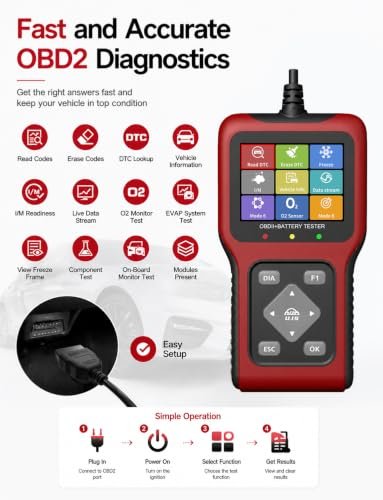
The Autel MaxiLink ML629 is a handheld OBD2 scan tool made for reading and clearing fault codes on most 1996 and newer OBD2 vehicles. It can pull power from the vehicle’s diagnostic port, read stored and pending codes, view freeze frame data, and display live data on supported vehicles.
From a repair standpoint, it is a simple but useful tool. I like that it gives quick answers without needing a phone app or a long setup. But that simplicity also means most problems come from a short list of causes, which makes Autel MaxiLink ML629 Troubleshooting easier once you know where to look.

Common Autel MaxiLink ML629 Problems
Most Autel MaxiLink ML629 Troubleshooting cases fall into a few familiar buckets. The scanner may not power on, may fail to communicate with the car, may show incomplete data, or may clear codes only for the light to return soon after.
Common symptoms include:
• No power when plugged in
• Screen turns on, then shuts off
• “Linking error” or no communication message
• No DTCs found even when the check engine light is on
• Live data not available on some vehicles
• Trouble clearing codes
• Buttons feel unresponsive or slow
In my experience, people often assume the scanner is broken when the real issue is the car’s OBD2 port, a blown fuse, or a weak battery. That is why a step-by-step check saves time and money.
How to Troubleshoot Power Issues
When the ML629 does not turn on, start with the basics. This scanner usually gets power from the vehicle’s OBD2 port, so a dead scanner often points to a power supply issue rather than a bad tool.
Try these steps:
• Make sure the ignition is in the ON position or at least in accessory mode, depending on the vehicle
• Reseat the OBD2 connector firmly into the port
• Check whether the vehicle battery is weak or dead
• Inspect the OBD2 fuse in the vehicle
• Try the scanner in another known-good vehicle
A weak battery can make the scanner act strange. I once saw a scan tool keep rebooting on a car that had just enough power to light the dash, but not enough to support stable diagnostic communication. Once the battery was charged, the scanner worked normally.
If the tool still shows no sign of life, inspect the connector pins on both the scanner and the vehicle port. Bent or dirty pins can block power the same way a clogged straw blocks a drink.
How to Fix Communication Errors
Communication issues are one of the biggest parts of Autel MaxiLink ML629 Troubleshooting. If the scanner powers up but cannot talk to the car, the issue may be in the vehicle network, the OBD2 port, or the scanner connection.
Start with these checks:
• Confirm the vehicle is OBD2 compliant
• Turn the ignition key to ON before connecting
• Make sure the connector is fully seated
• Check for damaged pins in the DLC port
• Scan another vehicle to compare results
• Look for vehicle-side fuse problems related to the diagnostic connector
Some vehicles need the ignition on before the scan tool can establish communication. Others may have aftermarket alarm systems, radio installs, or module issues that interfere with the data link. The ML629 can only read what the vehicle makes available, so if the car’s network is down, the scanner will look guilty even when it is not the real problem.
If you keep seeing a communication fault, do not force the connector. A loose fit is one thing, but damaging the pins can turn a small issue into a much bigger repair.
How to Solve Code Reading Problems
If the ML629 turns on but does not show codes correctly, the problem may be vehicle-specific or related to how the scan session is started. Sometimes the scanner will say there are no codes because it is connected to the wrong menu, the ignition state is wrong, or the vehicle does not support the function you want.
Use this process:
- Verify the ignition is ON
- Enter the correct vehicle menu
- Select the engine system first when checking emissions-related codes
- Check pending codes, not just stored codes
- Confirm the vehicle is actually OBD2 compliant
- Try another vehicle to rule out scanner limitations
A lot of frustration comes from expecting every vehicle to behave the same way. That is not how diagnostics work. Some cars give rich data, while others are more limited, especially on older models or certain imports.
I have also seen readers think the scanner missed a fault when the real issue was a code in a different module, like ABS or airbag, which the ML629 may not fully cover. Always match the scan tool’s features to the job you want done.
How to Handle Freeze Frame and Live Data Issues
Freeze frame and live data are helpful, but they can confuse users when values look frozen, blank, or incomplete. In Autel MaxiLink ML629 Troubleshooting, this often comes down to vehicle support rather than a bad scanner.
Try the following:
• Make sure the vehicle is fully communicating
• Check whether the selected system supports live data
• Restart the scan session
• Move slowly through menus and avoid backing out too fast
• Test on another supported vehicle
Live data is like listening to a conversation. If one side is silent, the scanner cannot do much. Some vehicles only share limited data in generic OBD2 mode, so the ML629 may show only the basics, not every sensor detail you hoped for.
If the numbers seem odd, compare them with engine behavior. For example, if coolant temperature stays low after a long drive, that may point to a real engine issue, not a scanner problem. Use the data as a clue, not a standalone verdict.
How to Clear Codes the Right Way
One of the most common mistakes in Autel MaxiLink ML629 Troubleshooting is clearing codes before fixing the cause. The scanner can erase stored codes on many vehicles, but if the fault is still present, the check engine light may come back quickly.
Best practice:
• Read and save the codes first
• Check freeze frame data
• Repair the root issue
• Clear the codes
• Drive the vehicle through a proper test cycle
• Recheck for returning codes
This is where patience matters. Clearing codes without solving the fault is like wiping mud off a window during a rainstorm. You may get a clear view for a minute, but the problem is still outside.
Also remember that some codes require a drive cycle before monitors reset. If you are trying to pass an emissions test, give the vehicle enough time and conditions to complete the readiness process.
Vehicle Compatibility and Limitations
The ML629 is a generic OBD2 scan tool, so it has limits. It works well for basic engine diagnostics on most 1996 and newer OBD2 vehicles, but it may not access every advanced module or every manufacturer-specific function.
Things to keep in mind:
• It is best for engine and emissions-related diagnostics
• Some ABS, SRS, and transmission functions may not be supported
• Coverage can vary by model, year, and region
• Certain foreign or specialty vehicles may have limited access
• Hybrid and electric vehicles may require different tools for deeper diagnostics
This is not a weakness unique to Autel. It is just how entry-level and mid-range OBD2 scanners are designed. Knowing the boundaries helps you avoid chasing a “problem” that is really a feature limit.
If your scan needs go beyond basic trouble codes, you may need a higher-level Autel device or a model-specific diagnostic tool.
Preventive Tips to Avoid Future Problems
Good habits make Autel MaxiLink ML629 Troubleshooting much easier later. A clean connector, stable battery power, and proper scan steps can prevent many common issues.
Here are simple ways to keep the scanner working well:
• Store it in a dry, cool place
• Keep the OBD2 connector clean
• Avoid yanking the cable or twisting the plug
• Use it with a healthy vehicle battery
• Update your knowledge of supported functions before use
• Handle the screen and buttons gently
I have found that most scan tool problems come from rough use, not electronics failure. Treat the device like a precision wrench, not a disposable gadget, and it will usually last much longer.
It also helps to test the tool once in a while, even when you do not need it. That way, you will know whether a problem comes from the scanner or from the vehicle when real diagnostics matter.
When the Problem Is Not the Scanner
Sometimes the Autel MaxiLink ML629 is working exactly as designed, and the vehicle is the real source of trouble. A bad fuse, low battery voltage, damaged DLC port, or failed control module can block communication and make the scanner look faulty.
Look at the vehicle first if you notice:
• No dash lights with ignition ON
• Multiple electrical issues at once
• Diagnostic port has no power
• Scanner works on other vehicles
• A known battery or charging issue exists
That distinction matters. In the shop world, we often say, “Verify the tool before blaming the tool.” It sounds simple, but it saves a lot of unnecessary returns and wasted time.
Frequently Asked Questions of Autel MaxiLink ML629 Troubleshooting
Why won’t my Autel MaxiLink ML629 turn on?
The most common reason is no power from the vehicle’s OBD2 port. Check the ignition, the connector fit, the vehicle battery, and any fuse tied to the diagnostic port.
Why does the ML629 say no communication?
No communication usually means the scanner cannot talk to the vehicle module. This can happen because of a loose plug, a blown fuse, a dead battery, or a vehicle network issue.
Can the ML629 clear check engine light codes?
Yes, it can clear many generic OBD2 engine codes after the fault is repaired. If the problem is still present, the light may come back after a short drive.
Why does the scanner show no codes when the check engine light is on?
That usually means the scanner is not reading the right system, the ignition is in the wrong position, or the issue is not stored as a generic engine code. Some faults may also live in other modules the ML629 cannot fully access.
Is the Autel MaxiLink ML629 compatible with all cars?
No, it works with most 1996 and newer OBD2 vehicles, but coverage can vary. Some advanced systems, special models, and certain non-engine functions may not be supported.
Can a weak car battery affect ML629 troubleshooting?
Yes, a weak battery can cause unstable communication, failed scans, or repeated rebooting. A stable battery and charging system are important for accurate diagnostics.
Conclusion
Autel MaxiLink ML629 Troubleshooting usually comes down to a few clear checks: power, connection, vehicle compatibility, and system support. Once you work through those basics, most scanner problems are easier to solve than they first appear.
The big lesson is simple: do not rush to blame the tool. Check the car, check the port, and check the scan steps with a calm, methodical approach. If you take your time and use the tips above, you will get much better results from your ML629 and make smarter repair decisions.
If this guide helped, bookmark it for later, share it with another DIY driver, or leave a comment with the issue you are seeing.