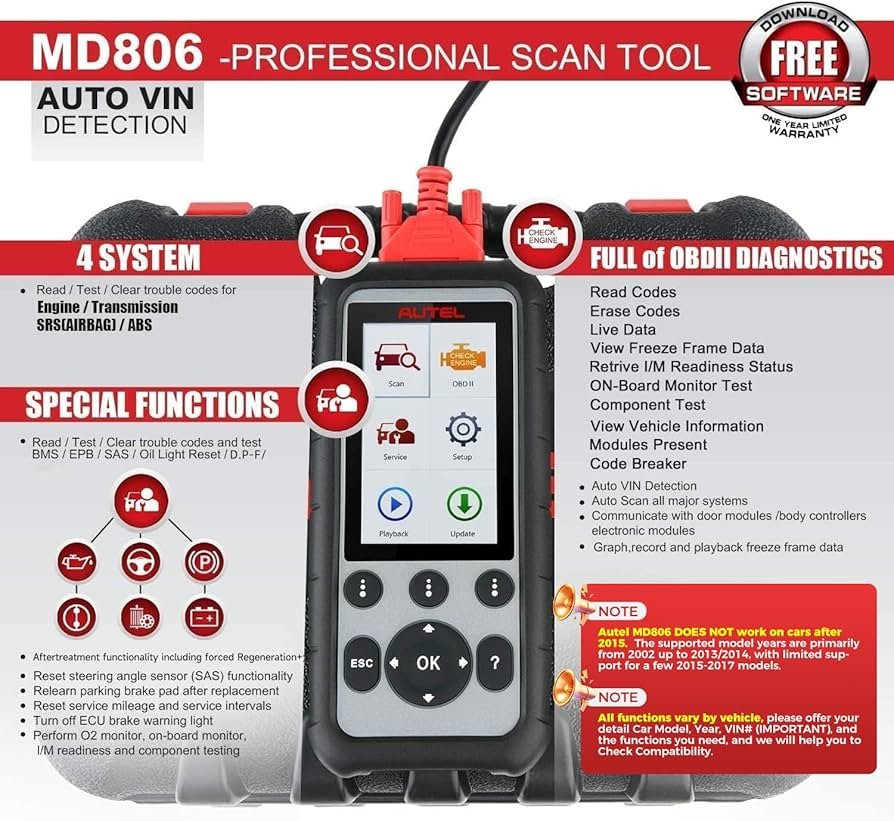
Autel MaxiDiag Md806 Pro Troubleshooting: Fix Issues Fast
Most MD806 Pro problems come from power, connection, update, or vehicle communication issues.
If you’ve been frustrated by an Autel MaxiDiag MD806 Pro that will not read a car, freeze mid-scan, or fail to update, you are not alone. I’ve worked with enough scan tools to know that Autel MaxiDiag MD806 Pro Troubleshooting is usually about checking the basics first, then moving step by step until the tool and the vehicle start talking clearly again.

What Autel MaxiDiag MD806 Pro Troubleshooting Usually Means
Autel MaxiDiag MD806 Pro troubleshooting is the process of finding why the scanner is not powering on, not connecting to a vehicle, showing errors, or missing data. In most cases, the issue is not the tool itself. It is often a bad OBD2 connection, low battery voltage, old software, or a vehicle-side communication problem.
The MD806 Pro is a solid diagnostic scan tool, but like any electronics device, it depends on good power, clean ports, and the right software. That means the fastest fix is usually a simple one. I have seen many “dead” scanners come back to life after a hard reset, a cable check, or a fresh update.
Common Autel MaxiDiag MD806 Pro Problems
Before you start deep troubleshooting, it helps to know the most common symptoms. This saves time and keeps you from guessing.
• The tool does not turn on
• The screen freezes or restarts by itself
• The scanner cannot connect to the vehicle
• Live data does not load correctly
• The Auto VIN feature fails
• System scans stop halfway
• Updates do not install
• The device says communication error or link error
• Some vehicle modules are missing from the scan
• The tool works on one car but not another
From my experience, these problems usually fall into four buckets: power, cable, software, or vehicle compatibility. If you treat it like a detective job, the fix gets much easier.

Step-by-Step Autel MaxiDiag MD806 Pro Troubleshooting
1. Check the vehicle battery first
A weak car battery can make the scanner look faulty when it is not. Many modules need stable voltage to wake up and respond. If the battery is low, the scan tool may fail to connect or may drop communication during the scan.
• Turn the ignition to the correct position
• Make sure the battery is charged
• Try the scanner with the engine off first
• If possible, test the battery voltage with a meter
I have seen scan jobs fail simply because the vehicle sat too long and the battery dipped too low. That one detail can waste a lot of time if you skip it.
2. Inspect the OBD2 port and cable
The OBD2 connector is the bridge between the scanner and the car. If that bridge is loose, dirty, or damaged, the MD806 Pro cannot do its job. Bent pins, poor socket fit, and worn cables are all common.
• Check for bent or pushed-back pins
• Make sure the connector seats fully
• Look for dirt, corrosion, or damage
• Try a gentle wiggle test while the tool is connected
A loose connector can act like a broken tool. In practice, it often takes only a firm reseat of the plug to restore communication.
3. Confirm the ignition is in the right mode
Some vehicles need the ignition on, but the engine off. Others need accessory mode or a full key-on state. If the car is not awake, the scanner may show no response.
• Turn the ignition to ON
• Do not start the engine unless the procedure asks for it
• Watch for dash lights and module wake-up
• Retry the scan after a few seconds
This sounds basic, but it is one of the most common mistakes I have seen. The MD806 Pro is smart, but it still needs the vehicle to be in the right state.
4. Restart the scanner
A quick restart clears temporary software glitches. If the screen freezes or menus lag, power cycling is often the easiest fix.
• Disconnect the tool from the car
• Turn it off completely
• Wait 20 to 30 seconds
• Power it back on and try again
I treat this like rebooting a phone. It is simple, but it solves more issues than people expect.
5. Update the Autel software
Outdated software can cause failed vehicle communication, missing functions, or bad vehicle coverage. Autel tools depend on current firmware and diagnostic data to stay useful across newer models.
• Connect the device to the proper update system
• Make sure Wi Fi or internet access is stable
• Install pending updates one by one
• Do not interrupt the process once it starts
If updates keep failing, the problem may be your network, your account, or the USB connection used during setup. A clean update path matters more than speed.
6. Check vehicle compatibility
The MD806 Pro supports a wide range of OBD2 vehicles, but not every feature works on every make or model. Some advanced functions are limited by the car’s design, not by the scanner.
• Check whether the vehicle is OBD2 compliant
• Confirm the model year falls within supported coverage
• Review whether the specific system can be accessed
• Remember that some special functions are not universal
This is where realistic expectations matter. A good scan tool is powerful, but it cannot override a vehicle that limits access.
7. Try another vehicle
If the MD806 Pro works on one car but not another, that tells you a lot. It may not be a scanner issue at all. Testing on a second compatible vehicle helps isolate the fault quickly.
• Use a known good car
• Check if the tool powers up and scans normally
• Compare results between vehicles
• Note any repeat errors
This kind of A/B testing is one of the fastest ways to save time. It cuts through guesswork like a sharp knife.
8. Reset the device if needed
If the scanner keeps freezing, showing strange errors, or refusing to save settings, a reset may help. Before doing that, make sure your data is backed up if the device allows it.
• Save any important records
• Use the proper reset option if available
• Reboot the tool after the reset
• Reinstall updates if needed
A reset should not be your first move, but it is useful when software corruption is likely. Think of it as clearing clutter from a messy desk.

Why Your Autel MaxiDiag MD806 Pro May Not Communicate
Communication failure is one of the biggest pain points with any scan tool. On the MD806 Pro, it usually means the tool cannot talk to the car’s ECU or other control modules. The root cause may be on either side of the connection.
Common causes include:
• Weak vehicle battery
• Faulty OBD2 fuse
• Damaged DLC connector
• Wrong ignition state
• Poor ground connection
• Outdated software
• Unsupported vehicle protocol
• Module-side failure
A blown OBD fuse is easy to miss and very common. I always tell people to check the vehicle fuse box before blaming the scanner. A scan tool cannot diagnose a car if the port itself has no power.
How to Fix Update Problems on the MD806 Pro
Update issues can be annoying, especially when the scanner is otherwise working fine. Still, update failures usually come down to a few predictable causes.
• Use a stable internet connection
• Make sure the device has enough power
• Close other programs if updating through a computer
• Try a different USB port or cable
• Log in with the correct Autel account
• Remove and reconnect the device before retrying
If the update stalls halfway, do not unplug it too soon. That can make the problem worse. Give it time, then retry with a stronger connection if the process fails again.
Best Practices to Avoid Future Problems
Good troubleshooting is not just about fixing problems. It is also about preventing them. A little care goes a long way with diagnostic tools.
• Store the scanner in a dry place
• Keep the OBD2 cable from bending too hard
• Update software regularly
• Charge the tool before long use
• Avoid forcing the connector into the port
• Keep the vehicle battery healthy
• Use the tool only within its supported range
One mistake I made early in my own testing was leaving a cable coiled too tightly in a toolbox. Over time, that stress can damage the connector and create strange intermittent faults. Small habits matter more than people think.
When the Problem Is Not the Scanner
Sometimes the MD806 Pro is innocent. The vehicle may have deeper electrical problems that block scan communication. That is why professional diagnosis often starts with voltage and network checks.
Possible vehicle-side issues include:
• Blown fuses
• Failed ECU power supply
• CAN bus faults
• Water damage near connectors
• Aftermarket wiring interference
• Corroded terminals
• Dead modules
If the tool works on several vehicles but fails on one specific car, the car is probably the issue. In those cases, the scan tool is just the messenger.
Practical Troubleshooting Checklist
Use this simple order when the Autel MaxiDiag MD806 Pro acts up.
- Check vehicle battery voltage
- Confirm ignition is ON
- Inspect the OBD2 port
- Reseat the connector
- Restart the scanner
- Test on another vehicle
- Update the software
- Check fuses and vehicle compatibility
- Reset the device if needed
- Contact support if the issue stays unresolved
This order works because it starts with the easiest fixes first. That saves time and often solves the issue before it becomes a bigger job.
Frequently Asked Questions of Autel MaxiDiag MD806 Pro Troubleshooting
Why does my Autel MaxiDiag MD806 Pro not turn on?
The most common reasons are a dead internal battery, a bad cable connection, or no power from the vehicle. Try another vehicle, inspect the connector, and make sure the tool is fully charged or properly powered.
Why does the scanner say communication error?
A communication error usually means the tool cannot talk to the car’s modules. This can happen because of low vehicle voltage, a blown OBD fuse, a bad port connection, or unsupported vehicle protocols.
Can the MD806 Pro work on all cars?
No, it cannot work perfectly on every vehicle and every system. It supports many OBD2 vehicles, but some advanced features and modules depend on the car’s make, model, year, and onboard network design.
How do I fix a frozen Autel MD806 Pro screen?
Start by powering the tool off and restarting it. If that does not help, check for software updates and consider a reset if the freezing keeps happening.
Why won’t my MD806 Pro update?
Update failures often come from weak internet, login problems, low power, or a bad USB connection. Make sure the device is stable, the connection is strong, and the correct account is being used.
Is it better to troubleshoot the car or the scanner first?
Always start with the simple checks on both sides, but focus on the vehicle first. Battery, fuses, ignition mode, and OBD port issues cause many scanner problems that are not actually scanner faults.
Conclusion
Autel MaxiDiag MD806 Pro troubleshooting is usually straightforward once you follow a calm, step-by-step process. Most problems come from power, connection, software, or vehicle-side issues, and the fix is often much simpler than it first appears.
The key is to start with the basics, avoid random guessing, and work through each possible cause in a logical order. If you keep your scanner updated, protect the cable, and check vehicle voltage before every big scan, you will save time and frustration.
If this guide helped, take a few minutes to test your own setup, review your update status, and share your experience with others who use the MD806 Pro.