Autel MaxiAP AP200 Troubleshooting: Quick Fix Guide
Autel MaxiAP AP200 troubleshooting usually comes down to connection, app, vehicle compatibility, or update issues.
If you use the Autel MaxiAP AP200 often, you already know it can save time when it works and waste a lot of time when it doesn’t. The good news is that most Autel MaxiAP AP200 troubleshooting problems have simple causes, and with the right steps, you can get back to scanning, reading codes, and resetting service lights without the usual frustration.

What the Autel MaxiAP AP200 Does and Why Problems Happen
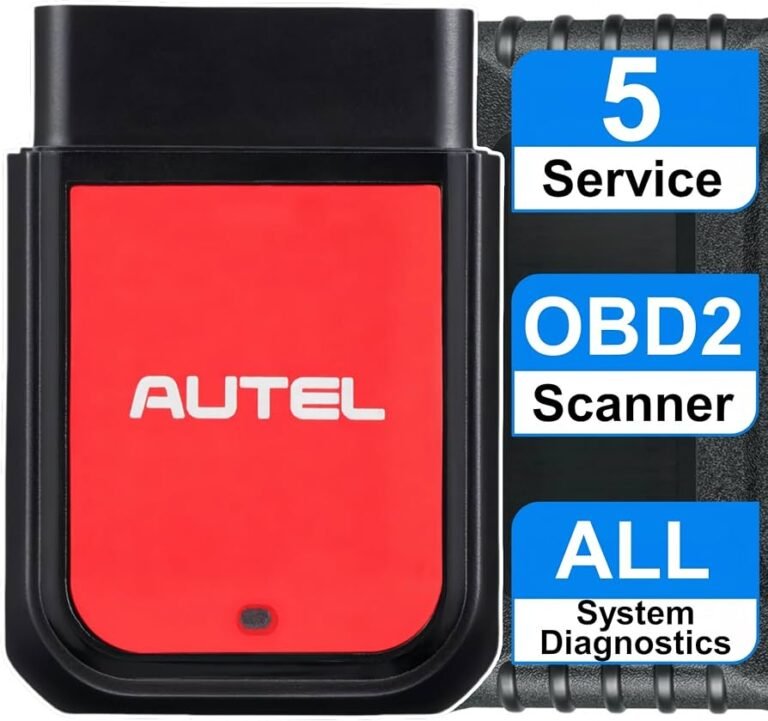
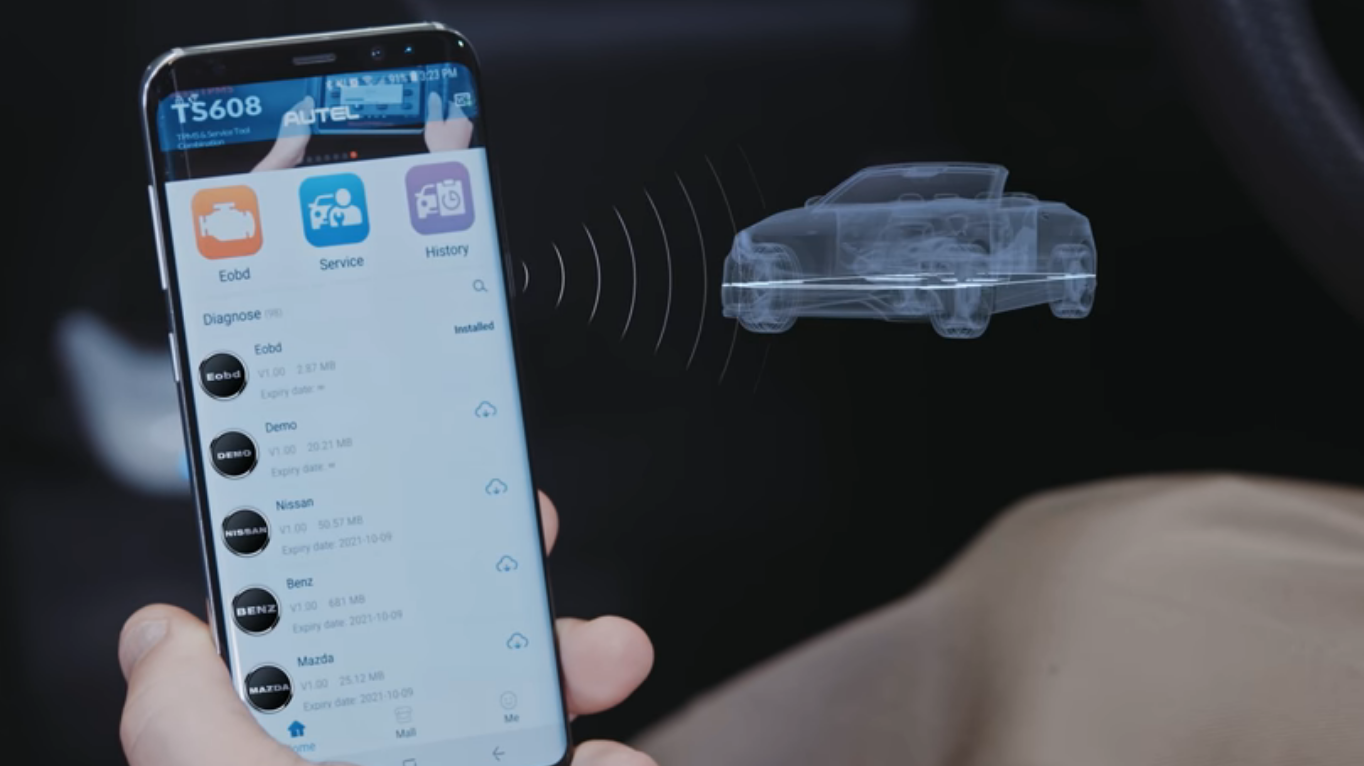
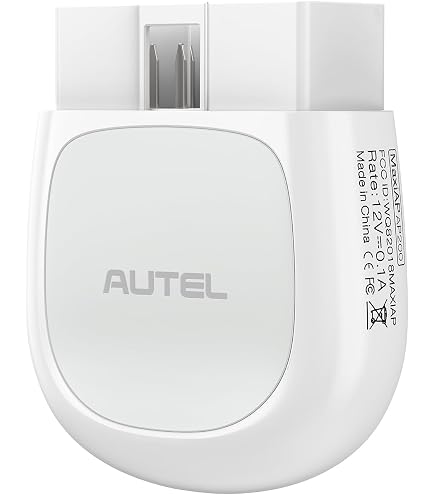
The Autel MaxiAP AP200 is a compact Bluetooth OBD2 scanner that pairs with a phone through the Autel app. It can read and clear trouble codes, view live data, reset service functions, and support many vehicle-specific systems.
Most Autel MaxiAP AP200 troubleshooting issues come from a small set of causes. In my experience, the scanner itself is rarely the real problem. More often, the issue is weak Bluetooth pairing, an outdated app, poor vehicle compatibility, low phone battery, or a car that needs the ignition in a specific position before communication starts.
A scanner like this is a little like a translator at a busy airport. If the phone, adapter, app, and car are not all speaking the same language at the same time, the whole process breaks down.

Common Autel MaxiAP AP200 Troubleshooting Problems
When people search for Autel MaxiAP AP200 troubleshooting, they usually mean one of a few common issues. These are the ones I see most often in real use.
The app will not connect to the AP200
This is one of the most common complaints. The app may open, but it cannot find the device or it keeps failing during pairing.
Typical causes include:
- Bluetooth is off on the phone
- The AP200 is not powered by the vehicle
- The app does not have permission to use Bluetooth or location
- Another device is already paired
- The phone’s battery saver is limiting the app
The scanner does not communicate with the vehicle
Sometimes the AP200 connects to the phone, but the app cannot talk to the car. That usually means the vehicle side is the problem.
Possible reasons include:
- The vehicle ignition is not on
- The OBD2 port has no power
- The adapter is not seated fully
- The car is not supported for the selected function
- The fuse for the diagnostic port is blown
The app freezes or crashes
This can happen during startup, VIN reading, code scanning, or data display. It is annoying, but it often points to app or phone issues rather than a failed scanner.
Common causes include:
- Outdated app version
- Low phone storage
- Weak internet during updates or downloads
- Phone operating system conflicts
- Corrupted app cache
Service resets fail
The AP200 may read codes fine, but certain functions like oil reset, EPB, BMS, SAS, or brake bleed may fail. This does not always mean the tool is broken.
Often it means:
- The vehicle does not support that function
- The procedure was not followed in the correct order
- The ignition state was wrong
- The battery voltage was too low
- A repair condition had not been met yet
Live data looks blank or incomplete
If live data shows missing values, delayed readings, or strange numbers, the issue may be with the selected module or the car’s communication network.
This can happen when:
- The wrong system was selected
- The vehicle ECU is not responding well
- The app needs an update
- The car is in a fault state
- The adapter lost connection briefly

Step-by-Step Autel MaxiAP AP200 Troubleshooting Guide
If you want a clean way to handle Autel MaxiAP AP200 troubleshooting, start with the basics and move outward. I usually follow the same order every time, because jumping straight to advanced fixes wastes time.
1. Check phone compatibility first
The AP200 depends on the phone and app more than many first-time users expect. Before anything else, confirm that your phone meets the app’s current requirements.
Do this:
- Make sure your phone supports Bluetooth properly
- Check that the operating system is current enough for the Autel app
- Close other apps that may interfere
- Turn off battery saver mode during diagnosis
In one case, I saw a user blame the scanner for a connection failure when the real issue was an old phone running a very restrictive power mode. Once that was changed, the scanner connected right away.
2. Confirm the AP200 is powered correctly
The AP200 gets power from the car’s OBD2 port. If the port is dead, everything else falls apart.
Check the following:
- Insert the adapter fully into the OBD2 port
- Turn the ignition to the correct position
- Try another accessory in the port if needed
- Inspect for bent pins or loose fit
- Check the diagnostic port fuse if the port seems dead
If the vehicle is not supplying power, the Bluetooth side may look fine while the tool still fails to communicate.
3. Re-pair the Bluetooth connection
Bluetooth pairing can become stale or confused after app updates or phone changes. A fresh pairing often fixes the issue.
Try this:
- Remove the AP200 from the phone’s Bluetooth list
- Restart the phone
- Unplug the AP200 from the vehicle
- Plug it back in
- Open the Autel app and pair again
This simple reset solves a lot of connection headaches. It is one of the first things I recommend because it is fast and low risk.
4. Update the app and vehicle software
Outdated software is a major cause of Autel MaxiAP AP200 troubleshooting cases. The app and vehicle packages change over time, and older versions can create strange behavior.
Check for:
- App updates in the app store
- Vehicle brand package updates inside the Autel app
- Firmware or database updates if the app prompts for them
I have seen live data screens fail just because one vehicle package had not been refreshed. After the update, the same car worked normally.
5. Restart the phone and the vehicle
This sounds basic, but it works more often than people think. Both the phone and the car module can get stuck in a bad communication state.
Use this reset sequence:
- Turn off the ignition
- Unplug the AP200
- Close the app fully
- Restart the phone
- Reconnect the adapter
- Turn the ignition back on
- Open the app and try again
Think of it like clearing a jammed paper feed in a printer. Sometimes the fastest fix is simply starting clean.
6. Check vehicle compatibility before using special functions
A lot of frustration comes from expecting every service function to work on every car. That is not realistic, even with a good scanner.
Before trying advanced resets, confirm:
- The vehicle is supported by the selected AP200 software
- The function is available for that make and model
- The car is in the required condition for the reset
- Any repair or calibration steps were completed first
For example, an EPB reset may fail if the brake system still has active faults. The tool may be fine, but the car is refusing the command.
7. Clear app cache or reinstall if needed
If the app keeps crashing, freezing, or showing broken screens, software corruption may be the issue. Clearing cache or reinstalling often helps.
Try these steps:
- Clear the app cache from phone settings
- Force stop the app and reopen it
- If needed, uninstall and reinstall the app
- Sign back in and re-download the vehicle package if prompted
I usually treat this as a last-step fix after checking pairing and updates. It is more disruptive, but it can repair stubborn glitches.

How to Fix Specific AP200 Error Symptoms
Different symptoms point to different causes. If you match the symptom first, troubleshooting gets much easier.
If the AP200 is not detected
Do this first:
- Make sure the adapter is plugged in firmly
- Confirm Bluetooth is enabled
- Remove old pairings
- Restart the phone
- Test with another vehicle if available
If the device still does not appear, the issue may be power-related or tied to the phone’s Bluetooth settings.
If VIN reading fails
VIN reading can fail for several reasons. Some vehicles do not support automatic VIN retrieval well, especially older models or certain imports.
Try this:
- Turn the ignition on fully
- Wait a few seconds before scanning
- Enter the VIN manually if needed
- Update the app database
- Use a different diagnostic path in the app
If codes read but cannot be cleared
This is a very common Autel MaxiAP AP200 troubleshooting issue. It often means the fault is still active or the system is not ready for clearing.
Check for:
- Current active faults
- Ignition position
- Battery voltage
- Unfinished repairs
- Vehicle-specific reset conditions
A code that comes back immediately is often the car telling you the problem is still there, not the tool failing.
If only some modules respond
This usually means the car’s network is partially communicating. You may get engine data but no transmission or ABS data, for example.
Possible causes include:
- Module-specific fault
- Low vehicle voltage
- Weak vehicle network communication
- Unsupported control unit
- Loose adapter connection
Best Practices to Avoid Future Autel MaxiAP AP200 Troubleshooting
A little prevention goes a long way. The AP200 is much easier to use when you treat it like a small diagnostic system instead of a simple plug-in gadget.
Here are the habits I recommend:
- Keep the app updated regularly
- Use a stable phone with enough storage
- Keep the vehicle battery charged
- Plug the adapter in carefully and remove it gently
- Verify support before advanced resets
- Save diagnostic reports before clearing codes
- Do not interrupt updates once they start
One mistake I made early on was trying a service reset with the battery already weak. The scan ran, but the reset failed halfway through. Since then, I always check voltage first on anything beyond a basic code read.
These habits reduce failed scans, random disconnects, and repeat work. They also make the AP200 feel much more dependable over time.
When the Issue May Not Be the AP200
Sometimes Autel MaxiAP AP200 troubleshooting leads to a hard truth: the scanner is not the problem at all. The car, the phone, or the repair itself may be the real issue.
Common non-tool causes include:
- Blown OBD2 fuse
- Dead vehicle battery
- Faulty module in the car
- Unsupported service function
- Poor aftermarket wiring or tuning changes
- Phone permission problems
That is why I always try to separate tool issues from vehicle issues. If the AP200 works on one car but not another, the device is probably fine. If it fails everywhere, then the phone, app, or adapter needs deeper attention.
Frequently Asked Questions of Autel MaxiAP AP200 Troubleshooting
Why is my Autel MaxiAP AP200 not connecting to Bluetooth?
Most of the time, this happens because the phone permissions are incomplete, the adapter is not powered, or an old pairing is interfering. Remove the device from Bluetooth settings, restart both the phone and the car, and pair again through the app.
Why does my AP200 read codes but not clear them?
If codes will not clear, the fault may still be active in the vehicle. Some systems also require specific ignition states, battery voltage, or completed repair steps before the clear command will work.
Does the AP200 need internet to work?
The AP200 needs internet for downloads, updates, and account access, but not for every scan. Once the vehicle software is installed, many diagnostic functions can work offline through the app and adapter.
Why does the app keep freezing on my phone?
Freezing usually comes from an outdated app, low storage, or a phone that is running too many background tasks. Clear the cache, close other apps, and update both the phone system and the Autel app.
Can the AP200 work on every car?
No, it cannot support every vehicle and every function. Compatibility depends on the make, model, year, and the specific system you want to access, so it is smart to confirm support before buying or diagnosing.
Why do some functions work and others fail?
That usually means the vehicle supports basic diagnostics but not every advanced service reset. It can also mean the car has a module issue, low voltage, or a condition that must be fixed before the function will complete.
Conclusion
Autel MaxiAP AP200 troubleshooting is usually straightforward once you break it into parts. Most problems come from pairing issues, app updates, vehicle power, compatibility limits, or a system that is not ready for the command you are trying to send.
The best approach is simple: check power, check pairing, update the app, confirm compatibility, and work through the steps in order. That method saves time, prevents guesswork, and makes the AP200 far more useful in real life.
If you are using the AP200 regularly, keep a small routine for updates and connection checks. It will pay off fast the next time a scan fails at the worst possible moment. If this guide helped, keep exploring related diagnostic tips and share your experience so others can learn from it too.