Innova CarScan Pro 5510 Troubleshooting: Quick Fix Guide
Most Innova CarScan Pro 5510 problems come from power, pairing, cable, or vehicle compatibility issues.
Innova CarScan Pro 5510 Troubleshooting is usually simple when you check the basics in the right order. This guide explains common scanner errors, connection failures, update problems, code-reading issues, and safe ways to clear trouble codes. It also shares practical lessons that can help you avoid misdiagnosis and unnecessary repairs.
Innova CarScan Pro 5510 Troubleshooting: Start With the Basics
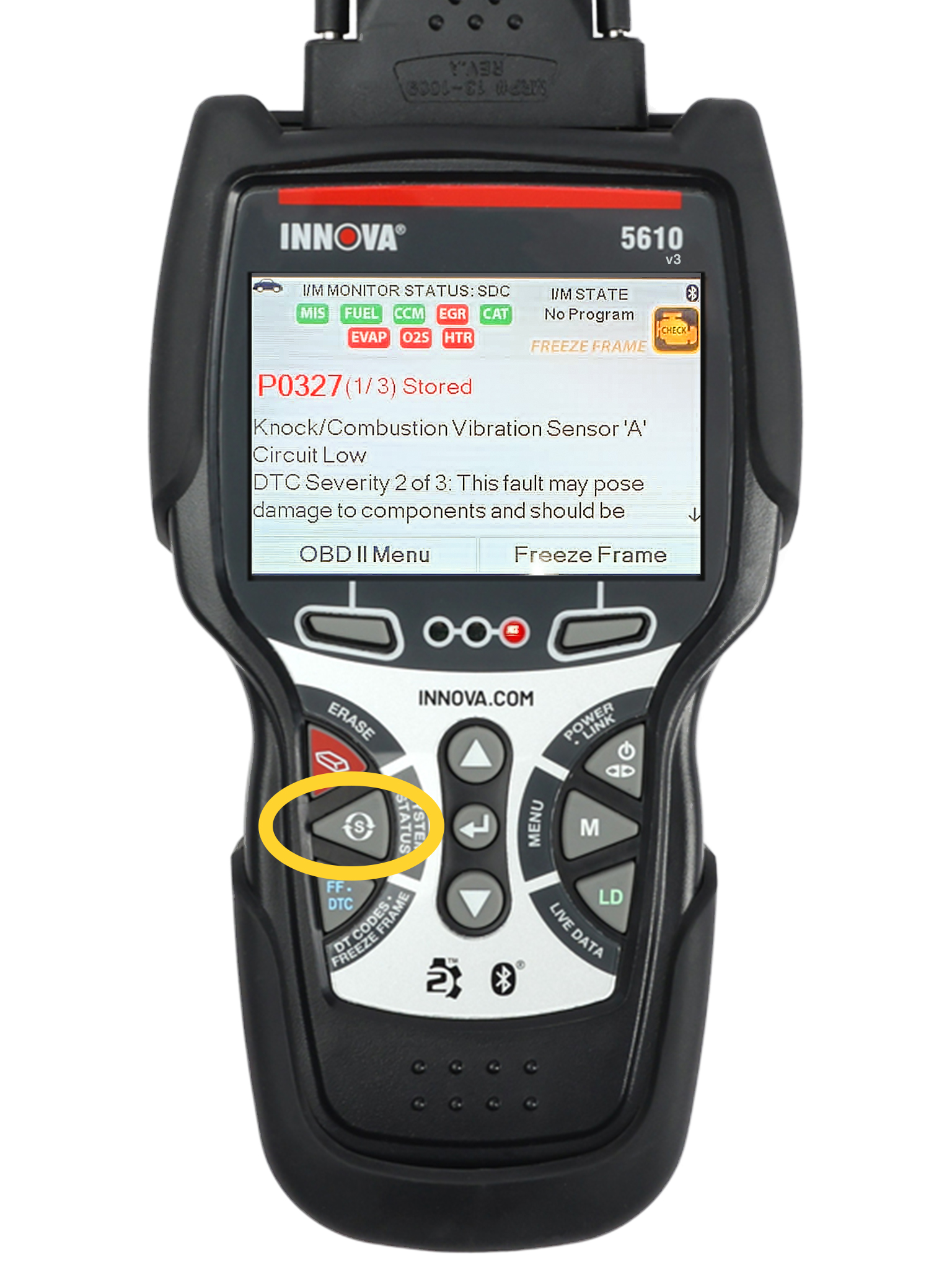
Before testing the vehicle, place the car in Park and switch the ignition off. Find the 16-pin OBD2 port under the dashboard, usually near the steering column. Make sure the connector is clean and fully inserted.
The scanner should receive power from the vehicle through the OBD2 port. Most models do not need a separate battery for basic code reading. If the screen stays blank, begin with the vehicle power supply rather than assuming the scanner is damaged.
Use this quick checklist:
- Turn the ignition off.
- Plug the Innova CarScan Pro 5510 firmly into the OBD2 port.
- Turn the ignition to the ON position without starting the engine.
- Check whether the scanner screen lights up.
- Try another vehicle if possible.
- Inspect the cable and connector for bent pins or damage.
A common mistake is starting the engine before the scanner finishes connecting. This does not always cause a problem, but it can interrupt communication on some vehicles. Waiting a few seconds after turning the key to ON gives the scanner time to establish a link.
Innova CarScan Pro 5510 Will Not Turn On
A blank screen is one of the most common reasons people search for Innova CarScan Pro 5510 Troubleshooting help. The scanner normally gets power through pin 16 of the OBD2 connector. Ground connections are commonly supplied through pins 4 and 5.
If the scanner does not turn on, check these areas:
Check the vehicle fuse
The OBD2 port may share power with the cigarette lighter or accessory outlet. If that outlet also does not work, inspect the related fuse. Use the vehicle owner’s manual to find the correct fuse location and rating.
Never replace a fuse with a higher-rated fuse. A larger fuse can damage wiring or create a fire risk.
Inspect the OBD2 port
Look inside the port with a flashlight. Check for:
• Bent or pushed-back terminals
• Dirt, coins, or loose metal
• Water or corrosion
• A port that feels loose behind the dash
Do not force the scanner into the port. A damaged terminal can prevent power or communication.
Test the scanner on another vehicle
If the CarScan Pro 5510 works in another compatible vehicle, the first vehicle likely has a fuse, wiring, or OBD2 port problem. If it stays blank in several vehicles, inspect the scanner cable and contact the manufacturer or seller for warranty support.
In my experience with scan-tool fault patterns, users often blame the scanner when the real issue is a blown accessory fuse. Checking the port power first saves time and prevents needless replacement.
Innova CarScan Pro 5510 Cannot Communicate With the Vehicle
A “linking error,” “no communication,” or similar message means the scanner has power but cannot exchange data with the vehicle computer. This is different from a blank screen.
Try these steps for Innova CarScan Pro 5510 Troubleshooting:
- Turn the ignition off.
- Remove the scanner.
- Wait about 30 seconds.
- Reconnect the scanner firmly.
- Turn the ignition to ON.
- Keep the engine off during the first connection attempt.
- Select the correct vehicle information if the scanner asks for it.
Some vehicles need the engine running for certain live-data functions. For code reading, however, the ignition should usually be ON unless the scanner instructions state otherwise.
Communication can fail for several reasons:
• The vehicle is not OBD2 compliant
• The model year is too old
• The selected vehicle profile is incorrect
• The battery voltage is very low
• The diagnostic port has a wiring fault
• An aftermarket alarm or radio affects the network
• The vehicle uses a system the scanner cannot access
The OBD2 standard became widely required on US gasoline vehicles in the mid-1990s and on diesel vehicles later. Older vehicles may use a different connector or communication system. A physical 16-pin port does not always guarantee full compatibility.

What to Do When the Scanner Shows No Codes
A no-code result does not always mean the vehicle is healthy. It means the scanner did not find stored codes in the system it checked at that moment.
Before assuming there is no fault, review the following:
• Is the check engine light on?
• Did the problem occur only once?
• Is the light flashing or steady?
• Did the scan cover the correct control module?
• Is the fault related to ABS, air bags, transmission, or another system?
• Was the battery recently disconnected?
Some problems are mechanical and do not create a diagnostic trouble code. A worn suspension part, low tire pressure, vacuum leak, weak battery, or bad wheel bearing may cause symptoms without storing a code.
A recently cleared code can also disappear until the vehicle completes its drive cycle. The engine computer may need several trips to run its self-tests. During that time, monitors may show “not ready.”
Do not use a no-code result as proof that every system works. Treat it as one piece of evidence, much like a thermometer reading. It helps, but it does not tell the whole story.
Innova CarScan Pro 5510 Cannot Clear Trouble Codes
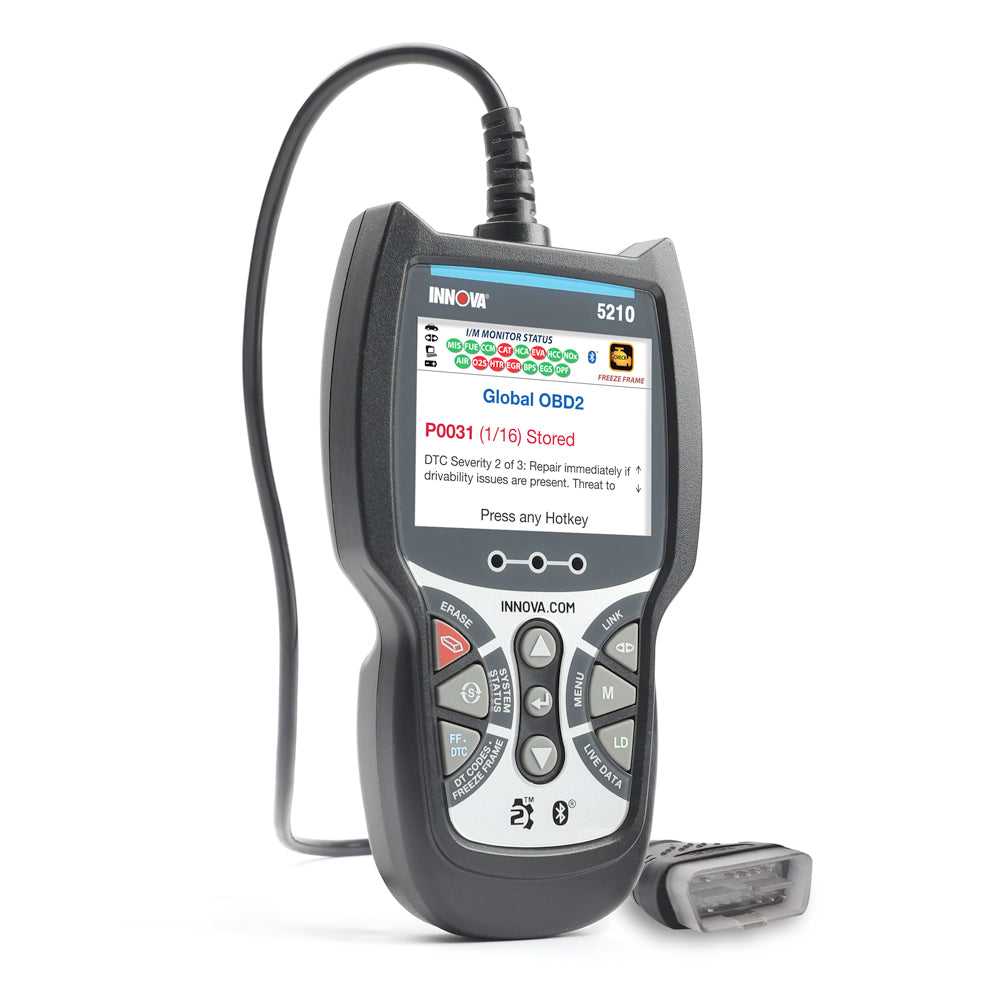
Many drivers expect the check engine light to turn off as soon as they clear a code. That result is not guaranteed. If the fault remains active, the vehicle computer may turn the light back on after the next test.
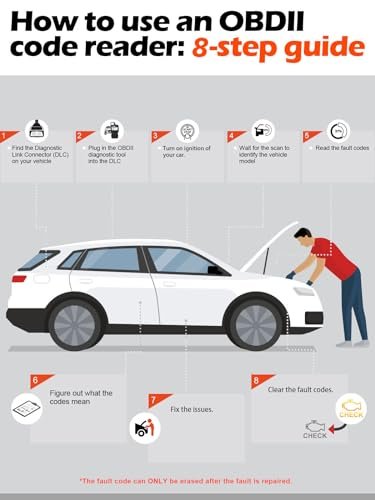
For safer Innova CarScan Pro 5510 Troubleshooting, follow this process:
- Read and record every code before clearing anything.
- Save freeze-frame data if the scanner provides it.
- Repair the cause of the fault.
- Confirm that connectors and wiring are secure.
- Clear the codes only after the repair.
- Test-drive the vehicle under normal conditions.
- Rescan the vehicle.
Clearing codes can erase useful information. It may also reset emissions monitors. If you need a vehicle emissions inspection soon, clearing codes may cause the vehicle to fail because the monitors are not ready.
Never clear an air bag or safety-system code without understanding the risk. Some warning lights require a proper repair and a system-specific reset. A basic code reader may not support every module or reset function.
If a code returns immediately, focus on the underlying problem. Repeatedly clearing it is like turning off a smoke alarm without checking for smoke.
Innova CarScan Pro 5510 App, Update, and Bluetooth Problems
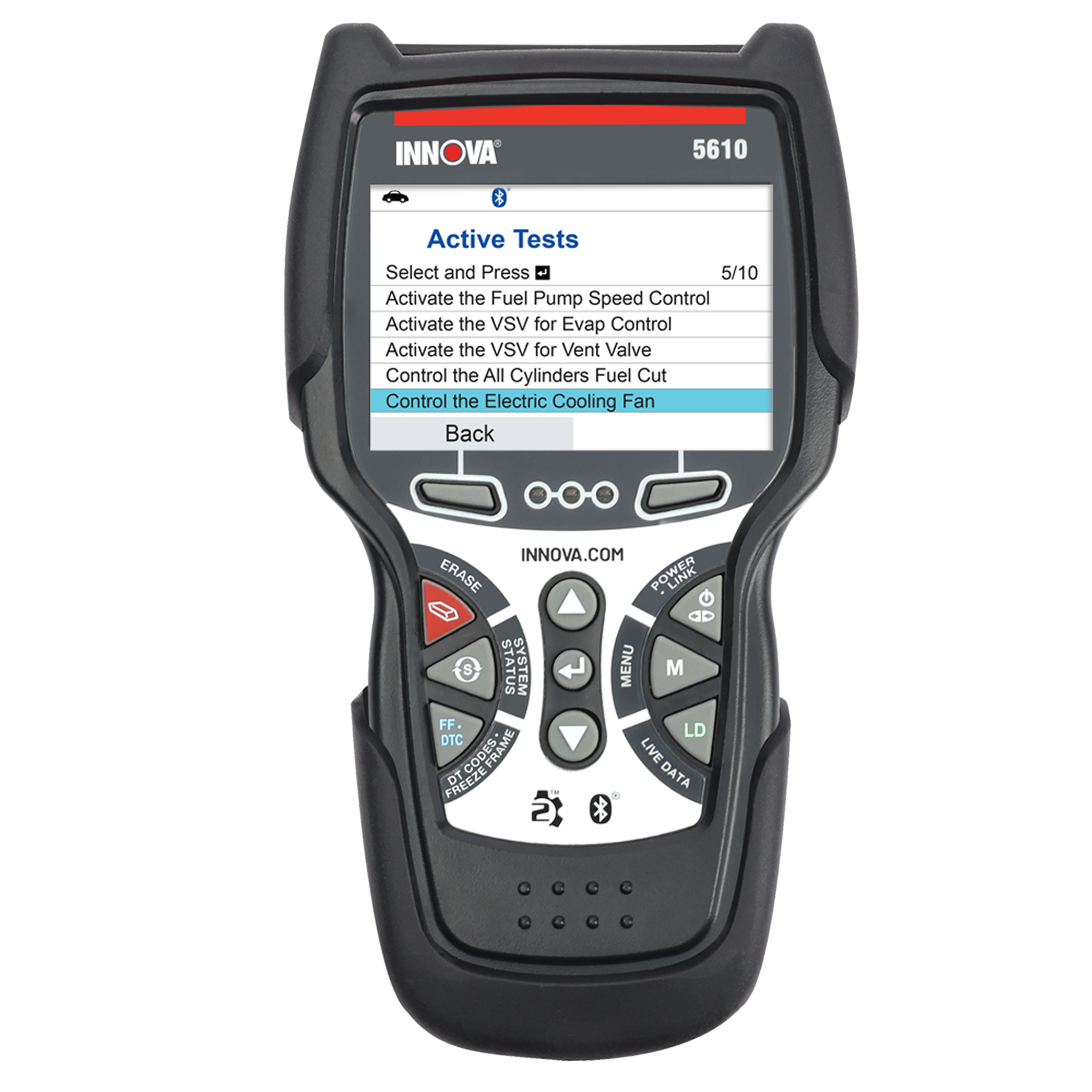
Depending on the package and feature set, some CarScan Pro functions may work with a phone app or related software. A wireless feature may fail because of permissions, low battery, outdated software, or a weak connection.
For app-based Innova CarScan Pro 5510 Troubleshooting, try the following:
• Charge the phone and scanner
• Turn Bluetooth off and back on
• Allow the app to use Bluetooth and location services when required
• Close other scan or Bluetooth apps
• Restart the phone
• Update the app from the official app store
• Keep the phone close to the vehicle
• Remove old pairings and pair again
• Check that mobile data or Wi-Fi is available for updates
Do not pair the scanner with several phones at the same time. Some devices connect only to the last phone used. Also, avoid using unofficial app files or firmware downloads. They can create security risks or leave the tool in an unstable state.
If an update stops midway, do not unplug the tool unless the instructions tell you to do so. Keep the phone charged and maintain a stable connection. If the update fails more than once, record the error message before contacting support.
Common Diagnostic Trouble Codes and Their Limits
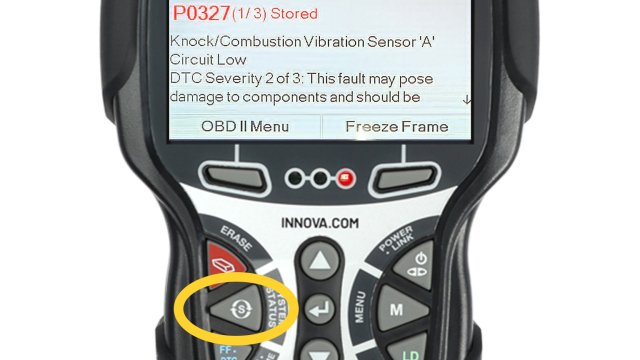
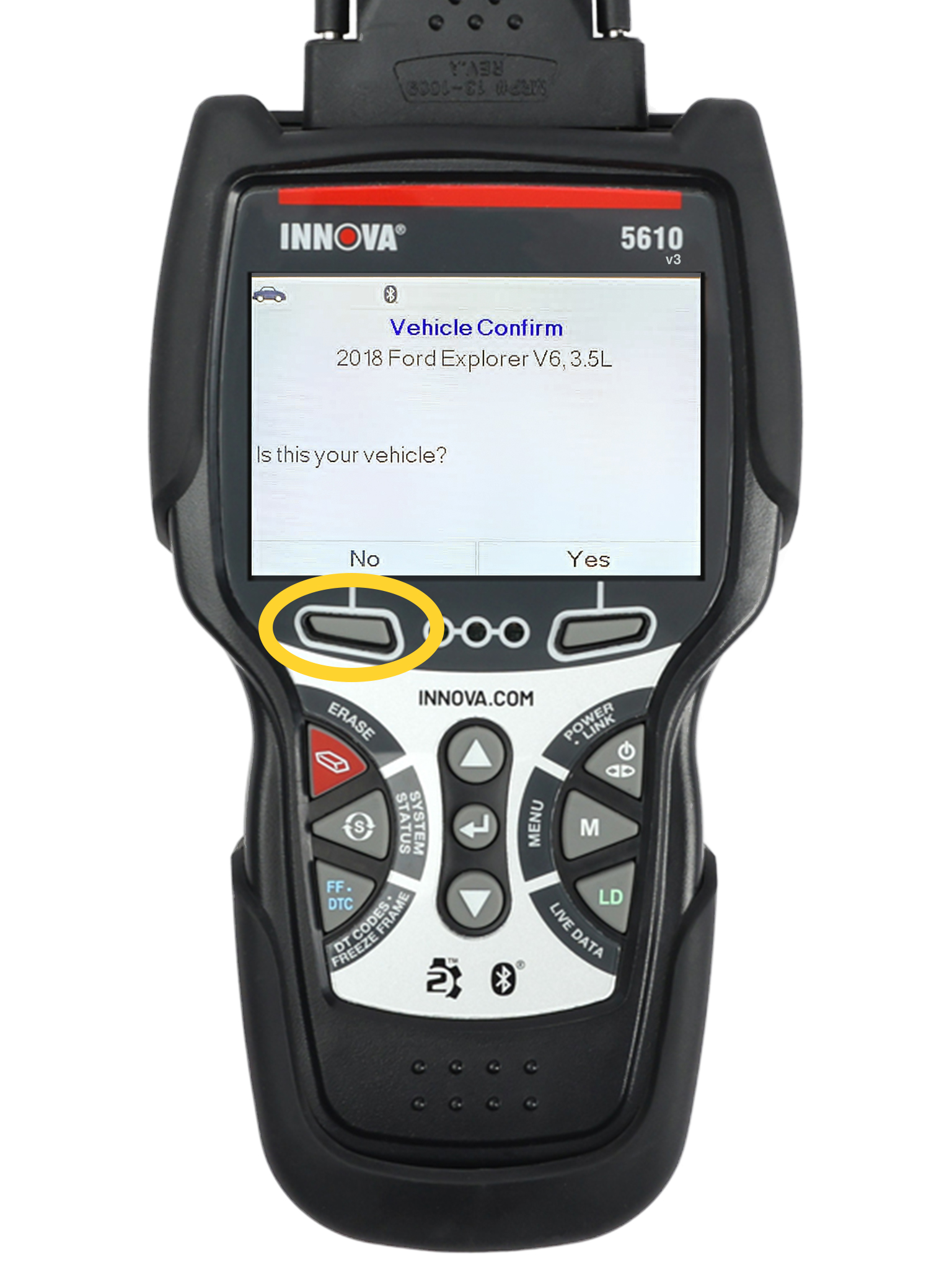
The Innova CarScan Pro 5510 may display codes such as P0300, P0420, P0171, or P0455. These codes point toward a system or condition, but they do not identify the exact failed part.
Examples include:
• P0300: Random or multiple-cylinder misfire detected
• P0420: Catalyst system efficiency below the expected level
• P0171: System too lean on one engine bank
• P0455: Large evaporative-emission-system leak detected
A P0300 code may result from worn spark plugs, a weak ignition coil, low fuel pressure, an intake leak, or an engine problem. Replacing parts based only on the code can waste money.
A P0455 code may come from a loose fuel cap, cracked vapor hose, faulty purge valve, or damaged fuel tank component. Begin with the simplest visual checks before ordering expensive parts.
Use the code as a direction, not a verdict. Good diagnosis combines the code with symptoms, freeze-frame data, service information, wiring checks, and live readings when available.
Innova CarScan Pro 5510 Live Data Looks Wrong
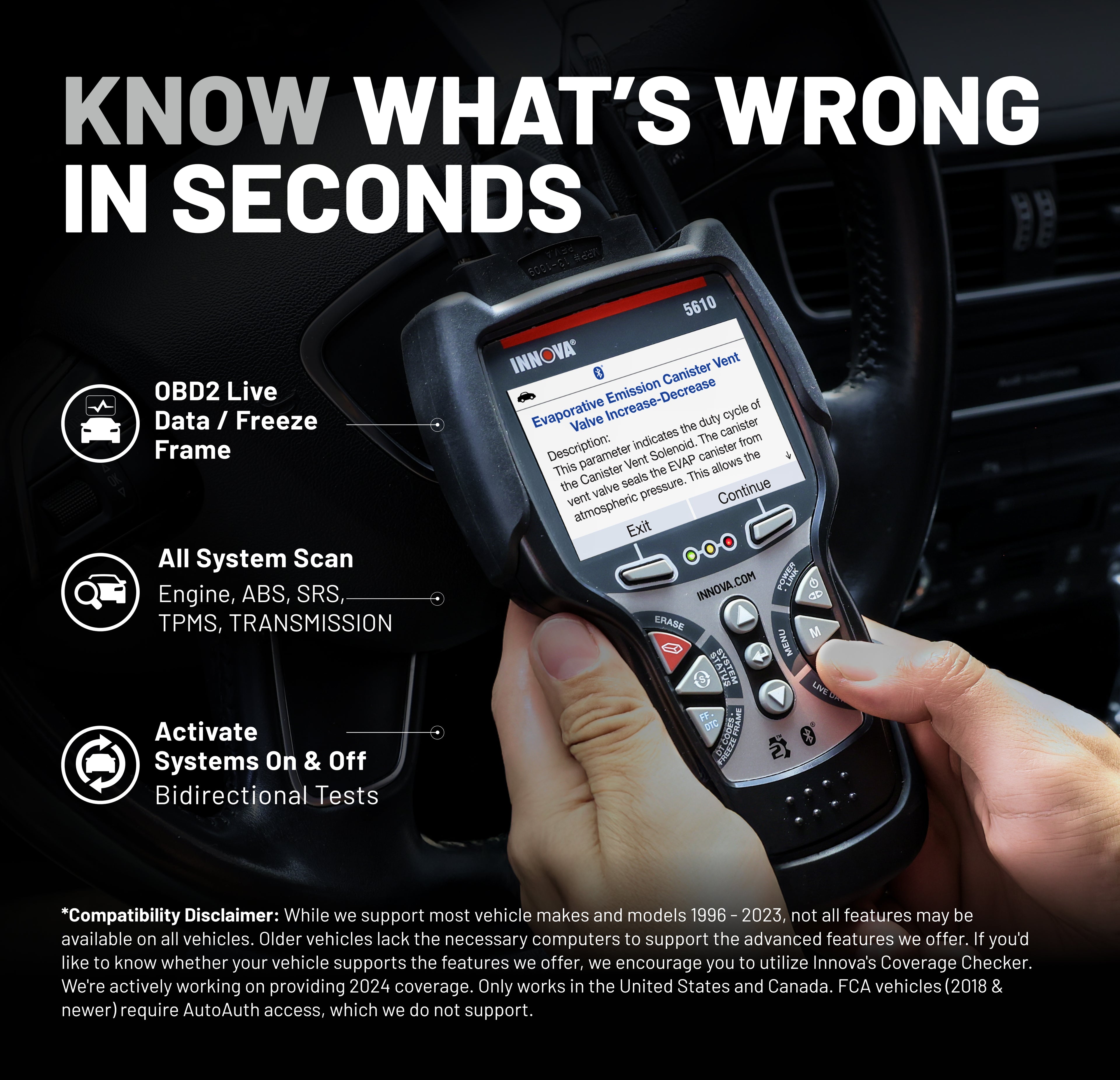
Live data can help you see what the engine computer sees. However, a value that looks unusual is not automatically proof of a failed sensor.
For example, an oxygen sensor reading can change quickly during normal operation. Engine coolant temperature should also rise as the engine warms. A reading that stays fixed, changes slowly, or disagrees with real conditions deserves more testing.
Useful live-data checks include:
• Coolant temperature compared with the actual engine temperature
• Short-term and long-term fuel trim
• Engine speed during cranking
• Throttle position
• Mass airflow readings
• Oxygen sensor activity
• Vehicle speed
Keep battery voltage in mind. Low voltage can create strange readings and communication problems. A healthy charging system commonly produces about 13.5 to 14.8 volts with the engine running, though exact values vary by vehicle and charging strategy.
Do not compare every data value with a universal number. Manufacturer specifications differ. Use the vehicle’s service information whenever a reading affects a repair decision.

How to Use Freeze-Frame Data Correctly
Freeze-frame data records vehicle conditions when a fault code appears. It may show engine speed, coolant temperature, load, fuel trim, and vehicle speed.
This information can explain when the fault happened. A lean code recorded during a cold start suggests a different path than the same code recorded at highway speed.
Write down the freeze-frame details before clearing codes. Then ask:
• Was the engine cold or warm?
• Was the vehicle moving?
• Was the engine under load?
• Was the fault found during idle, acceleration, or cruising?
• Were fuel trims strongly positive or negative?
Freeze-frame data is not a complete test. It is a snapshot, not a movie. Use it with the driver’s complaint and a careful inspection.

When ABS, Air Bag, or Transmission Codes Do Not Appear
A frequent limitation in Innova CarScan Pro 5510 Troubleshooting is system coverage. Some scan tools read powertrain codes well but have limited access to body, chassis, ABS, air bag, or transmission modules.
The check engine light usually relates to powertrain emissions systems. An ABS warning light may require a scan tool that supports the vehicle’s ABS module. An air bag warning may need a professional-grade tool because safety systems use special procedures.
Before buying another scanner, check:
• The exact vehicle year, make, and model
• The control module you need to scan
• The tool’s coverage list
• Whether special resets are supported
• Whether the tool needs an update
Do not probe air bag wiring with a test light or ordinary meter unless the service procedure specifically allows it. Safety-system circuits can be dangerous and may deploy if handled incorrectly.
Battery Voltage and Communication Faults
A weak battery can cause several symptoms at once. The scanner may connect slowly, lose communication, show false codes, or fail to complete a scan.
Check the battery before deep diagnosis. A fully charged battery often measures near 12.6 volts with the vehicle off, but temperature and battery age affect the reading. During cranking, voltage should not drop too low. The exact limit depends on the vehicle and battery condition.
If the battery recently died, expect possible changes:
• Lost radio or clock settings
• Cleared adaptive values
• New low-voltage codes
• Reset emissions monitors
• Temporary warning lights
Clear low-voltage codes only after confirming that the charging system works. Otherwise, the same problem may return.
Mistakes to Avoid During Innova CarScan Pro 5510 Troubleshooting
Good tools still give poor results when the process is rushed. Avoid these common mistakes:
• Clearing codes before recording them
• Replacing a sensor because a code names that sensor
• Ignoring battery voltage
• Using the wrong vehicle profile
• Forcing the OBD2 connector
• Scanning with the ignition off
• Assuming every warning light is an engine code
• Ignoring wiring, grounds, and vacuum leaks
• Using unsupported software or firmware
• Driving with a flashing check engine light
A flashing check engine light often indicates an active misfire that may damage the catalytic converter. Reduce engine load and stop driving if the vehicle runs badly, loses power, overheats, or shows an oil-pressure warning.
The safest approach is steady and simple: verify the complaint, scan the vehicle, record the evidence, test the likely causes, and confirm the repair.
A Practical Innova CarScan Pro 5510 Troubleshooting Workflow
Use this workflow whenever the scanner or vehicle produces an unclear result:
- Confirm the driver’s complaint.
- Check warning lights and vehicle symptoms.
- Inspect the battery and OBD2 port.
- Connect the scanner with the ignition off.
- Turn the ignition to ON.
- Select the correct vehicle information.
- Read all available codes.
- Record freeze-frame and live data.
- Research the code definition and likely causes.
- Perform visual, electrical, and mechanical tests.
- Repair the confirmed cause.
- Clear codes when appropriate.
- Complete a road test.
- Rescan and check monitor status.
This method prevents tunnel vision. It also creates a record that can help a repair shop understand what happened.
Keep the scanner manual and vehicle service information nearby. Tool menus can vary by software version, and vehicle systems can vary even within the same model year.
Frequently Asked Questions About Innova CarScan Pro 5510 Troubleshooting
Why does my Innova CarScan Pro 5510 have a blank screen?
A blank screen usually points to a lack of power from the OBD2 port, a blown fuse, a damaged connector, or a faulty cable. Test the port on another compatible vehicle and check the vehicle fuse before contacting support.
Why will the Innova CarScan Pro 5510 not connect to my car?
The vehicle may not support the scanner, the ignition may be off, or the OBD2 port may have a wiring problem. Turn the ignition to ON, reconnect the tool, verify vehicle information, and check battery voltage.
Can I clear a check engine light with the Innova CarScan Pro 5510?
You can clear supported diagnostic trouble codes, but the light may return if the fault still exists. Record the codes and freeze-frame data first because clearing them can erase useful diagnostic evidence.
Why does the check engine light return after clearing codes?
The vehicle computer may detect the same fault during a later drive cycle. This usually means the original problem was not fully repaired or another related fault is still present.
Can this scanner read ABS or air bag codes?
Coverage depends on the exact vehicle and the scanner’s supported systems. Check the current coverage information before assuming that ABS, air bag, body, or transmission modules are supported.
Will a weak car battery affect scanner results?
Yes. Low voltage can cause communication failures, false codes, and incomplete scans. Test the battery and charging system before spending money on sensors or control modules.
Conclusion
Innova CarScan Pro 5510 Troubleshooting works best when you start with power, port condition, ignition position, and vehicle compatibility. A communication error does not always mean the scanner is bad, and a trouble code does not always identify a failed part.
Record codes before clearing them, use freeze-frame data, check battery voltage, and confirm repairs with a road test and second scan. Apply this careful process to your next diagnostic job, then explore the tool’s official coverage and update resources for your vehicle.