Innova CarScan Tech 5610 Troubleshooting: Quick Fix Guide
Most Innova CarScan Tech 5610 problems come from power, cable, vehicle compatibility, software, or incorrect scan settings.
The Innova CarScan Tech 5610 is a useful OBD2 diagnostic tool, but even a good scanner can show errors, lose connection, or display confusing data. This Innova CarScan Tech 5610 troubleshooting guide explains the most common faults, simple fixes, safe testing steps, and signs that your vehicle—not the scanner—may be the real cause.
Innova CarScan Tech 5610 Troubleshooting: Start With the Basics
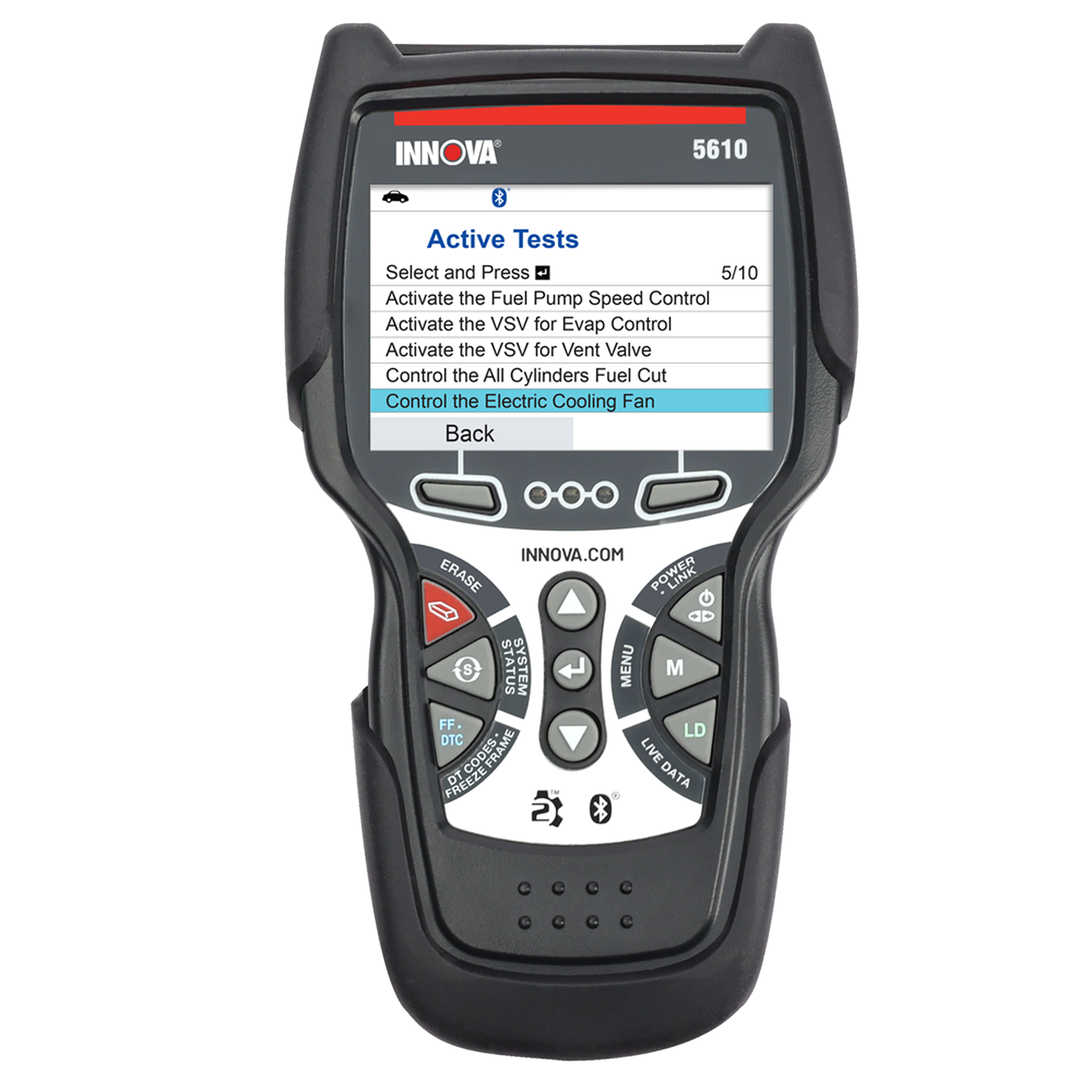
Before testing advanced functions, check the simple items first. Many scan tool problems are caused by a weak vehicle battery, a loose OBD2 plug, or a key that is not in the correct position.
Use this quick checklist:
- Turn the vehicle off.
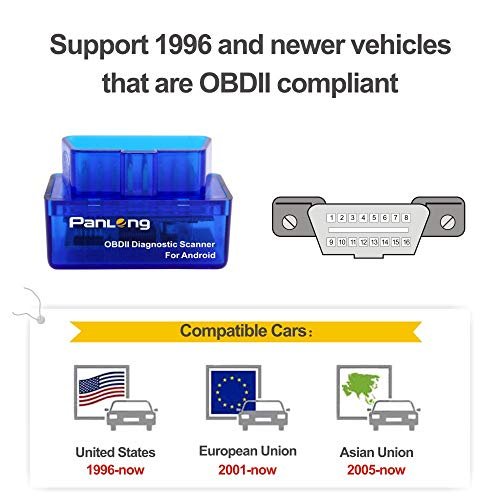
- Locate the 16-pin OBD2 port under the dashboard.
- Check the port for dirt, bent pins, moisture, or damage.
- Plug the Innova CarScan Tech 5610 into the port firmly.
- Turn the ignition to the key-on, engine-off position.
- Wait for the scanner to power on.
- Start a new vehicle scan instead of using an old saved result.
The scanner normally receives power from the vehicle through the diagnostic connector. It may not turn on if the port has no power, the related fuse is blown, or the connector is damaged.
Do not force the plug. The pins inside the connector are small and can bend easily. A damaged connector may create an intermittent fault that feels like a scanner problem.
Check the vehicle battery first
A low battery can cause several strange symptoms. The scanner may restart, fail to communicate, or show incomplete modules. Modern vehicles are sensitive to low voltage, especially during a scan with the ignition on.
A healthy, fully charged battery often measures near 12.6 volts with the engine off. Around 12.2 volts suggests a partly discharged battery, while a much lower reading may point to a weak battery or charging issue. These values are general guides, not a replacement for a full battery test.
Innova CarScan Tech 5610 Will Not Turn On
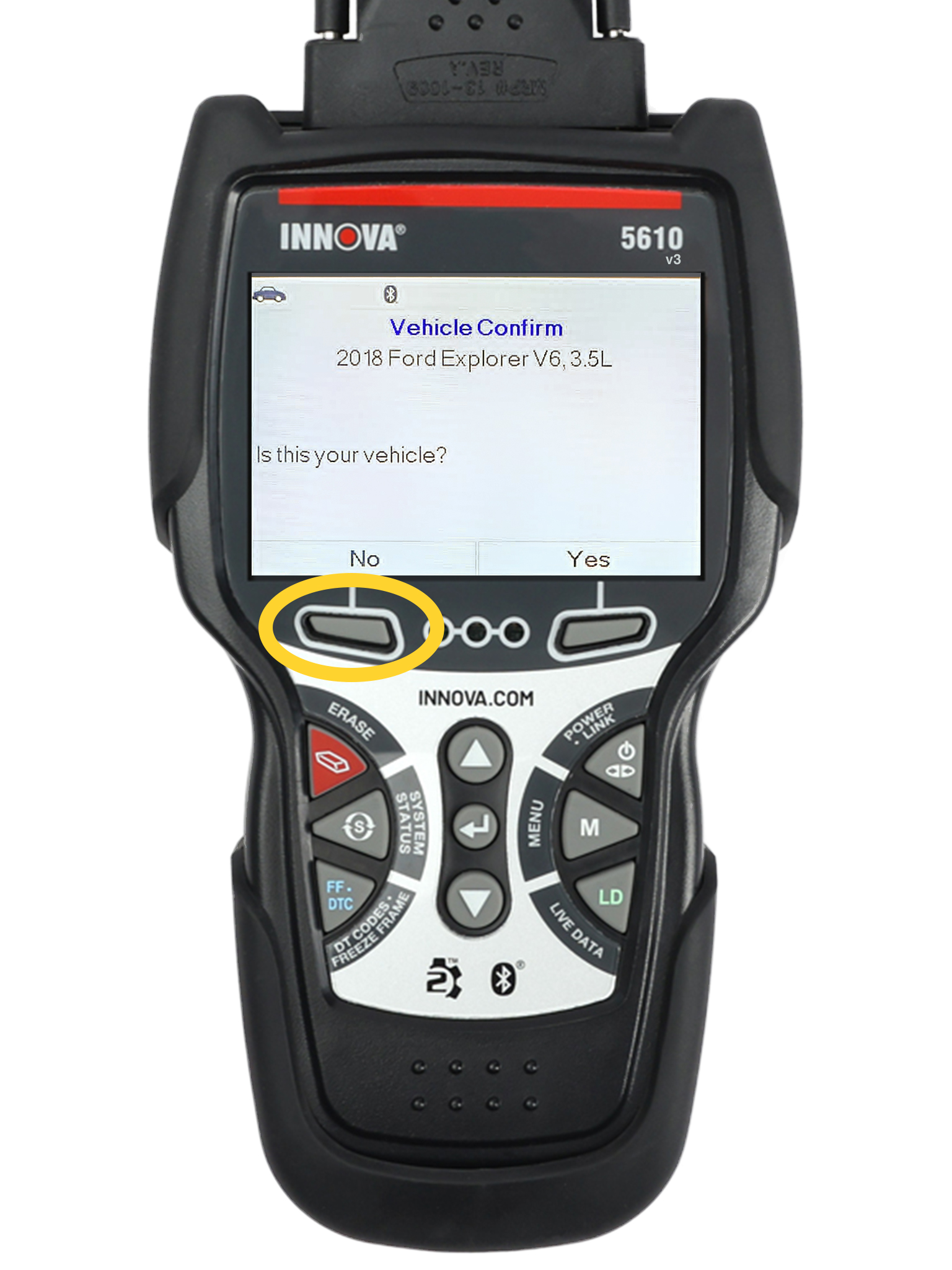
If the Innova CarScan Tech 5610 has a blank screen, follow a clear power path. Start at the vehicle battery, then move to the diagnostic port, and finally inspect the scan tool plug.
Try these steps:
• Turn the ignition off and remove the scanner.
• Wait about 30 seconds.
• Reconnect the scanner with firm, even pressure.
• Turn the key to the on position without starting the engine.
• Try the scanner in another compatible vehicle, if available.
• Inspect the OBD2 port fuse in the vehicle fuse box.
Many vehicles provide power to the OBD2 port through a fuse shared with the cigarette lighter or accessory socket. If that accessory stopped working at the same time, the fuse is a strong suspect.
Check the fuse with a test light or multimeter. Do not replace it with a larger fuse. Use the same type and rating shown on the fuse panel cover or in the owner’s manual.
What the result tells you
If the scanner works in another vehicle, the original vehicle likely has a power, fuse, or connector issue. If it fails in several known-good vehicles, the scanner cable or hardware may need professional service.
A cold or dark screen does not always mean the tool is defective. Some vehicles do not power the diagnostic port until the ignition is on. On push-button start vehicles, press the start button without pressing the brake pedal to enter accessory or ignition mode, depending on the vehicle design.

Innova CarScan Tech 5610 Cannot Communicate With the Vehicle
A “link error,” “no communication,” or similar message means the scanner cannot establish a data connection with one or more vehicle systems. This is one of the most common reasons people search for Innova CarScan Tech 5610 troubleshooting.
Use this order:
- Confirm the vehicle is supported.
- Turn the ignition fully on.
- Make sure the battery is charged.
- Disconnect other devices from the diagnostic port.
- Unplug and reconnect the scanner.
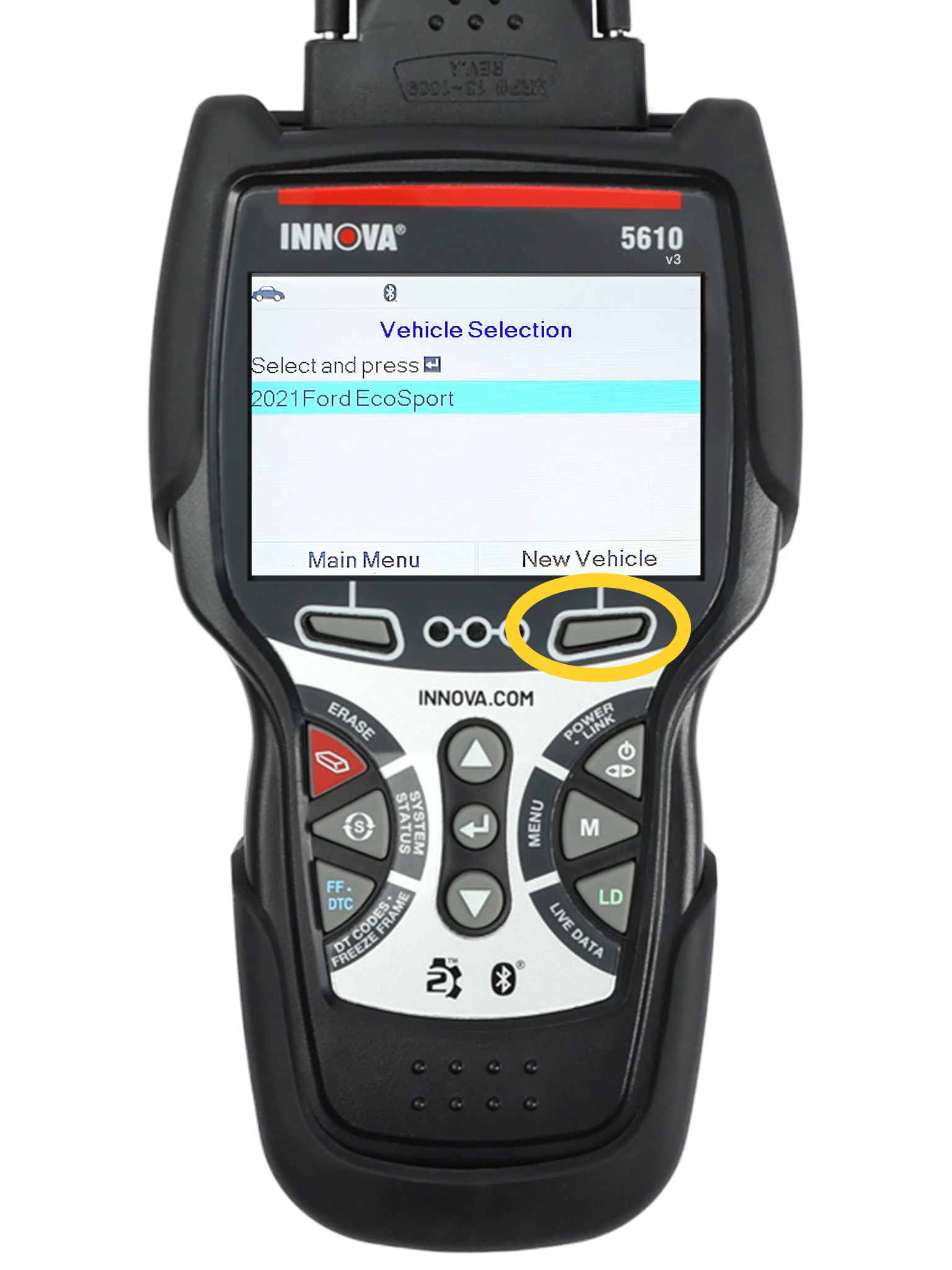
- Select the correct vehicle information if requested.
- Try an automatic vehicle identification scan.
- Check for aftermarket alarms, remote starters, or tuning devices.
The engine usually does not need to run for a basic code scan. In most cases, the key should be on and the engine should be off. However, live data and some active tests may require the engine to run.
Check for aftermarket equipment
A tracker, insurance device, fleet monitor, or tuning module may share the OBD2 connection. Remove it before scanning if the vehicle owner confirms it is safe to do so.
Some older vehicles use a 16-pin connector but do not support modern OBD2 communication. A connector that looks correct does not guarantee full compatibility. Always check the vehicle’s model year, market, engine, and emissions equipment.
Inspect communication wiring
If several professional scan tools fail to communicate, the fault may be inside the vehicle. Common causes include:
• A blown diagnostic connector fuse
• A short on the CAN bus
• Damaged wiring under the dashboard
• Water intrusion
• A failed body control module
• Incorrect aftermarket wiring
Do not probe communication pins with random test leads. A short can damage a control module. Use the vehicle service information and the proper wiring diagram.
Innova CarScan Tech 5610 Shows No Trouble Codes
A scan tool showing “no codes” does not always mean the vehicle has no problem. It means the tested system has no stored diagnostic trouble code under the current conditions.
Check the following:
• Is the check engine light on?
• Did you scan the correct module?
• Is the fault active right now?
• Was the code recently erased?
• Does the vehicle need several drive cycles before setting a code?
• Are the symptoms related to a nonmonitored mechanical problem?
For example, a worn suspension part can cause noise without setting an engine code. A weak fuel pump may cause poor performance before the control module detects a clear electrical range fault.
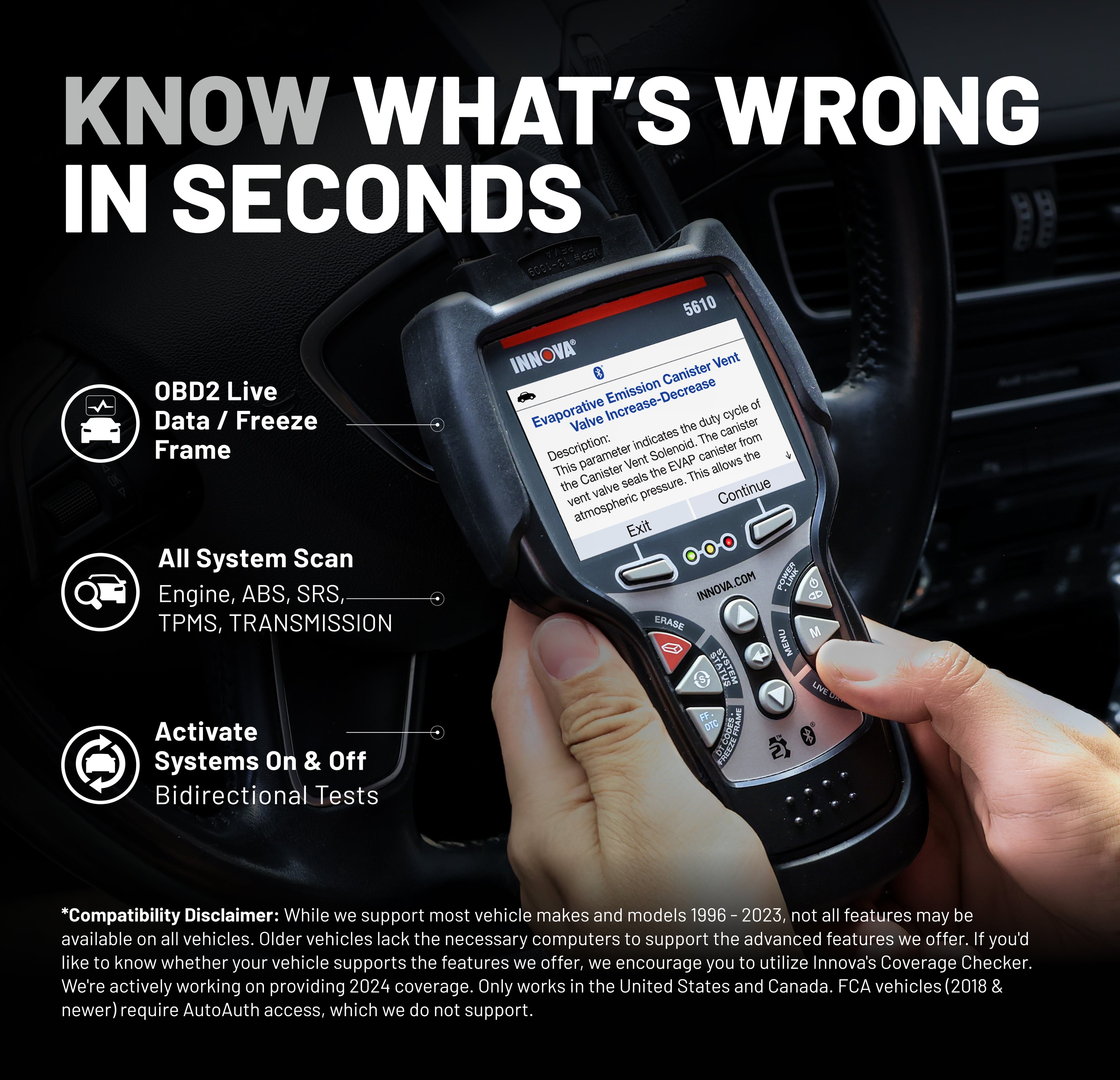
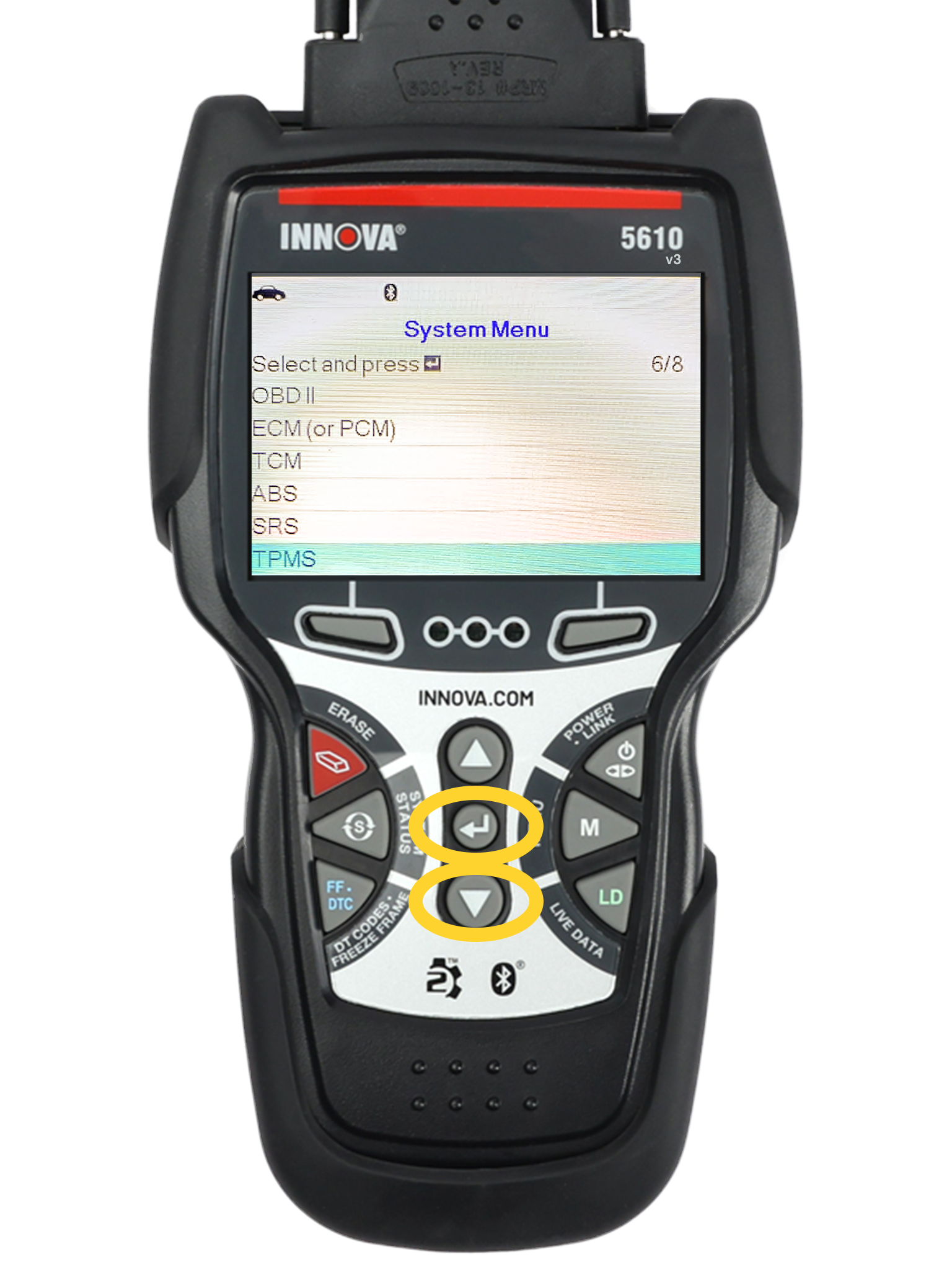
The Innova CarScan Tech 5610 may also show different results when scanning the engine, transmission, ABS, or airbag system. A basic powertrain scan does not automatically prove that every module is clear.
Pending, stored, and permanent codes
These code types have different meanings:
• Stored codes are saved after the vehicle detects a fault.
• Pending codes show a possible fault that may need another drive cycle.
• Permanent codes can remain until the vehicle confirms that the repair worked.
Do not erase codes before recording them. Save the code number, description, freeze-frame data, mileage, and driving conditions. This information often matters more than the code alone.
Innova CarScan Tech 5610 Displays a Code That Seems Wrong
A diagnostic trouble code points to a detected system or circuit. It does not always identify the exact failed part.
For example, an oxygen sensor code may result from an exhaust leak, vacuum leak, wiring fault, fuel problem, or actual sensor failure. Replacing the sensor without testing the circuit can waste money.
Use a confirmation process:
- Record the exact code.
- Read the code description carefully.
- Review freeze-frame data.
- Inspect related wiring and connectors.
- Test power, ground, and signal circuits.
- Compare live data with normal operating values.
- Repair the root cause.
- Clear the code only after the repair.
- Complete a drive cycle and rescan.
This is a key lesson in Innova CarScan Tech 5610 troubleshooting: a code is a clue, not a verdict.
Use freeze-frame data wisely
Freeze-frame data captures conditions such as engine speed, coolant temperature, load, and vehicle speed when a fault was detected. It helps you recreate the problem.
If a code set during cold start, do not test only after the engine is warm. If it set under heavy load, a short idle test may not reveal the fault.
Values differ by vehicle. Compare scan data with the manufacturer’s service specifications instead of relying on one universal number.
Innova CarScan Tech 5610 Has a Frozen Screen or Restarts
A frozen display can result from a temporary software issue, low voltage, poor connection, or a communication problem in the vehicle.
Try this reset process:
• Disconnect the scanner from the vehicle.
• Turn the ignition off.
• Wait at least 30 seconds.
• Reconnect the scanner.
• Use a fully charged vehicle battery.
• Close other functions before starting a new scan.
Avoid unplugging the tool while it is writing an update or saving important data. A sudden power loss during an update may cause additional problems.
If the tool repeatedly freezes on the same vehicle, test it on another compatible vehicle. If the issue follows the scanner, check for available firmware or software updates through the manufacturer’s approved process.
Do not install unofficial files. A wrong update can make the tool unstable or prevent it from starting.
Keep the tool clean
Dust and oil can enter the connector area. Wipe the housing with a soft, dry cloth. Do not spray cleaner into the OBD2 plug, screen, or buttons.
Store the scanner in a dry place. Extreme heat, moisture, and repeated drops can shorten the life of electronic equipment.

Innova CarScan Tech 5610 Live Data Looks Wrong
Live data is helpful, but it must be read in context. A single number rarely proves that a part has failed.
For example, coolant temperature should generally rise from near ambient temperature after a cold start. If it instantly shows an extreme value, inspect the sensor circuit, connector, and reference voltage. If it rises slowly, the issue could involve the thermostat, sensor, wiring, or actual engine temperature.
When reviewing live data:
• Compare readings before and after warm-up.
• Watch how values respond to throttle changes.
• Check for values that are fixed, missing, or unusually delayed.
• Compare related sensors.
• Follow the vehicle’s service specifications.
A scanner displays what the vehicle module reports. If the sensor or module is wrong, the scanner may still be accurately showing incorrect data.
Common data mistakes
Do not confuse a calculated value with a direct sensor reading. Do not compare readings from different vehicles without checking engine type and operating conditions.
Also remember that some data is not available on every vehicle. A missing parameter may mean the vehicle does not support it, not that the Innova CarScan Tech 5610 is broken.
Innova CarScan Tech 5610 ABS, SRS, or Advanced Function Problems
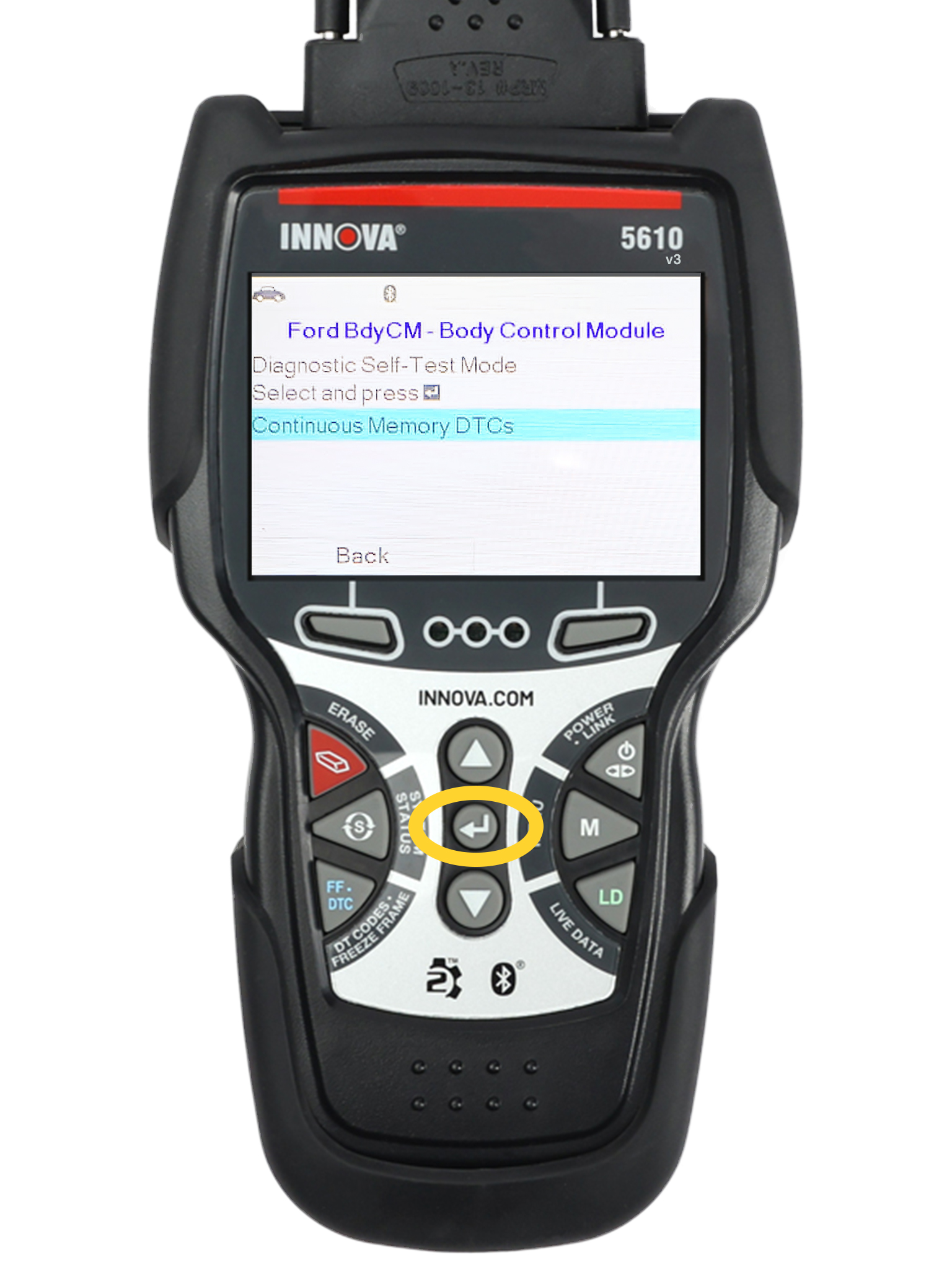
Some Innova CarScan Tech 5610 functions depend on vehicle coverage and module support. Engine codes are often easier to access than ABS, SRS, transmission, body, or network codes.
Before testing these systems, check the vehicle coverage information for the exact year, make, model, engine, and system. Coverage can vary between vehicles that look almost identical.
ABS troubleshooting
ABS faults may involve:
• Wheel speed sensors
• Damaged tone rings
• Broken wiring
• Low brake fluid
• Hydraulic control units
• Steering angle calibration
Never rely on the scanner alone for a brake repair. Follow safe lifting procedures and inspect the brake system directly.
SRS or airbag troubleshooting
Airbag systems contain stored energy and safety devices. Do not test airbag connectors with a standard test light or resistance measurement unless the vehicle service procedure specifically allows it.
Disconnecting the battery may not immediately make the system safe. Follow the manufacturer’s wait time and handling rules. If the SRS light is on, repair it promptly because the airbags or pretensioners may not work as designed during a crash.
Service reset functions
Oil, battery, electronic parking brake, or steering functions may require special steps. A service reset does not repair the cause of a warning light. Complete the mechanical repair first, then use the correct reset procedure.
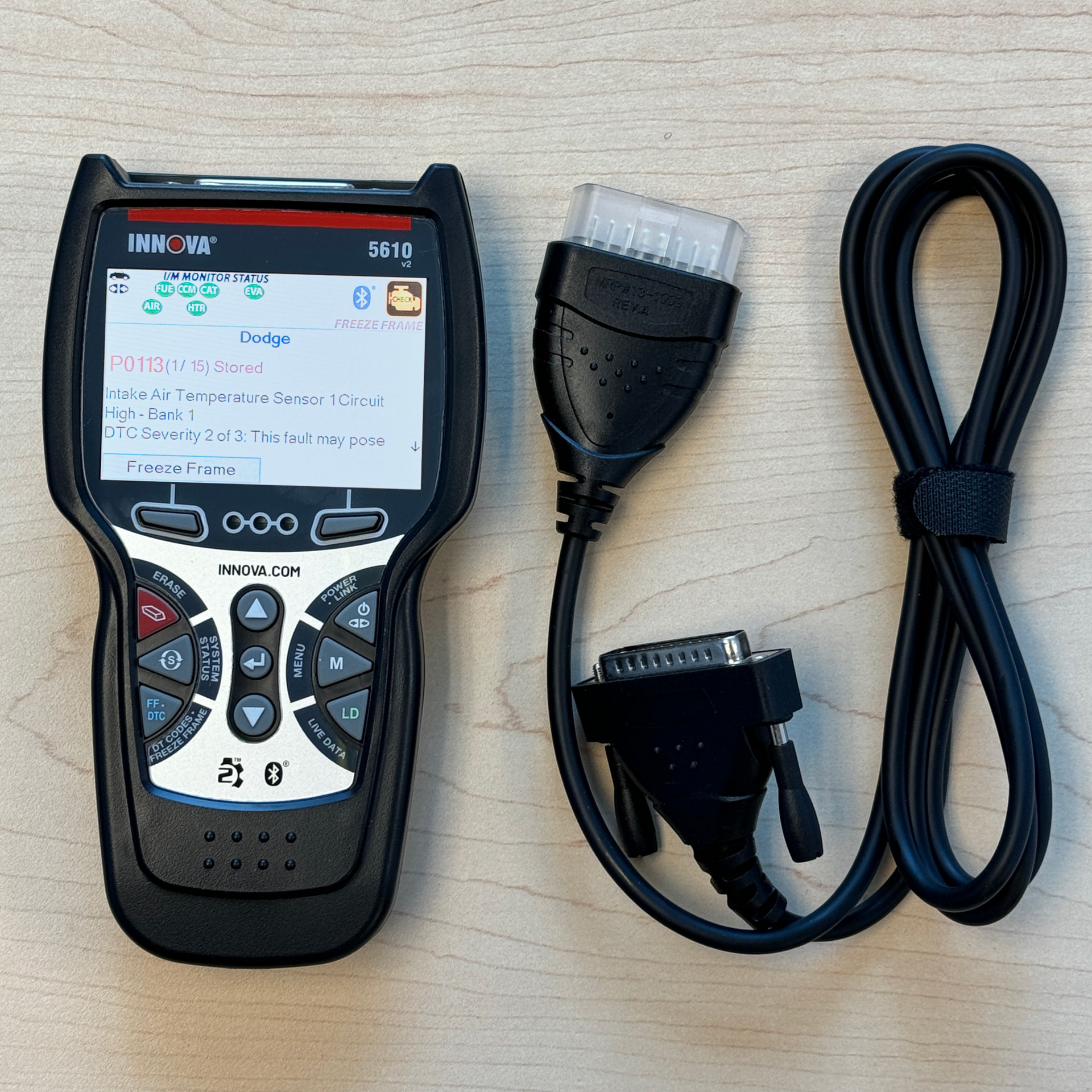
Innova CarScan Tech 5610 Update and Software Troubleshooting
Updates can improve vehicle coverage, correct software bugs, and add features. They can also fail if the computer, cable, internet connection, or tool power is interrupted.
Before updating:
- Use the approved update application.
- Charge the computer or connect it to stable power.
- Use a reliable internet connection.
- Connect the scanner exactly as instructed.
- Do not close the program during the update.
- Keep the cable still.
- Confirm the update completed before disconnecting.
If an update fails, restart the computer and repeat the process using the official instructions. Avoid repeatedly disconnecting the scanner while the software is communicating with it.
Some functions may also connect with a repair information or vehicle data service. If a code report fails to load, check the internet connection and account details. The basic scanning function and online repair information may depend on separate systems.
A Safe Diagnostic Workflow for Innova CarScan Tech 5610 Troubleshooting
A repeatable process prevents guesswork. Use this workflow whenever the scanner or vehicle gives an unexpected result.
Step 1: Confirm the complaint
Ask what happened, when it happened, and whether a warning light is on. Note recent repairs, battery replacement, jump-starts, water exposure, or aftermarket electrical work.
Step 2: Perform a visual check
Inspect the battery terminals, OBD2 port, wiring, fuses, and related connectors. Look for loose grounds, corrosion, broken insulation, or signs of rodents.
Step 3: Scan before clearing
Save all codes and freeze-frame data. Do not clear the vehicle memory until you understand what was recorded.
Step 4: Test the likely cause
Use a multimeter, pressure gauge, test light, or approved test method when needed. Match the test to the system.
Step 5: Repair and verify
After the repair, clear codes if appropriate. Run the vehicle through the required drive cycle or system test, then scan again.
Step 6: Explain the result
A good diagnosis should answer three questions:
• What failed?
• What test proved it?
• How was the repair confirmed?
This method saves time and reduces unnecessary parts replacement. In my experience with scan-tool diagnosis, the biggest mistake is treating the first code as a parts order. Good technicians use the scanner as a map, then verify the road with physical tests.
Common Mistakes to Avoid
Even experienced vehicle owners can create new problems during a scan. Avoid these common errors:
• Scanning with a weak battery
• Turning the key off during communication
• Clearing codes before saving them
• Replacing a sensor based only on its code
• Using the wrong vehicle profile
• Ignoring manufacturer service information
• Testing airbag circuits with unsafe equipment
• Updating the scanner through an unapproved file
• Assuming a missing data item means tool failure
• Driving while holding or watching the scanner
The scanner should support safe diagnosis, not replace it. If the vehicle has a brake, steering, fuel, or airbag concern, repair safety comes first.
When to Contact Professional Support
Contact Innova support or a qualified repair professional when:
• The tool will not power on in several compatible vehicles
• The screen remains frozen after a proper reset
• An approved update repeatedly fails
• The connector or cable is physically damaged
• The scanner reports a hardware error
• Multiple scan tools cannot communicate with the vehicle
• A control module may have a network or wiring fault
Have useful details ready. Include the scanner model, vehicle year and model, exact message, warning lights, battery voltage, recent repairs, and steps already tried.
A clear description helps support staff find the cause faster. “It does not work” is difficult to diagnose, while “It powers on, but shows no communication on a 2018 vehicle after a battery replacement” gives a useful starting point.
Frequently Asked Questions About Innova CarScan Tech 5610 Troubleshooting
Why will my Innova CarScan Tech 5610 not turn on?
Check the vehicle battery, OBD2 port fuse, ignition position, and plug connection. If it stays blank in more than one compatible vehicle, the scanner or cable may need service.
Why does the Innova CarScan Tech 5610 say it cannot communicate?
The ignition may be off, the battery may be weak, or the vehicle may not support the selected system. Check the port, remove other OBD devices, confirm compatibility, and inspect for vehicle wiring faults.
Can the Innova CarScan Tech 5610 clear every warning light?
No. Clearing ability depends on vehicle coverage and the system involved. A scan tool can erase a code, but the warning may return if the original fault remains.
Why does the scanner show no codes when the car has a problem?
The problem may be mechanical, intermittent, pending, or stored in a module that was not scanned. Review all available systems and test the symptom instead of relying only on the engine code screen.
How do I fix a frozen Innova CarScan Tech 5610 screen?
Disconnect it, turn the ignition off, wait briefly, and reconnect it with a charged vehicle battery. If it freezes in multiple vehicles, check for an approved update or contact technical support.
Is it safe to scan an airbag system?
Reading codes may be supported, but airbag systems require special care. Never probe SRS connectors or handle airbag components unless you are following the vehicle manufacturer’s safety procedure.
Can a low car battery cause scan tool errors?
Yes. Low voltage can cause failed communication, restarts, incomplete scans, and false network symptoms. Charge and test the battery before performing advanced diagnosis.
Conclusion
Effective Innova CarScan Tech 5610 troubleshooting starts with power, connection, compatibility, and battery checks. From there, save codes, study freeze-frame data, verify live readings, and test the suspected circuit before replacing parts.
Treat the Innova CarScan Tech 5610 as a helpful guide, not a crystal ball. Use safe repair methods, follow vehicle-specific information, and confirm every repair with a second scan. If this guide helped, explore more diagnostic tips, share your experience, or leave a comment with your scanner message and vehicle details.