TomTom GO Professional 6200 Troubleshooting: Quick Fixes
Most TomTom GO Professional 6200 troubleshooting cases come from power, software, GPS, Bluetooth, or map issues.
The TomTom GO Professional 6200 is built for long-distance drivers, but even a trusted truck navigation device can freeze, lose GPS, show old maps, or struggle with phone connections. This TomTom GO Professional 6200 troubleshooting guide explains the likely causes and gives safe steps to restore normal use without wasting time on the road.

Start with basic TomTom GO Professional 6200 troubleshooting
Before trying advanced fixes, check the simple causes first. Many navigation problems come from a weak power supply, a loose mount, poor GPS visibility, or a temporary software error.
Use this quick checklist:
- Turn the device off completely.
- Disconnect the USB cable and vehicle mount.
- Wait for about 30 seconds.
- Reconnect the device to a reliable power source.
- Start the GO Professional 6200 again.
- Move it near the windshield with a clear view of the sky.
- Check whether the problem still appears.
A restart clears short-term memory errors. It does not remove saved places, routes, or account data. This is why restarting should always be the first step in TomTom GO Professional 6200 troubleshooting.
Also inspect the 12-volt socket, USB cable, and mounting contacts. A device may appear faulty when the real issue is a damaged cable or a loose connection.

TomTom GO Professional 6200 will not turn on
A blank screen does not always mean the unit has failed. The battery may be fully drained, or the device may not receive enough power from the truck or car.
Try these steps:
• Connect the GO Professional 6200 to its original vehicle charger, if available.
• Test another compatible power socket in the vehicle.
• Leave the device connected for at least 30 minutes.
• Check the cable for cuts, bent plugs, or loose connections.
• Remove the device from the mount and connect the cable directly to the navigation unit.
• Press and hold the power button until the device restarts.
If the device shows a charging symbol but never starts, leave it connected longer. A deeply discharged battery may need time before the screen becomes active.
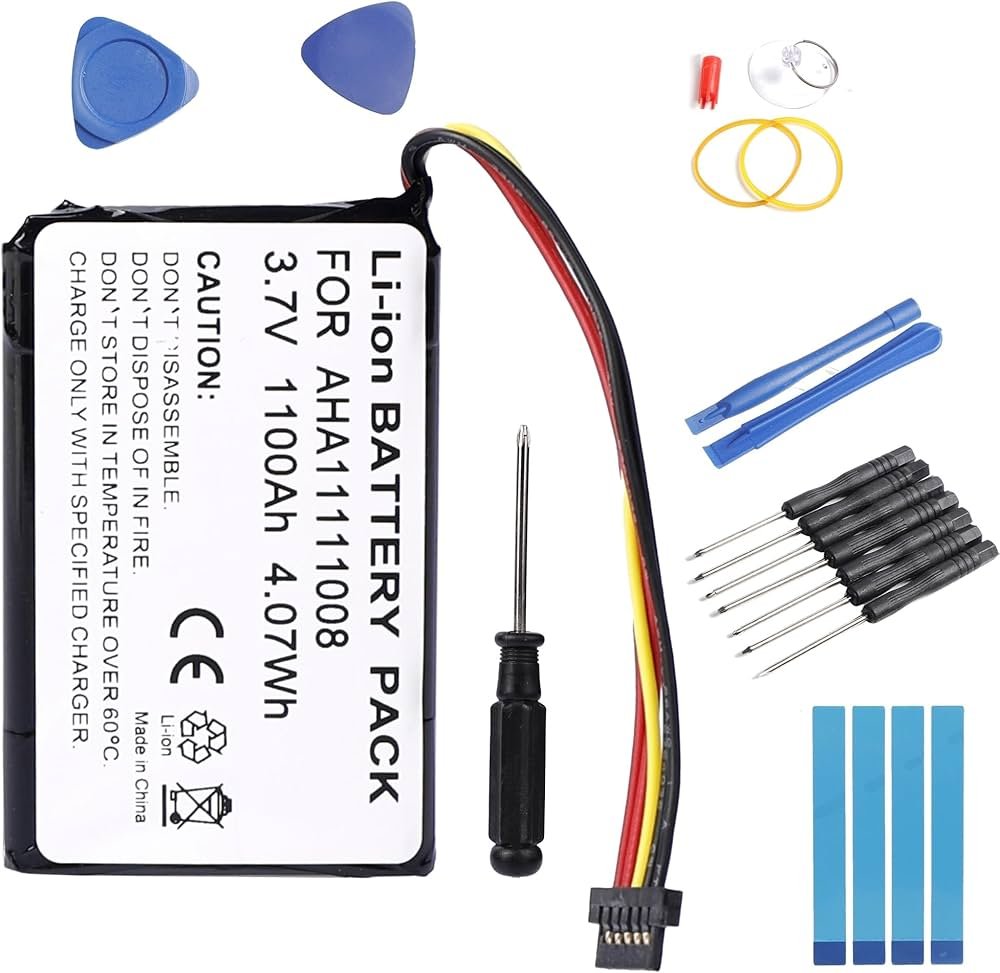
If there is no light, sound, or screen response after using a known working charger, the fault may involve the battery, charging port, or internal circuit. Do not open the unit yourself. A damaged lithium battery can be unsafe, and opening the device may affect service coverage.
One common mistake is using a low-power USB port in a dashboard or laptop. That port may charge slowly or fail to provide enough power while the device is running. For reliable TomTom GO Professional 6200 troubleshooting, use a proper vehicle charger with the correct output.

Fix a frozen screen or slow response
A frozen screen often results from a temporary software fault. It can also happen when the device is processing a large map update or has very little free storage.
Try a soft reset first:
- Make sure the device has power.
- Press and hold the power button.
- Keep holding it until you hear the drum sound or see the TomTom logo.
- Release the button and allow the device to load.
The exact restart response can vary by software version. If the screen remains frozen, disconnect external accessories and repeat the restart while connected to stable power.
Avoid pressing the screen repeatedly. A navigation device can seem unresponsive when it is busy loading a route, searching for traffic data, or checking map files. Repeated taps may create extra commands and make the delay feel worse.
For better performance:
• Remove old routes and unused destinations.
• Install available software updates.
• Keep enough free storage for maps and system files.
• Avoid interrupting an update once it has started.
• Restart the device after a major update.
In my experience with navigation-device support cases, users often unplug the unit during an update because the screen appears stuck. That can damage or confuse map files. Treat an update like filling a fuel tank: stopping halfway can create a bigger problem than waiting a few more minutes.

TomTom GO Professional 6200 has no GPS signal
The GO Professional 6200 needs a clear view of the sky to find satellites. Tall buildings, tunnels, underground parking areas, dense forests, and metal-coated windshields can delay the first GPS position.
For accurate TomTom GO Professional 6200 troubleshooting, park in an open outdoor area. Keep the device still for several minutes while it searches for satellites.
Then check the following:
• Place the unit close to the windshield.
• Keep it away from large electronic devices.
• Confirm that the vehicle does not have a heated or reflective windshield blocking signals.
• Restart the device outdoors.
• Make sure the date and time are correct.
• Check for current software updates.
A cold start can take longer than normal. This is especially true if the device has been stored for weeks, moved a long distance while switched off, or had its battery fully drained.
GPS accuracy can also suffer when the device has not completed its startup process. Wait until the map screen loads before driving. If the vehicle begins moving too soon, the device may take longer to settle on a reliable position.
If the unit repeatedly shows “Waiting for a valid GPS signal” in open conditions, the issue may involve outdated software, damaged GPS hardware, or a faulty antenna. In that case, contact TomTom support or an approved repair service.
Fix incorrect location or poor route guidance
Incorrect positioning and strange routes can be caused by old map data, a weak satellite fix, incorrect vehicle settings, or temporary map errors.
First, confirm that the blue vehicle arrow is on the correct road. If it is several streets away, stop safely and allow the device to refresh its position.
Next, review the navigation settings:
• Confirm the vehicle type is set correctly.
• Check the truck dimensions and weight.
• Review height, width, length, and weight limits.
• Confirm hazardous-material settings where supported.
• Check whether toll roads, motorways, ferries, or unpaved roads are restricted.
The GO Professional series uses truck-specific information to help avoid unsuitable roads. However, no navigation system knows every temporary closure, private road, weight restriction, or newly changed truck rule. Always follow posted road signs and local laws.
This is one of the most important limitations to understand. Truck navigation is a decision aid, not a legal replacement for road signs or professional judgment. A bridge restriction may change after the map data was released.
If a route looks unsafe or unusual, do not follow it blindly. Stop in a safe place, verify the road signs, and choose another route. Good TomTom GO Professional 6200 troubleshooting includes checking user settings, but safe driving must come first.

TomTom GO Professional 6200 is not updating
The GO Professional 6200 can use Wi-Fi for compatible software and map updates. Update failures often come from a weak wireless signal, low battery power, limited storage, or an interrupted connection.
Try this process:
- Connect the device to a stable Wi-Fi network.
- Use a private home or office network when possible.
- Connect the device to power.
- Open the main menu and check for available updates.
- Install software updates before starting a large map update.
- Keep the device connected until the update finishes.
- Restart it after the update completes.
Public Wi-Fi may block the connection or require a browser login. The device may not complete an update on networks that need a web page agreement.
If an update repeatedly fails, restart both the navigation device and router. Move closer to the router and remove other heavy downloads from the network.
Do not remove the power cable during installation. If the update stops at the same point every time, record the error message and contact official support. Avoid downloading map files from unofficial websites. They may be incomplete, unsafe, or incompatible with the device.
Resolve Bluetooth and phone connection problems
Bluetooth problems can affect hands-free calls, phone notifications, traffic services, or other connected features. The cause is often an old pairing record or a phone permission setting.
Use these steps:
• Turn Bluetooth off and on again on your phone.
• Restart both the phone and the GO Professional 6200.
• Remove the TomTom device from the phone’s Bluetooth list.
• Remove the phone from the TomTom device’s paired-device list.
• Pair the devices again while they are close together.
• Accept contact, call, and notification permissions if you need those features.
Only pair the device while the vehicle is parked. Some phones limit contacts or call access until permission is granted.
If calls connect but sound comes from the phone, check the phone’s audio output menu during the call. If traffic or connected services do not work, confirm that the phone has mobile data and that the required service is active.
Different phone models and operating systems can behave differently. A phone update may also change Bluetooth permissions. This is why TomTom GO Professional 6200 troubleshooting may require checking both devices, not just the navigation unit.
A useful lesson from real-world support work is to avoid pairing several phones at once during testing. Start with one phone. Once it works, add other devices one by one.

TomTom GO Professional 6200 has no traffic or live services
Traffic information and other connected services depend on several conditions. The device may need a working data connection, an active service plan, correct account details, and compatible software.
Check these points:
- Confirm that the service is included with your device or subscription.
- Check the service expiration date in your TomTom account.
- Make sure the device is linked to the correct account.
- Confirm that Bluetooth tethering or built-in connectivity is available.
- Check the phone’s mobile data settings when using a phone connection.
- Restart the device after restoring the connection.
Traffic data can also be delayed or incomplete. Coverage varies by country, road, provider, and network conditions. A traffic service cannot report an incident if no data source has detected it.
If the map loads but traffic colors do not appear, check the traffic settings and wait several minutes in an area with mobile coverage. If the service remains unavailable, sign out and back in only if the device offers that option. Do not remove the device from your account unless support instructs you to do so.

Fix map errors, missing roads, or wrong truck restrictions
Map problems are different from GPS problems. GPS tells the device where it is. The map database tells it what roads, addresses, restrictions, and points of interest exist.
If a road is missing or an address is wrong:
• Check whether a map update is available.
• Confirm that the correct regional map is installed.
• Search using a nearby town, road, or postal code.
• Compare the route with current road signs.
• Report persistent map errors through the official reporting process.
Truck restrictions may be especially difficult. A road can be legal for a small delivery vehicle but unsuitable for a larger truck. The device may also lack the latest local rule or temporary construction change.
Always enter accurate vehicle details. Incorrect dimensions can produce routes that look reasonable but fail to consider a low bridge, narrow road, or weight limit.
Map updates improve coverage, but they do not guarantee perfect information. This limitation applies to all commercial navigation systems. Use the GO Professional 6200 as a smart assistant, while keeping your own road awareness active.
Restore factory settings safely
A factory reset can fix persistent software problems, but it should not be the first choice. It may remove personal settings, saved places, paired phones, and other user data.
Before resetting:
• Write down important addresses.
• Make sure you know the email address for your TomTom account.
• Check that required map and service details are linked to the account.
• Install pending updates if the menu still works.
• Try a normal restart first.
Use the reset option found in the device settings. The wording may differ by software version. Follow the on-screen instructions and keep the device connected to power.
After the reset, set up the device again. Re-enter truck dimensions, pair your phone, connect to Wi-Fi, and check map and service status.
A reset is useful when settings have become corrupted or the device behaves strangely after repeated updates. It cannot repair broken hardware, a failing battery, or a damaged charging port. That distinction helps prevent wasted time during TomTom GO Professional 6200 troubleshooting.
When to contact TomTom support
Contact official support when the problem continues after basic steps and a reset. Prepare clear details before opening a support request.
Include:
• The exact model name: TomTom GO Professional 6200.
• The software and map versions.
• The error message shown on screen.
• The type of vehicle charger being used.
• Whether the problem happens every time.
• The steps already completed.
• The country and road area where the problem occurs.
Take a photo of an error message if it disappears quickly. Also keep proof of purchase if the device may be covered by a warranty or consumer protection rule.
Stop using the unit and seek help quickly if it becomes unusually hot, smells like burning, swells, or shows signs of liquid damage. Electrical faults should not be tested while driving.
Official support can identify account, service, map, and hardware issues that cannot be confirmed from the screen alone. Good TomTom GO Professional 6200 troubleshooting includes knowing when to stop testing and request expert help.
Tips to prevent future navigation problems
Prevention is easier than repair. A few simple habits can reduce most common failures.
• Update the device when connected to stable Wi-Fi.
• Keep the navigation unit charged during long trips.
• Use a secure mount with a clear view of the sky.
• Protect the device from extreme heat and direct sun when parked.
• Keep the charging port clean and dry.
• Check truck dimensions before every major journey.
• Review the route before moving.
• Carry a backup charging cable.
• Keep paper or offline route information for remote areas.
• Never rely on one navigation device for critical safety decisions.
I have found that many “sudden” navigation failures begin with small habits, such as leaving the unit in a hot cab or using a loose cable. Treat the device like a work tool. Store it safely, update it regularly, and inspect it before a long trip.
Frequently Asked Questions of TomTom GO Professional 6200 Troubleshooting
Why will my TomTom GO Professional 6200 not turn on?
Connect it to a reliable charger and leave it powered for at least 30 minutes. Then press and hold the power button until the TomTom logo or restart sound appears.
How do I reset a frozen TomTom GO Professional 6200?
Press and hold the power button until the device restarts. If it remains frozen, disconnect accessories, connect stable power, and repeat the restart before considering a factory reset.
Why does my TomTom GO Professional 6200 show no GPS signal?
Move it outdoors with a clear view of the sky and wait several minutes. Buildings, tunnels, reflective windshields, outdated software, and hardware faults can all delay or block GPS positioning.
How can I update maps on the TomTom GO Professional 6200?
Connect the device to stable Wi-Fi and power, then check for updates in the main menu. Do not disconnect the device during installation, because an interrupted update can create software or map errors.
Why is Bluetooth not connecting to my phone?
Delete the old pairing from both devices, restart them, and pair again while parked. Also check Bluetooth, call, contact, notification, and mobile-data permissions on the phone.
Can a factory reset fix every TomTom GO Professional 6200 problem?
No. A factory reset can fix corrupted settings or some software issues, but it cannot repair a damaged battery, charging port, screen, GPS antenna, or other hardware fault.
Are TomTom truck routes always safe to follow?
No navigation system has perfect or instant information about every road. Check road signs, temporary restrictions, bridge limits, and local rules, even when the device provides a truck-specific route.
Conclusion
TomTom GO Professional 6200 troubleshooting usually starts with power, cables, restarting, GPS visibility, Wi-Fi, Bluetooth, and correct truck settings. Most minor faults can be solved with a careful restart, stable power, a fresh connection, or a proper update.
More serious problems need official support, especially when the device shows no response, overheats, loses GPS in open areas, or fails after a reset. Work through the steps in order, avoid interrupting updates, and always compare navigation guidance with road signs.
Keep this guide for your next trip, and explore official TomTom support resources for model-specific updates and service help.





One Comment