TomTom GO Professional 6250 Troubleshooting: Quick Fixes
Most TomTom GO Professional 6250 problems come from power, software, GPS signal, Bluetooth, or map update issues.
TomTom GO Professional 6250 Troubleshooting is easier when you test one cause at a time. This truck navigation device combines GPS guidance, traffic data, Bluetooth, Wi-Fi, and professional vehicle settings, so one small fault can affect several features. This guide explains the safest fixes, common errors, and practical steps to restore reliable navigation without losing important settings.
Start With Basic TomTom GO Professional 6250 Troubleshooting
Before trying advanced fixes, check the simple causes. Many navigation problems are linked to a weak power connection, a frozen screen, poor GPS reception, or an incomplete update.
Use this short check first:
- Park the vehicle in a safe place.
- Disconnect and reconnect the original USB power cable.
- Hold the power button until the device restarts.
- Move outside with a clear view of the sky.
- Check whether the device shows a charging symbol.
- Confirm that the date and time are correct.
- Test the device without Bluetooth or phone connections.
- Check for software and map updates through the official TomTom update system.
A useful lesson from hands-on navigation support is to avoid changing many settings at once. If you reset the device, update the maps, and change truck settings together, it becomes hard to know which action solved the problem.

TomTom GO Professional 6250 Will Not Turn On
A black screen does not always mean the device has failed. The battery may be empty, the vehicle socket may not provide power, or the device may need a forced restart.
Try these steps:
- Connect the GO Professional 6250 to a known working vehicle power socket.
- Use the original cable if possible.
- Leave it connected for at least 30 minutes.
- Press and hold the power button for about 15 to 20 seconds.
- Release the button when the TomTom logo appears.
- Try another compatible power adapter if the screen stays black.
Some truck power sockets switch off when the ignition is off. Test the socket with another device, such as a phone charger. Also check for a loose plug, damaged cable, blown vehicle fuse, or dust inside the socket.
If the device becomes hot, smells unusual, or shows signs of battery damage, stop using it. Do not open the unit yourself. A built-in lithium-ion battery should be checked by an approved repair service.
TomTom GO Professional 6250 Troubleshooting should always begin with safe power checks. Repeated forced restarts will not repair a damaged cable or faulty charging circuit.

Fix a Frozen Screen or Slow Response
A frozen screen can happen after a long drive, a software update, or a failed connection with a phone. It may also occur when the device is very hot or has too little free storage.
Follow this restart method:
- Keep the device connected to power.
- Press and hold the power button.
- Continue holding it until you hear a drum sound or see the TomTom logo.
- Wait for the home screen to load fully.
- Do not tap the screen during the restart.
If the screen works but reacts slowly, close unnecessary phone connections and move the device away from direct sunlight. Heat can reduce performance in many electronics. A hot dashboard can be much warmer than the air inside the vehicle.
If freezing happens often, check for available software updates. Updates may fix stability problems, but install them only when the device has enough power and a stable Wi-Fi connection. Interrupting an update can create a bigger problem.
My practical rule is simple: never restart or update the device while driving. Pull over first. This protects you and gives the device a better chance to complete the process correctly.

TomTom GO Professional 6250 Has No GPS Signal
GPS reception can take several minutes after a restart, especially when the vehicle is near tall buildings, bridges, mountains, or dense trees. Metal-coated windshields and some dashboard locations can also weaken the signal.
For better GPS reception:
• Place the device where it has a wide view of the sky.
• Keep it away from electronic devices that may cause interference.
• Wait several minutes while the vehicle remains still.
• Check whether the current location marker begins to move.
• Restart the device outside if the signal does not return.
Do not judge GPS performance inside a garage or under a roof. The device needs signals from satellites, and those signals can be blocked by solid structures.
If the location is wrong by a large distance, confirm that the map is current and that the device has completed its startup. A GPS receiver can show an old position briefly after losing power.
TomTom GO Professional 6250 Troubleshooting for GPS issues is mostly about location, time, and patience. A clear sky view is often more useful than repeated resets.

Correct Truck Route and Vehicle Settings
The GO Professional 6250 is designed for professional drivers. It can calculate routes based on vehicle size, weight, speed, cargo, and road restrictions. Incorrect values can lead to unsuitable routes or warnings.
Review the truck profile and confirm:
• Vehicle height
• Vehicle width
• Vehicle length
• Gross vehicle weight
• Maximum axle weight
• Trailer status
• Hazardous material settings, where supported
Enter real measurements, not estimates. A few inches can matter near low bridges or narrow roads. Also check whether the vehicle profile is set to truck rather than car.
Keep in mind that no navigation device knows every temporary road condition. A map may not show a new closure, a temporary weight limit, or a local restriction. Always follow posted road signs and legal truck guidance.
If the route seems strange, compare the device route with the road signs and your dispatch information. Never follow a GPS instruction that conflicts with a visible restriction. The device is an aid, not a replacement for professional judgment.

Resolve Map, Traffic, and Route Problems
Outdated maps may cause missing roads, incorrect turn instructions, or poor route choices. Traffic services may also stop working if the device cannot connect to the internet or if the service subscription has expired.
Check these areas:
- Open the map or update section on the device.
- Connect to a reliable Wi-Fi network.
- Confirm that the device has enough battery power.
- Install available software updates before map updates.
- Allow each update to finish without interruption.
- Restart the device after the update.
The GO Professional 6250 may receive traffic through a built-in mobile data connection, depending on region and service availability. If traffic information is missing, check the traffic bar, service status, and subscription details.
Traffic data can be delayed or incomplete. It depends on available reports, network coverage, and regional data quality. A missing traffic alert does not always mean the device is broken.
One common mistake is turning off traffic or route services while trying to save data. After troubleshooting, review the privacy, connection, and service settings to ensure the needed features are enabled.

Fix Wi-Fi and Software Update Errors
Wi-Fi problems often prevent map updates. The device may see a network but fail to complete the connection because of a weak signal, incorrect password, or router compatibility issue.
Try the following:
• Move closer to the router.
• Restart the router and the TomTom device.
• Re-enter the Wi-Fi password carefully.
• Use a private home network instead of public Wi-Fi.
• Avoid updating while the vehicle is moving.
• Remove the Wi-Fi network and add it again.
• Make sure the network does not require a web browser login.
A large map update can take time. Do not unplug the device during installation. If an update appears stuck, wait longer before forcing a restart. The screen may remain unchanged while files are being checked.
If the update repeatedly fails, use the official TomTom computer update application when supported by the device. Follow the instructions shown for the GO Professional 6250 model. Do not install firmware intended for another TomTom product.
TomTom GO Professional 6250 Troubleshooting becomes more reliable when you use the correct update method for the exact model. Similar-looking devices may use different software.

Solve Bluetooth and Phone Connection Issues
Bluetooth problems can affect hands-free calls, smartphone messages, and some connected services. Most connection failures come from an old pairing record or the phone connecting to another device.
Use this pairing process:
- Turn Bluetooth off on the phone.
- Restart both the phone and TomTom device.
- Remove the old TomTom pairing from the phone.
- Remove the phone from the device’s Bluetooth list.
- Turn Bluetooth on again.
- Pair the devices from the TomTom menu.
- Accept all needed permission requests on the phone.
Keep the phone close during setup. Some phone features require permission for contacts, calls, notifications, or data sharing. If those permissions are denied, the phone may connect but still provide limited functions.
Test one phone at a time. Multiple saved phones can confuse automatic connection settings, especially when two drivers share the vehicle.
Also check the phone’s operating system and battery-saving settings. Aggressive power-saving modes can restrict Bluetooth or background data. If the connection drops only after the phone locks, review those settings.
Improve Charging and Battery Performance
Battery problems often appear as sudden shutdowns, slow charging, or a device that works only when connected to the vehicle. The cable and power source should be tested before assuming the internal battery is worn out.
Check the following:
• Try a different compatible cable.
• Try another vehicle power socket.
• Inspect the cable for bends or exposed wires.
• Clean the socket carefully if it contains dust.
• Avoid charging in extreme heat.
• Let the device cool before testing it again.
A battery naturally loses capacity over time. Heavy heat exposure can speed up battery wear. Leaving a navigation device on a hot dashboard for long periods may shorten its useful life.
Do not use an unknown low-quality adapter. It may provide unstable power or fail to meet the device’s requirements. Use an approved TomTom accessory or a compatible adapter with the correct output.
If the device shuts down even with stable external power, service may be needed. Back up or record important settings before sending it for repair.
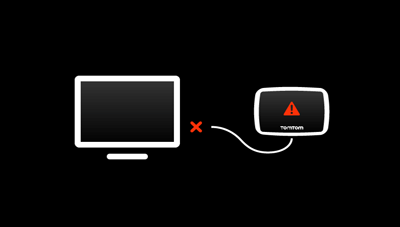
When to Reset the TomTom GO Professional 6250
A reset can help after repeated freezes, unusual menu behavior, or failed connections. It should not be the first step because a factory reset can remove personal settings and stored preferences.
Try a normal restart first. If that does not help, check for updates and remove failed Bluetooth pairings. Use a factory reset only when the problem continues or official support recommends it.
Before resetting, record:
• Your TomTom account details
• Saved places and favorites
• Truck measurements
• Phone pairing information
• Service or subscription details
After the reset, set up the truck profile again with accurate measurements. Reconnect the phone and confirm that maps, traffic, and other services work.
Resetting cannot repair a damaged screen, failed battery, broken GPS antenna, or faulty charging port. It clears software settings, much like tidying a cluttered desk; it does not replace damaged hardware.
Hardware Problems That Need Professional Help
Some symptoms point beyond normal TomTom GO Professional 6250 Troubleshooting. Do not keep testing the device if it has physical damage or unsafe battery behavior.
Contact official support or an approved service center when:
• The screen is cracked or does not detect touch.
• The device will not charge with known-good accessories.
• The unit restarts continuously.
• The battery swells or becomes unusually hot.
• The GPS remains unavailable in open areas after updates and restarts.
• The charging port is loose or damaged.
• The device was exposed to water.
Write down the exact symptoms and the steps you already tried. Include the model name, software version, and approximate date the problem began. Clear notes help support staff avoid repeating basic tests.
Keep proof of purchase if the unit may still be under warranty. Warranty terms vary by country and by the type of damage. Do not open the device, as unauthorized repair may affect warranty coverage and create a safety risk.
A Simple Diagnostic Order That Saves Time
A clear order prevents random troubleshooting. Use this sequence whenever a problem returns:
- Check power and cable condition.
- Restart the device.
- Move outside for a GPS test.
- Confirm the truck profile.
- Check Wi-Fi and software updates.
- Review traffic and service status.
- Remove and recreate Bluetooth connections.
- Perform a reset only after recording settings.
- Seek service for physical or repeated faults.
This process separates simple causes from deeper faults. It also gives you useful evidence if you need customer support.
For example, if the device works outside but not in the truck, the issue may involve windshield coating or placement. If it works on one power socket but not another, the vehicle circuit is the likely cause. Small tests can tell a clear story.
Frequently Asked Questions About TomTom GO Professional 6250 Troubleshooting
Why is my TomTom GO Professional 6250 stuck on the logo?
Hold the power button until the device restarts and keep it connected to stable power. If it remains stuck, check for updates and contact official support if repeated restarts do not help.
How do I fix missing GPS on the TomTom GO Professional 6250?
Move outside with a clear view of the sky and wait several minutes. Restart the device if needed, then check software and map updates before considering a hardware service.
Why is my TomTom GO Professional 6250 not charging?
Test another compatible cable and vehicle power socket. If the device still will not charge, inspect the port for damage and arrange professional service rather than opening the unit.
How can I update maps on the TomTom GO Professional 6250?
Connect the device to reliable Wi-Fi or use the supported TomTom computer update method. Keep the device powered on and do not disconnect it until the update finishes.
Why does Bluetooth keep disconnecting?
Delete the old pairing from both the phone and the TomTom device, restart both products, and pair them again. Also check phone permissions and battery-saving settings that may limit Bluetooth.
Will a factory reset delete my truck settings?
Yes, a factory reset can remove saved places, phone pairings, and truck profile details. Record the settings first so you can enter them again accurately.
Can incorrect truck settings cause poor routes?
Yes. Incorrect height, weight, length, or width values may produce unsuitable routes or warnings. Check every measurement and follow road signs when they disagree with the navigation instruction.
Conclusion
TomTom GO Professional 6250 Troubleshooting works best when you follow a calm, step-by-step process. Start with power, charging, GPS reception, and a forced restart. Then check truck settings, maps, Wi-Fi, traffic services, and Bluetooth before using a factory reset.
Accurate vehicle data and current maps are vital for professional drivers, but no navigation device replaces road signs or safe driving judgment. Save your settings, avoid unsafe repairs, and contact approved support when hardware symptoms appear.
Use this guide the next time a problem occurs, and share your experience or solution with other TomTom GO Professional 6250 users.