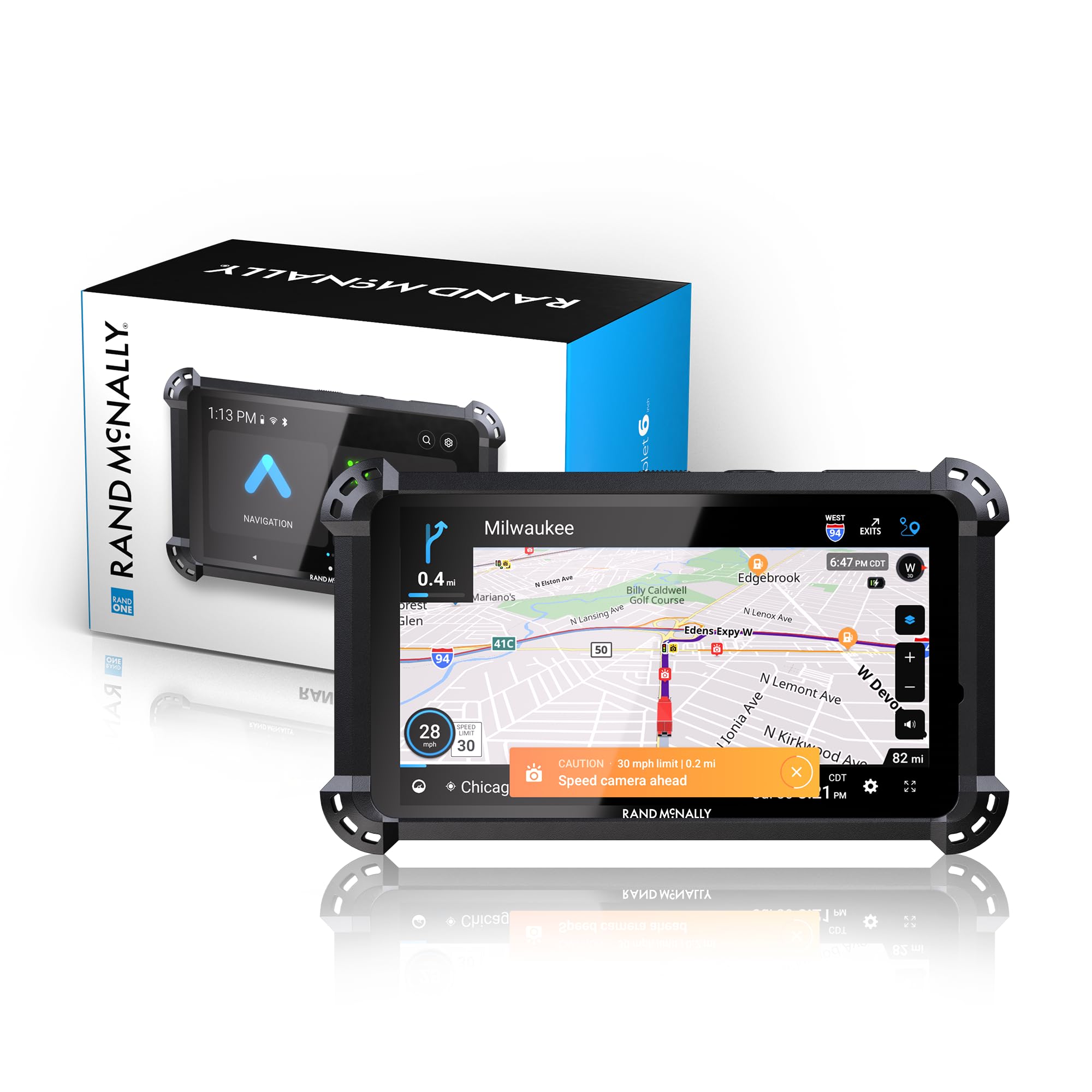
Rand McNally TND 85 Troubleshooting: Easy Fixes
Most Rand McNally TND 85 problems come from power, GPS signal, software, maps, or a damaged vehicle charger.
Rand McNally TND 85 troubleshooting is often simple when you test one cause at a time. This guide covers the most common problems, safe fixes, map and GPS checks, reset steps, and signs that the device needs service or replacement.
Start With These Basic Checks
Before changing settings, check the simple things first. Many TND 85 issues look serious but come from a loose cable, a weak power source, or a frozen screen.
Use this quick check:
- Turn the TND 85 off.
- Remove the power cable.
- Wait 30 seconds.
- Connect it to a working vehicle power port.
- Turn the device on again.
- Check whether the screen, sound, GPS, and touch controls work.
If the unit is hot, let it cool before testing it. A hot GPS can slow down, freeze, or shut off to protect its battery and internal parts.
Also inspect the cable and plug. Look for cuts, bent contacts, loose ends, or signs of heat. Try another compatible power cable if you have one.
A useful field habit is to change only one thing at a time. If you replace the cable, reset the device, and update the maps all at once, you may not know which step solved the problem.
Rand McNally TND 85 Will Not Turn On
A TND 85 that will not start may have a power problem, a drained battery, or a system fault. Start with the power source rather than assuming the screen has failed.
Connect the device to a known working vehicle outlet. Some trucks have more than one outlet, and one may be controlled by the ignition or a separate switch.
Try these steps:
- Turn the vehicle ignition on.
- Connect the original or a compatible charger.
- Leave the TND 85 connected for at least 30 minutes.
- Press and hold the power button for about 10 seconds.
- Release the button and press it once more.
If the unit still shows no sign of life, test another power outlet. Check whether a charging light appears. No light, no sound, and no screen activity may point to a failed cable, port, battery, or internal circuit.
Do not use a charger with the wrong voltage or damaged wiring. An incorrect adapter can harm the device. If the GPS becomes unusually hot, smells like burnt plastic, or shows a swollen battery area, disconnect it and stop using it.
Rand McNally TND 85 troubleshooting should never involve opening the case. The internal battery and electronic parts are not designed for casual repair.

TND 85 Freezes or Shows a Blank Screen
A frozen screen can result from a temporary software error, low memory, heat, or a failed startup. First, perform a forced restart.
Press and hold the power button for 10 to 15 seconds. Keep holding it even if the screen does not change right away. Release the button when the unit restarts.
If the screen stays blank, connect the GPS to power and repeat the process. Remove memory cards or other accessories before restarting. A damaged card can sometimes stop a navigation device during startup.
If the screen turns on but touch controls do not respond, clean the display with a soft, dry cloth. Avoid glass cleaner, sprays, and excess moisture. Check for cracks or pressure marks.
Try these additional steps:
• Let the unit cool in a shaded place.
• Disconnect all cables except the main power cable.
• Restart the device without starting a route.
• Check whether the problem returns after a few minutes.
A repeated freeze after every restart may indicate outdated software, corrupted map data, failing storage, or aging hardware. Record when the freeze occurs. For example, “freezes after route calculation” gives better repair information than “does not work.”

Rand McNally TND 85 Has No GPS Signal
GPS reception needs a clear view of the sky. The TND 85 may struggle inside a building, under a metal roof, in a parking garage, or near tall structures.
Place the device near the windshield with a clear view above it. Keep it away from items that block the antenna, such as large metal panels or heavy electronic equipment.
After a long period without use, the first GPS lock may take several minutes. Stay in an open area with the vehicle parked safely. Do not judge the GPS signal while driving through a tunnel or a dense city area.
Check the GPS status screen if the device provides one. A working unit should detect satellites over time. If the screen reports no satellites for a long period in an open area, restart the device and test again.
Common causes include:
• Poor windshield placement
• A building, tunnel, or tree canopy
• Incorrect date or time
• Old software or map files
• A damaged GPS antenna
• A hardware fault
Do not rely on an old GPS when the route affects safety, legal compliance, or delivery timing. Compare the route with road signs and a current navigation source. GPS devices can calculate an incorrect position even when the screen looks normal.
This is one of the most important parts of Rand McNally TND 85 troubleshooting because a GPS may appear to work while its location data remains unreliable.
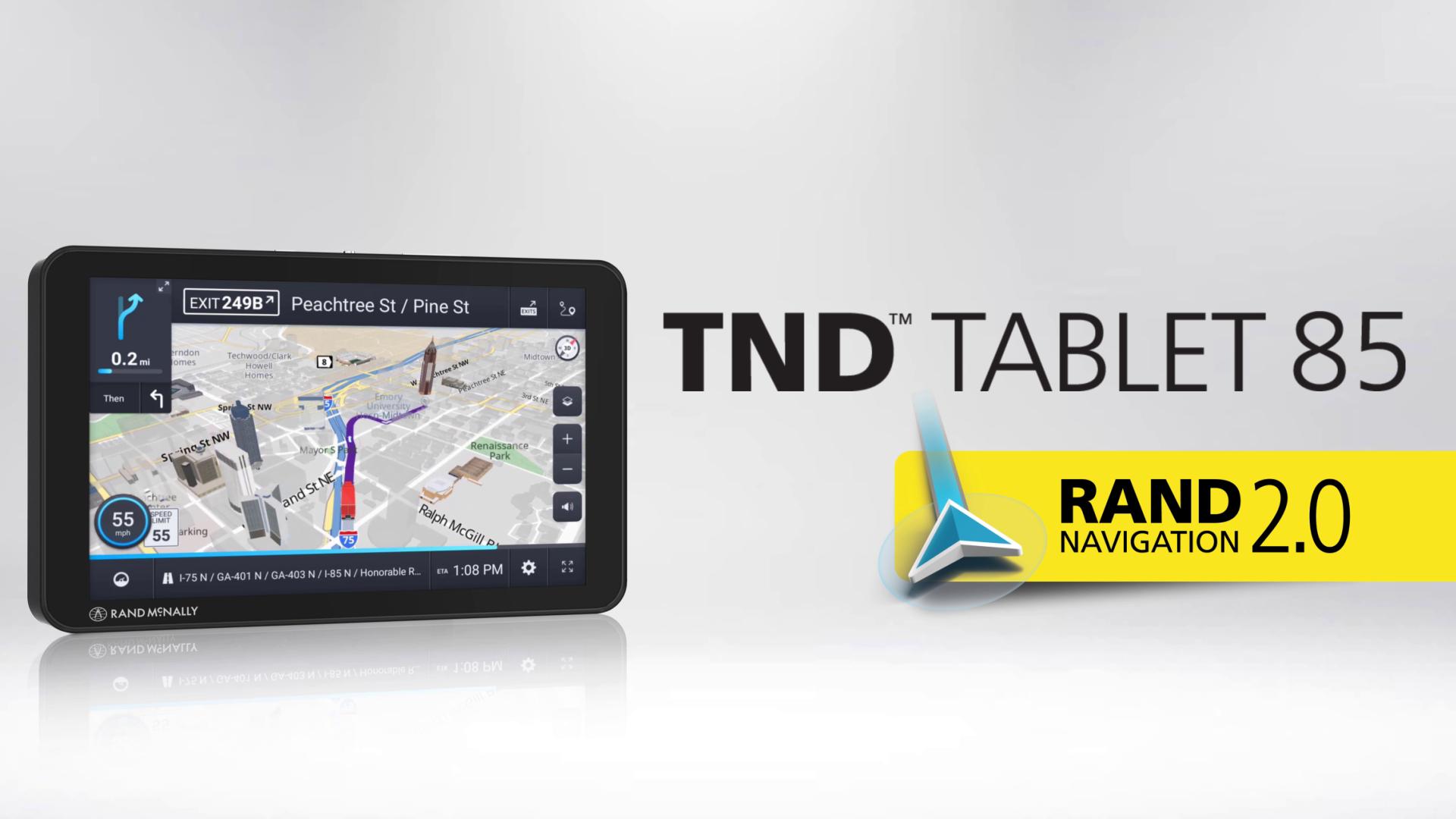
TND 85 Gives Wrong Directions
Wrong directions do not always mean the GPS is broken. Truck navigation depends on vehicle settings, road data, road closures, and the device’s current location.
Review the vehicle profile. Check the truck’s height, length, width, weight, axle count, and hazardous material settings when applicable. A wrong profile can send a truck toward a road that cannot safely support it.
Also check the route options. The device may avoid toll roads, highways, ferries, or certain road types. Those choices can create a route that looks strange but matches the selected preferences.
Use this checklist:
• Confirm the vehicle profile.
• Check the current map version.
• Review avoidances and route settings.
• Confirm the destination address.
• Compare the suggested road with current signs.
• Treat temporary closures as a possible cause.
Map data cannot predict every new construction zone or local restriction. Drivers remain responsible for following posted signs and applicable truck rules.
If the TND 85 repeatedly places you on the wrong road, check whether the position icon moves correctly. A drifting position may suggest poor GPS reception. A stable position with poor route choices may point to settings or map data instead.

Rand McNally TND 85 Touchscreen or Audio Problems
A slow or inaccurate touchscreen may come from dirt, moisture, screen damage, or a software freeze. Clean the screen gently and restart the unit before changing other settings.
Touch the screen with a bare, dry finger. Gloves, wet hands, and some screen protectors can reduce response. If only one area fails, look for a crack or pressure damage.
For sound problems, check the volume first. Then review mute settings, guidance volume, Bluetooth connections, and audio output choices. A phone or another device may be using the vehicle’s speakers instead of the GPS.
Try these steps:
- Raise the navigation volume.
- Turn off mute.
- Disconnect Bluetooth devices.
- Restart the TND 85.
- Test a short route.
- Check whether alerts and spoken directions return.
If audio works through one output but not another, the issue may be a setting or cable. If all sound is missing after a restart, the speaker or software may be at fault.
Do not press hard on the display. A touch screen should respond to light contact. Heavy pressure can damage the panel and make the problem worse.
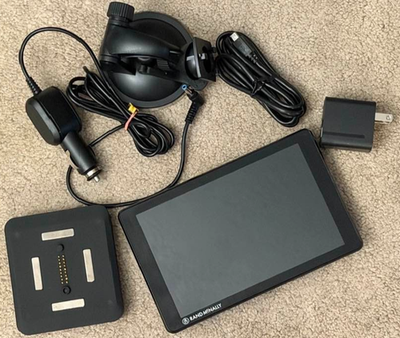
Map Updates and Software Problems
Map updates can improve road coverage, but the process must match the exact device and software version. Do not install files meant for another Rand McNally model.
Before an update, use a stable computer and a reliable internet connection. Back up important data when the update tool allows it. Keep the GPS connected to power during the process.
A failed update may cause missing maps, startup errors, or repeated restarts. Do not remove the cable while the device is writing data unless the official instructions tell you to do so.
Check the following:
• The model number shown on the device
• Available storage
• The update application or supported update method
• The required memory card, if applicable
• The device battery or external power
• The update status before disconnecting
Older Rand McNally products may have limited update support. Product availability, software tools, and map services can change over time. Confirm current support through the official Rand McNally support resources before paying for an update or downloading files from a third-party website.
A useful Rand McNally TND 85 troubleshooting rule is simple: never trust a random firmware file. The wrong file can disable the device.

How to Reset the TND 85 Safely
A reset can clear a temporary software problem, but it can also remove settings and saved information. Use the least powerful reset first.
Start with a normal restart. If that fails, use the forced restart described earlier. A factory reset should be the last software step.
Before a factory reset, write down or photograph:
• Vehicle dimensions
• Weight and axle settings
• Route preferences
• Saved locations
• Bluetooth details
• Any custom alerts
The exact reset path can vary by software version. Look for a reset option in the device settings or follow the instructions for the specific TND 85 version. If the unit cannot reach the settings menu, check the official manual before using button combinations.
A factory reset will not repair a broken screen, bad battery, damaged charging port, or failed GPS antenna. It only returns software settings to their original state.
In practical Rand McNally TND 85 troubleshooting, a reset helps most when the problem began after a setting change or a temporary freeze. It helps less when the fault happens every time the unit receives power.
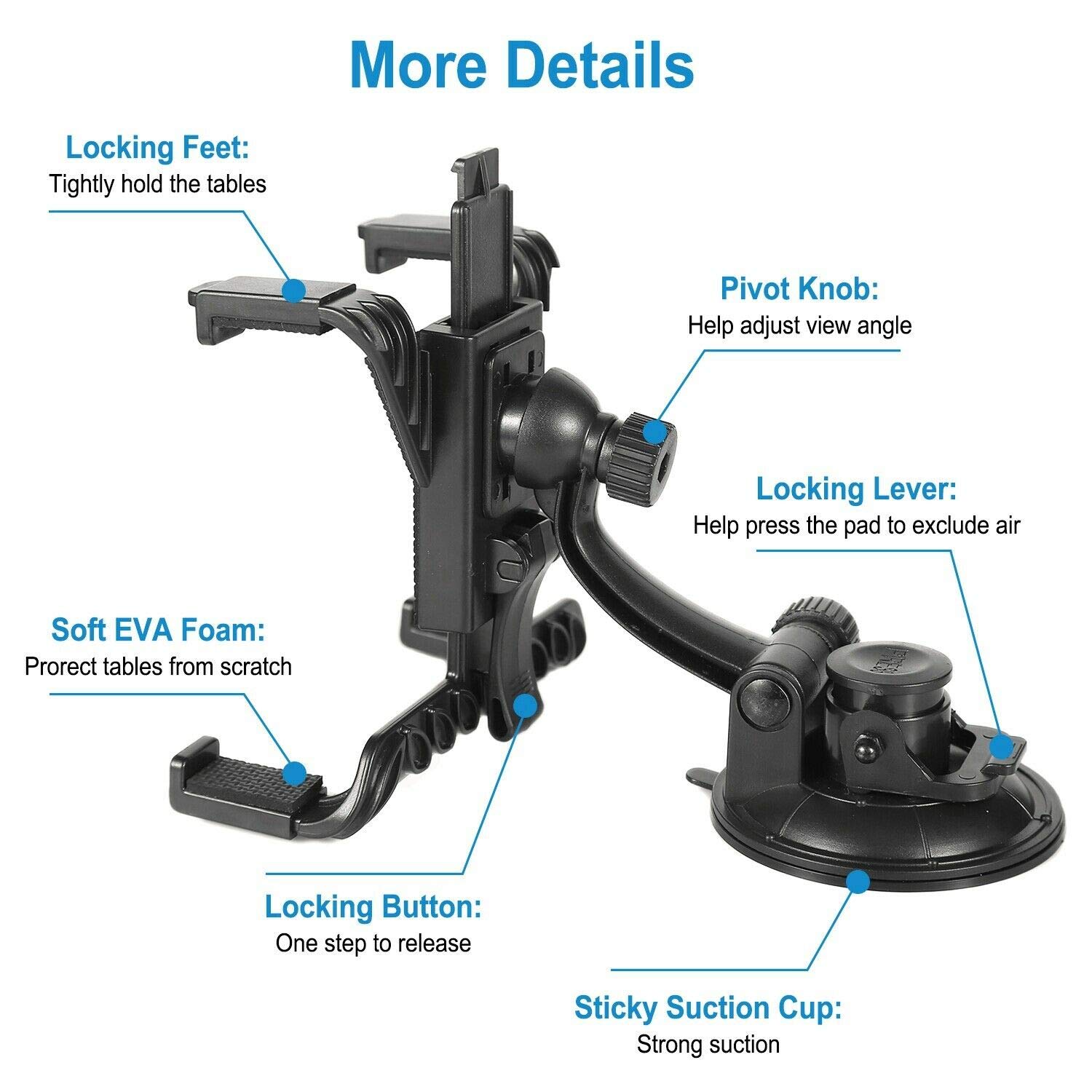
Charging, Battery, and Power Port Checks
A TND 85 that shuts off while driving often has an unstable power connection. The plug may fit loosely, the vehicle outlet may cut power, or the cable may have an internal break.
Gently move the cable near the plug while the unit is running. If the screen turns off or the charging symbol changes, replace the cable. Do not keep bending the cable to hold it in one position.
Check for dust inside the power port. Use air or a soft, nonmetal tool with care. Never push metal into the port, and never pour liquid into it.
Battery symptoms can include:
• Short operating time away from the charger
• Shutdown during route calculation
• Failure to hold a charge
• A battery percentage that jumps suddenly
• Startup only when connected to vehicle power
A battery naturally loses capacity with age. Heat can speed up that decline. If the battery is swollen or the case is lifting, stop using the device and seek qualified service.
This step is often missed in Rand McNally TND 85 troubleshooting because drivers focus on maps or GPS settings when the real problem is a weak power connection.
Bluetooth and Phone Connection Issues
Bluetooth problems usually come from pairing conflicts, unsupported features, or saved connection data. Begin by removing the TND 85 from the phone’s Bluetooth list and removing the phone from the GPS list.
Restart both devices. Keep them close during pairing. Turn off Bluetooth on nearby phones so the TND 85 does not connect to the wrong device.
Then pair again and test one feature at a time. A phone call may work even when audio streaming does not, depending on the device and software.
Avoid pairing several phones at once while testing. One clean connection makes the cause easier to find.
If Bluetooth connects but drops often, check power stability, distance, phone software, and other nearby wireless devices. A factory reset should not be the first step for a Bluetooth issue.
When Professional Repair Is the Better Choice
Some problems are beyond safe home troubleshooting. Stop testing and seek professional help when the device shows physical damage, liquid exposure, battery swelling, smoke, or repeated overheating.
Repair may also be sensible when:
• The charging port is loose inside the case
• The screen has cracked
• The GPS never finds satellites outdoors
• The device restarts in a loop
• A factory reset changes nothing
• The unit fails with more than one known-good cable
Write down the model, software version, error message, and steps you tried. Photos of the screen can help support staff understand the fault.
Support options may be limited for older navigation products. Before buying a costly repair, compare the price with a current truck GPS or a dependable phone navigation setup. A replacement should support your required truck profile, map coverage, screen size, mounting method, and update service.
Good Rand McNally TND 85 troubleshooting includes knowing when to stop. A damaged GPS is not worth risking a wrong route or a distraction on the road.
Practical Tips to Prevent Future Problems
A few habits can reduce repeat failures. Keep the device cool, dry, and firmly mounted. Do not leave it in direct sun on the dashboard when the vehicle is parked.
Use a quality power cable and check the connection before every long trip. Keep the screen clean, but avoid harsh cleaners. Store the GPS in a padded place when you are not using it.
Before a trip:
- Confirm the vehicle profile.
- Check the route and destination.
- Test the power connection.
- Check GPS reception outdoors.
- Set the volume.
- Carry a backup navigation option.
- Review current road signs and restrictions.
A backup does not need to be expensive. A printed route, a phone with current maps, or another approved navigation device can help if the TND 85 fails.
The biggest lesson from repeated Rand McNally TND 85 troubleshooting cases is to prepare before the vehicle moves. Small checks in the driveway are safer than major changes on a busy road.
Frequently Asked Questions About Rand McNally TND 85 Troubleshooting
Why will my Rand McNally TND 85 not turn on?
Check the vehicle outlet, cable, and power connection first. Connect the device for 30 minutes, then hold the power button for 10 to 15 seconds to force a restart.
How do I fix a frozen TND 85 screen?
Hold the power button until the device restarts. If it freezes again, remove any memory card, let the unit cool, and check for software or map problems.
Why does my TND 85 say there is no GPS signal?
Move the unit to an open area with a clear view of the sky. Buildings, tunnels, metal surfaces, poor placement, outdated software, or a damaged antenna can block or weaken GPS reception.
Will a factory reset fix every TND 85 problem?
No. A factory reset can clear software settings, but it cannot repair a broken screen, bad battery, damaged port, or failed antenna. Save important settings before resetting.
Can I install any map update on the TND 85?
No. Use only update files and tools made for the exact device model and software version. An incorrect file can cause startup problems or make the GPS unusable.
Why does my TND 85 shut off while connected to power?
The cable, vehicle outlet, charging port, or battery may be failing. Test another compatible cable and outlet, and stop using the unit if it becomes hot or shows battery swelling.
Is the Rand McNally TND 85 still worth repairing?
That depends on the fault, repair cost, map support, and age of the unit. Compare the repair price with a current truck GPS that offers reliable updates and the features you need.
Conclusion
Rand McNally TND 85 troubleshooting starts with power, cables, restarts, GPS placement, and vehicle settings. From there, check map support, software, Bluetooth, charging health, and physical damage. Make one change at a time, follow safe reset steps, and never ignore road signs or truck restrictions.
Test your TND 85 before your next trip, keep a backup route available, and use official support information for updates. If you found a fix that worked for your device, share it in the comments or explore more truck navigation guides before you travel.