Rand McNally TND 80 Troubleshooting: Easy Fixes
Most Rand McNally TND 80 problems come from power issues, outdated software, weak GPS signals, or corrupted route data.
Rand McNally TND 80 troubleshooting is much easier when you check the basics first and change only one setting at a time. This guide covers common symptoms, safe fixes, reset options, GPS errors, map updates, Bluetooth problems, and signs that your device may need service.

Start With These Basic Checks
Before trying advanced Rand McNally TND 80 troubleshooting, inspect the power source and the device itself. Many problems that look like software faults are caused by a loose cable, a weak vehicle socket, or a drained battery.
Use this quick check:
- Turn the TND 80 off.
- Disconnect the power cable.
- Wait about 30 seconds.
- Reconnect the cable firmly.
- Start the device again.
- Check whether the charging symbol appears.
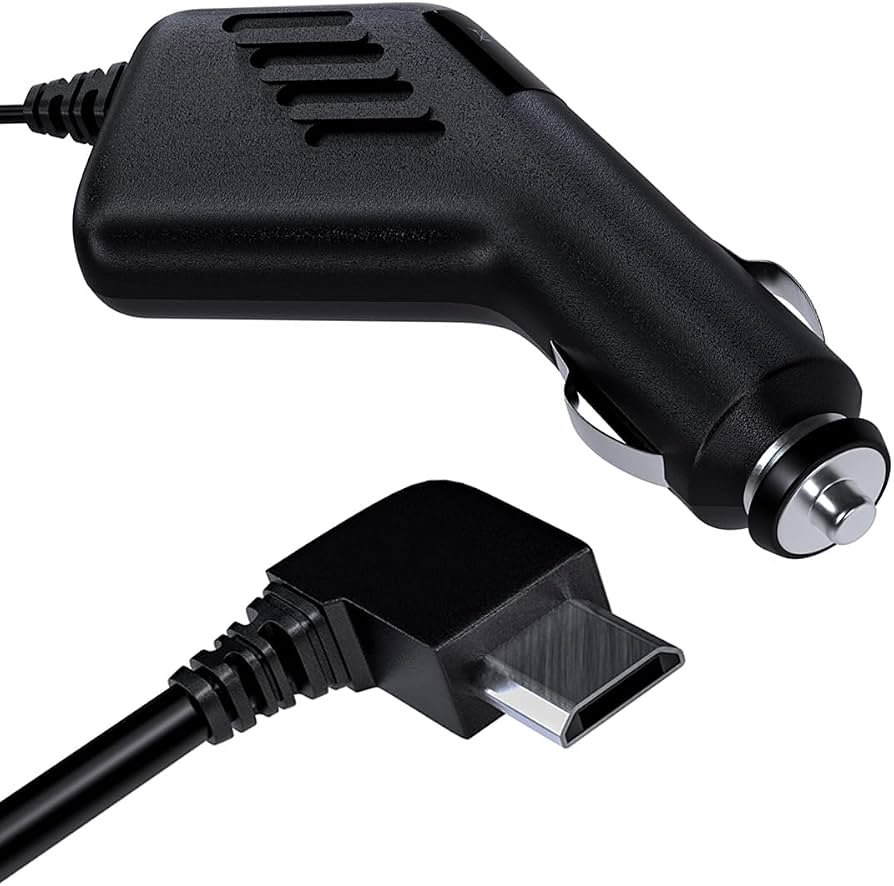
Try a second compatible power adapter if possible. A damaged cable may still fit the port but fail to supply steady power.
The TND 80 may also act strangely when it becomes too hot. Direct sun through a windshield can raise the tablet’s temperature quickly. Move it to a shaded place, remove any thick cover, and let it cool before testing it again.
Check the following items:
• The power plug fits tightly in the vehicle socket.
• The cable has no cuts, bends, or loose ends.
• The vehicle socket works with another device.
• The screen responds to taps.
• The device has enough free storage.
• The mounting position does not block the GPS antenna.

Rand McNally TND 80 Will Not Turn On
A TND 80 that will not start may have a low battery, a failed charging connection, or a frozen operating system. Connect it to a reliable power source and leave it for at least 20 to 30 minutes before trying to turn it on again.
Press and hold the power button for several seconds. A quick tap may only wake the screen, while a longer press may be needed after a full shutdown.
If the screen stays black, try these steps:
• Remove the power cable and reconnect it.
• Test another vehicle power socket.
• Use the original or a known compatible charger.
• Hold the power button longer than usual.
• Look for a charging light or battery symbol.
• Let the unit cool if it feels hot.
A blank screen does not always mean the device is dead. The display may be frozen while the system is still running. A forced restart can clear a temporary software lock.
Avoid repeatedly pressing the power button. Give each step time to work. If the TND 80 shows no light, sound, charging sign, or screen response with a known working charger, the issue may involve the battery, charging port, or internal hardware.
TND 80 Freezes, Lags, or Restarts
Slow performance is one of the most common reasons people search for Rand McNally TND 80 troubleshooting. Navigation devices process maps, traffic data, route rules, and location signals at the same time. Limited storage or damaged temporary files can make the system feel sluggish.
Start with a normal restart. Close open screens, shut down the device, wait briefly, and power it on again. This clears temporary memory without deleting saved places or settings.
Next, remove items you no longer need. Old routes, saved addresses, unused map files, and extra media can reduce available space. Keep important information backed up before deleting anything.
If the unit freezes during navigation:
- Stop driving before touching the screen.
- Disconnect unnecessary accessories.
- Restart the device.
- Re-enter the destination.
- Watch for the same problem on a short test route.
Do not perform a factory reset as your first step. A reset can remove saved locations, preferences, paired devices, and other personal data. It is better treated as a last software step, not a routine fix.
If the device restarts at the same point every time, the route file or map data may be damaged. Delete the affected route and create a new one. If the problem continues across different routes, check for software updates through Rand McNally’s official support tools.

GPS Signal Problems and Wrong Location
The TND 80 needs a clear view of the sky to receive signals from GPS satellites. Buildings, tunnels, dense trees, large vehicles, and metal coatings on some windshields can weaken reception.
For better GPS performance:
• Place the device where it can see more of the sky.
• Keep it away from large electronic devices.
• Move it away from heated windshield areas if possible.
• Wait several minutes after starting the device.
• Test it outdoors or in an open parking area.
The first location fix can take longer after a long period without use, a factory reset, or travel to a distant area. This delay is normal in some cases. Keep the vehicle still while the device searches for satellites.
If the map shows your vehicle in the wrong place, check the date, time, and map version. Old map data can make a road appear misplaced, missing, or incorrectly labeled. GPS accuracy also has natural limits, so the displayed position may not sit exactly on the road line.
Never follow the screen blindly. Compare the route with road signs, traffic rules, and current conditions. GPS guidance is an aid, not a replacement for safe driving or professional judgment.

TND 80 Does Not Give Voice Directions
When the map works but voice prompts are missing, the volume may be muted or routed through another audio connection. Open the sound settings and raise the navigation volume while the device is speaking.
Check these settings:
• Confirm that mute is turned off.
• Increase the master volume.
• Increase the navigation prompt volume.
• Check whether Bluetooth audio is active.
• Inspect the vehicle stereo input.
• Restart the device after changing audio settings.
Some vehicles control sound through the stereo rather than the navigation tablet. If the TND 80 is connected to the vehicle through Bluetooth, audio may be sent to the wrong device or may not be supported by the stereo.
Test the built-in speaker with a short route. If music or other system sounds work but navigation prompts do not, the issue is likely a navigation voice setting. If all sound is missing, the problem may be related to the speaker, operating system, or audio output.

Rand McNally TND 80 Bluetooth Troubleshooting
Bluetooth problems often come from an old pairing record. The phone and TND 80 may remember each other but fail to complete a clean connection after an update or a change in phone settings.
Use this pairing process:
- Turn Bluetooth off on the phone.
- Restart both devices.
- Remove the TND 80 from the phone’s saved Bluetooth list.
- Remove the phone from the TND 80’s paired-device list.
- Turn Bluetooth back on.
- Pair the devices again from the beginning.
Keep the phone close during pairing. Make sure it is not already connected to another vehicle, headset, or speaker. Some phones also ask for permission to share contacts or audio; review these prompts carefully.
Bluetooth may support calls or audio but not every feature on every phone. Compatibility can depend on the phone model, operating system, and Bluetooth profile. If calls connect but music does not, or music works but contacts do not, the limitation may be compatibility rather than a hardware failure.

Map Updates and Software Problems
Outdated maps can cause missing roads, incorrect speed limits, poor routing, and inaccurate points of interest. Software updates may also improve stability and correct known bugs.
Before an update, protect your data:
• Use a stable internet connection.
• Charge the TND 80 or connect reliable vehicle power.
• Do not remove the storage card during an update.
• Do not turn off the device while files are installing.
• Keep saved addresses backed up when possible.
Follow the update instructions provided for the exact TND 80 model and software version. Navigation products can use different update tools, storage requirements, and account systems. Guessing the process can create more problems than it solves.
If an update fails, restart the device and check the storage space. A weak connection or interrupted power can leave incomplete files. Avoid using unofficial map files because they may be incomplete, incompatible, or unsafe.
Map coverage also has limits. A new road may not appear until the next map release, and local road changes can happen faster than update schedules. This is a limitation of digital mapping, not always a fault with the TND 80.

Touchscreen Is Not Responding
A touchscreen may stop responding because of dirt, moisture, gloves, a screen protector, or a frozen system. Clean the screen with a soft, dry cloth. Do not spray cleaner directly onto the display.
Remove anything that may press against the screen edges. Thick protectors can reduce touch sensitivity, especially if they are cracked or poorly fitted.
Then try a restart. If the screen works after restarting but freezes again during navigation, check for software updates and available storage.
If only one area of the screen fails, open several menus and test different buttons. A single dead section may indicate display or digitizer damage. Physical pressure, extreme heat, and drops can cause this type of fault.
Do not use sharp objects to tap the display. They can damage the touch layer and may make a small problem permanent.

Route, Address, and Traffic Errors
A wrong route does not always mean the navigation device is broken. Routing depends on map data, vehicle settings, road restrictions, traffic information, and the exact destination entered.
Review the route settings for:
• Vehicle type.
• Vehicle height, weight, and length.
• Hazmat restrictions, if supported.
• Toll road preferences.
• Ferry and unpaved road settings.
• Avoidance options.
Truck drivers should enter accurate vehicle information. A route that is suitable for a car may not be safe or legal for a large commercial vehicle. Always confirm clearance, weight limits, bridge restrictions, and local rules.
If an address cannot be found, try a nearby cross street, ZIP code, city name, or known landmark. Newly built roads and rural addresses may not be listed correctly in older map data.
Traffic information may also be unavailable in certain areas. Poor cellular coverage, inactive services, expired subscriptions, or limited regional coverage can affect traffic data. Basic GPS navigation can still work without live traffic, but it may not reflect current congestion.
Safe Reset Options
Resetting the TND 80 can solve persistent software errors, but the correct reset depends on the symptom. Always try a normal restart before using stronger reset options.
A practical order is:
- Normal shutdown and restart.
- Forced restart if the screen is frozen.
- Remove problem routes or paired devices.
- Install the correct software update.
- Perform a factory reset only when necessary.
A factory reset returns many settings to their original state. It may erase saved destinations, preferences, Bluetooth connections, user data, and downloaded content. Write down important settings before you begin.
The exact button sequence can vary by firmware version. Use the instructions for your model from official Rand McNally support documentation. If the screen is frozen and you cannot reach the settings menu, support may provide a specific recovery method.
One mistake seen often in device repair is resetting too early. People lose saved addresses and still have the original hardware problem. Take a few minutes to test power, temperature, storage, GPS view, and accessories first.
When to Contact Support or Seek Repair
Rand McNally TND 80 troubleshooting can solve many software and setup issues. It cannot repair a damaged charging port, failed battery, broken screen, water damage, or internal circuit fault.
Contact official support when:
• The device will not charge with a known working cable.
• The screen shows lines, cracks, or permanent dark areas.
• The unit repeatedly restarts after a clean reset.
• GPS never works in an open outdoor area.
• The update process fails every time.
• The device becomes unusually hot.
• There is a burning smell or visible swelling.
Stop using the unit if the battery appears swollen, the case separates, or the device becomes dangerously hot. Do not open a lithium battery device unless you are trained and equipped to do so.
Have useful details ready for support. Include the model name, software version, symptom, steps already tried, power source, and any error message. A short video or clear photo can also help explain intermittent faults.
Practical Troubleshooting Tips From the Road
A good troubleshooting habit is to change one thing at a time. If you restart, update, reset settings, and replace the cable all at once, you may fix the issue but never learn its cause.
Keep a simple note on your phone with:
• The date the issue began.
• Whether the device was hot or cold.
• The route or screen where it failed.
• The charger and vehicle used.
• Any recent update or Bluetooth change.
• The exact error message.
This record helps identify patterns. For example, a TND 80 that fails only in one vehicle may have a power socket problem. A device that fails on every route may have a software or hardware issue.
Another useful habit is to test navigation before a long trip. Enter a nearby destination, wait for a GPS fix, confirm the voice prompts, and check the route settings. Five minutes of testing at home can prevent a stressful search for a service station later.
Never adjust the device while driving. Pull over safely before changing a route, reading an alert, or checking settings.
Frequently Asked Questions About Rand McNally TND 80 Troubleshooting
Why will my Rand McNally TND 80 not turn on?
Connect it to a reliable power source for 20 to 30 minutes, then hold the power button for several seconds. If there is still no response with a working cable and vehicle socket, the battery, port, or internal hardware may need service.
How do I fix a frozen Rand McNally TND 80?
Try a forced restart by holding the power button as directed for your model. If freezing returns, remove unused files, check for software updates, and consider a factory reset only after backing up important information.
Why does the TND 80 keep losing GPS signal?
The device may have a blocked view of the sky, weak reception, outdated software, or a hardware fault. Move it to an open position, wait several minutes, and test it outdoors away from buildings and tall objects.
How do I update maps on the Rand McNally TND 80?
Use the official update method for your exact model and software version. Keep the device powered, use a stable connection, and do not remove storage or shut down the unit during installation.
Why is there no sound from my TND 80?
Check mute, master volume, navigation volume, and Bluetooth audio settings. If every system sound is missing after a restart, the issue may involve the speaker or audio hardware.
Will a factory reset delete my saved locations?
A factory reset can remove saved locations, routes, preferences, paired devices, and other personal data. Record or back up important information before resetting the device.
Can an old map cause incorrect truck routes?
Yes. Map data affects road restrictions, bridge details, speed limits, and points of interest. Accurate vehicle settings and current maps are both important, but drivers must still verify signs and posted restrictions.
Conclusion
Effective Rand McNally TND 80 troubleshooting starts with simple checks: stable power, a clean screen, enough storage, a clear GPS view, correct sound settings, and a fresh Bluetooth connection. Software updates and resets can help, but they should be used carefully because they may affect saved data.
Treat the device like a helpful co-driver, not the only source of truth. Test it before each major trip, confirm truck settings, watch road signs, and contact official support when the problem points to hardware. If this guide helped, save it for your next trip and share your own TND 80 troubleshooting experience in the comments.