TOPDON Phoenix Smart Troubleshooting: Easy Fixes
Most TOPDON Phoenix Smart troubleshooting issues come from power, network, software, cable, or vehicle communication faults.
The TOPDON Phoenix Smart is a powerful diagnostic tool, but even a good scan tablet can lose connection, freeze, show missing functions, or return unclear fault codes. This guide explains TOPDON Phoenix Smart troubleshooting in a clear, practical way, based on common workshop situations, safe diagnostic methods, and standard vehicle communication practices.
What Is the TOPDON Phoenix Smart?
The TOPDON Phoenix Smart is a professional automotive diagnostic scanner. It can read and clear diagnostic trouble codes, view live data, run active tests, perform special functions, and support many vehicle control modules.
Depending on the vehicle and software version, the tool may support functions such as:
• Full-system scans
• ECU coding and adaptation
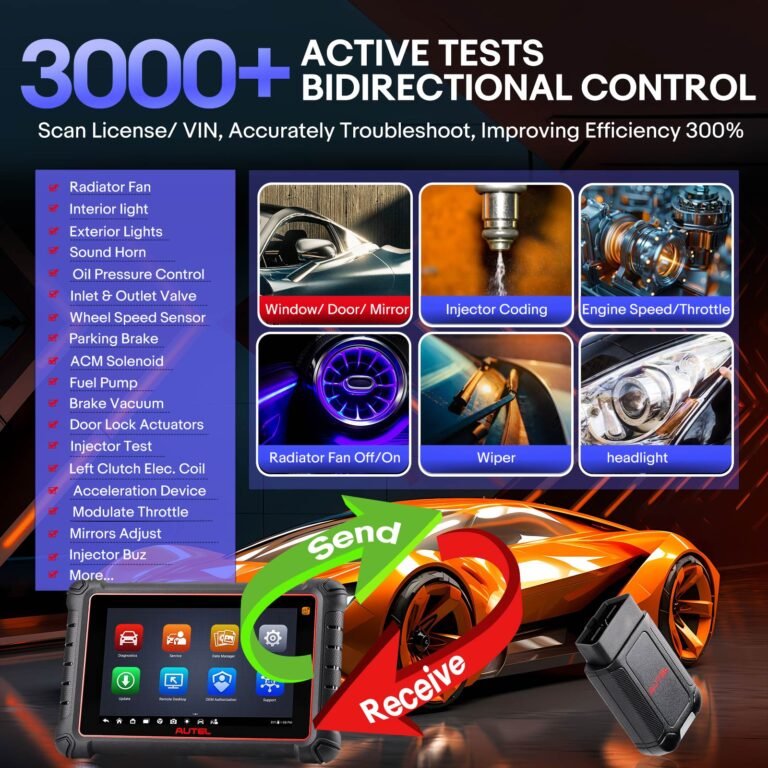
• Bi-directional control
• Battery registration
• Steering angle calibration
• Electronic parking brake service
• Diesel particulate filter regeneration
• Key and immobilizer functions
• Oil reset and maintenance resets
• Advanced live data
The scanner does not repair a vehicle by itself. Think of it as a translator. It helps you understand what the car’s control modules are reporting, but the final diagnosis still depends on testing, wiring checks, service information, and technician judgment.

Basic TOPDON Phoenix Smart Troubleshooting Checklist
Before testing advanced functions, start with simple checks. Many scanner problems are caused by low voltage, poor connections, or weak internet access.
Use this quick checklist:
-
Charge the Phoenix Smart tablet to at least 50 percent.
-
Turn on Wi-Fi and connect to a stable network.
-
Check that the diagnostic cable is fully inserted.
-
Turn the vehicle ignition on, but do not start the engine unless the test requires it.
-
Confirm that the vehicle battery is healthy.
-
Update the scanner software if an update is available.
-
Select the correct vehicle make, model, year, engine, and system.
-
Record the original trouble codes before clearing anything.
A healthy vehicle battery usually measures about 12.4 to 12.7 volts with the engine off. A running vehicle often shows about 13.5 to 14.8 volts, although charging voltage varies by vehicle design.
If voltage drops during a scan, the scanner may disconnect or a control module may shut down. For long coding or programming jobs, use a suitable battery support unit. A small trickle charger may not provide stable power for sensitive programming work.

TOPDON Phoenix Smart Will Not Turn On
If the TOPDON Phoenix Smart does not power on, check the basics first. Press and hold the power button for several seconds. A quick press may only wake the screen or put the tablet into sleep mode.
Try these steps:
• Connect the tablet to its approved charger.
• Test a different wall outlet.
• Inspect the charging cable for damage.
• Leave the tablet charging for at least 30 minutes.
• Hold the power button for 10 to 15 seconds.
• Remove accessories that may be drawing power.
A completely drained battery may show no image at first. Give it time before assuming the tablet has failed.
If the charging symbol never appears, the issue may involve the charger, cable, charging port, or internal battery. Do not use a damaged charger. If the tablet becomes unusually hot, smells burnt, or shows physical damage, stop using it and contact TOPDON support or an authorized service center.
One common mistake in TOPDON Phoenix Smart troubleshooting is blaming the software before checking the power source. A tablet with unstable power can behave like it has a serious software fault.

TOPDON Phoenix Smart Freezes or Runs Slowly
A diagnostic tablet can slow down when its storage is nearly full, too many apps are open, or the operating system needs an update. Slow performance may also occur when the scanner is processing a large vehicle report.
Try the following process:
-
Close unused apps.
-
Restart the tablet.
-
Delete old reports that you no longer need.
-
Check available storage.
-
Install approved system and diagnostic updates.
-
Keep the tablet away from extreme heat.
-
Avoid using a weak Wi-Fi signal during downloads.
Do not repeatedly press buttons while the tool is loading. This can make the screen appear frozen when the tablet is still working.
If the scanner freezes during a vehicle scan, restart the tablet and repeat the scan. If it freezes at the same point each time, note the vehicle, module, and scan stage. That information can help TOPDON technical support identify a software or vehicle coverage issue.

TOPDON Phoenix Smart Cannot Connect to the Vehicle
Vehicle communication problems are among the most common reasons people search for TOPDON Phoenix Smart troubleshooting help. The scanner may display messages such as “No communication,” “Vehicle not detected,” or “Connection failed.”
Start with these checks:
• Confirm that the diagnostic connector is the correct one for the vehicle.
• Push the cable firmly into the vehicle’s diagnostic port.
• Check for bent, pushed-back, dirty, or damaged pins.
• Turn the ignition fully on.
• Make sure the vehicle battery is not weak.
• Confirm that the selected vehicle information is correct.
• Try an automatic VIN scan and manual vehicle selection.
• Inspect aftermarket alarms, remote starters, or tracking devices.
Some vehicles have more than one diagnostic gateway. Others require a secure gateway process or an extra connection step before certain modules can be accessed.
If the scanner connects to the engine module but not the body or airbag module, the problem may not be the scanner. A blown fuse, damaged CAN bus wire, failed gateway, or sleeping vehicle network can cause partial communication.
For safe testing, avoid forcing communication with an unknown module. Check the vehicle wiring diagram and service information first.

TOPDON Phoenix Smart Loses Connection During a Scan
A connection that drops during scanning can be caused by a loose cable, low vehicle voltage, poor tablet power, or a communication network fault.
Follow these steps:
-
Place the tablet where the cable will not be pulled.
-
Keep the cable away from moving pedals and sharp edges.
-
Connect a battery support unit when appropriate.
-
Restart the vehicle and scanner.
-
Perform a full system scan again.
-
Compare the results with the first scan.
Do not wiggle the cable while the scanner is communicating. A loose connector may briefly interrupt the CAN network. In some cases, that interruption can create temporary communication codes.
A useful workshop habit is to save the original scan report before clearing codes. This creates a record of what happened and prevents important evidence from being lost.

TOPDON Phoenix Smart Software Update Problems
Software updates may fail when the Wi-Fi signal is weak, the battery is low, or the server connection is interrupted. A failed update does not always mean the scanner is damaged.
For TOPDON Phoenix Smart troubleshooting during an update:
• Charge the tablet before starting.
• Use a stable private Wi-Fi network.
• Turn off mobile hotspot limits when possible.
• Do not close the update screen.
• Make sure enough storage is available.
• Restart the tablet if the update stops responding.
• Try the update again later if the download server is busy.
Avoid starting a major update in the middle of a customer repair. Download updates before the workday or during a planned service period.
If a vehicle software package is missing after an update, check the vehicle coverage menu and installed software list. Some functions may require an active subscription, a specific adapter, or supported vehicle coverage.

TOPDON Phoenix Smart Shows the Wrong Vehicle Information
Incorrect vehicle selection can lead to missing systems, wrong fault descriptions, or failed special functions. This is especially common when several engine or transmission options exist for the same model year.
Always verify:
• Vehicle make
• Model
• Model year
• Engine size
• Fuel type
• Transmission
• Market or region
• VIN
Automatic VIN identification is helpful, but it is not perfect. Compare the detected information with the vehicle label, registration data, and physical engine details.
If the scan result looks unusual, return to the vehicle menu and select the vehicle manually. This simple step solves many cases of TOPDON Phoenix Smart troubleshooting related to incorrect software coverage.

TOPDON Phoenix Smart Active Test Will Not Run
An active test lets the scanner command a component, such as a cooling fan, fuel pump, injector, or window motor. These tests can save time, but they have strict conditions.
An active test may fail when:
• The ignition state is wrong.
• The engine is running when it should be off.
• The battery voltage is too low.
• A required fault code is present.
• The vehicle is not at the correct temperature.
• The module does not support the test.
• The component has a power or ground fault.
• The vehicle requires a security gateway procedure.
Read the on-screen instructions before starting. Keep hands, tools, and clothing away from moving parts. Never command a fuel pump, throttle, fan, or actuator without considering safety.
If an active test reports success but the component does not move, test the component’s power, ground, control signal, and wiring. A scan tool command does not prove that the motor or actuator is mechanically healthy.

TOPDON Phoenix Smart Coding and Programming Issues
Coding and programming are not the same. Coding changes configuration settings. Programming or flashing installs software into a control module.
Both tasks need extra care. A power interruption during programming can damage module software and create a vehicle that will not start.
Before coding or programming:
-
Connect a stable battery support unit.
-
Confirm the correct vehicle and module.
-
Save the original configuration when possible.
-
Read all instructions on the scanner.
-
Close other electrical loads.
-
Do not disconnect the cable.
-
Keep the tablet charged.
-
Check for stable internet access if online access is required.
A common error is attempting to code a replacement module without confirming its part number, software level, or vehicle configuration. Always compare the replacement part with the original module and use reliable vehicle service data.
When a coding function fails, record the exact message. “Function not supported,” “security access denied,” and “voltage too low” each point to a different cause.
TOPDON Phoenix Smart Cannot Clear Fault Codes
A fault code may return immediately after clearing because the fault is still active. Clearing a code does not repair the problem.
Use this process:
• Read and save all codes.
• Review freeze-frame data.
• Inspect related wiring and connectors.
• Test battery voltage.
• Repair the root cause.
• Clear the codes.
• Cycle the ignition.
• Perform a new system scan.
Some safety, airbag, brake, and powertrain codes need a complete repair before they will clear. Others may remain as history codes until the vehicle completes several drive cycles.
If a code clears but returns after a short drive, treat that as useful evidence. It means the control module detected the issue again under a specific condition.
How to Read Diagnostic Trouble Codes Correctly
A trouble code is a starting point, not a final answer. For example, an oxygen sensor code may result from a bad sensor, an exhaust leak, fuel mixture problems, wiring damage, or an engine misfire.
A strong diagnostic process includes:
-
Read the code description.
-
Check freeze-frame data.
-
Look at related codes.
-
Review live data.
-
Perform a visual inspection.
-
Test the circuit or component.
-
Confirm the repair with another scan and road test.
Do not replace parts based only on the first code shown. In my experience with scan-based diagnosis, the most expensive mistake is treating a symptom as the cause.
The Phoenix Smart can provide helpful data, but accurate diagnosis still depends on sound electrical testing. Use a wiring diagram, a quality multimeter, and manufacturer test procedures when needed.
TOPDON Phoenix Smart Battery and Charging Tips
Battery voltage affects almost every diagnostic session. Modern vehicles may stop communicating when voltage becomes unstable, even if the starter still turns.
Before advanced testing:
• Check the battery state of charge.
• Inspect battery terminals.
• Test the main grounds.
• Confirm charging system output.
• Use battery support for long sessions.
• Turn off unnecessary lights and accessories.
Voltage readings should be measured at the vehicle battery and, when needed, at the diagnostic connector. A voltage drop between these points may reveal a poor connection or ground problem.
Never assume a new battery is fully charged. New batteries can sit on a shelf for months, and a weak battery can create confusing electronic symptoms.
When to Contact TOPDON Support
You should contact technical support when basic checks do not solve the problem or when the scanner shows a repeatable software fault.
Prepare this information:
• Scanner model and serial number
• Software version
• Vehicle make, model, year, and engine
• Exact error message
• Photos or screenshots
• Steps that caused the problem
• Whether other vehicles work correctly
This information saves time. A report that says “scanner failed” is less useful than one that says, “The tool connects to the engine module but loses communication with the ABS module on a 2020 vehicle after the VIN scan.”
TOPDON Phoenix Smart troubleshooting is easier when you separate the problem into three areas: scanner hardware, scanner software, and vehicle communication. This prevents random part replacement and repeated guesswork.
Safe Diagnostic Habits That Prevent Problems
Good habits protect both the scanner and the vehicle. They also make your results easier to trust.
Use these practices:
• Keep the scanner and cable clean.
• Store the tablet in a dry case.
• Do not pull the cable from the wire.
• Use the correct adapter for the vehicle.
• Keep vehicle voltage stable.
• Save scan reports before clearing codes.
• Read test instructions fully.
• Avoid programming with an unreliable battery.
• Confirm repairs with a second scan.
• Follow manufacturer safety instructions.
Always use approved repair information for high-risk systems such as airbags, high-voltage batteries, braking systems, and immobilizers. A scan tool can access these systems, but access does not remove the need for training and proper safety procedures.
Frequently Asked Questions About TOPDON Phoenix Smart Troubleshooting
Why will my TOPDON Phoenix Smart not connect to a vehicle?
Check the diagnostic cable, ignition position, vehicle battery, selected model, and connector pins. If the scanner connects to some modules but not others, inspect vehicle fuses, wiring, and gateway systems.
How do I fix a frozen TOPDON Phoenix Smart tablet?
Connect it to a charger and hold the power button for about 10 to 15 seconds. After restarting, check storage space, close unused apps, and install approved updates.
Can low battery voltage cause TOPDON Phoenix Smart errors?
Yes. Low or unstable voltage can interrupt communication and cause failed scans, coding errors, or module resets. Use a suitable battery support unit for long diagnostic and programming tasks.
Why does the scanner show the wrong vehicle model?
Automatic VIN identification may select incorrect vehicle information. Return to the vehicle menu and verify the make, model, year, engine, transmission, and region manually.
Why will a fault code return after I clear it?
The code usually returns because the original problem still exists or the control module detected the issue again. Read freeze-frame data, test the related circuit, repair the cause, and then clear the code.
Can the Phoenix Smart program every vehicle module?
No. Coverage depends on the vehicle, module, software version, subscription, security access, and required accessories. Always check current vehicle coverage before starting programming.
Should I update the Phoenix Smart before using it?
Yes, keeping the tablet and diagnostic software current can improve vehicle coverage and fix known issues. Use stable Wi-Fi and enough battery power during updates.
Conclusion
TOPDON Phoenix Smart troubleshooting becomes much simpler when you use a steady process. Start with power, cables, Wi-Fi, software updates, and correct vehicle selection before investigating deeper communication or module faults.
Save scan data, avoid guessing from one code, and use stable battery support for advanced functions. With careful testing and safe repair information, the Phoenix Smart can become a reliable partner in everyday diagnostics. Explore the tool’s supported functions, keep its software current, and share your own troubleshooting lessons with other technicians.