Launch CRP129E Troubleshooting: Easy Fixes And Expert Tips
Launch CRP129E troubleshooting starts with power, cable, vehicle connection, software updates, and correct code testing.
The Launch CRP129E is a useful scan tool for reading engine, transmission, ABS, and airbag faults on many vehicles. Still, even a good scanner can show errors when voltage is low, the cable is loose, the vehicle is not supported, or the diagnostic system is not ready. This Launch CRP129E troubleshooting guide explains the most common problems and shows safe steps to fix them.
What the Launch CRP129E Does
The Launch CRP129E is an automotive diagnostic scanner that connects to a vehicle through the OBD-II diagnostic port. Depending on the vehicle, it can read and clear trouble codes from several major systems.
These systems may include:
• Engine and powertrain
• Automatic transmission
• Anti-lock braking system
• Supplemental restraint system, such as airbags
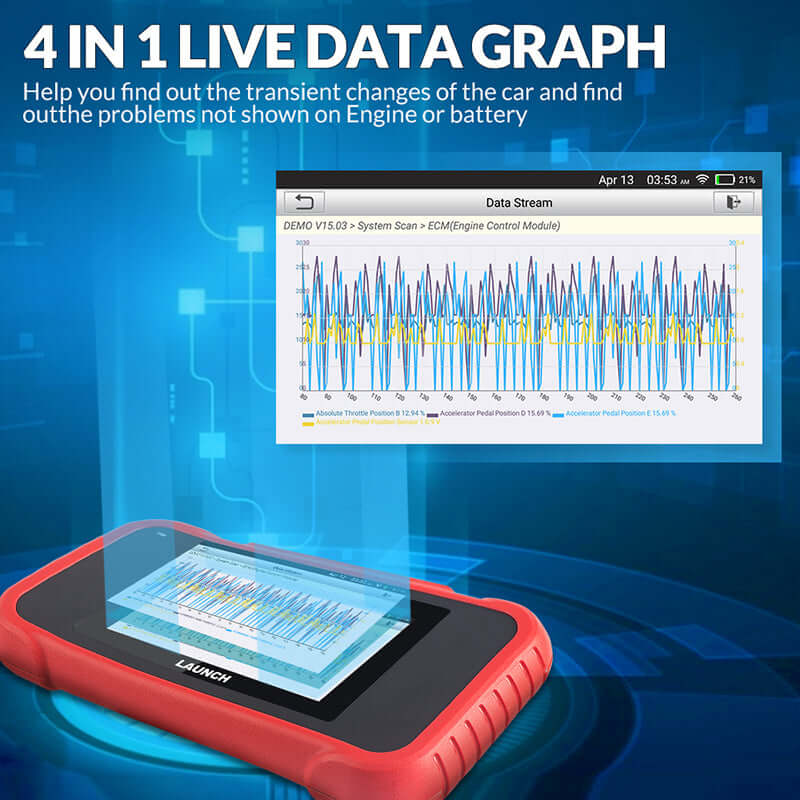
• Live data from sensors
• Readiness monitors
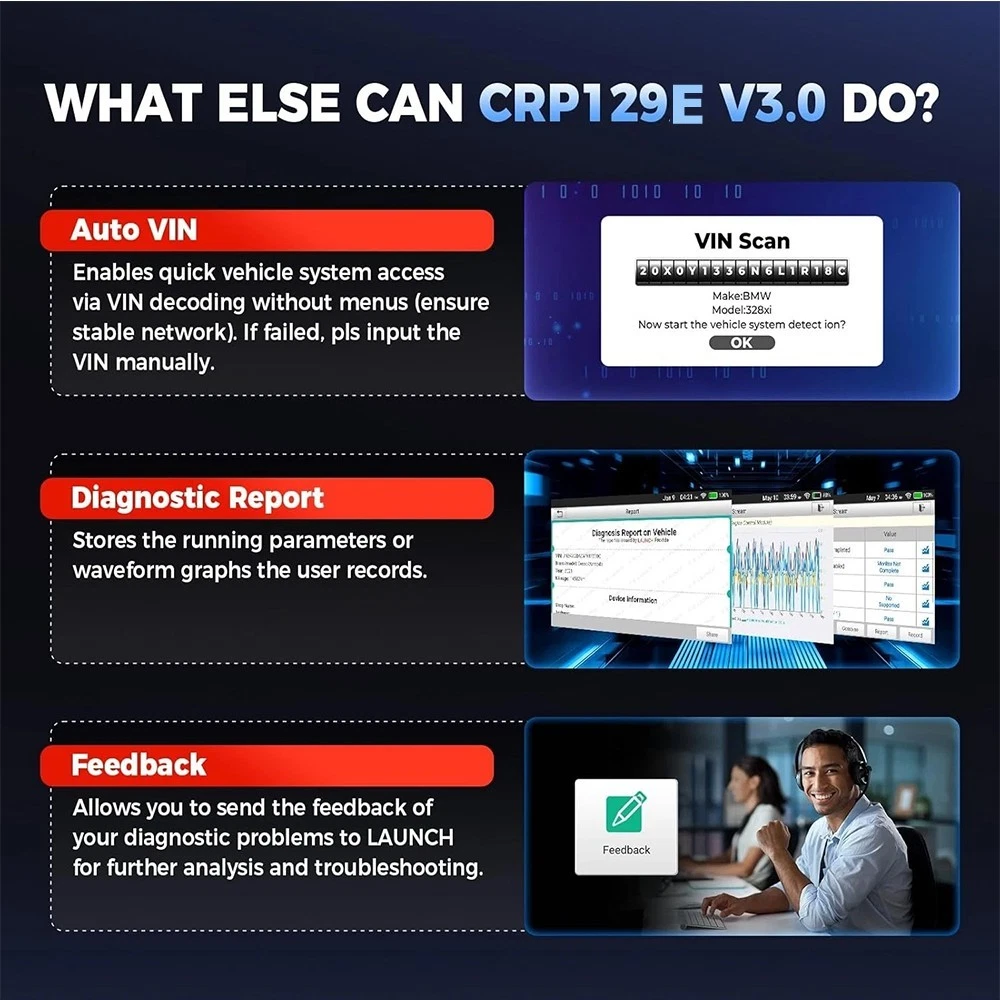
• Vehicle information, such as VIN data
The exact functions depend on the vehicle model, year, region, and software version. A scanner may support ABS or SRS on one vehicle but only support engine codes on another.
Think of the CRP129E as a translator. The vehicle control module speaks in data, while the scanner turns that data into codes and readings you can understand. It does not repair a fault by itself. It helps you find where to look.

Launch CRP129E Troubleshooting Before You Start
Good testing begins before you plug in the scanner. Many scan tool problems are caused by the vehicle, not the CRP129E.
Use this short pre-check:
-
Park the vehicle safely and switch off the engine.
-
Set the parking brake.
-
Turn off lights, audio systems, and other large electrical loads.
-
Check that the vehicle battery is charged.
-
Find the OBD-II port under the dashboard.
-
Inspect the port for bent pins, dirt, moisture, or loose wiring.
-
Connect the scanner firmly.
-
Turn the ignition to the ON position without starting the engine.
A weak battery can cause failed communication, frozen screens, or random control unit errors. During testing, battery voltage should normally stay near the vehicle maker’s expected range. If the battery is very low, charge or test it first.
I have seen many diagnostic sessions fail because the scanner was blamed too soon. A loose OBD connector or a battery that drops voltage under load can create a false trail. Checking the basics first saves time and prevents unnecessary parts replacement.
Launch CRP129E Will Not Turn On
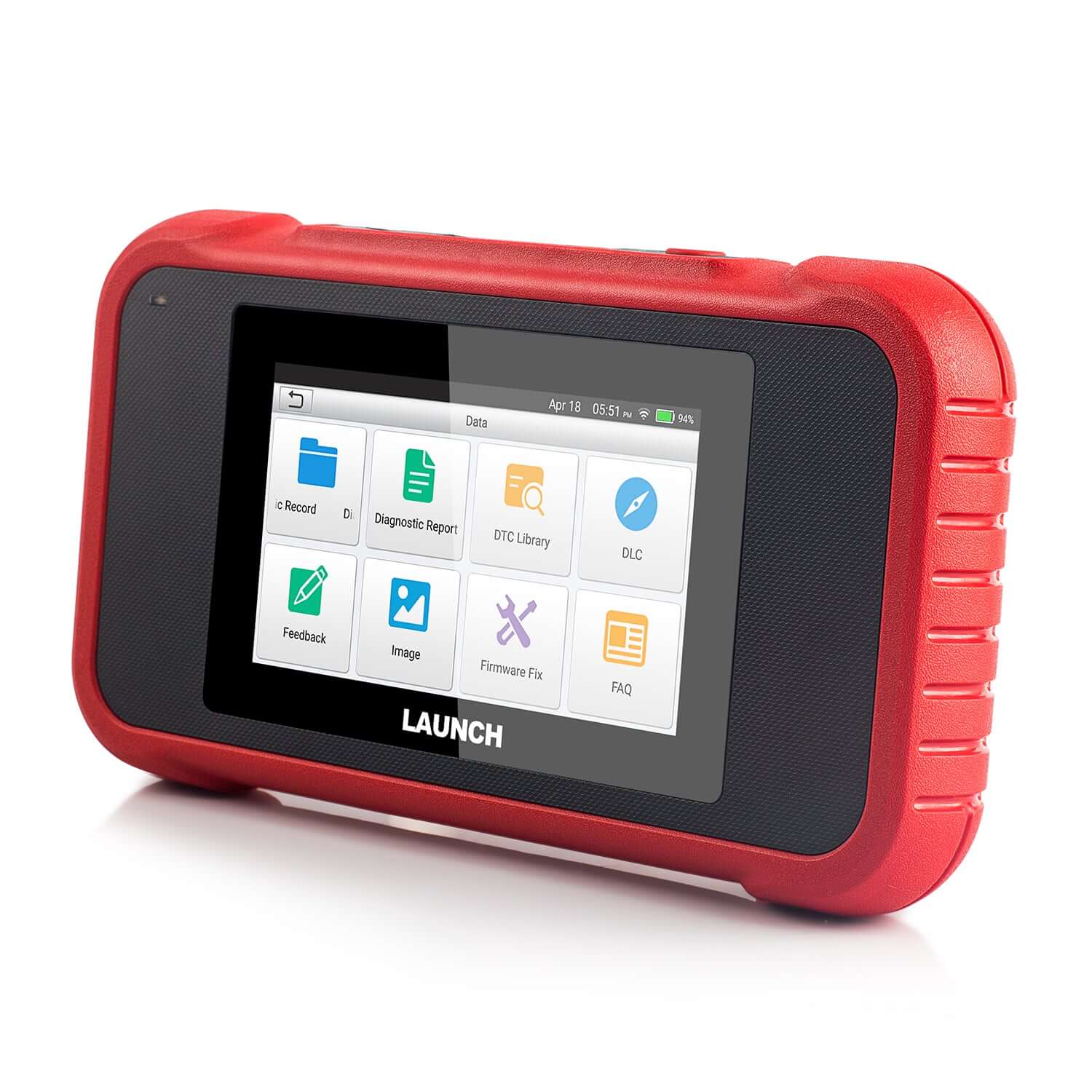
If the Launch CRP129E screen stays black, begin with the simple checks. The tool usually receives power from the vehicle’s diagnostic socket, so the vehicle must provide power at the port.
Check these points:
• Confirm that the OBD-II plug is fully inserted.
• Try the scanner on another compatible vehicle.
• Inspect the diagnostic port for damage.
• Check the vehicle’s OBD or diagnostic fuse.
• Try a different USB charging cable if the unit supports external charging.
• Allow the scanner to charge fully when a built-in battery is present.
Do not force the connector into the port. The pins can bend, and a damaged connector may cause a poor connection. Compare the port with a clear OBD-II diagram for the vehicle if you are unsure of the correct position.
If the scanner works on another vehicle, the original vehicle may have a blown fuse or a wiring fault. If it does not work on any vehicle and the display remains dark, contact Launch support or the seller before opening the case. Opening the unit can affect warranty coverage.
Launch CRP129E troubleshooting should always separate a power problem from a software problem. A scanner cannot start a diagnostic session if it has no stable power.
Launch CRP129E Cannot Connect to the Vehicle
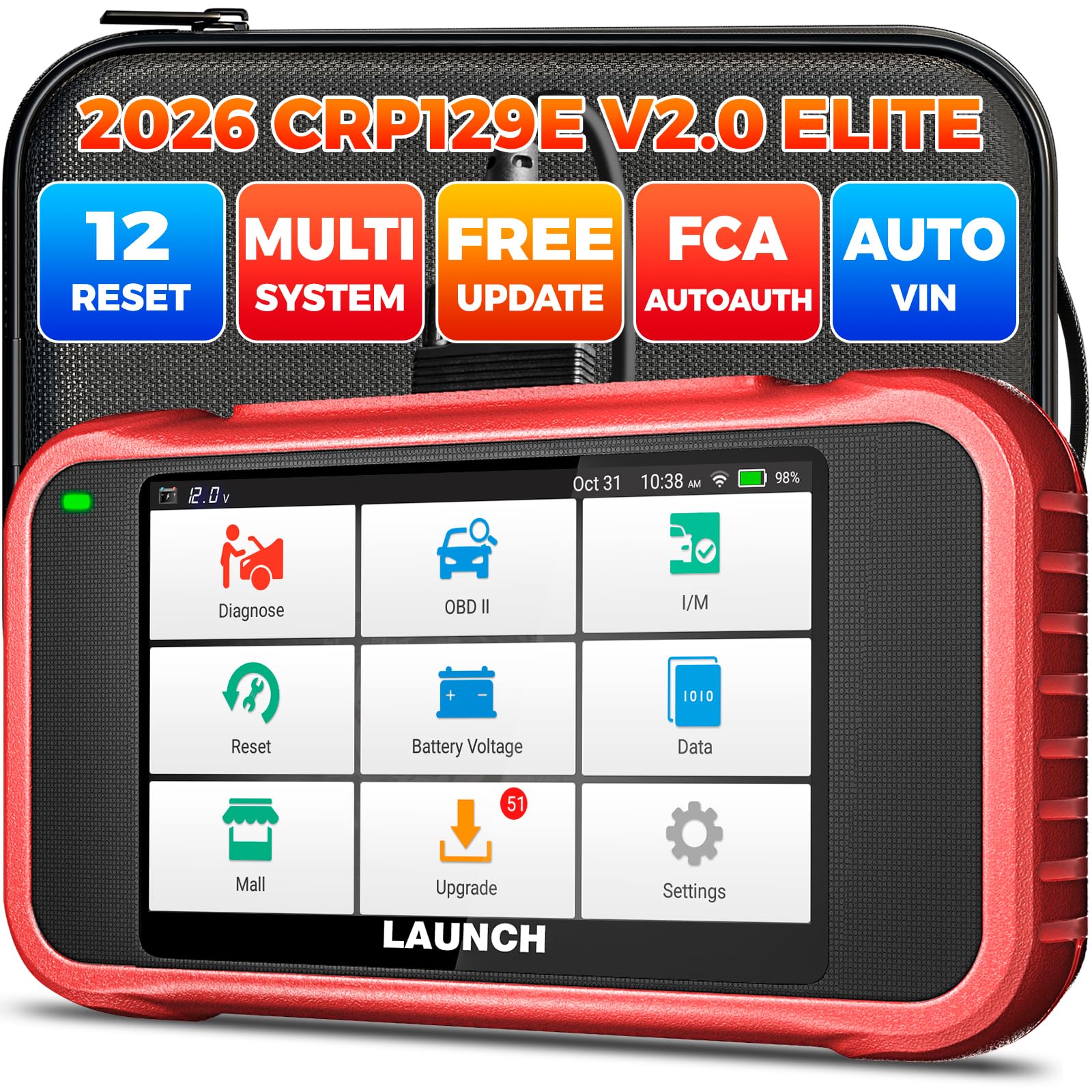
A “linking error,” “communication error,” or “vehicle not responding” message often means the scanner cannot establish a data connection with the control module.
Try this order:
-
Confirm the ignition is in the ON position.
-
Select the correct vehicle make and model.
-
Reseat the OBD-II connector.
-
Turn the ignition off for 30 seconds.
-
Restart the scanner and try again.
-
Test the automatic vehicle identification option if available.
-
Try manual vehicle selection instead.
Some vehicles need the ignition on but the engine off. Others may require the engine to run for live data. Follow the instructions shown by the scanner and the vehicle service information.
A communication fault may also result from:
• A blown diagnostic fuse
• Low battery voltage
• Damaged CAN bus wiring
• An aftermarket radio or alarm installation
• A defective control module
• An incompatible vehicle protocol
• A poor ground connection
Do not repeatedly clear codes during a communication test. First record all displayed information. A communication failure can point to a vehicle network problem, and clearing data may remove useful clues.
If the scanner connects to the engine but not ABS or SRS, the issue may not be a scanner failure. The vehicle may require a different access level, may not support that system, or may have a module power or communication fault.

Launch CRP129E Shows No Codes
Seeing “no codes” does not always mean the vehicle has no problem. It means the selected system did not report a stored diagnostic trouble code at that moment.
Check the following:
• Did you scan the correct control system?
• Was the engine running when the problem occurred?
• Is the warning light currently on?
• Did the problem happen only once?
• Is the fault pending rather than confirmed?
• Does the scanner software support that module?
Some faults are intermittent. A loose sensor wire may disconnect for one second, then work normally when you scan the vehicle. The control module may store a pending code without turning on the dashboard warning light.
Use live data when possible. For example, a faulty coolant temperature sensor may show an impossible reading even when no permanent code is stored. A sensor that reports minus 40 degrees on a warm engine deserves further testing.
You should also scan every available system. An engine scan will not always reveal an ABS or airbag fault. Launch CRP129E troubleshooting works best when you treat each control module as a separate section of the vehicle.

Launch CRP129E Cannot Read ABS or SRS Codes
ABS and SRS scanning requires extra care. These systems control braking and occupant safety, so a code should not be treated like a simple check engine code.
If the scanner cannot access ABS or SRS, check:
• Vehicle coverage for the exact year and model
• Correct system selection in the menu
• Ignition position
• Battery voltage
• Diagnostic fuse condition
• OBD connector condition
• Software update status
Some vehicles use special procedures for airbag diagnosis. Never probe airbag wiring with a test light or an unsuitable meter. Disconnecting an airbag connector can also create a new fault or accidental deployment risk.
For an SRS warning, follow the vehicle service manual. Wait the required time after disconnecting the battery before working near airbag parts. If you lack training, let a qualified technician handle the system.
The same care applies to ABS. A wheel speed sensor code may come from a damaged wire, a dirty tone ring, a bad bearing, or a control module issue. The scanner identifies a circuit or data problem, but it does not prove which part must be replaced.

Launch CRP129E Displays the Wrong Trouble Code
A trouble code is a starting point, not a final diagnosis. For example, a code related to an oxygen sensor may result from an exhaust leak, wiring problem, air leak, fuel issue, or sensor failure.
Use this basic diagnostic method:
-
Record the exact code and description.
-
Save freeze-frame data if the scanner provides it.
-
Note engine temperature, speed, load, and fuel status.
-
Inspect wiring and connectors.
-
Check related fuses and grounds.
-
Test the suspected circuit.
-
Repair the confirmed cause.
-
Clear the code only after the repair.
-
Perform a road test.
-
Rescan the vehicle.
Freeze-frame data acts like a photograph of the fault. It may show that the code appeared during a cold start, high engine load, or low vehicle speed. That detail can change the direction of the repair.
One mistake I often warn against is replacing the part named in the code immediately. A “camshaft sensor” code does not always mean the sensor is bad. The code may reflect a timing issue, low voltage, damaged wiring, or a mechanical problem.

Launch CRP129E Is Slow, Frozen, or Keeps Restarting
A slow or frozen CRP129E may need a restart, charge, or software update. Begin by closing the current test session and restarting the tool.
Then try these steps:
• Charge the scanner completely.
• Remove unnecessary files or applications if storage is limited.
• Restart the device.
• Install official software updates.
• Use a stable Wi-Fi connection during updates.
• Avoid unplugging the scanner during a firmware update.
• Reset the tool only after saving important records.
A factory reset can remove stored reports and personal settings. Use it as a later step, not the first step. Before resetting, record the device serial number, software version, and any error message.
If the unit freezes only on one vehicle, the issue may involve vehicle coverage or network communication. If it freezes on every vehicle, the scanner may have a software or hardware fault.
Do not install unofficial firmware or modified applications. They may cause security issues, unstable operation, or permanent software damage. Use the update method provided by Launch for the exact CRP129E model.
How to Update the Launch CRP129E
Updates can improve vehicle coverage, correct software bugs, and add support for newer models. The update process may vary by software version, so follow the instructions shown on the device.
A safe update routine includes:
-
Charge the scanner or connect it to stable power.
-
Connect to trusted Wi-Fi.
-
Check the current software version.
-
Sign in to the correct user account if required.
-
Download available updates.
-
Keep the scanner connected until installation ends.
-
Restart the device.
-
Test it on a supported vehicle.
Avoid updating in a vehicle with unstable battery voltage. If an update fails, do not keep switching the device off and on during installation. Connect it to reliable power and follow the recovery instructions from Launch support.
Coverage is not unlimited. A new update may improve support, but it cannot guarantee access to every module or special function. Factory-level functions may still require an advanced scan tool or manufacturer software.

How to Clear Codes Safely
The clear-code function erases stored diagnostic information from the selected control module. It may also reset readiness monitors, adaptive values, or other learned data.
Before clearing codes:
• Write down every code.
• Save freeze-frame information.
• Check whether the warning relates to brakes, steering, or airbags.
• Repair the cause first.
• Confirm that the battery is stable.
After clearing, drive the vehicle under normal conditions and rescan it. If the code returns, the fault remains active or the repair did not solve the root cause.
Do not clear an airbag or ABS code just to turn off the warning light. The light is a safety message. Ignoring it can leave an important system disabled.
A vehicle may also fail an emissions inspection after codes are cleared because readiness monitors become incomplete. The vehicle must complete its required drive cycle before the inspection system can confirm readiness.
Common Launch CRP129E Errors and Fixes
Here are practical solutions for frequent problems:
• No power: Check the OBD fuse, connector power, and battery condition.
• No communication: Confirm ignition position, vehicle selection, and connector fit.
• Engine scan works, but ABS does not: Check coverage, ABS power, and module communication.
• SRS scan fails: Verify supported coverage and use safe airbag procedures.
• Wrong vehicle identified: Select the vehicle manually and confirm the VIN.
• Live data looks strange: Compare readings with engine temperature, outside temperature, and manufacturer specifications.
• Code returns after clearing: Diagnose the root cause instead of clearing it again.
• Update fails: Use stable Wi-Fi and power, then follow official recovery instructions.
• Screen freezes: Restart, charge, update, and consider a factory reset as a final software step.
Launch CRP129E troubleshooting becomes easier when you write down each test result. A simple note such as “engine connects, ABS fails, battery is 12.4 volts” is more useful than repeated guesses.
When to Stop DIY Troubleshooting
A scan tool can guide a repair, but it cannot replace electrical testing, mechanical inspection, or professional training. Stop and seek help when the fault involves high-voltage hybrid systems, airbags, active braking, steering, or damaged vehicle wiring.
Professional help is also wise when:
• Multiple control modules stop communicating.
• The vehicle will not start after a repair.
• Battery voltage drops sharply during testing.
• Network codes appear in several modules.
• The same code returns after a confirmed repair.
• The scanner and the vehicle disagree about basic information.
Use a wiring diagram and manufacturer service data for advanced diagnosis. Generic code descriptions are useful, but they may not include the exact test values for your vehicle.
The CRP129E is a diagnostic aid. It is not a substitute for safe work habits, proper test equipment, or vehicle-specific repair information. Knowing that limit is part of accurate Launch CRP129E troubleshooting.
Frequently Asked Questions of Launch CRP129E Troubleshooting
Why will my Launch CRP129E not connect to my car?
Check the OBD-II connector, vehicle fuse, battery voltage, ignition position, and selected vehicle profile. If the scanner works on another vehicle, the original car may have a power, wiring, or module communication issue.
Can the Launch CRP129E clear ABS and airbag codes?
It may clear ABS and SRS codes on supported vehicles, but coverage varies by make, model, year, and software version. Never clear a safety code without diagnosing the cause first.
Why does the CRP129E show no fault codes when the warning light is on?
You may be scanning the wrong module, using outdated software, or dealing with an intermittent fault. Scan all available systems and review pending codes and live data when supported.
How do I fix a frozen Launch CRP129E?
Restart the scanner, charge it fully, and install official updates using stable Wi-Fi. If freezing continues on every vehicle, contact Launch support before attempting a factory reset or repair.
Does clearing codes fix the vehicle?
No. Clearing codes only removes stored diagnostic information and turns off some warning lights temporarily. The warning usually returns if the original fault is still present.
Can a weak car battery cause scanner communication errors?
Yes. Low or unstable voltage can interrupt communication between the scanner and vehicle control modules. Test or charge the battery before deeper Launch CRP129E troubleshooting.
Is every code proof that a part has failed?
No. A code often points to a circuit, condition, or system rather than a single defective part. Inspect wiring, power, grounds, related components, and live data before buying replacements.
Conclusion
Launch CRP129E troubleshooting starts with simple checks: stable battery voltage, a clean OBD-II connection, the correct vehicle profile, and current software. From there, record codes, review freeze-frame data, inspect wiring, and test the suspected system before clearing anything.
The most important lesson is simple: a trouble code is a clue, not a verdict. Use the CRP129E carefully, respect the limits of its vehicle coverage, and get professional help for safety-critical or complex network faults. Save this guide for your next scan, explore your vehicle’s service information, and share your diagnostic experience in the comments.