Autel AL619 Troubleshooting: Fix Common Scan Errors
Most Autel AL619 problems come from weak power, poor cable contact, outdated software, or vehicle systems the scanner cannot support.
Autel AL619 troubleshooting is often simple when you check the basics in the right order. This guide explains common connection, power, update, code-reading, ABS, SRS, and communication problems with practical steps that help you diagnose the tool and the vehicle safely.
What the Autel AL619 Does
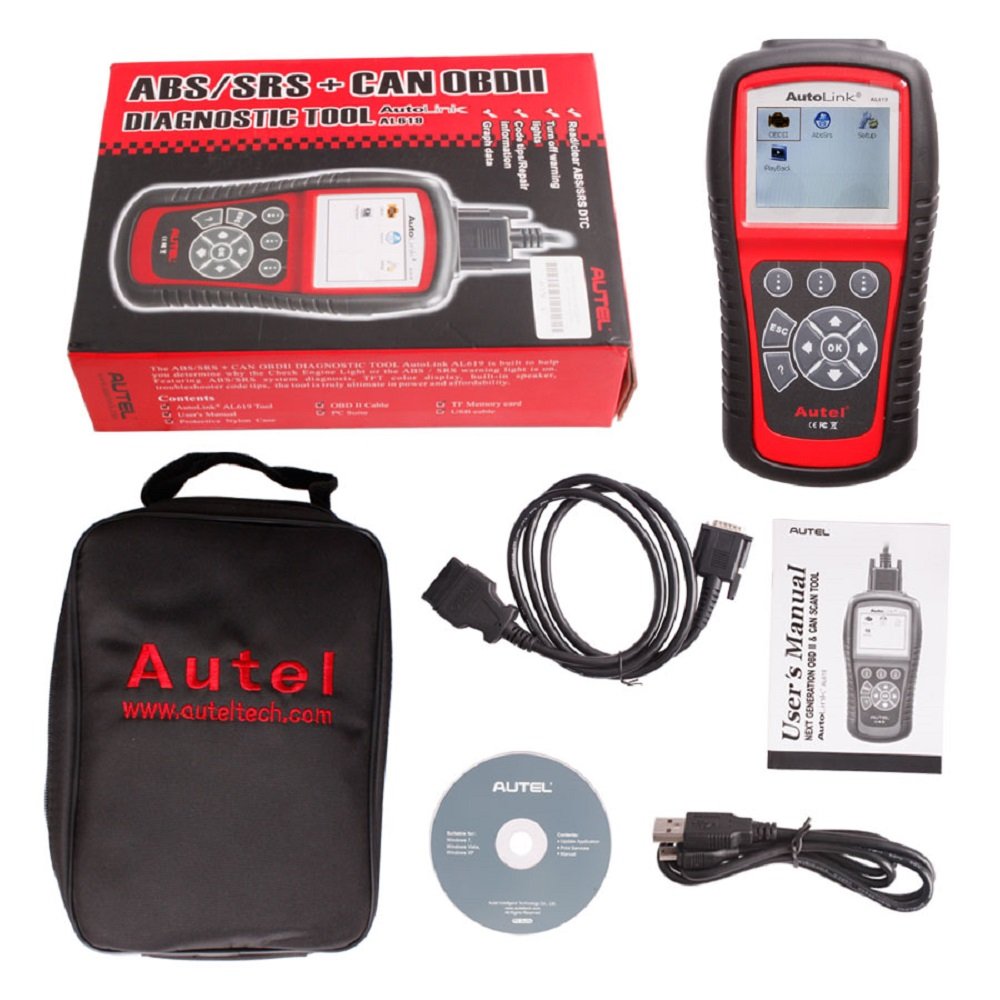
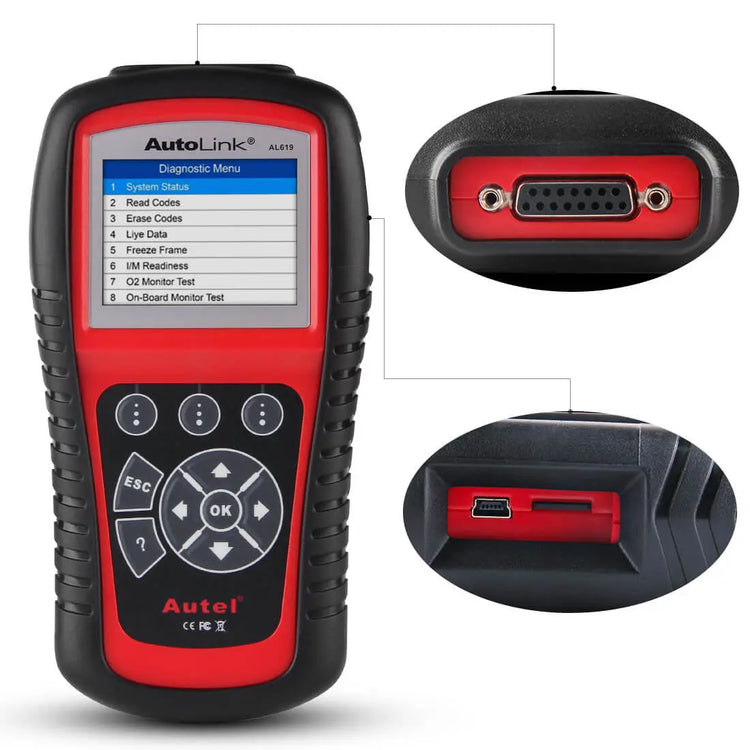
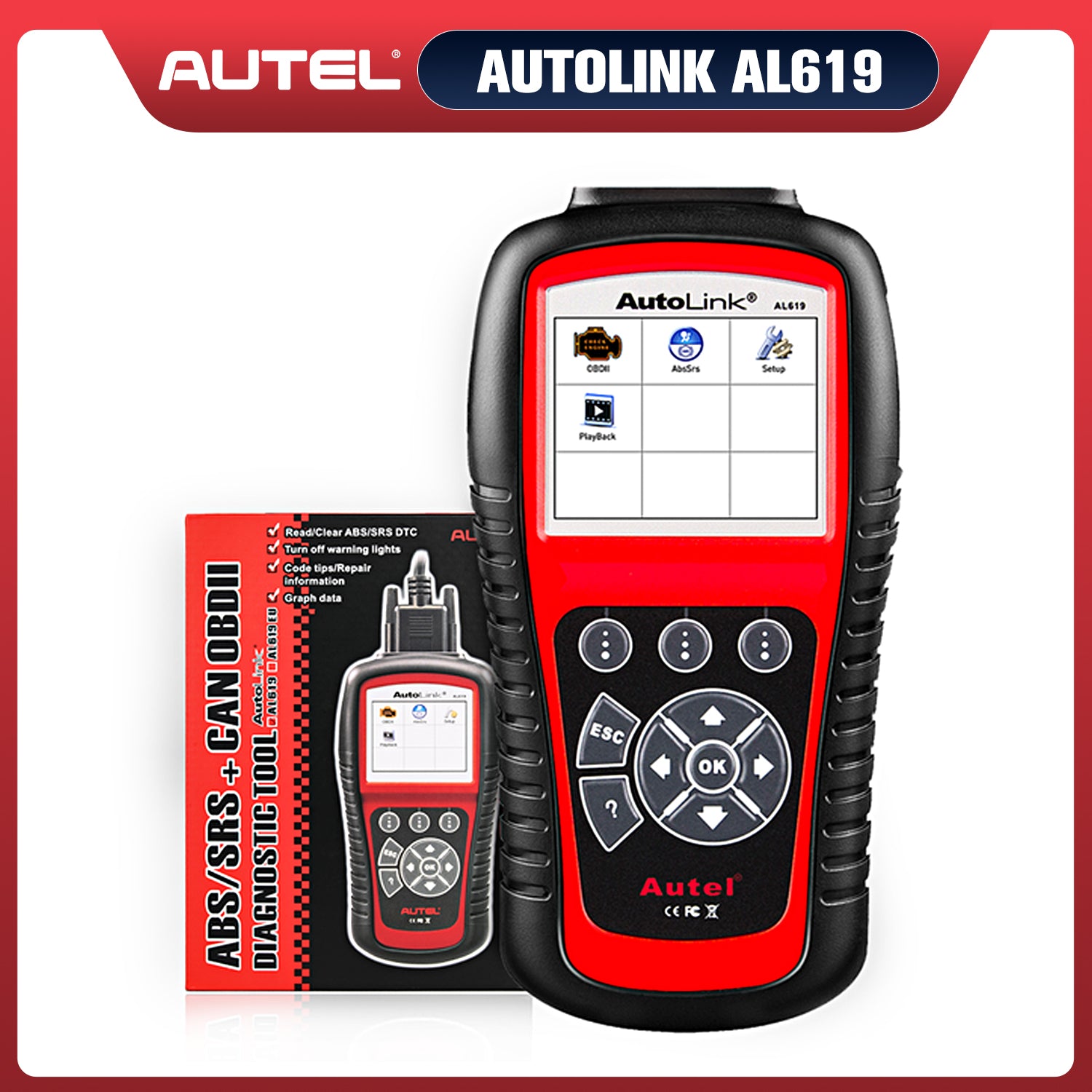
The Autel AL619 is a handheld automotive scan tool for vehicles that use standard OBD-II or EOBD systems. It can read and clear many engine fault codes, display live data, check emissions readiness, and perform basic ABS and SRS system scans on supported vehicles.
The tool does not work like a full factory diagnostic system. Its functions depend on the vehicle make, model, year, software coverage, and control module design. This limitation is important because a missing function does not always mean the scanner is faulty.
Common Autel AL619 functions include:
• Reading diagnostic trouble codes from supported systems
• Clearing stored fault codes after repairs
• Viewing selected live data
• Checking the malfunction indicator lamp system
• Checking I/M readiness monitors
• Scanning supported ABS systems
• Scanning supported SRS or airbag systems
• Printing or saving diagnostic reports when connected to a computer
A scan tool is like a translator. It can read what a control module says, but it cannot repair the vehicle by itself. A code points toward a circuit, sensor, or system. It does not always identify the failed part.

Autel AL619 Troubleshooting: Start With the Basics
Before trying advanced fixes, check the tool, vehicle, and connection. Many Autel AL619 troubleshooting cases are caused by a low vehicle battery or a loose diagnostic connector.
Follow this basic process:
-
Park the vehicle safely and switch off accessories such as lights, radio, and climate control.
-
Turn the ignition off before connecting the scan tool.
-
Plug the AL619 firmly into the vehicle’s diagnostic port.
-
Turn the ignition to the ON position without starting the engine.
-
Wait for the tool to power up and identify the vehicle.
-
Select the correct vehicle information when the scanner asks for it.
-
Run a system scan before clearing any codes.
Check the diagnostic port under the dashboard. Look for bent pins, dirt, water, or signs of past damage. Do not force the connector. A damaged port can cause intermittent communication and may need electrical testing.
The vehicle battery also matters. A weak battery may power the scanner but still prevent reliable communication with control modules. If the battery voltage drops sharply during key-on or cranking, charge or test the battery before continuing.
In my experience, the fastest fix is often removing a phone charger or aftermarket accessory from the vehicle. Some poorly installed accessories can disturb power or ground at the diagnostic port.

Autel AL619 Does Not Turn On
The AL619 normally receives power through the vehicle’s OBD-II connector. If the screen stays dark, begin with the vehicle rather than assuming the scanner is defective.
Check these points:
• Confirm the ignition is in the ON position.
• Try the tool on another compatible vehicle.
• Inspect the scan tool cable for cuts, crushed areas, or loose ends.
• Check the vehicle’s diagnostic port fuse.
• Look for corrosion or pushed-back pins inside the port.
Most OBD-II ports use a power supply at pin 16 and ground connections at pins 4 and 5. Testing these terminals requires care and the correct meter settings. Never bridge terminals with a screwdriver or wire because this can damage a fuse, module, or scan tool.
If the AL619 works on another vehicle, the original vehicle likely has a power, ground, fuse, or connector issue. If it fails on several known-compatible vehicles, inspect the cable and contact Autel support or the seller for service options.
Do not open the scanner if it is under warranty. Internal repairs can create more damage and may affect warranty coverage.

Autel AL619 Cannot Connect to the Vehicle
A “linking error,” “communication error,” or “unable to connect” message means the scanner and vehicle control module did not complete communication. This issue can have several causes.
Try the following steps:
-
Turn the ignition off.
-
Unplug the AL619 for about 30 seconds.
-
Reconnect it firmly.
-
Turn the ignition on, but do not start the engine.
-
Confirm that the vehicle battery is charged.
-
Select the correct make, model, and year.
-
Try automatic vehicle identification and manual selection if both options are available.
Some vehicles need a specific ignition position. On push-button vehicles, press the start button without pressing the brake pedal. This usually activates the ignition without starting the engine.
Aftermarket radios, remote starters, alarm systems, and tracking devices can sometimes interfere with diagnostic communication. If the problem began after an accessory installation, that accessory deserves attention.
Older vehicles may use a nonstandard diagnostic system or a manufacturer-specific connector. A basic adapter may not provide full communication. Always confirm that the vehicle is supported before diagnosing the scanner.

Autel AL619 Troubleshooting for ABS and SRS Scans
The AL619 is designed to access supported ABS and SRS systems, but coverage is not universal. Engine OBD-II support is usually broader than body, airbag, or chassis support.
If the scanner reads engine codes but cannot access ABS or SRS, check these possibilities:
• The vehicle is not supported for that system.
• The selected vehicle information is incorrect.
• The ABS or SRS module has no power.
• A blown fuse is affecting the module.
• The vehicle uses a manufacturer-specific communication method.
• The software version does not include the required coverage.
An SRS warning light requires extra caution. Airbag circuits can contain stored energy, even after the ignition is switched off. Do not probe airbag connectors with a test light or ordinary multimeter unless the vehicle manufacturer specifically permits that test method.
Before clearing an ABS or airbag code, record the full code and description. Some faults return immediately because the problem is still present. Clearing the light without repairing the cause can hide a safety issue.

Autel AL619 Reads No Codes
A scanner showing “no codes” does not always mean the vehicle is healthy. It may mean that no stored codes are present in the system you selected.
First, check whether the check engine, ABS, or SRS warning light is currently on. Then confirm that you entered the correct vehicle details and selected the correct control system.
Keep these points in mind:
• Pending codes may not turn on a warning light.
• Permanent codes may remain after repairs until the vehicle completes its checks.
• Some faults are stored only in ABS, SRS, transmission, or body modules.
• A code may be history-only and not currently active.
• The AL619 may not support a particular manufacturer system.
Read the code before clearing it. Save the freeze-frame data if the tool provides it. Freeze-frame information can show engine speed, temperature, load, and other conditions present when the fault was recorded.
A code is a clue, not a verdict. For example, an oxygen sensor code can result from a damaged wire, an exhaust leak, a vacuum leak, or a fuel problem. Replacing the sensor immediately is one of the most common and costly mistakes.
Autel AL619 Displays an Error or Freezes
A frozen screen or software error may result from a failed communication session, interrupted update, damaged cable, or outdated software. Start with a normal power reset.
Disconnect the AL619 from the vehicle, wait briefly, and reconnect it. If the scanner has a reset or power function in its menu, use the documented method for that model. Avoid repeatedly unplugging the tool during a software update.
If the problem happens only with one vehicle, inspect that vehicle’s battery and diagnostic port. If it happens across several vehicles, check the scanner software and cable.
Write down the exact error message. “Unable to communicate” points to a different problem than “file error” or “update failed.” The wording can help Autel support identify the issue more quickly.
If the device remains locked or fails to boot, use the official Autel support process. Avoid downloading unofficial firmware from forums or file-sharing sites. Incorrect firmware can make the scanner unusable.
Autel AL619 Software Update Problems
Software updates can improve vehicle coverage, correct bugs, and add diagnostic functions. They can also fail when the computer connection, account, memory, or internet service is unstable.
Before updating:
• Register the scanner if registration is required.
• Install the official update software.
• Use a reliable USB cable.
• Connect the computer to stable internet.
• Keep the scanner connected until the update finishes.
• Avoid shutting down the computer during installation.
A failed update may leave files incomplete. Restart the computer and the update application, then check whether the AL619 is recognized. If the tool still reports an update problem, follow the official recovery instructions rather than trying random firmware files.
Software coverage has limits. Updating the tool does not guarantee access to every ABS, SRS, or manufacturer-specific module. Coverage can vary by region and vehicle configuration.
How to Read and Clear Codes Correctly
Use the AL619 to collect information before making repairs. A good diagnostic routine protects you from guessing.
Follow this order:
-
Scan the vehicle and record every code.
-
Read the code description and related system.
-
Save freeze-frame data when available.
-
Inspect wiring, connectors, fuses, and fluid levels.
-
Test the suspected circuit or component.
-
Repair the confirmed cause.
-
Clear the codes.
-
Run another scan.
-
Complete a road test when safe.
-
Rescan and check readiness status.
Do not clear codes before writing them down. Clearing codes can erase useful data and reset emissions monitors. It may also remove evidence that helps a technician understand an intermittent fault.
The AL619 can help identify a direction, but a repair manual, wiring diagram, and digital multimeter may still be needed. For advanced network or module faults, professional equipment may be more suitable.

Common Autel AL619 Codes and What They Suggest
The scanner may display a code such as P0300, P0420, or U-codes. The code format gives useful information, but the description is only the starting point.
Examples include:
• P0300: Random or multiple-cylinder misfire. Check ignition, fuel, air leaks, compression, and wiring.
• P0420: Catalyst efficiency below the expected level. Check exhaust leaks, oxygen sensor data, fuel control, and catalytic converter condition.
• P0455: A large evaporative emissions leak. Inspect the fuel cap, hoses, purge valve, and vapor lines.
• U-codes: Communication faults between control modules. Check battery voltage, grounds, network wiring, and related modules.
The exact meaning can vary by manufacturer. Use the vehicle’s service information for testing values and repair procedures.
When I diagnose a fault, I treat the code as a road sign rather than the destination. Following that rule prevents unnecessary parts replacement and makes Autel AL619 troubleshooting much more effective.
Autel AL619 Troubleshooting Tips for Better Results
Small habits can make scanning faster and more accurate. Keep the scanner, cable, and vehicle conditions consistent when testing.
Use these practical tips:
• Keep the vehicle battery charged during long diagnostic sessions.
• Do not wiggle the cable while the scanner is communicating.
• Record codes before clearing them.
• Scan all available systems, not only the engine module.
• Compare live data with the vehicle’s normal operating conditions.
• Check for technical service bulletins when a fault is common on a specific model.
• Do not trust a single sensor reading without checking related systems.
• Keep the scanner software current through official channels.
One mistake I often see is scanning with the engine running when the vehicle requires the ignition on and engine off for module access. Another is selecting the wrong model year because two nearby years look identical. These simple errors can produce confusing results.
Think of diagnosis as building a case. Each test should support or reject a possible cause. That approach saves money and reduces the risk of creating new problems.
When to Stop DIY Autel AL619 Troubleshooting
The AL619 is useful for many basic checks, but some problems need professional equipment or training. Stop and seek help when safety or expensive electronics are involved.
Professional assistance is wise when:
• The SRS warning light remains on.
• The vehicle has been in a collision.
• Multiple control modules stop communicating.
• The battery or charging system has unstable voltage.
• The diagnostic port shows signs of melted wiring.
• A programming or module replacement procedure is required.
• The vehicle will not start after electrical work.
• The code involves high-voltage hybrid or electric vehicle systems.
Never work on high-voltage systems without proper training and protective equipment. The AL619 is not a substitute for manufacturer procedures, electrical safety rules, or advanced programming tools.
Frequently Asked Questions About Autel AL619 Troubleshooting
Why will my Autel AL619 not power on?
Make sure the ignition is on and the scanner is fully connected to the diagnostic port. Check the vehicle’s diagnostic fuse, port pins, battery condition, and scanner cable before testing the tool on another compatible vehicle.
Why does the Autel AL619 say it cannot communicate?
The cause may be low battery voltage, a loose connector, incorrect vehicle selection, damaged wiring, or unsupported coverage. Turn the ignition off, reconnect the scanner, verify the vehicle information, and check the diagnostic port.
Can the Autel AL619 read ABS and airbag codes?
It can read supported ABS and SRS systems, but coverage depends on the vehicle and software version. If engine scanning works while ABS or SRS scanning fails, confirm system coverage and check the related fuses and module power.
Should I clear a code as soon as I see it?
No. Record the code and freeze-frame information first, then diagnose and repair the cause. Clearing a code too early can erase useful evidence and reset emissions readiness monitors.
Why does my Autel AL619 show no codes when a warning light is on?
The warning may belong to a system you have not scanned, such as ABS, SRS, or transmission control. Incorrect vehicle selection, unsupported coverage, pending faults, or an intermittent problem can also explain the result.
How do I fix an Autel AL619 update failure?
Use the official update software, a stable internet connection, and a reliable USB cable. Restart the update process without disconnecting the scanner, and contact official support if the device remains stuck or cannot boot.
Can the Autel AL619 program a replacement control module?
The AL619 is mainly a diagnostic and code-reading tool. Module programming, immobilizer work, and advanced adaptations may require manufacturer-level equipment and specialized procedures.
Conclusion
Autel AL619 troubleshooting works best when you follow a calm, logical process. Check power, cables, fuses, battery voltage, vehicle selection, software, and system coverage before assuming the scanner has failed.
Record codes before clearing them, treat each code as a clue, and take extra care with ABS, SRS, hybrid, and electrical faults. With these habits, the AL619 can become a useful first step in vehicle diagnosis rather than a source of guesswork.
Try the steps in this guide on your next scan, then explore the vehicle’s service information for the exact testing procedure. Share your Autel AL619 troubleshooting experience or question in the comments.