How To Use A Wireless Apple CarPlay Adapter: Easy Setup Guide
A wireless Apple CarPlay adapter lets you keep CarPlay connected automatically, without plugging in your iPhone.
If you already have wired CarPlay, this small device can make your drive feel much smoother. I’ve tested enough car tech to know that the setup is usually simple, but the details matter if you want fast pairing, stable audio, and fewer connection drops. In this guide, I’ll walk you through how to use a wireless Apple CarPlay adapter, what to expect during setup, common mistakes to avoid, and how to get the best results day to day.
What a wireless Apple CarPlay adapter does
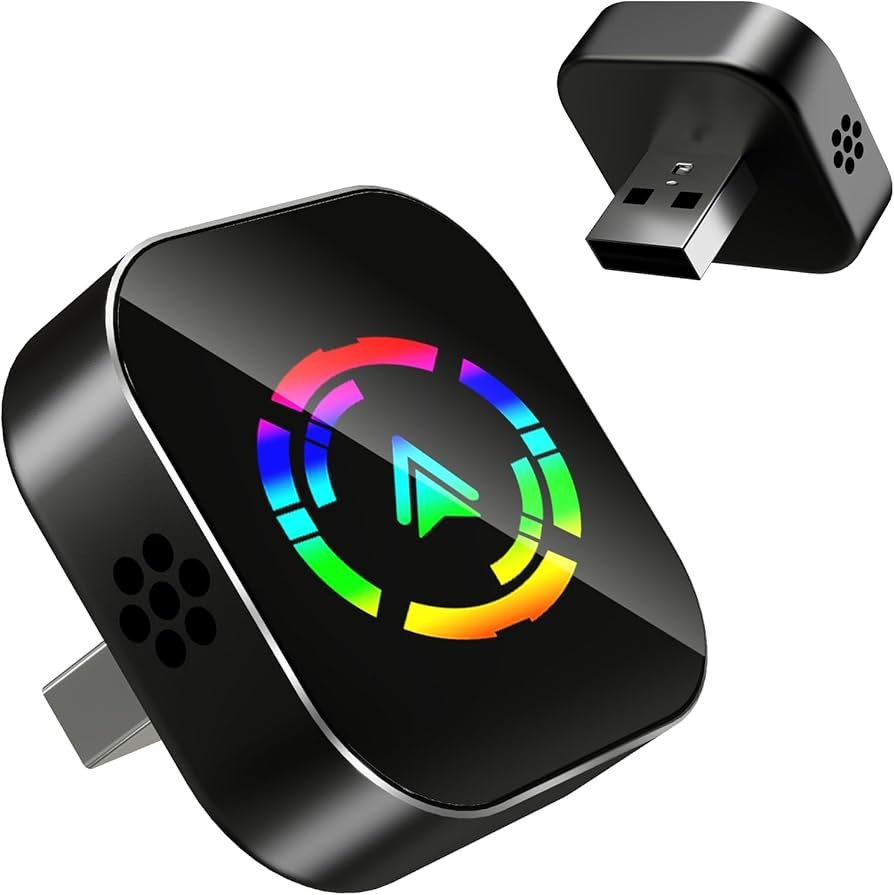
A wireless Apple CarPlay adapter is a plug-in device that connects to your car’s existing wired CarPlay system. It turns that wired connection into a wireless one, so your iPhone can link to CarPlay over Bluetooth and Wi-Fi instead of a USB cable.
In plain English, it works like a bridge. Your car still thinks it is talking to a cable, while your phone gets the freedom of wireless use. That means you can enter the car, start it, and let CarPlay launch on its own.
This is useful if you use Maps, Messages, Podcasts, Music, or Spotify every day. It also helps reduce cable wear and keeps the center console cleaner.

How to use a wireless Apple CarPlay adapter step by step
Using a wireless Apple CarPlay adapter is usually easy, but the first setup matters. Most issues come from skipping one small step or pairing the phone before the adapter is ready.
Follow these steps carefully:
-
Plug the adapter into your car’s USB CarPlay port
• Use the port that normally supports wired CarPlay, not just any USB port.
• Some cars have more than one USB port, but only one may support data and CarPlay. -
Wait for the adapter to power on
• The adapter usually lights up or shows a status indicator.
• Give it a few seconds to boot before pairing your phone. -
Turn on Bluetooth and Wi-Fi on your iPhone
• Wireless CarPlay needs both.
• Keep Airplane Mode off, since CarPlay uses wireless communication. -
Pair your iPhone with the adapter
• On your phone, look for the adapter name in Bluetooth devices.
• Some adapters will also prompt you to join a Wi-Fi network after Bluetooth pairing. -
Approve the CarPlay connection
• Your iPhone may ask if you want to use CarPlay with this device.
• Tap Allow or Connect. -
Wait for CarPlay to load on the screen
• The first connection can take a little longer.
• After that, future connections are usually much faster. -
Test audio, navigation, and calls
• Open Maps, make a test call, or play music.
• This confirms that both wireless data and sound are working correctly.
Once set up, the adapter should reconnect automatically when you start the car. In my experience, the best setups are the ones where the user does the first pairing with the car parked, the engine running, and the phone close by.
What to check before you buy one
Not every wireless Apple CarPlay adapter works the same way. Some are fast and stable, while others lag or disconnect when the car starts moving or the phone switches networks.
Before buying, check these points:
• Car compatibility
Make sure your vehicle already supports wired Apple CarPlay. A wireless adapter does not add CarPlay to a car that never had it.
• iPhone compatibility
Most adapters support recent iPhones, but it is smart to confirm support for your model and iOS version.
• USB port type
Some adapters need USB-A, while others use USB-C. You may also need a cable if the adapter has a different connector than your car.
• Boot time
Faster boot times make daily use feel seamless. Slow adapters can be annoying during short trips.
• Firmware updates
A good adapter should support updates. That helps fix bugs and improve compatibility over time.
• Heat and build quality
Cheap adapters can run hot or disconnect more often. A solid case and stable firmware usually matter more than flashy packaging.
Best way to set it up for the first time
The first setup is where most people either get a smooth experience or a frustrating one. A little patience here pays off later.
Here is the setup routine I recommend:
• Park the car in a safe place
Do not try to rush through setup while driving.
• Start the car fully
Some systems need full ignition power to recognize the adapter correctly.
• Reset old CarPlay pairings if needed
If your phone has an old wired or wireless CarPlay profile, remove it before pairing again.
• Keep only one phone nearby during setup
Multiple nearby phones can confuse some adapters.
• Reboot the adapter if pairing fails
Unplug it, wait a few seconds, and plug it back in.
One mistake I have seen a lot is people pairing their phone to the adapter from the Bluetooth menu before the adapter is ready. That can create a half-connected state. If that happens, forget the device on your iPhone and start over.
How the connection works in daily use
After setup, the wireless Apple CarPlay adapter should connect on its own each time you enter the car. The flow is usually simple: car starts, adapter powers up, iPhone connects, and CarPlay opens on the dashboard screen.
This feels a bit like walking into a room and having the lights turn on for you. Once it works well, you stop thinking about it. That is the real value of a wireless Apple CarPlay adapter: less friction.
Still, wireless systems can be sensitive to distance, phone settings, and software updates. If your phone is in a thick case, buried under bags, or far from the car’s head unit, connection speed may slow down a little.

Common problems and how to fix them
Even a good wireless Apple CarPlay adapter can run into issues. Most of them are small and easy to solve.
CarPlay does not appear
Try these fixes:
• Make sure you are plugged into the correct USB port
• Check that wired CarPlay worked before using the adapter
• Restart the car and the adapter
• Remove the Bluetooth pairing and reconnect
Audio is delayed
Try these fixes:
• Close other Bluetooth devices near the car
• Update the adapter firmware if updates are available
• Restart your phone
• Reconnect after the car fully boots
Connection keeps dropping
Try these fixes:
• Move your phone closer to the head unit
• Disable other active wireless accessories temporarily
• Check for iOS updates
• Test the adapter in another vehicle if possible
Siri is not responding well
Try these fixes:
• Confirm microphone permissions are enabled
• Check whether the car’s built-in mic is still being used
• Reconnect CarPlay
• Make sure the car’s infotainment software is current
From experience, the biggest fix is often the simplest one: a full reboot. Unplugging the adapter for 10 seconds can solve more problems than people expect.
Benefits of using a wireless Apple CarPlay adapter
A wireless Apple CarPlay adapter offers a few clear benefits, especially if you drive often.
• No cable clutter
Your dashboard stays cleaner, and you do not have to plug in every time.
• Faster routine
The car becomes more automatic. You get in, start driving, and CarPlay loads on its own.
• Less wear on charging ports
Repeated plugging can wear down cables and ports over time.
• Better convenience for short trips
If you only drive a few minutes at a time, wireless access is much easier.
• Cleaner setup for rideshare or family use
Multiple drivers do not need to keep swapping cables.
For a lot of drivers, the convenience is the real win. It is not a luxury feature so much as a quality-of-life upgrade.
Limitations you should know
A wireless Apple CarPlay adapter is helpful, but it is not perfect. Being honest about the limits helps you decide if it fits your needs.
• It depends on your car’s existing wired CarPlay support
If the car lacks wired CarPlay, the adapter will not help.
• Wireless use can add slight delay
Music, navigation, and voice prompts are usually fine, but wireless systems can still be a touch slower than direct cable use.
• Some cars are more compatible than others
Infotainment systems vary a lot by brand and model year.
• Firmware may need updates
If the manufacturer stops supporting the adapter, performance may worsen over time.
• Phone battery use may increase
Wireless CarPlay uses Wi-Fi and Bluetooth, so battery drain can be higher than just keeping the phone idle.
That said, for most daily drivers, the tradeoff is worth it if convenience matters more than perfect technical purity.
Tips to get the best performance
If you want the smoothest possible experience with a wireless Apple CarPlay adapter, a few habits help a lot.
• Keep your iPhone updated
Apple’s iOS updates often improve CarPlay stability and compatibility.
• Update the adapter firmware
This can solve bugs and reduce disconnects.
• Use a quality adapter
Better hardware usually means fewer issues.
• Keep your car’s infotainment software current
Car software updates matter more than many drivers realize.
• Avoid overcrowding the cabin with Bluetooth devices
Too many active connections can interfere with pairing.
• Store your phone in a consistent spot
A stable location helps the connection stay reliable.
I have found that consistency is key. The more you repeat the same startup routine, the more predictable wireless CarPlay becomes.
Is a wireless Apple CarPlay adapter worth it?
For many drivers, yes. If you already use wired CarPlay every day, a wireless Apple CarPlay adapter can make the whole experience feel easier and more natural.
It is especially worth it if you:
• Make short drives often
• Hate dealing with charging cables
• Want a cleaner interior
• Use navigation and audio apps daily
• Share the car with other drivers
It may not be the best fit if you want the fastest possible connection at all times or if your vehicle’s infotainment system is already unstable. In that case, it is better to fix the underlying issue first.
Frequently Asked Questions of How to use a wireless Apple CarPlay adapter
How do I connect a wireless Apple CarPlay adapter for the first time?
Plug the adapter into the correct USB CarPlay port, then turn on Bluetooth and Wi-Fi on your iPhone. Pair the device when it appears, approve the CarPlay prompt, and wait for the screen to load.
Why is my wireless Apple CarPlay adapter not working?
The most common causes are using the wrong USB port, missing Bluetooth or Wi-Fi settings, or an old pairing record. Try forgetting the device, restarting the car, and pairing again from scratch.
Does a wireless Apple CarPlay adapter work with any car?
No, it only works with cars that already support wired Apple CarPlay. If your vehicle never had wired CarPlay, the adapter will not add that feature.
Will a wireless Apple CarPlay adapter drain my phone battery?
Yes, battery use can be a little higher because the phone is using Bluetooth and Wi-Fi for the connection. If you drive long distances, you may still want a charging cable or wireless charger.
Can I use Siri with a wireless Apple CarPlay adapter?
Yes, Siri should work as long as the adapter and your car’s microphone are set up correctly. If Siri sounds weak or fails, reconnect CarPlay and check your audio settings.
How do I update a wireless Apple CarPlay adapter?
Many adapters use a web page, companion app, or USB update file. Check the adapter’s instructions and update it when new firmware is available, since updates often improve stability.
Conclusion
A wireless Apple CarPlay adapter is a simple upgrade that can make daily driving feel smoother and less cluttered. Once you know how to use a wireless Apple CarPlay adapter, the process is mostly about good setup, smart pairing, and a little patience during the first connection.
If your car already has wired CarPlay, this is one of the easiest convenience upgrades you can buy. Take a few minutes to set it up the right way, keep the software current, and enjoy a cleaner, more seamless drive. If you found this guide helpful, explore more car tech tips, subscribe for updates, or leave a comment with your setup experience.