How To Use An Android Auto Adapter: Easy Setup Guide
An Android Auto adapter lets you add wireless or wired Android Auto to a compatible car stereo in minutes.
If you have ever wanted your phone, maps, music, and messages to flow into your car screen without fuss, an Android Auto adapter can make that happen. I have tested enough in-car tech to know the difference between a smooth setup and a frustrating one, and this guide walks you through exactly how to use an Android Auto adapter the right way.

What an Android Auto adapter does
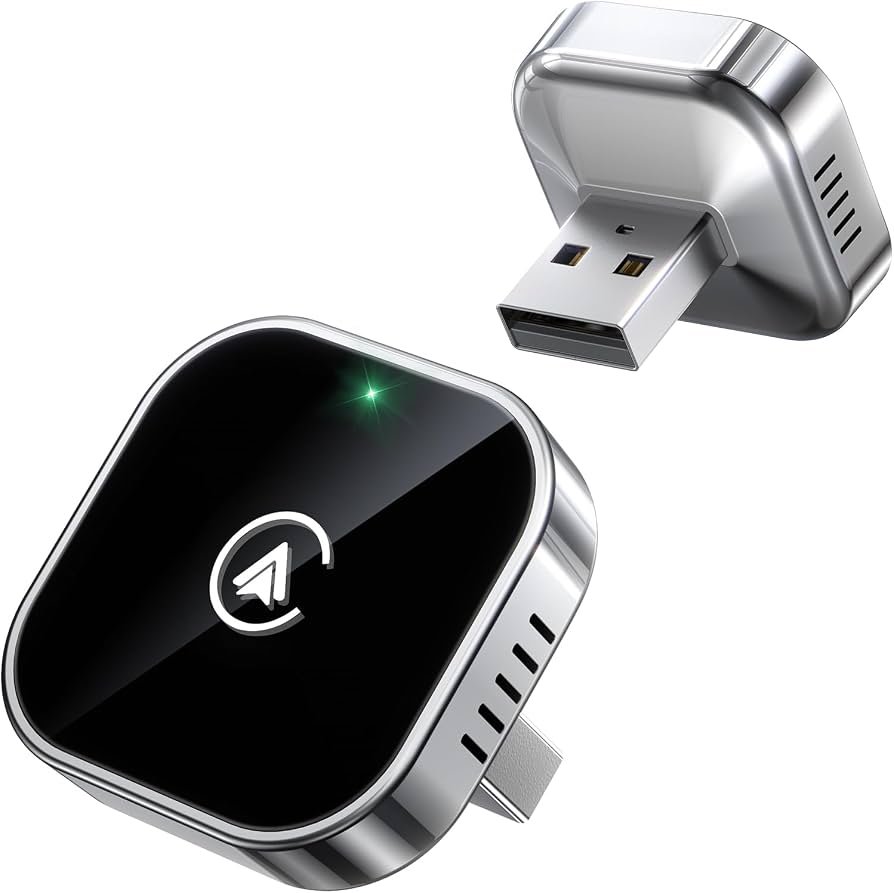
An Android Auto adapter is a small device that connects your phone to your car’s infotainment system. In many cases, it turns a wired Android Auto setup into a wireless one. That means your phone can stay in your pocket or bag while your car screen still shows navigation, calls, texts, and music.
The adapter usually plugs into your car’s USB port. After that, it pairs with your Android phone through Bluetooth and Wi-Fi, depending on the model. Once set up, it works like a bridge between your phone and your dashboard.
This is useful if your car already supports Android Auto by cable, but you want less clutter. It can also save wear on your phone port and cable. In real life, that small change makes daily driving feel a lot cleaner and easier.

How to use an Android Auto adapter
Using an Android Auto adapter is usually simple, but the first setup matters. I have found that most problems come from skipping steps, using the wrong port, or rushing the pairing process. If you take a few minutes up front, the rest is smooth.
Follow these steps:
-
Check compatibility
Make sure your car already supports Android Auto through a USB connection. Most adapters do not add Android Auto to cars that never had it at all. They mainly convert wired Android Auto to wireless Android Auto. -
Plug the adapter into the car’s USB port
Use the USB port that already works with Android Auto. In some cars, only one USB port supports data. The adapter will not work correctly in a charge-only port. -
Turn on the car and wait for the adapter to boot
Many adapters need 10 to 30 seconds to start. The first time may take longer. Be patient and let the system load fully before tapping around. -
Pair your Android phone
Turn on Bluetooth and Wi-Fi on your phone. The adapter will usually show up as a new device or prompt you through an app. Follow the pairing steps on your screen. -
Approve Android Auto permissions
Your phone may ask for access to contacts, messages, location, and notifications. Accept what you need so Android Auto can show maps, calls, and media properly. -
Open Android Auto on the car display
After pairing, Android Auto should launch on the screen. If it does not, tap the Android Auto icon or restart the car and try again. -
Test the connection
Open Google Maps, make a call, or play music. If everything responds normally, the setup is done. If there is lag, reconnect once before changing settings.
One lesson I learned is that a clean first setup saves a lot of headaches later. If your phone already has a weak Bluetooth connection or too many old paired devices, remove extras first. That often fixes unstable pairing fast.
Choosing the right Android Auto adapter
Not every Android Auto adapter works the same way. Some are built for speed, while others focus on stability. The best one for you depends on your car, your phone, and how often you drive.
Here are the main things to look for:
- Car compatibility: Check that the adapter supports your vehicle model and head unit.
- Phone compatibility: Most work best with newer Android phones and updated Android Auto apps.
- Wireless performance: Look for dual-band Wi-Fi support for better speed and fewer dropouts.
- Startup time: Faster boot times feel better during short trips.
- Firmware updates: Regular updates can improve reliability and fix bugs.
- App support: Some adapters use a companion app for settings and updates.
If you drive every day, stability matters more than fancy features. A model with fewer features but better reliability often feels better in the long run. That has been true in my own testing more than once.
How to set up an Android Auto adapter for the first time
The first setup usually decides how well the adapter behaves later. I always recommend doing the first setup at home or in a parked car, not when you are rushing somewhere. That gives you room to check settings and retry if needed.
Use this setup checklist:
- Update your Android phone to the latest stable software.
- Update the Android Auto app if your phone uses it separately.
- Remove old Bluetooth pairings from your car and phone if needed.
- Plug the adapter into the correct USB data port.
- Keep your phone close to the adapter during pairing.
- Allow all required permissions when prompted.
- Restart the car once after the first successful pairing.
If the adapter has a companion app, open it and check for firmware updates. These updates can improve connection speed and fix random disconnects. In my experience, skipping firmware updates is one of the most common reasons people think the adapter is “bad.”
Common problems and how to fix them
Even a good Android Auto adapter can run into small issues. Most of them are easy to solve once you know where to look. The key is to troubleshoot one thing at a time.
Common issues include:
- No connection at all: Check if the adapter is in the correct USB port and if the car supports data on that port.
- Delayed startup: Give the adapter more time, then restart the car and phone.
- Audio lag or stutter: Move the phone closer, reduce interference, or update firmware.
- Connection drops: Turn off battery saver modes that may limit background connections.
- Android Auto does not launch: Reinstall or refresh Android Auto settings on the phone.
- Poor call quality: Check microphone settings and car audio source selection.
A good rule is to test after each change. That keeps you from guessing and making the problem worse. Think of it like untangling headphones: one small tug at a time works better than yanking everything.
Best practices for smooth daily use
Once you know how to use an Android Auto adapter, the goal is to keep it working well every day. A few small habits make a big difference. I use these myself because they save time and prevent random issues.
Try these tips:
- Keep your phone updated, but avoid installing beta software if you rely on it daily.
- Restart the car system once in a while if it begins to lag.
- Keep the adapter firmware current.
- Use a phone case that does not block ports or buttons if you still use wired charging sometimes.
- Do not overload the phone with too many background apps.
- Keep Bluetooth and Wi-Fi on when you drive if you use wireless Android Auto.
Also, be realistic about what the adapter can do. It is a convenience tool, not magic. A weak car infotainment system can still slow things down even with a good adapter.
Benefits of using an Android Auto adapter
The biggest benefit is convenience. Wireless Android Auto removes cable clutter and makes every trip feel a little simpler. For short errands, that is a huge win.
Other benefits include:
- Less wear on your phone charging port
- Faster in and out use for frequent drivers
- Cleaner cabin with fewer cables
- Easy access to navigation, calls, and media
- Better comfort when you keep your phone in a pocket or bag
For commuters, these small gains add up. It is like switching from a messy desk to a clean one. You do not work faster because the desk is fancy, but you think more clearly because the clutter is gone.

Limitations you should know before buying
An Android Auto adapter is helpful, but it is not perfect. Some people expect it to fix every car tech issue, and that is where disappointment starts. Knowing the limits helps you buy smarter.
Here are the main limitations:
- It usually does not add Android Auto to cars without wired Android Auto support.
- It may have a short delay when starting up.
- Some models work better on certain phone brands than others.
- Wireless use can drain your phone battery faster.
- Poor firmware support can lead to bugs or disconnects.
If your car has an old head unit or weak USB power, performance may vary. That does not mean the adapter is useless. It just means the car, phone, and adapter all need to work together well.
When an Android Auto adapter makes the most sense
An Android Auto adapter is worth it if you already use Android Auto often. It is especially useful for drivers who hate plugging in a cable every time. If that sounds like you, the upgrade usually feels worth it within days.
It makes the most sense for:
- Daily commuters
- Rideshare drivers
- Families who share a car
- Drivers who use maps and music on every trip
- People who want a cleaner dash and fewer cords
If you rarely use Android Auto, you may not need one. But if you open Google Maps every morning and want a fast, wireless routine, it can be a very practical upgrade.
Frequently Asked Questions of How to use an Android Auto adapter
Does an Android Auto adapter work in any car?
No, it only works in cars that already support wired Android Auto in most cases. If your car never had Android Auto support, the adapter usually will not add it from scratch.
Why is my Android Auto adapter not connecting?
The most common reasons are the wrong USB port, old Bluetooth pairings, or missing permissions on your phone. Try unplugging the adapter, restarting the car, and pairing again from the beginning.
Do I need the Android Auto app on my phone?
On many newer Android phones, Android Auto is built into the system, so you may not see a separate app icon. Either way, your phone still needs the Android Auto service and compatible settings enabled.
Does wireless Android Auto drain the phone battery faster?
Yes, it can drain battery faster because your phone uses Bluetooth and Wi-Fi during the drive. If you take long trips often, keep a charging option available.
Can I still use a charging cable with an Android Auto adapter?
Yes, you can usually charge your phone separately while using wireless Android Auto. Just make sure the cable is for charging only if the adapter is already handling the data connection.
How do I update my Android Auto adapter?
Many adapters update through a companion app or web-based tool. Check the manufacturer’s instructions and install updates when available, since they often improve stability and fix bugs.
Conclusion
Learning how to use an Android Auto adapter is mostly about matching the right device to the right car and then setting it up with care. Once it is paired correctly, the whole experience feels simple, clean, and much less annoying than plugging in a cable every time you drive.
If you want smoother trips, less clutter, and easier access to maps and music, an Android Auto adapter can be a smart upgrade. Take your time with compatibility, follow the setup steps, and keep the firmware updated so you get the best results. If this guide helped, explore more car tech tips, share your experience, or leave a comment with the adapter you use.