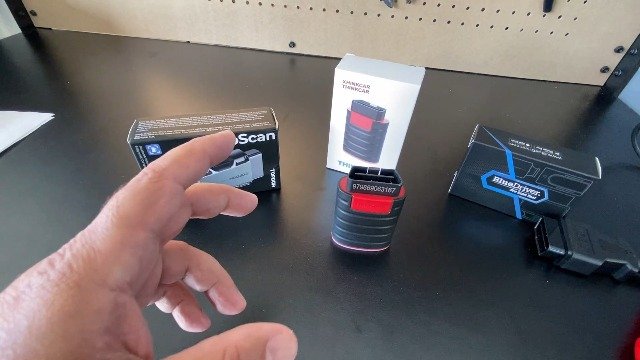
Innova 6100P Troubleshooting: Quick Fixes That Work
Most Innova 6100P problems come from weak power, poor connections, outdated software, or incorrect vehicle settings.
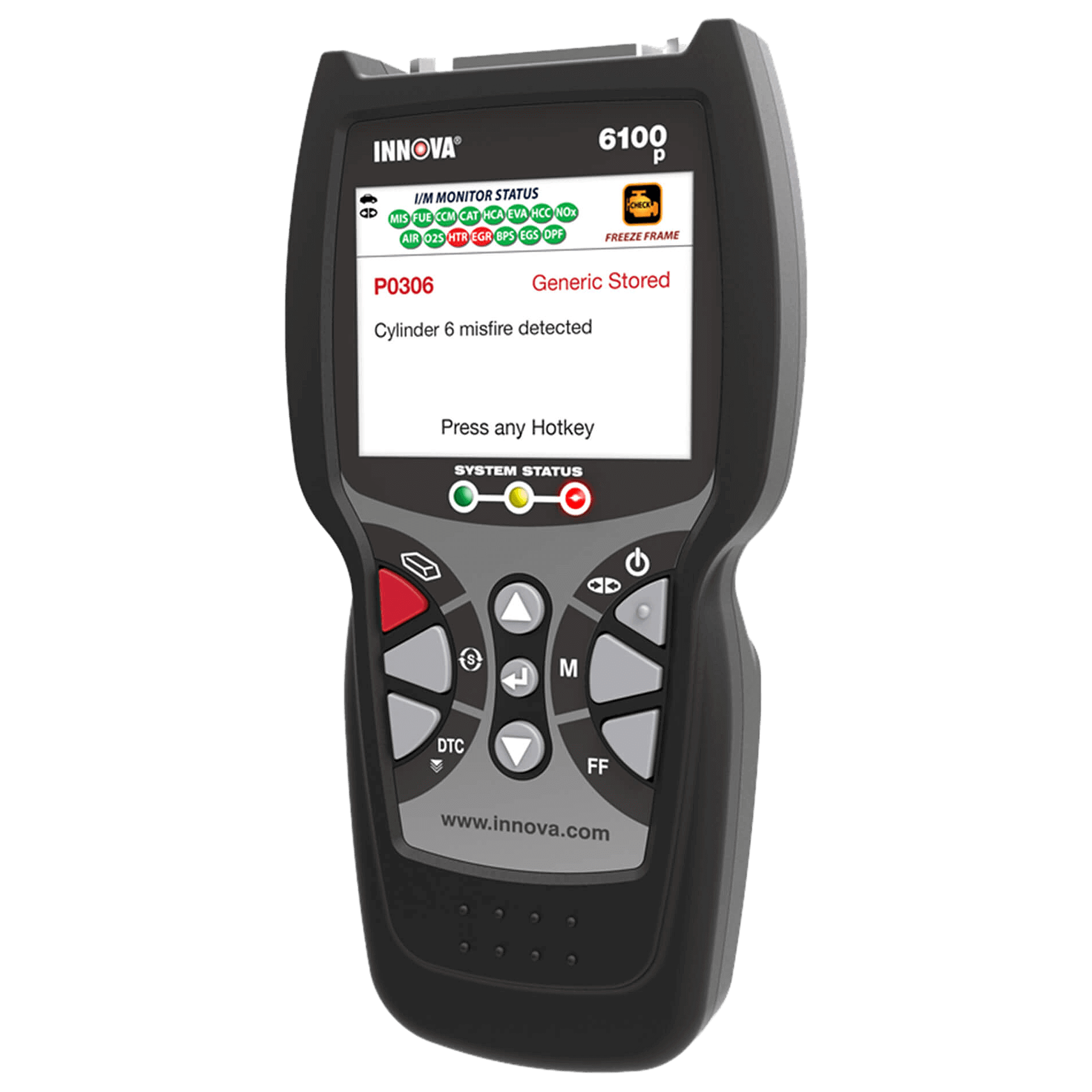
The Innova 6100P is a powerful OBD2 scan tool, but even a good scanner can show errors when the vehicle battery, data link, or software is not ready. This Innova 6100P troubleshooting guide explains the most common faults, safe fixes, warning signs, and limits of scan-tool diagnosis in clear steps.
Innova 6100P Troubleshooting at a Glance
Innova 6100P troubleshooting starts with one basic rule: check the simple things first. A loose cable, low vehicle battery, dirty OBD2 port, or key in the wrong position can look like a major scanner fault.
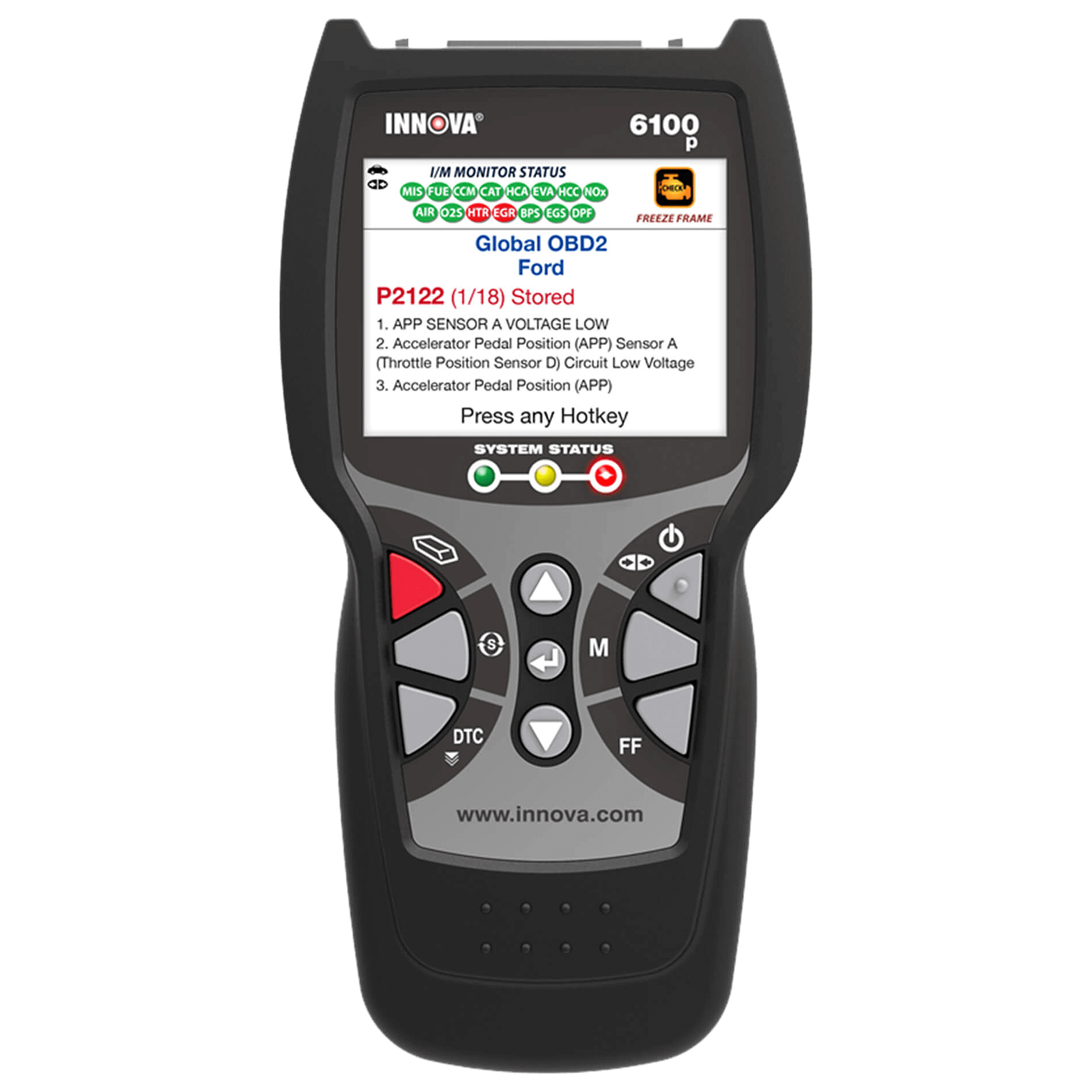
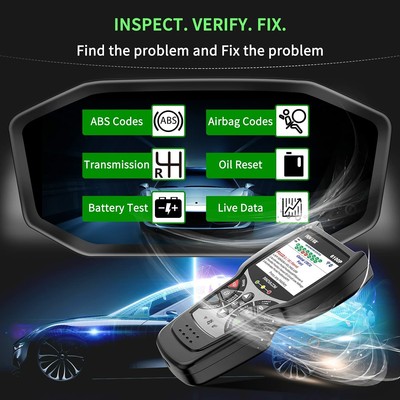
The 6100P may be used for engine, transmission, ABS, airbag, and other vehicle systems, depending on the vehicle and tool software. Coverage is not identical on every make and model, so always confirm the supported systems before testing.
Use this quick order:
- Check the vehicle battery.
- Inspect the OBD2 port.
- Connect the scanner firmly.
- Turn the ignition to ON without starting the engine.
- Confirm the vehicle information.
- Update the scanner if needed.
- Record codes before clearing them.
- Test the repair and scan again.
How the Innova 6100P Connects to a Vehicle
The Innova 6100P communicates through the vehicle’s diagnostic connector. In most cars sold in the United States, this is the 16-pin OBD2 port under the dashboard near the steering column.
The scanner needs power from the vehicle. It also needs a working communication path through the correct network, such as CAN. If power reaches the tool but communication fails, the fault may be in the vehicle network rather than in the Innova 6100P.
Before starting Innova 6100P troubleshooting, understand the key positions:
• OFF: The vehicle and scanner are usually not powered.
• ACC: Some vehicle systems have power, but the engine computer may not be fully awake.
• ON or RUN: The dashboard lights turn on, and the control modules can usually communicate.
• START: The starter turns the engine. Do not move the cable while cranking.
A common mistake is trying to scan with the key in ACC. Move the key to ON, but do not start the engine unless the tool asks you to do so.

Innova 6100P Will Not Turn On
If the screen stays black, begin with the vehicle and cable. The Innova 6100P normally receives power through the OBD2 connector, so a dead vehicle battery or missing socket power can stop it from starting.
Try these steps:
- Turn the ignition fully to ON.
- Disconnect the tool.
- Inspect the OBD2 plug for bent or pushed-back pins.
- Reconnect the tool with firm pressure.
- Test the vehicle battery.
- Try the scanner on another compatible vehicle if available.
A healthy 12-volt battery often measures about 12.4 to 12.7 volts with the engine off. A reading near 12 volts or less may cause unstable communication. Low voltage can also create false trouble codes.
If the scanner works in another vehicle, check the original vehicle’s diagnostic fuse. Many cars protect the OBD2 port with a fuse shared with the cigarette lighter or accessory socket. Never replace a fuse with one of a higher rating.
If the screen remains blank on more than one vehicle, the tool may have a damaged cable, connector, battery component, or internal circuit. Contact the manufacturer or an authorized service provider before opening the case.
Innova 6100P Does Not Connect to the Vehicle
A “linking error,” “communication error,” or “no communication” message means the scanner cannot exchange data with the selected control module. This does not always mean the scanner is defective.
Work through this process:
• Turn the ignition to ON.
• Confirm that the vehicle supports the selected diagnostic function.
• Select the correct make, model, year, and engine when the tool asks.
• Disconnect other scan tools, trackers, or aftermarket devices.
• Check the OBD2 port for dirt, moisture, or damaged pins.
• Turn the ignition off for about 30 seconds, then try again.
• Start with a basic global OBD2 scan before choosing ABS, SRS, or advanced tests.
The global scan uses standard emissions data. It is often the best first test because it helps show whether the vehicle and scanner can communicate at all.
If global OBD2 works but an advanced system does not, the issue may be limited coverage, a module fault, a blown fuse, or a vehicle network problem. Innova 6100P troubleshooting should always separate a tool problem from a vehicle system problem.
Innova 6100P Shows “No Codes”
“No codes” does not mean the vehicle has no problems. It means the tested module has no stored diagnostic trouble codes at that moment.
A warning light may be off because the issue is temporary. Some problems create pending codes before they become confirmed codes. Other faults may be stored in a system that the current scan did not access.
Check the following:
• Is the check engine light on?
• Did you scan the correct vehicle and system?
• Are pending codes available?
• Is the problem mechanical rather than electronic?
• Did someone clear the codes recently?
• Has the vehicle completed its readiness monitors?
A weak fuel pump, worn brake part, vacuum leak, low tire, bad bearing, or damaged wire may not always set a code. A scan tool is a diagnostic aid, not a complete vehicle inspection.
During Innova 6100P troubleshooting, write down the customer complaint or symptom before scanning. This keeps the scan result in context and prevents a clean screen from ending the diagnosis too soon.

Innova 6100P Displays Incorrect Vehicle Information
The scanner may ask you to confirm the vehicle identification number, engine size, model year, or region. Incorrect information can lead to poor system coverage or an incorrect communication path.
Do not guess when the tool asks for vehicle details. Check the VIN on the dashboard, registration, or vehicle label. The tenth VIN character often identifies the model year, but model-year rules can vary by VIN format and region.
If the tool identifies the vehicle automatically, compare the result with the car in front of you. Look at:
• Model and body type
• Engine size
• Fuel type
• Transmission
• Production year
• Market or region
A vehicle built near a model-year change may use different modules from another car with the same name. This is one reason Innova 6100P troubleshooting can vary between two similar vehicles.

Innova 6100P Freezes, Restarts, or Runs Slowly
A frozen screen may result from a software issue, low voltage, a damaged cable, or an interrupted update. Do not pull the cable while the tool is writing software or saving data.
Try a safe restart:
- Disconnect the scanner from the vehicle.
- Wait at least 30 seconds.
- Reconnect it with the ignition off.
- Turn the key to ON.
- Allow the tool to load fully.
- Retry the scan.
Keep the scanner away from extreme heat, moisture, and direct sun. A hot dashboard can make electronic devices behave like a tired phone with a nearly empty battery.
If the problem returns, check for available software updates using the approved update process. Use a stable computer, a reliable internet connection, and the correct update utility. Do not interrupt the process.
If an update fails, repeat the official recovery steps for the exact 6100P version. Avoid unofficial firmware files. They may damage the tool or remove required vehicle data.

Innova 6100P Software and Update Problems
Software updates can improve vehicle coverage, fix bugs, and add functions. They can also fail when the computer, cable, account, or internet connection is unstable.
Before updating:
• Charge the computer or connect it to power.
• Close other programs.
• Use the original or approved USB cable.
• Confirm the tool is recognized by the update program.
• Do not unplug the tool during the update.
• Check that the update matches the Innova 6100P model.
If the update program does not detect the scanner, try another USB port. Avoid unpowered hubs. Some computers block older USB devices, so a different computer may help.
A failed update does not always mean the scanner is permanently damaged. Write down the exact error message. This detail helps support staff identify whether the issue involves drivers, storage, firmware, or communication.
Innova 6100P Cannot Read ABS or SRS Codes
Many users expect one scan to access every vehicle system. In practice, system coverage depends on the vehicle, model year, region, and software version.
If engine codes work but ABS or SRS does not, check these points:
- Confirm that the vehicle supports the selected system.
- Update the scanner.
- Use the correct vehicle menu.
- Turn the ignition to ON.
- Check ABS or airbag fuses.
- Inspect the battery voltage.
- Look for damage near the module or wiring.
Airbag systems require extra care. Never probe yellow SRS wiring or disconnect airbag connectors with the battery connected unless the vehicle service procedure specifically allows it. Accidental airbag deployment can cause severe injury.
The Innova 6100P can report a code, but the code alone does not prove which part must be replaced. For example, a wheel speed sensor code may come from a sensor, damaged wiring, a tone ring, a bearing, or a control module.
Innova 6100P Live Data Looks Wrong
Live data shows information reported by vehicle sensors and modules. It can help find faults that do not leave a clear code, but the numbers must be judged against engine state and manufacturer specifications.
Check these conditions before reading live data:
• Engine off or running
• Cold or fully warm engine
• Park, neutral, or drive
• Electrical loads on or off
• Normal or abnormal engine speed
For example, an engine coolant temperature reading near outside air temperature may be normal after a cold start. The same reading after 20 minutes of driving may suggest a sensor, wiring, thermostat, or cooling problem.
Do not replace a sensor just because one data value looks unusual. Compare related values and perform a physical test. A multimeter, wiring diagram, pressure gauge, or service manual may be needed.
Good Innova 6100P troubleshooting combines scan data with sight, sound, smell, and hands-on testing.
Innova 6100P Cannot Clear a Trouble Code
A code may return immediately after clearing when the fault is still present. Some modules also require specific conditions before they allow code erasure.
Use this method:
- Read and save all codes.
- Note freeze-frame data.
- Repair the confirmed cause.
- Turn the ignition off.
- Restart the vehicle.
- Clear the codes.
- Drive through a safe test cycle.
- Rescan the vehicle.
Do not clear codes before recording them. Clearing codes can erase useful freeze-frame information and reset emissions readiness monitors.
A permanent code may remain after a repair until the vehicle completes enough successful self-tests. This is normal on many modern vehicles. It is not always a sign that the repair failed.
Never clear a code simply to turn off a warning light before selling or inspecting a vehicle. That hides information and may leave the car unable to complete its emissions checks.
Innova 6100P Data Link and OBD2 Port Checks
The OBD2 port is a small connector with a large job. It supplies power and provides access to vehicle communication networks.
Look for:
• Bent terminals
• Loose terminals
• Corrosion
• Water damage
• Aftermarket wiring
• Broken mounting brackets
• A missing power supply
A basic electrical test can help, but use the correct pin layout and a fused test method. On a standard OBD2 connector, pin 16 commonly supplies battery power, while pins 4 and 5 provide grounds. Vehicle network pins can vary by protocol and model.
Do not bridge pins with a paper clip or metal tool. A short circuit can damage a vehicle module. If the connector is loose or damaged, have a qualified technician repair it.
In one common shop-style case, a scanner appeared faulty because an aftermarket alarm had a loose splice near the diagnostic connector. Fixing the splice restored communication. The lesson is simple: inspect recent accessory work before blaming the scan tool.
Common Innova 6100P Trouble Codes and What They Mean
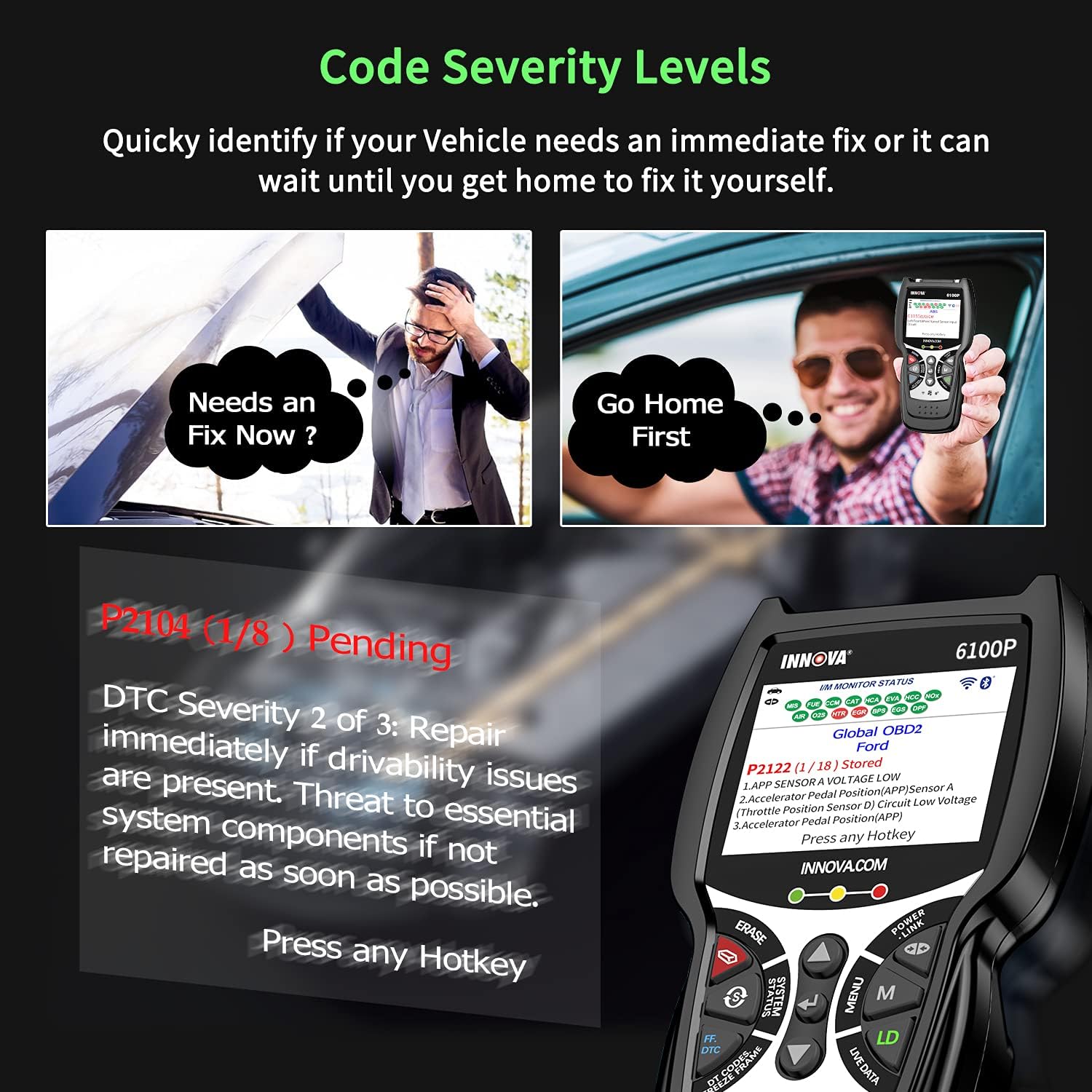
The Innova 6100P may display generic OBD2 codes, manufacturer-specific codes, and system descriptions. A code is a starting clue, not a final answer.
Common examples include:
• P0300: Random or multiple-cylinder misfire detected.
• P0171: System too lean on one engine bank.
• P0420: Catalyst efficiency below the expected level.
• P0455: Large evaporative-emission leak detected.
• P0101: Mass airflow sensor range or performance issue.
The correct repair depends on test results. A P0171 code may involve a vacuum leak, low fuel pressure, dirty airflow sensor, exhaust leak, or incorrect sensor data.
For every code, record:
- The exact code.
- The module that stored it.
- Freeze-frame conditions.
- Related codes.
- Vehicle symptoms.
- Test results.
- Repair work completed.
This record makes Innova 6100P troubleshooting more accurate and reduces unnecessary parts replacement.
A Reliable Innova 6100P Troubleshooting Workflow
Use a repeatable process instead of guessing. Professional technicians often follow a similar path because it saves time and protects against incorrect repairs.
Step 1: Confirm the complaint
Ask when the issue happens. Note whether the vehicle is cold, hot, moving, braking, charging, or using accessories.
Step 2: Check basic conditions
Inspect the battery, fuses, fluids, visible wiring, and OBD2 connector. Many electronic faults begin with a basic power problem.
Step 3: Scan before changing parts
Record every code and freeze-frame detail. Do not erase the evidence too early.
Step 4: Search for related faults
Several codes may share one power, ground, sensor, or network circuit. The first code is not always the root cause.
Step 5: Test the suspected cause
Use service information and measured values. Check voltage, resistance, pressure, signal changes, or wiring continuity as appropriate.
Step 6: Repair and verify
After the repair, clear codes only when suitable. Run the vehicle through a safe drive cycle and scan again.
Step 7: Confirm readiness
If the vehicle needs an emissions inspection, make sure the required readiness monitors have completed. The scanner can show monitor status, but the vehicle may need several trips to finish testing.
Mistakes to Avoid During Innova 6100P Troubleshooting
Even experienced vehicle owners can make small mistakes that create larger problems. Avoid these habits:
• Do not replace every part named in a code.
• Do not scan with a weak battery.
• Do not use the wrong vehicle profile.
• Do not clear codes before saving them.
• Do not disconnect the tool during an update.
• Do not test SRS circuits casually.
• Do not assume “no codes” means “no fault.”
• Do not ignore service bulletins or known vehicle issues.
• Do not force the OBD2 connector.
A code points toward a circuit or condition. It does not always identify a failed component. This distinction is one of the most important lessons in Innova 6100P troubleshooting.
When to Stop and Get Professional Help
Some problems are safe to investigate at home. Others need advanced equipment and training.
Seek professional help when:
• The vehicle has no communication with any scan tool.
• Multiple modules show network communication faults.
• The airbag warning light remains on.
• The vehicle will not start after electrical work.
• A module needs programming or coding.
• The scan tool repeatedly loses connection.
• The OBD2 port has melted wiring or signs of a short.
• The vehicle battery becomes hot or swells.
A qualified technician can use wiring diagrams, a lab scope, a battery tester, and manufacturer-level software. The Innova 6100P is useful, but it cannot replace every factory tool or mechanical test.
Benefits and Limits of the Innova 6100P
The Innova 6100P can make diagnosis faster by showing trouble codes, live data, readiness status, and system information supported by the vehicle. It is especially helpful for checking warning lights and tracking a repair.
Its limits matter just as much:
• Coverage varies by vehicle.
• A code does not prove a part is bad.
• Some programming functions may require factory equipment.
• Mechanical faults may produce no code.
• Battery voltage can affect communication.
• Software and vehicle databases need to stay current.
Think of the scanner as a flashlight. It helps you see the path, but it does not walk the path for you. Accurate Innova 6100P troubleshooting still requires good questions, safe tests, and careful judgment.
Frequently Asked Questions of Innova 6100P Troubleshooting
Why does my Innova 6100P say it cannot communicate?
Check that the ignition is in the ON position, the OBD2 cable is fully connected, and the vehicle battery is strong. Also verify the vehicle selection and inspect the diagnostic port for damaged or corroded pins.
Can the Innova 6100P clear a check engine light?
It can clear supported diagnostic trouble codes after you record them. If the underlying fault remains, the warning light will usually return after the vehicle runs its self-tests.
Why does the Innova 6100P show no codes when the car has a problem?
The fault may be mechanical, temporary, pending, or stored in a system that was not scanned. Check pending codes, system coverage, live data, and the vehicle’s physical condition.
How do I update the Innova 6100P?
Use the approved update process for the exact tool model. Keep the computer powered, use a stable connection, and never unplug the scanner while an update is in progress.
Can the Innova 6100P diagnose ABS and airbag problems?
It may access ABS, SRS, or other systems on supported vehicles. Coverage varies, so confirm compatibility and use extreme care around airbag wiring and connectors.
Should I replace a part when the scanner names it?
No. A trouble code often identifies a circuit or condition, not a failed part. Test the wiring, power, ground, related components, and service specifications before replacing anything.
Conclusion
Effective Innova 6100P troubleshooting begins with battery voltage, the OBD2 connection, ignition position, and correct vehicle data. From there, save codes, study freeze-frame information, test the suspected cause, and verify the repair with a second scan.
Use the scanner as a guide, not as a parts-ordering machine. Follow safe procedures around ABS and SRS systems, keep the software current, and ask for professional help when network or module faults appear. If this guide helped, explore your vehicle’s service information, keep a repair log, and share your troubleshooting experience with other drivers.