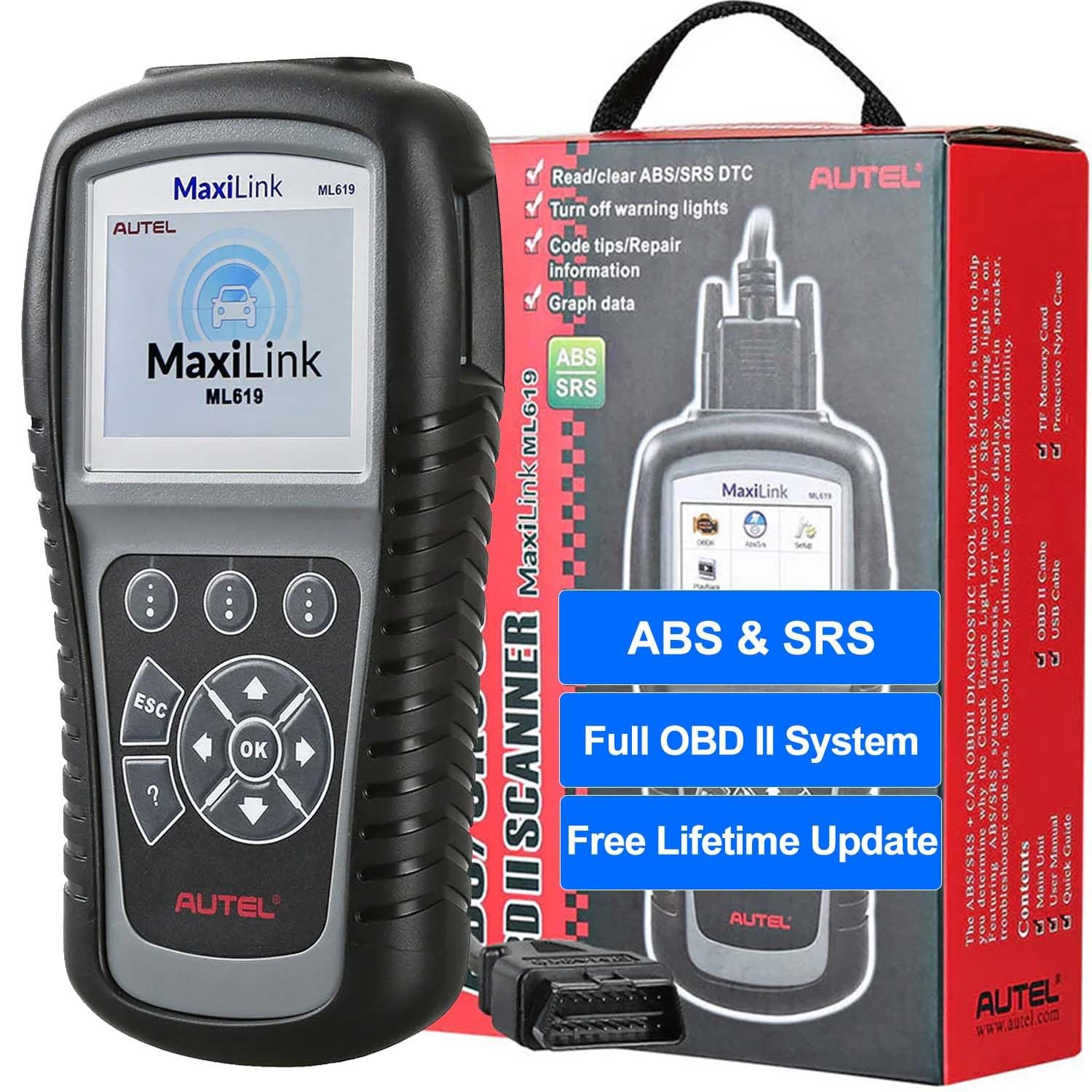
Autel Maxilink Ml619 Troubleshooting: Fast Fix Guide
Autel MaxiLink ML619 troubleshooting usually comes down to power, vehicle communication, or OBD2 connection issues.
If your Autel MaxiLink ML619 is acting up, the fix is often simpler than it looks. I have spent enough time with scan tools to know that most problems are not “dead scanner” problems at all. They are usually cable issues, ignition state issues, a weak vehicle battery, or a setting that needs a quick reset. This guide walks you through Autel MaxiLink ML619 troubleshooting in a practical, step-by-step way so you can get back to reading codes, checking ABS and SRS data, and moving on with confidence.
What the Autel MaxiLink ML619 does and why troubleshooting matters
The Autel MaxiLink ML619 is a compact OBD2 scan tool designed for more than basic engine codes. It can read and clear ABS and SRS codes on many supported vehicles, which makes it useful for home mechanics and techs who want a fast first check before deeper diagnostics.
When the Autel MaxiLink ML619 stops working as expected, the problem can look bigger than it is. A blank screen, “linking error,” no communication, or missing data can all happen for ordinary reasons. Troubleshooting well saves time, avoids wrong parts, and helps you trust the scan results again.
In my own experience, the most common mistake is assuming the scanner failed before checking the vehicle side. I have seen a simple low battery or a loose DLC plug cause symptoms that looked like a tool failure. That is why Autel MaxiLink ML619 troubleshooting should always start with the easiest checks first.

Common Autel MaxiLink ML619 problems
Most Autel MaxiLink ML619 troubleshooting cases fall into a few familiar buckets. Once you know the pattern, the fix gets much faster.
Common issues include:
• The scanner does not power on
• The screen powers up, but the tool will not communicate with the car
• “Linking error” or “communication error” messages appear
• ABS or SRS data does not load
• The tool shows incomplete or frozen readings
• The device works on one car but not another
• The scanner asks for updates or behaves oddly after a software issue
These symptoms often point to connection problems, low voltage, vehicle compatibility limits, or a faulty diagnostic port. They do not always mean the Autel MaxiLink ML619 is broken.
First checks before deeper troubleshooting
Before you dig into advanced Autel MaxiLink ML619 troubleshooting, do the basics. These first steps solve a surprising number of cases.
Follow this checklist:
-
Make sure the ignition is in the correct position
Many vehicles require the key to be in ON, not just accessory mode. Some newer push-button cars need ignition mode fully active. -
Check the vehicle battery
A weak battery can make modules go offline or cause unstable communication. If the battery is very low, scan results may be unreliable. -
Inspect the OBD2 connector
Look for bent pins, dirt, loose fit, or damage at the port. A bad physical connection can stop the scan tool from linking. -
Reconnect the tool firmly
Push the connector in all the way. I have fixed more “dead scanner” complaints by reseating the plug than by doing anything technical. -
Try the scanner on another vehicle
If it works elsewhere, the issue is likely with the first vehicle. If it fails on multiple cars, the scanner or cable may be the problem.
These quick checks are the backbone of good Autel MaxiLink ML619 troubleshooting. They take little time and can save a lot of frustration.

How to fix power and startup issues
If your Autel MaxiLink ML619 will not turn on, start with the power path. This model usually draws power from the vehicle through the OBD2 port, so startup problems often point to the car, not the tool.
Try these steps:
• Confirm the ignition is on
• Make sure the OBD2 connector is fully seated
• Test the vehicle’s diagnostic port with another known-good scanner if possible
• Check fuse protection tied to the OBD2 port or cigarette lighter circuit, depending on the vehicle
• Inspect the cable for wear or broken strain relief
• Try a different vehicle to rule out a port-specific issue
If the tool powers on but shuts off during use, voltage instability may be the cause. Older batteries, weak charging systems, or loose port connections can interrupt power long enough to crash the session.
A lesson I learned early: if a scan tool keeps restarting during one car but works fine on another, blame the vehicle’s power or port first. That is usually the smarter path.
How to solve communication errors
Communication errors are one of the most common Autel MaxiLink ML619 troubleshooting problems. The tool is powered, but it cannot talk to the vehicle modules.
Here is the best way to handle it:
• Verify the vehicle is OBD2 compliant and supported by the tool
• Turn the ignition to the correct position
• Clear accessories that may be loading the circuit, such as aftermarket devices
• Check whether the vehicle has multiple diagnostic connectors or unusual pin layouts
• Inspect for blown fuses related to the DLC or ECU
• Try scanning a different system or a different vehicle
Sometimes the scanner is fine, but the vehicle network is not. If a module is down, the scanner may not get the response it expects. That is especially true when ABS or SRS modules have power or communication faults.
If the scanner links to engine data but not ABS or SRS, the issue may be module-specific. That does not always mean a scanner fault. It may mean the module itself has no power, no ground, or a stored internal fault.
How to handle ABS and SRS scanning problems
Since the Autel MaxiLink ML619 is often used for ABS and SRS diagnostics, this is where many users get stuck. The tool may read engine codes just fine, then fail on safety systems.
Try these practical checks:
• Confirm your vehicle is supported for ABS and SRS functions
• Make sure you are selecting the correct system menu
• Look for stored faults in the ABS or airbag module that may block live communication
• Check vehicle voltage, since ABS and SRS modules can be sensitive to low power
• Inspect fuses and relays tied to the airbag or ABS control units
• Update the tool if a newer software version is available
I have seen users blame the scanner when the real issue was a blown fuse in the ABS circuit. That is why Autel MaxiLink ML619 troubleshooting should include a quick check of the vehicle’s electrical side before assuming the tool is wrong.
Also keep in mind that ABS and SRS systems can have manufacturer-specific behavior. Some codes and functions are not as open as basic OBD2 engine diagnostics. That is normal, and it is one of the limits of many entry-level scan tools.
Fixing frozen screens, slow menus, or odd behavior
A frozen screen or slow menu can make the Autel MaxiLink ML619 feel unreliable. In many cases, this is a software glitch, a weak power supply, or a poor connection that interrupts normal operation.
Try this sequence:
- Unplug the tool from the vehicle
- Wait a few seconds
- Reconnect it firmly
- Restart the ignition
- Reopen the menu and test again
- If available, check for updates or reset options
If the unit repeatedly freezes, test it on a known-good vehicle. That helps separate a scanner issue from a car-side issue. If the problem follows the scanner across multiple vehicles, you may have a tool fault or a cable problem.
In practical terms, this is like a phone with a bad charger. The device may still “turn on,” but it behaves badly because power is unstable. The same idea applies here.
How to update or reset the Autel MaxiLink ML619
Software issues are less common than connection issues, but they do happen. If the scanner has update support, keeping it current can help with bug fixes and vehicle coverage.
Use this approach:
• Check the user manual for update support and method
• Use a stable computer and a reliable USB connection if the model supports PC updates
• Do not interrupt the update once it starts
• Restart the tool after the update finishes
• Test basic communication before moving to advanced diagnostics
If the tool starts acting strange after an update attempt, a reset may help. A soft restart is often enough. If not, follow the manufacturer’s recovery steps carefully.
One important note: not every scan tool behaves the same way after updates, and not every issue can be fixed by updating. That is why good Autel MaxiLink ML619 troubleshooting should always compare the symptoms before and after the change.
Vehicle-side causes that look like scanner problems
A lot of people chase the scanner when the real issue lives in the vehicle. That is one of the biggest time-savers in Autel MaxiLink ML619 troubleshooting.
Vehicle-side causes include:
• Low battery voltage
• Loose or corroded OBD2 port pins
• Blown fuses for the DLC, ECU, ABS, or SRS modules
• Aftermarket alarms or remote starts interfering with diagnostics
• Module failure
• Network communication faults in the car
• Ignition not fully on
This is where a basic multimeter can be your best friend. If voltage is unstable, the scanner may only be reporting the mess it sees. Fix the vehicle power first, then retest.
When the scanner itself may be the issue
Sometimes the problem really is the Autel MaxiLink ML619. If it fails on multiple vehicles that are known to be good, the odds shift toward the tool, cable, or connector.
Signs the scanner may need service:
• It will not power on in any vehicle
• The screen flickers or shuts off often
• The connector feels loose or damaged
• It shows errors on multiple cars with good battery voltage
• Buttons stop responding
• It fails after a drop, impact, or cable strain
Before replacing anything, inspect the cable and connector closely. Physical damage often starts small. A bent pin or cracked solder point can cause unstable behavior that comes and goes.
Best practices to avoid future troubleshooting headaches
Good habits can prevent many Autel MaxiLink ML619 troubleshooting sessions from happening in the first place.
Use these best practices:
• Plug the scanner in only after checking the port for damage
• Keep the vehicle battery charged before diagnostics
• Avoid scanning when jump-starting or charging with unstable power
• Store the tool in a dry, safe place
• Do not yank the cable from the connector
• Keep notes on which vehicles and systems the tool supports well
• Update the device when supported and needed
I also recommend writing down the exact error message when something fails. That tiny habit helps more than people think. A specific message is much easier to solve than “it just didn’t work.”
Frequently Asked Questions of Autel MaxiLink ML619 Troubleshooting
Why won’t my Autel MaxiLink ML619 turn on?
The most common reason is that the vehicle is not supplying power through the OBD2 port. Check the ignition position, the connector fit, and any related fuses before assuming the tool is faulty.
Why does my Autel MaxiLink ML619 say communication error?
A communication error usually means the scanner and vehicle are not talking properly. This can come from low battery voltage, a bad port connection, a blown fuse, or a module problem in the car.
Can the Autel MaxiLink ML619 read ABS and SRS codes on every vehicle?
No, support depends on the vehicle make, model, year, and system design. Even when the scanner supports ABS and SRS, some functions may be limited on certain vehicles.
Why does my scanner work on one car but not another?
That usually points to a vehicle-side issue rather than a scanner defect. The problem may be with the second car’s diagnostic port, fuse, battery, or module communication.
How do I know if the Autel MaxiLink ML619 is broken?
If it fails on multiple known-good vehicles and shows the same power or communication symptoms each time, the tool or cable may be damaged. Physical wear, bent pins, and loose connectors are common signs to inspect first.
Should I update the Autel MaxiLink ML619?
If your model supports updates, yes, keeping it current can help with bug fixes and coverage. Just make sure the update process is stable and never interrupt it once it starts.
Conclusion
Autel MaxiLink ML619 troubleshooting becomes much easier when you work from the simple stuff first. Power, ignition state, connector fit, vehicle battery health, and module support explain most of the common problems. Once you rule those out, you can focus on the scanner itself with much more confidence.
The big takeaway is this: do not guess, test methodically. That habit saves time, reduces stress, and helps you trust your scan results again. If this guide helped, save it for later, share it with a fellow DIYer, or leave a comment with the exact issue you are seeing so you can narrow it down faster.


One Comment