FIXD Sensor Troubleshooting: Easy Fixes For Common Issues
Most FIXD sensor problems come from weak power, poor Bluetooth pairing, bad cellular service, or an incompatible vehicle.
FIXD Sensor Troubleshooting is usually simple when you check the connection in the right order. This guide explains how the FIXD OBD2 sensor works, what each symptom means, and how to fix common app, Bluetooth, power, and vehicle scan issues without guessing.
What Is a FIXD Sensor?
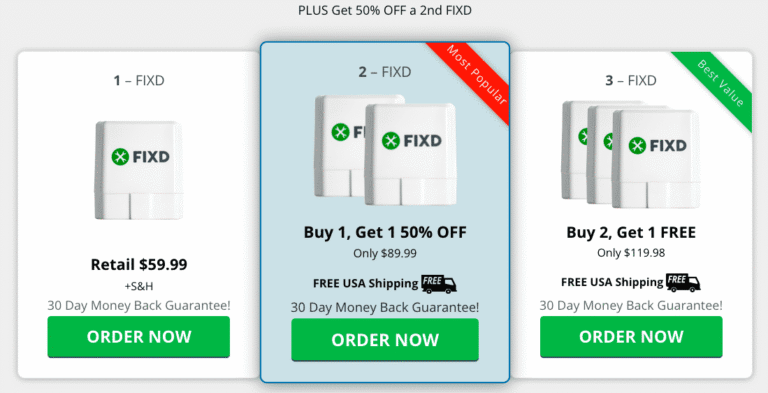
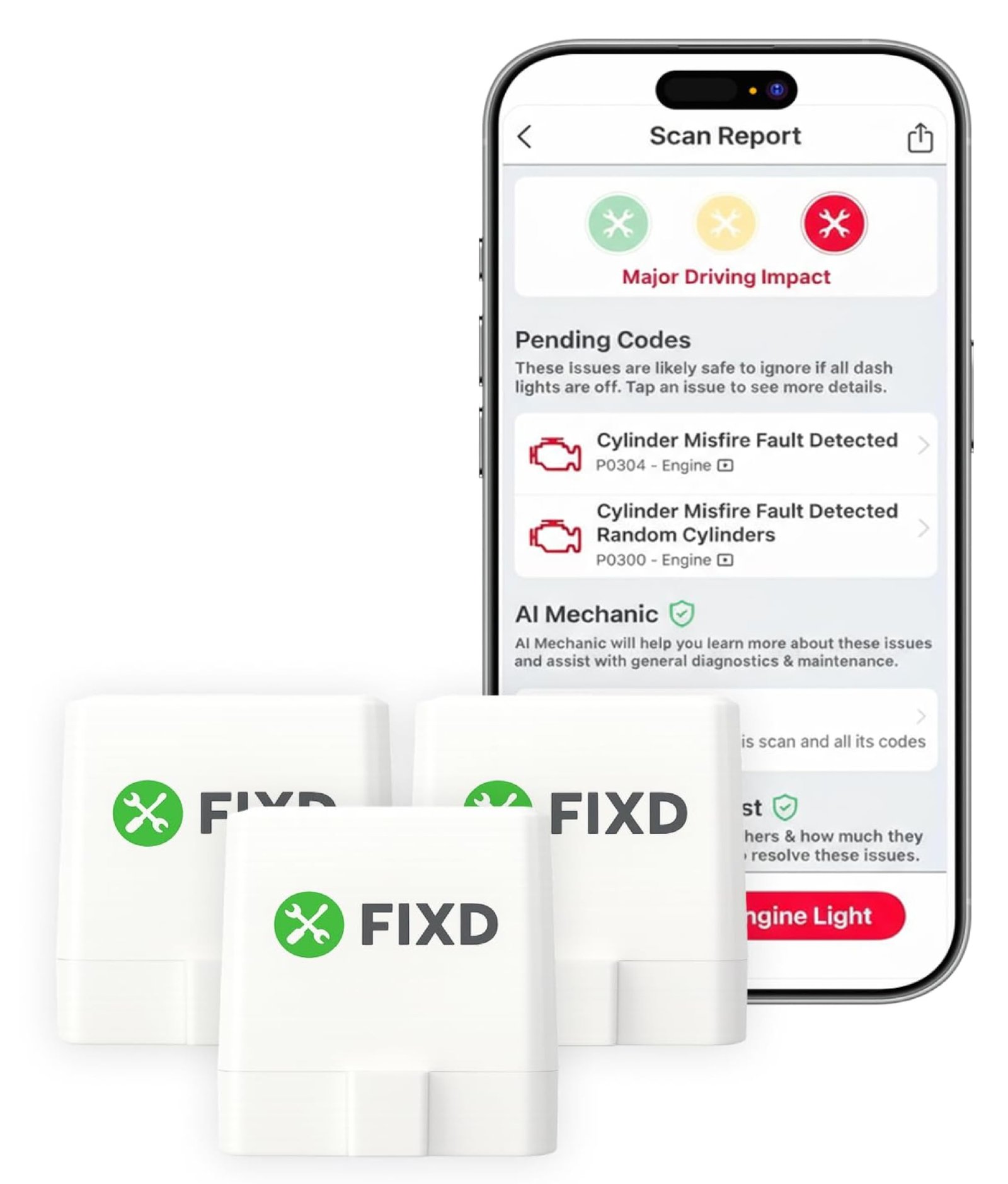
A FIXD sensor is a small OBD2 diagnostic device. It plugs into the OBD2 port under your vehicle’s dashboard and sends engine data to the FIXD mobile app.
The sensor reads diagnostic trouble codes from the vehicle’s onboard computer. These codes can help explain why the check engine light is on. The sensor does not repair the problem. It acts more like a translator between your car and your phone.
FIXD works with the vehicle’s OBD2 system. Most gas-powered vehicles sold in the United States from model year 1996 and newer support OBD2. Many newer diesel and hybrid vehicles also support it, but coverage can vary.

FIXD Sensor Troubleshooting at a Glance
Before trying advanced steps, use this quick checklist. It solves many connection and scan problems in a few minutes.
- Park the vehicle safely and turn the ignition off.
- Find the OBD2 port under the driver’s side dashboard.
- Push the FIXD sensor firmly into the port.
- Turn the ignition to the “on” position without starting the engine.
- Open the FIXD app and confirm Bluetooth is enabled.
- Keep your phone close to the sensor.
- Check that the app has the required permissions.
- Try a fresh scan.
- Restart the app if the sensor does not appear.
- Test the sensor in another compatible vehicle if possible.
The most useful rule is to change only one thing at a time. If you unplug the sensor, restart the phone, update the app, and change the vehicle at once, you may not know what fixed the issue.
In my own troubleshooting work, the most common mistake is assuming the sensor is defective before checking the vehicle’s power supply. A loose plug or a port with no power can look exactly like a failed sensor.

FIXD Sensor Will Not Connect
A FIXD sensor that will not connect may have a power, Bluetooth, app, or permission problem. Start with the physical connection before changing phone settings.
Check the OBD2 port
The OBD2 port is usually below the steering wheel. It may sit near the fuse box, above the pedals, or behind a small panel.
Make sure the sensor is fully inserted. Some ports feel tight, so press the device in gently but firmly. Do not force it at an angle, because bent pins can damage the connector.
Check vehicle power
Most OBD2 ports receive power when the ignition is on. Turn the key to the “on” position, or press the start button without pressing the brake if your vehicle uses push-button ignition.
If the sensor has no light or the app cannot detect it, test the port with another OBD2 scanner. You can also check the vehicle fuse that powers the diagnostic port. The fuse location differs by vehicle, so use the owner’s manual.
Check Bluetooth
FIXD sensors normally use Bluetooth to communicate with a nearby phone. Confirm that Bluetooth is on, then close and reopen the FIXD app.
Avoid pairing the sensor through the phone’s general Bluetooth menu unless the app specifically instructs you to do so. Many accessories work best when they are paired inside their own app.
Restart the connection
Try this simple reset:
• Turn off the vehicle.
• Unplug the FIXD sensor.
• Close the FIXD app completely.
• Turn Bluetooth off, wait about 10 seconds, and turn it back on.
• Plug the sensor back in.
• Turn the ignition on.
• Open the app and try again.

FIXD Sensor Troubleshooting for Bluetooth Problems
Bluetooth issues are common because the phone, sensor, and app must all communicate correctly. A nearby wireless device, blocked permission, or old app session can interrupt the link.
Move the phone closer
Keep the phone inside the vehicle during setup. Do not leave it in a backpack in the trunk or several feet away outside the car.
Bluetooth range can drop because of the vehicle body, phone case, other wireless devices, or low phone power. A close-range test removes many of these variables.
Check app permissions
Your phone may require Bluetooth, nearby device, or location permissions for the app to find the sensor. These settings vary by Android and iOS version.
Open your phone settings and review the FIXD app permissions. Allow Bluetooth or nearby device access when requested. If the app uses location services for Bluetooth discovery on your device, enable that permission as well.
Update the app and phone
An outdated app may not communicate well with a newer phone operating system. Update the FIXD app through the official app store.
Also install available phone updates. Before updating, confirm that your phone has enough storage and battery power.
Avoid several phones during setup
If more than one phone has the FIXD app open nearby, the sensor may try to connect to the wrong device. Close the app on other phones during setup.
This is a small detail, but it caused confusion in a real troubleshooting case I handled. The owner thought the sensor was broken because a family member’s phone had connected to it first.

FIXD Sensor Has No Light or Appears Dead
A sensor that shows no light may not be receiving power. However, the light alone does not always tell the full story, since indicator behavior can differ by model and software version.
Test the ignition position
The ignition must be in the correct position. For a key vehicle, use the “on” position. For a push-button vehicle, press the start button without starting the engine, unless the app gives different instructions.
Some vehicles power the OBD2 port only when the ignition is on. Others may keep the port powered after the vehicle is turned off.
Inspect the connector
Look at the sensor plug and the OBD2 port. Check for:
• Dirt or dust inside the port
• Bent or pushed-back pins
• A loose plastic housing
• Water or signs of corrosion
Never insert metal objects into the port while the vehicle is powered. If the port looks damaged, have a qualified technician inspect it.
Check the vehicle fuse
The OBD2 port often shares a fuse with another electrical system. A failed fuse can stop the sensor from working while other vehicle features appear normal.
Do not replace a fuse with one that has a higher rating. The correct rating is listed on the fuse panel or in the owner’s manual. If the replacement fuse fails again, stop testing and seek professional help.
Test another vehicle
If the FIXD sensor works in another compatible vehicle, the original vehicle likely has a port, fuse, wiring, or communication issue. If it fails in several compatible vehicles, contact FIXD support for device-specific help.
FIXD App Cannot Read the Vehicle
Sometimes the app connects to the sensor but cannot read vehicle data. This usually points to ignition position, compatibility, wiring, or communication issues.
Keep the engine off during the first scan
Many diagnostic scans work best with the ignition on and the engine off. Follow the instructions in the app for your exact vehicle.
Starting the engine too early may not always cause a failure, but it adds vibration and electrical activity while the connection is being established. A calm setup is easier to troubleshoot.
Confirm vehicle compatibility
OBD2 support is broad, but not every vehicle exposes the same data. Some vehicles use special systems or require manufacturer-specific equipment.
Check the vehicle year, make, model, engine, and fuel type in the FIXD app. A vehicle may have a physical diagnostic port but still offer limited support.
Check for aftermarket wiring
Remote starters, alarm systems, tuning devices, fleet equipment, and other OBD2 accessories can interfere with communication. Remove other devices from the port before testing FIXD.
If the sensor works after another accessory is removed, do not use both devices together without confirming compatibility.
Look for communication codes
A vehicle may show a communication fault such as a U-code. These codes can result from a weak battery, a module problem, wiring damage, or an issue with the diagnostic network.
A FIXD sensor can help identify a code, but it cannot always explain the root cause. Communication faults often need a professional scan and electrical testing.
FIXD Sensor Shows “No Codes”
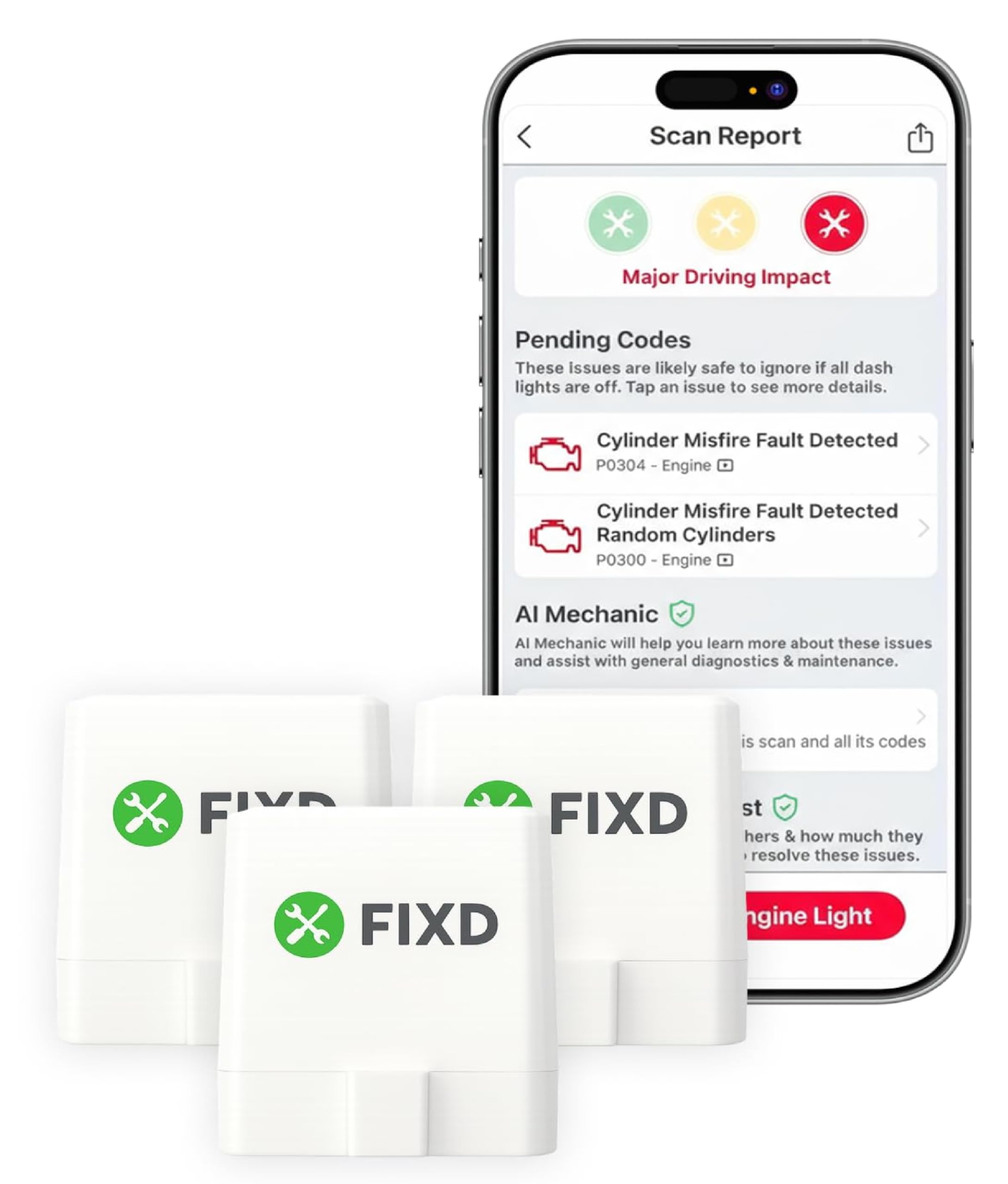
A “no codes” result does not always mean the vehicle is perfect. It means the system did not find stored diagnostic trouble codes during that scan.
A check engine light should normally be linked to a stored or pending code, but the light and code status can change. A code may also be pending, history-based, or stored in a system that a basic OBD2 scan cannot access.
Keep these points in mind:
• Some problems do not trigger a check engine light.
• Some warning lights use systems outside standard engine OBD2 data.
• A code may clear after several drive cycles.
• The vehicle may have a temporary sensor or communication issue.
• The scan may be limited by the vehicle’s manufacturer.
If the check engine light is on but FIXD reports no code, turn the vehicle off and repeat the scan. If the problem continues, use a professional scan tool or visit a repair shop.

FIXD Sensor Cannot Clear a Check Engine Light
Clearing a code removes diagnostic information from the vehicle computer. It does not repair the cause of the fault.
After a code is cleared, the check engine light may return when the vehicle runs the related self-test again. This can happen within minutes, days, or several drive cycles.
You may be unable to clear a code when:
• The ignition is not in the required position.
• The FIXD sensor disconnects during the process.
• The vehicle does not allow clearing through standard OBD2 commands.
• The battery voltage is too low.
• The fault is active and immediately detected again.
• The code belongs to a system outside the sensor’s supported range.
Do not clear a check engine light simply to pass an emissions test. Most vehicles need completed readiness monitors after codes are erased. Driving patterns and monitor times vary by vehicle, so check local testing rules and the manufacturer’s guidance.

FIXD Sensor Gives an Unknown or Incorrect Code
Diagnostic trouble codes are clues, not final diagnoses. For example, an oxygen sensor code may result from a wiring fault, exhaust leak, vacuum leak, fuel issue, or a failed sensor.
This is one of the most important lessons in FIXD Sensor Troubleshooting. Replacing the part named in a code can waste money when the real fault is elsewhere.
Use this process:
- Write down the exact code.
- Record when the light appeared.
- Note symptoms such as rough running, poor fuel economy, or hard starting.
- Check the code definition for your exact vehicle.
- Inspect related wiring, hoses, connectors, and fuses.
- Test the likely cause before replacing parts.
- Clear the code only after repairs are complete.
A code such as P0301 points to a cylinder one misfire. It does not prove that the cylinder one spark plug is bad. The cause could also be an ignition coil, injector, vacuum leak, low compression, or fuel problem.
FIXD Sensor Troubleshooting for Slow or Missing Data
Slow data can come from a weak connection, low phone performance, an app issue, or the vehicle’s own communication speed.
First, close other apps and make sure your phone has enough battery. Then place the phone near the sensor and repeat the scan with the vehicle parked in a safe area.
Do not drive while trying to troubleshoot the app. A second person can monitor the phone, but the driver should focus on the road. If live data is needed while driving, set it up before moving and follow all local safety laws.
A weak vehicle battery can also create strange electronic behavior. If the vehicle cranks slowly, lights dim, or several warning lights appear, test the battery and charging system. Low voltage can affect control modules and OBD2 communication.
FIXD Sensor Disconnects During Driving
A sensor that disconnects while driving may have a loose fit, weak Bluetooth connection, or a power interruption.
Check whether the sensor moves in the port. Some vehicles have a low dashboard area where a knee or foot can hit the device. A loose connection can break communication over bumps.
Try these steps:
• Reseat the sensor with the ignition off.
• Keep the phone in the front cabin.
• Remove other Bluetooth devices for testing.
• Make sure the app can run in the background.
• Disable battery-saving restrictions for the FIXD app.
• Check the vehicle battery and charging voltage.
Do not tape, wedge, or modify the sensor in a way that could damage the port. If the device hangs down near the pedals, use care. A device near the driver’s feet can become a safety risk.
FIXD Sensor Troubleshooting After a Battery Change
A vehicle battery replacement can reset clocks, radio settings, learned values, and some diagnostic data. It can also create temporary warning lights or communication errors.
After the battery change, make sure the terminals are clean and tight. Check that the battery cables are connected to the correct terminals and that no ground strap is loose.
Then perform a fresh scan with the ignition on. If several warning lights remain, do not assume the FIXD sensor caused them. The vehicle may need a steering angle reset, window calibration, idle relearn, or other manufacturer-specific procedure.
A battery that was deeply discharged may also need testing. A new battery can be defective, undercharged, or poorly connected. FIXD can report some engine-related codes, but a battery tester and multimeter provide better electrical information.
How to Tell Whether the FIXD Sensor Is Faulty
Use a controlled test before replacing the device. This avoids confusing a vehicle problem with a sensor problem.
- Test the vehicle’s OBD2 port with another known-good scanner.
- Test the FIXD sensor in another compatible vehicle.
- Use a supported phone with the latest app version.
- Confirm Bluetooth and nearby device permissions.
- Try the sensor with no other OBD2 accessory connected.
- Record the vehicle details, app version, and error message.
- Contact FIXD support if the failure follows the sensor.
A sensor is more likely to be faulty if it fails in multiple compatible vehicles that have working OBD2 ports. A vehicle is more likely to be the problem if several scanners fail on the same car.
Avoid opening the sensor or attempting board-level repairs. Internal damage can create a safety issue and may affect warranty support.
FIXD Sensor Maintenance Tips
The FIXD sensor needs little routine care, but good habits can prevent many problems.
• Keep the sensor dry.
• Do not expose it to extreme heat for long periods.
• Remove it before deep interior cleaning or dashboard repairs.
• Avoid plugging and unplugging it while the ignition is on.
• Keep the app updated.
• Check the OBD2 port if the sensor suddenly stops working.
• Do not leave the sensor connected if it causes battery drain.
Some vehicles keep the OBD2 port powered after the engine is off. If your vehicle sits for several days, watch for slow battery discharge. Remove the sensor if the battery becomes weak or if the app instructions recommend doing so.
Safety Limits of FIXD Sensor Troubleshooting
A diagnostic sensor is helpful, but it is not a substitute for a trained technician. Do not rely on a code reader alone when the vehicle has a serious symptom.
Stop driving and seek help when you notice:
• A flashing check engine light
• Severe shaking or loss of power
• Smoke or a strong fuel smell
• Overheating
• Low oil pressure
• Brake, steering, or airbag warnings
• A burning electrical smell
A flashing check engine light can signal an active misfire that may damage the catalytic converter. The FIXD app may identify a related code, but the safe response is to reduce driving and arrange proper diagnosis.
Best FIXD Sensor Troubleshooting Workflow
A repeatable method saves time and prevents random part replacement. Use this order whenever the sensor, app, or scan behaves strangely.
- Make the vehicle safe and park it.
- Confirm the vehicle is OBD2 compatible.
- Inspect the OBD2 port.
- Plug in the sensor securely.
- Turn the ignition to the correct position.
- Confirm phone Bluetooth and app permissions.
- Keep other phones and OBD2 devices away.
- Restart the app and repeat the scan.
- Check the vehicle fuse and battery if there is no power.
- Test another compatible vehicle or scanner.
- Record all codes and symptoms.
- Escalate serious or repeated faults to a qualified technician.
This order moves from simple causes to complex causes. It also protects your wallet because it reduces the chance of replacing a good sensor or vehicle part.
Frequently Asked Questions About FIXD Sensor Troubleshooting
Why is my FIXD sensor not connecting?
The sensor may not have power, or the phone may lack Bluetooth or nearby device permission. Reseat the sensor, turn the ignition on, restart the app, and keep the phone close to the vehicle.
Can a FIXD sensor drain my car battery?
Some vehicles keep the OBD2 port powered after the engine is off, so battery drain is possible. Remove the sensor when the vehicle will sit for a long time, especially if the battery is old or weak.
Does FIXD work with every vehicle?
FIXD is designed for many OBD2-compliant vehicles, but support and available data can vary by year, make, model, engine, and fuel type. Check compatibility in the app before relying on a scan.
Why does FIXD show a code but the car feels normal?
Some faults begin as pending or intermittent problems before they create clear symptoms. Record the code, inspect related parts, and monitor whether the code returns instead of replacing a part immediately.
Can FIXD turn off the check engine light?
The app may be able to clear certain supported codes, but clearing a code does not fix the cause. If the fault remains, the light will usually return after the vehicle performs its self-test.
What should I do if FIXD reads no codes while the check engine light is on?
Repeat the scan with the ignition in the correct position and verify the sensor connection. If the light remains but no code appears, use a professional scan tool because the issue may be outside the sensor’s supported system.
Is it safe to leave FIXD plugged in all the time?
It can be safe in many vehicles, but some vehicles keep power flowing to the OBD2 port after shutdown. Watch for battery drain and remove the sensor if the vehicle will not be driven for several days.
Conclusion
FIXD Sensor Troubleshooting starts with the basics: a powered OBD2 port, a firm connection, working Bluetooth, correct app permissions, and a compatible vehicle. From there, check the battery, fuse, wiring, software, and scan conditions before assuming the sensor has failed.
Remember that diagnostic codes are clues. They help point you toward a problem, but they do not always identify the exact part that needs replacement. Use the FIXD sensor as an early warning tool, take serious symptoms seriously, and ask a qualified technician for help when the issue involves safety or complex electrical faults.
Try the troubleshooting workflow on your vehicle, keep a record of any codes, and explore the FIXD app’s vehicle-specific guidance for the next step.