Autel MaxiCOM MK808BT Troubleshooting: Fast Fix Guide
Most Autel MaxiCOM MK808BT problems come from weak power, poor Bluetooth pairing, outdated software, or incorrect vehicle settings.
The Autel MaxiCOM MK808BT is a capable diagnostic tablet, but even good scan tools can lose connection, freeze, show wrong data, or fail to run special functions. This guide explains Autel MaxiCOM MK808BT troubleshooting in a clear, practical way, based on common workshop situations, OBD-II communication rules, and the checks that save the most time.
What the Autel MaxiCOM MK808BT Can Do
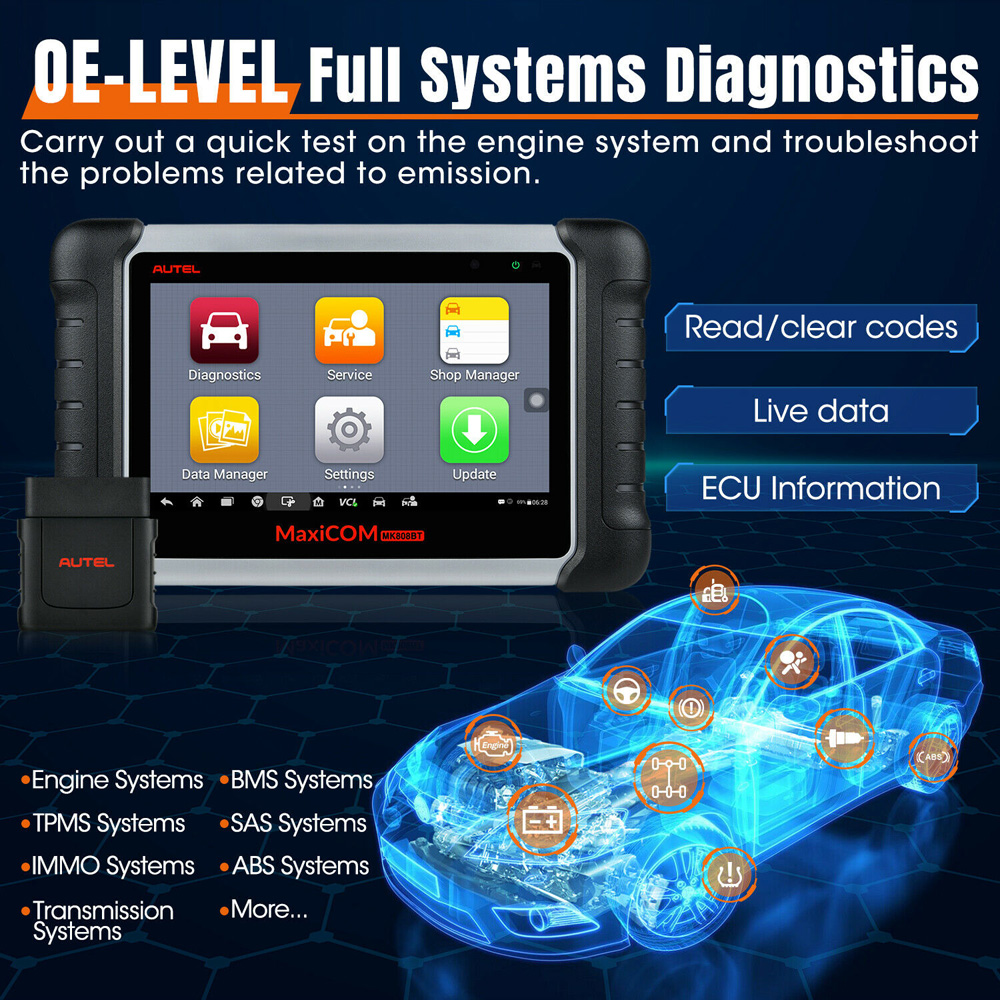
The Autel MaxiCOM MK808BT is an Android-based diagnostic scan tool with wireless communication. It connects to a vehicle through the MaxiVCI Mini or another compatible vehicle communication interface, depending on the kit and software version.
It can usually support:
- Reading and clearing diagnostic trouble codes
- Viewing live data
- Checking freeze-frame information
- Running health reports
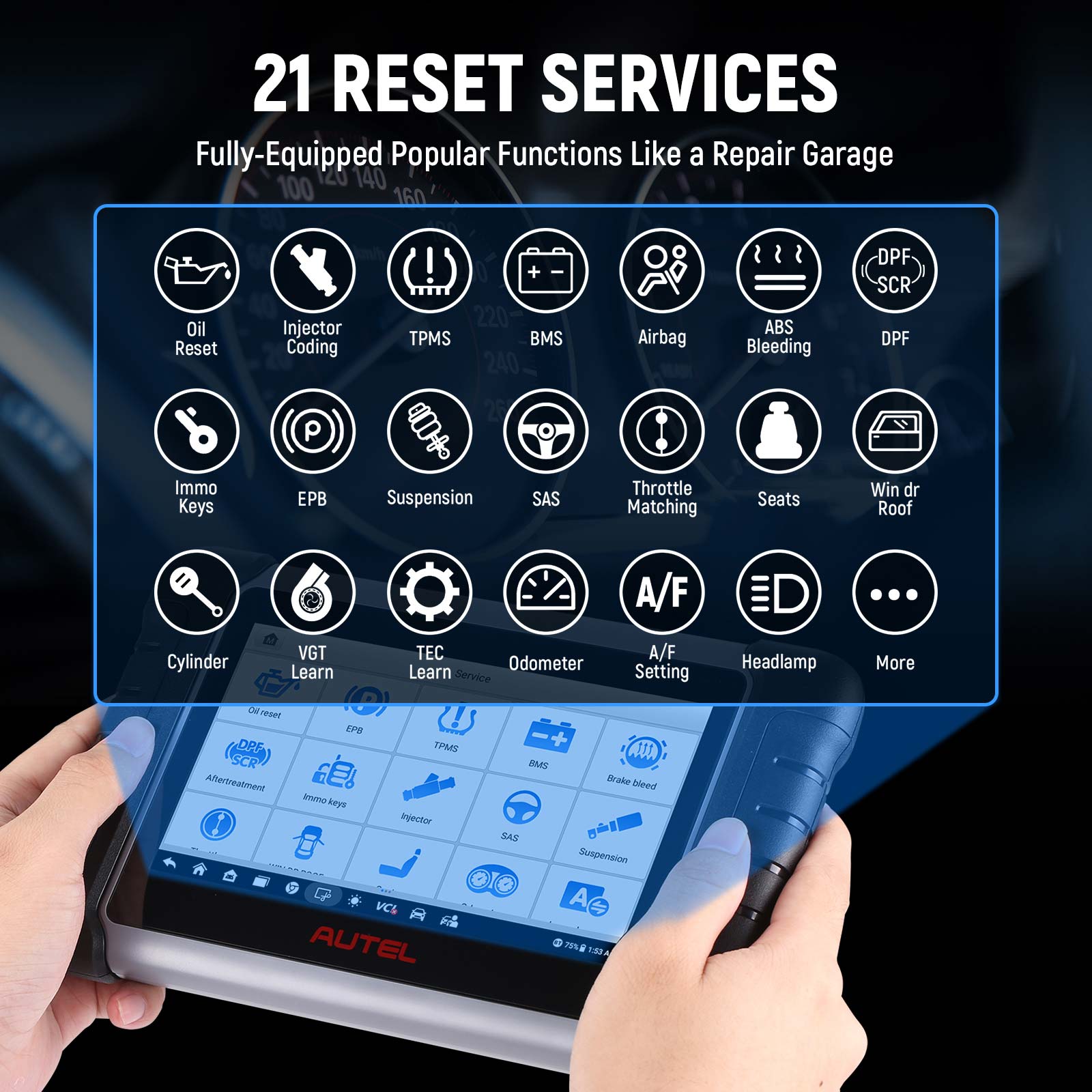
- Performing oil reset and service resets
- Registering batteries on supported vehicles
- Steering angle sensor resets
- Diesel particulate filter functions on supported models
- Electronic parking brake service
- Throttle relearn procedures
- Basic active tests on selected vehicles
The exact features depend on the vehicle, model year, engine, control module, region, and software coverage. A function shown in the menu may still be unavailable for a specific vehicle.
Autel MaxiCOM MK808BT troubleshooting starts with one important rule: separate a tool problem from a vehicle problem. A weak car battery, damaged diagnostic socket, failed control module, or low system voltage can look like a scan tool fault.

Autel MaxiCOM MK808BT Will Not Turn On
If the tablet does not start, check the simple power points first. Many “dead” scan tools have a charging problem rather than a damaged main board.
Follow these steps:
- Connect the tablet to its original or approved charger.
- Try a different wall outlet.
- Check the charging cable for cuts, bent pins, or a loose fit.
- Leave the tablet charging for at least 30 minutes.
- Hold the power button for about 10 seconds.
- Try a normal power press again.
The charging light may not appear at once if the battery is deeply discharged. Avoid using a very cheap charger with unstable output. It may charge slowly or cause repeated restarts.
If the tablet shows the Autel logo but does not load Android, perform a forced restart. Hold the power button until the screen goes dark, then wait a few seconds before turning it on again.
If nothing appears after charging and restarting, inspect the USB-C or charging port. Dust, oil, and bent contacts can block a reliable connection. Do not push metal tools into the port, as this can damage the contacts.
A serious drop, water exposure, swollen battery, or unusual heat requires professional service. Do not open the tablet unless you are trained to work with lithium-ion batteries.

Autel MaxiCOM MK808BT Keeps Freezing or Restarting
A frozen display can result from low memory, an incomplete update, a damaged app file, or a weak battery. It can also happen when a scan session is interrupted during module communication.
Start with a forced restart. Then check the following:
- Close unused apps.
- Delete old vehicle reports if storage is nearly full.
- Charge the tablet above 50 percent.
- Install pending system and diagnostic software updates.
- Restart the tablet before a long programming or special-function session.
- Keep the tablet away from extreme heat or direct sunlight.
Do not remove power while the tablet is installing an update. An interrupted update may damage software files and create a boot problem.
If freezing happens only in one vehicle, the vehicle network may be the cause. A shorted module, low voltage, aftermarket alarm, or poor ground can interrupt communication. Test the vehicle battery before blaming the scan tool.
When the tablet freezes during a special function, do not repeat the command several times without checking the vehicle. Some functions change learned values or actuator positions. Follow the on-screen instructions and use a stable battery support unit when required.
Autel MaxiCOM MK808BT Will Not Connect to the Vehicle
This is one of the most common Autel MaxiCOM MK808BT troubleshooting issues. The tablet may be on, but the vehicle communication interface cannot establish a link with the vehicle.
Use this connection sequence:
- Turn the vehicle ignition fully on.
- Check that the diagnostic connector is firmly seated.
- Confirm that the vehicle battery voltage is healthy.
- Turn Bluetooth on in the tablet settings.
- Open the MaxiCOM diagnostic app.
- Select the correct vehicle by VIN or manual entry.
- Check the VCI connection status inside the app.
- Run an automatic vehicle scan.
Many vehicles need ignition power without the engine running. On push-button vehicles, press the start button without pressing the brake or clutch. Some vehicles require a second button press to reach the full ignition position.
Inspect the diagnostic socket for bent pins, corrosion, loose wiring, or an aftermarket device. A blown fuse can also remove power from the OBD-II port. On most vehicles, pin 16 supplies battery power, while pins 4 and 5 provide ground. Communication pins vary by network and vehicle design.
Never force the VCI into the socket. If the connector feels unusually tight, stop and inspect it.
If the scan tool works on another vehicle, the original vehicle needs more testing. If it fails on several known-good vehicles, focus on the VCI, Bluetooth settings, or tablet software.

Autel MaxiCOM MK808BT Bluetooth Pairing Problems
The “BT” in MK808BT refers to Bluetooth communication. A failed Bluetooth link can prevent the tablet from seeing the VCI, even when the VCI has power.
Try these steps:
- Turn Bluetooth off, wait 10 seconds, and turn it on again.
- Restart both the tablet and the vehicle communication interface.
- Remove old or duplicate VCI pairings from Android Bluetooth settings.
- Keep the tablet within a few feet of the VCI during pairing.
- Pair through the Autel diagnostic application when instructed.
- Avoid pairing the VCI with another phone or tablet at the same time.
- Check that the correct VCI serial number is selected.
Do not assume that every Autel VCI will work with every Autel tablet. Hardware compatibility can vary by model, software version, and package. Use the VCI supplied for the MK808BT whenever possible.
If the VCI light does not turn on, check the vehicle socket and ignition status. If the light turns on but the tablet cannot find it, reset the Bluetooth connection and restart the diagnostic application.
A useful workshop habit is to note the VCI serial number before beginning. This prevents confusion when several scan tools are being used in the same bay.
Autel MaxiCOM MK808BT Cannot Read Codes
When the tool connects but finds no codes, that does not always mean the vehicle has no fault. The selected system may be wrong, the fault may be stored in another module, or the problem may not create a diagnostic code.
First, run a complete vehicle health report. Then check individual modules such as:
- Engine control module
- Transmission control module
- Anti-lock brake system
- Airbag or supplemental restraint system
- Body control module
- Instrument cluster
- Electric power steering module
- Battery management system
Generic OBD-II mode mainly covers emissions-related data. It does not provide full access to every manufacturer module. For example, an airbag warning may require a direct scan of the restraint control module.
Check whether the warning light is active, stored, pending, or history-based. A pending code may not turn on the dashboard light yet. A history code may remain after the fault has been repaired.
Do not clear codes before saving the report. Record the code, description, freeze-frame data, and related live data first. Clearing a code can erase useful clues and may reset vehicle monitors.
If the tool reports “no communication,” this is different from “no codes found.” No communication points to power, wiring, network, module, or vehicle-selection issues. No codes found means the scan was successful but no faults were stored in that system.

Autel MaxiCOM MK808BT Shows Incorrect Vehicle Information
Wrong vehicle selection can lead to missing systems, incorrect data, or failed special functions. This often happens with imported vehicles, mid-year changes, multiple engine choices, or a VIN that is not fully supported.
Use the following checks:
- Confirm the VIN from the dashboard or vehicle documents.
- Compare the VIN with the label on the vehicle.
- Select the correct market or region.
- Confirm the engine size and fuel type.
- Check the model year carefully.
- Use manual selection if automatic VIN recognition is wrong.
- Compare the vehicle communication interface status before scanning.
A vehicle built late in one calendar year may be sold as the next model year. The production date and vehicle identification number can help resolve this difference.
Do not choose a similar model simply because it appears to connect. A near match may communicate with some modules but provide incorrect service menus. When in doubt, stop before running a coding or reset function.
This is a key part of Autel MaxiCOM MK808BT troubleshooting because wrong vehicle data can make a healthy tool appear defective.

Autel MaxiCOM MK808BT Software Update Problems
Software updates add vehicle coverage, improve functions, and correct known bugs. They can also fail if the tablet has weak Wi-Fi, low storage, or an unstable power source.
Before updating:
- Charge the tablet well.
- Connect to a reliable Wi-Fi network.
- Keep the tablet near the router.
- Check free storage space.
- Close other apps.
- Do not use a mobile hotspot with an unstable signal.
- Keep the tablet connected to power during a large update.
If an update stops, note the error message. A failed download may only require deleting the incomplete package and trying again. A login or subscription message may relate to account status rather than the tablet itself.
If the diagnostic app will not open after an update, restart the tablet. Then check the date, time, Wi-Fi connection, and account login. Incorrect time settings can interfere with secure connections.
Avoid unofficial software packages. Modified files may create security risks, compatibility problems, or unreliable vehicle coverage. Use the update method provided for the device and account.

Autel MaxiCOM MK808BT Has a Registration or Login Error
The MK808BT may require registration before updates, reports, or some online services work correctly. A login error can come from incorrect credentials, poor internet access, an expired subscription, or a server-side issue.
Check these items:
- Confirm the email address and password.
- Make sure the tablet has a stable internet connection.
- Set the correct date, time, and time zone.
- Restart the application.
- Sign out and sign in again.
- Check the device serial number.
- Review the update or subscription status.
An active subscription does not always unlock every special function on every vehicle. Software coverage still depends on the vehicle and module.
If the tablet shows a server error, wait and try later. Repeated login attempts may lock the account temporarily. Keep a record of the error code and contact Autel support if the problem continues.
When contacting support, provide the tablet serial number, software version, vehicle details, exact error message, and steps that caused the problem. Clear details usually lead to faster help.
Autel MaxiCOM MK808BT Live Data Is Slow or Missing
Live data depends on the vehicle module, communication network, selected data list, and scan tool software. Some modules send data quickly, while others update slowly by design.
If live data is slow:
- View fewer data items at one time.
- Close unnecessary graphs.
- Use a wired connection if the vehicle procedure allows it.
- Confirm that the engine is in the correct operating state.
- Compare the value with another known-good source.
- Check for communication codes in the vehicle.
A long list of data parameters can reduce refresh speed. This is normal in many scan tools. Select only the values needed for the test, such as engine speed, coolant temperature, fuel trim, throttle position, or oxygen sensor data.
Do not replace a part because one live-data value looks strange. Check the wiring, power supply, ground, sensor reference voltage, and related values. A sensor reading is evidence, not a final diagnosis.
For example, a low coolant temperature reading may indicate a failed sensor, an open wire, poor reference voltage, or a cold engine. Good Autel MaxiCOM MK808BT troubleshooting always includes mechanical and electrical checks.
Special Functions Fail on the Autel MaxiCOM MK808BT
Service functions can fail even when basic code reading works. These functions often require the correct vehicle software, stable voltage, a specific ignition state, and a part that meets certain conditions.
Before running a special function:
- Read all vehicle codes.
- Repair active faults that could block the procedure.
- Use a battery maintainer when the manufacturer requires stable voltage.
- Follow every on-screen instruction.
- Confirm the parking brake, transmission, hood, doors, and pedals are in the required position.
- Verify that the replacement part is installed correctly.
- Save the original values before making changes.
Common examples include battery registration, electronic parking brake service, throttle relearn, steering angle calibration, and diesel particulate filter regeneration.
A failed function does not always mean the scan tool caused a problem. The vehicle may have low voltage, a damaged actuator, a blocked filter, a failed sensor, or a control module fault.
Never run a forced regeneration in a closed building or near flammable material. Exhaust temperatures can become extremely high. Safety rules matter more than speed.
How to Fix an Autel MaxiCOM MK808BT Touchscreen or Display Issue
A slow or inaccurate touchscreen can make diagnosis frustrating. Clean the screen with a soft, dry cloth. Oil and moisture can cause missed touches.
Then try the following:
- Remove a thick screen protector if it interferes with touch response.
- Restart the tablet.
- Check for system updates.
- Test the screen in more than one app.
- Avoid using the tablet with wet gloves.
- Keep the display away from direct heat.
If one area of the screen never responds, the problem may be hardware-related. A cracked display, pressure damage, or liquid entry needs professional repair.
Do not press harder to make a touch register. Excess pressure can worsen display damage. Use the included stylus if the kit provides one, especially when selecting small menu items.
A Practical Autel MaxiCOM MK808BT Troubleshooting Checklist
Use this short checklist before contacting support or replacing parts:
- Charge the tablet and confirm the charger works.
- Turn the ignition fully on.
- Inspect the OBD-II socket and VCI connector.
- Check vehicle battery voltage.
- Restart the tablet and diagnostic application.
- Confirm Bluetooth is active.
- Select the correct vehicle and system.
- Test the VCI on another compatible vehicle.
- Install pending official updates.
- Save screenshots, reports, and error messages.
- Avoid clearing codes before recording them.
- Contact support with complete device and vehicle details.
This process follows a simple diagnostic path: power, connection, identification, software, and vehicle condition. Skipping steps often leads to unnecessary parts or repeated failed scans.
A common technician lesson is to test the tool on a known-good vehicle. It is the scan-tool version of trying a different outlet when a lamp will not turn on. That single test can quickly show whether the fault follows the tool or stays with the vehicle.
Mistakes to Avoid During Troubleshooting
Some actions can make diagnosis harder or create a new problem. Avoid these common mistakes:
- Do not update the tablet over an unstable internet connection.
- Do not unplug the VCI during coding or a special function.
- Do not clear all codes before saving the report.
- Do not select a similar vehicle just to force communication.
- Do not use an unknown charger or damaged cable.
- Do not run active tests without understanding the component.
- Do not perform battery registration when the battery type or rating is wrong.
- Do not ignore low vehicle voltage.
- Do not assume a failed scan proves a failed module.
- Do not use unofficial firmware or modified applications.
Vehicle diagnosis is a process of elimination. The tool provides information, but it cannot replace voltage tests, wiring checks, service information, or sound mechanical judgment.
When to Contact Autel Support or a Repair Center
Contact support when the tablet fails on several known-good vehicles, official updates will not install, the VCI is not detected after proper pairing, or the device shows repeated hardware errors.
Provide:
- Tablet model and serial number
- VCI serial number
- Android and diagnostic software versions
- Vehicle year, make, model, and engine
- Exact error message
- Steps already completed
- Photos or screenshots when useful
For vehicle-side problems, a qualified repair shop may be needed when there is no power at the diagnostic socket, a network fault is present, a control module is offline, or a programming procedure fails.
The MK808BT has limits. It is not a replacement for an oscilloscope, multimeter, wiring diagram, factory programming system, or advanced network analyzer. Knowing those limits is part of safe and accurate Autel MaxiCOM MK808BT troubleshooting.
Frequently Asked Questions of Autel MaxiCOM MK808BT Troubleshooting
Why will my Autel MaxiCOM MK808BT not connect to the vehicle?
Check ignition power, vehicle battery voltage, the OBD-II socket, Bluetooth, and the VCI connection. Then confirm that the correct vehicle and system were selected in the diagnostic application.
How do I reset the Autel MaxiCOM MK808BT?
For a simple restart, hold the power button until the tablet turns off, wait a few seconds, and turn it on again. A full factory reset should only be used after backing up reports and confirming that normal restart and software checks do not solve the problem.
Why does the MK808BT connect but show no fault codes?
The vehicle may have no stored codes, or the fault may be in another control module. Run a complete health report and scan systems such as ABS, airbag, transmission, and body control instead of checking only the engine module.
How can I fix Bluetooth problems with the MK808BT?
Restart the tablet and VCI, remove old pairings, turn Bluetooth off and on, and pair through the Autel application. Keep other phones or tablets from connecting to the same VCI during the test.
Does the MK808BT need an internet connection to scan a vehicle?
Basic scanning may work without internet after the required vehicle software is installed. Internet access is normally needed for registration, updates, reports, and some online services.
Why do special functions fail even though code reading works?
Special functions often need stable voltage, the correct software, specific vehicle conditions, and no blocking faults. Follow every on-screen instruction and check the vehicle battery, wiring, and related components before repeating the function.
Can a weak car battery cause MK808BT communication errors?
Yes. Low voltage can cause control modules to shut down, reset, or stop communicating. Test the battery and charging system, and use an approved battery support unit during long diagnostic procedures when appropriate.
Conclusion
Reliable Autel MaxiCOM MK808BT troubleshooting begins with the basics: stable power, a sound OBD-II connection, correct Bluetooth pairing, accurate vehicle selection, and current software. From there, separate tool faults from vehicle faults by testing the VCI, checking voltage, scanning the right module, and saving evidence before clearing codes.
Use the checklist patiently, avoid rushed special functions, and respect the tool’s limits. If these steps do not solve the issue, collect the device details and error messages before contacting Autel support or a qualified technician. Explore the vehicle service information for the specific model, keep your MK808BT updated, and share your own troubleshooting experience with other technicians and vehicle owners.