Garmin Dash Cam Mini 2 Troubleshooting: Easy Fixes
Most Garmin Dash Cam Mini 2 problems come from power, memory cards, Wi-Fi, or outdated software.
Garmin Dash Cam Mini 2 troubleshooting is often simple once you check the basics in the right order. This tiny camera can seem completely dead when the real issue is a weak power source, a damaged microSD card, or a blocked connection. This guide explains each common problem, safe fixes, and practical lessons that help you get reliable video again.
Start With Basic Garmin Dash Cam Mini 2 Troubleshooting
Before changing settings or replacing parts, check the camera’s power and connections. Many problems take only a few minutes to identify.
Follow these steps:
- Turn the vehicle ignition on.
- Check that the power cable is firmly connected to the camera.
- Check the USB power adapter or vehicle socket.
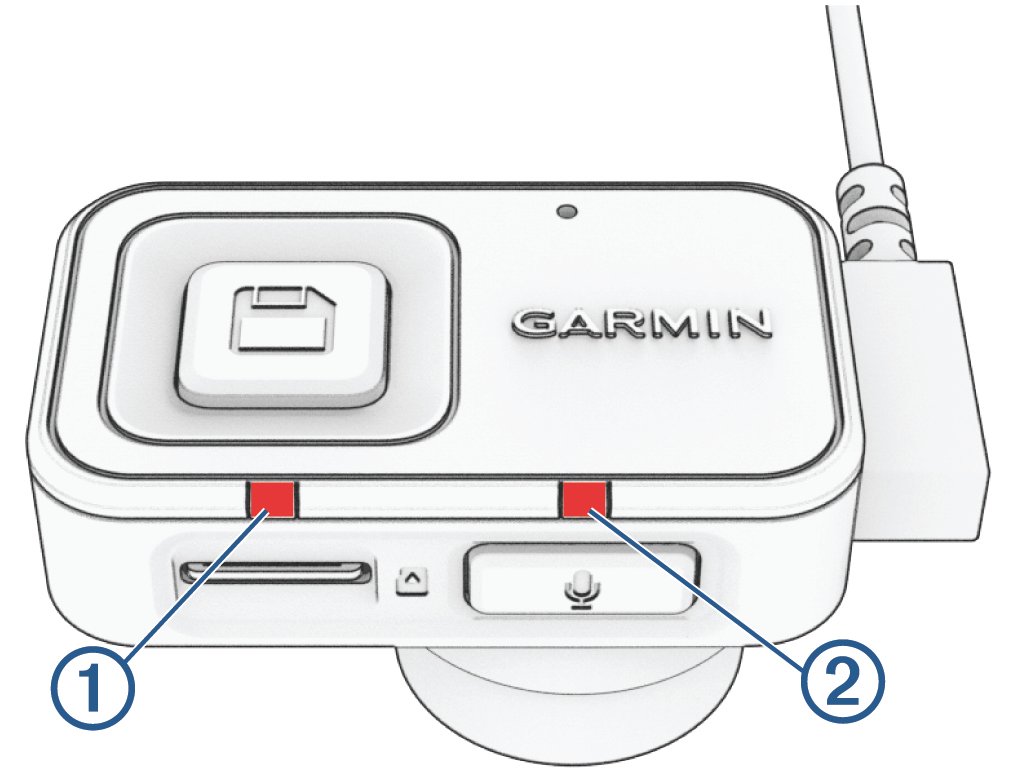
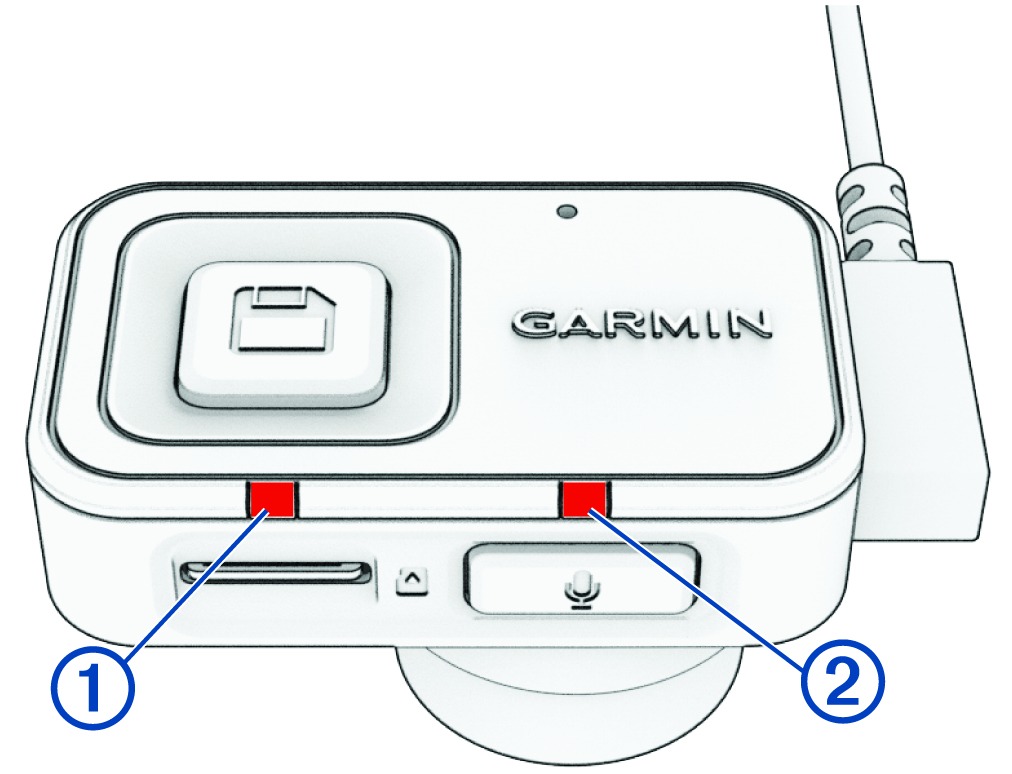
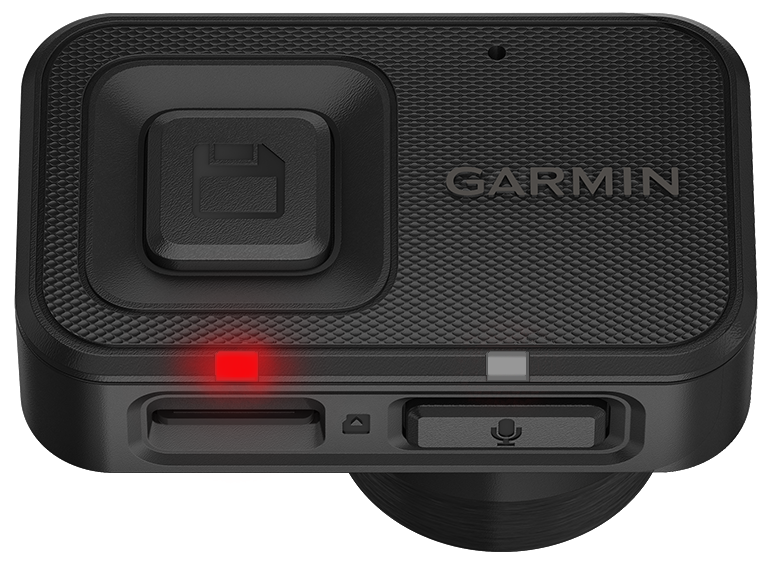
- Look for the camera’s status light.
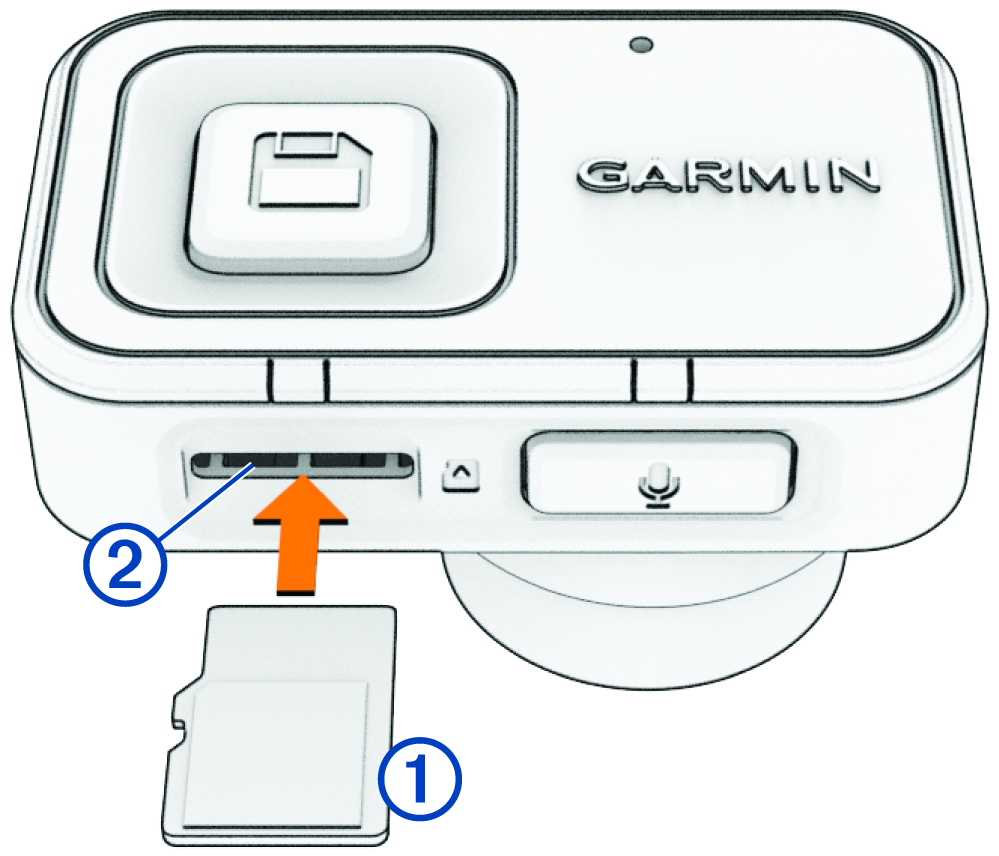
- Remove and reinsert the microSD card.
- Restart the camera by disconnecting power for about 30 seconds.
- Try another compatible power source if possible.
The Garmin Dash Cam Mini 2 needs steady power while it records. A loose cable may make the camera restart, stop recording, or fail to connect to the Garmin Drive app.
During testing, one useful lesson is to avoid changing several things at once. Change one item, such as the cable, then test the camera. This makes the real cause much easier to find.
Garmin Dash Cam Mini 2 Will Not Turn On
A Garmin Dash Cam Mini 2 that will not turn on usually has a power problem. The camera does not use a large built-in battery for normal driving. It depends on the vehicle’s USB power system.
Check these possible causes:
• The ignition is off and the vehicle socket has no power.
• The USB cable is damaged or not fully inserted.
• The power adapter is faulty.
• The vehicle’s USB port provides too little power.
• The camera is frozen and needs a power cycle.
Try the original power cable and adapter first. If you use a third-party adapter, make sure it supplies stable power through a standard USB connection.
You can also test the camera with a wall USB adapter that provides reliable power. Do not use this test to record while driving. It is only a simple way to learn whether the camera itself can start.
If the status light remains off with more than one known-good power source, inspect the cable and camera port for damage. Do not force the plug into the port. Contact Garmin support if the camera still shows no response and is under warranty.

Garmin Dash Cam Mini 2 Keeps Restarting
Repeated restarts are one of the most frustrating problems. The camera may start, record for a short time, and then reboot without warning.
The most common causes include:
• An unstable vehicle power supply
• A loose connection
• A failing or incompatible microSD card
• Excessive heat
• Corrupt camera software
Start by removing the microSD card and powering on the camera. If it stays on without the card, the memory card is a strong suspect. Never remove the card while the camera is recording or saving a file.
Next, try another power cable and adapter. If the camera restarts only in one vehicle, the vehicle socket or adapter may be the problem.
Heat can also trigger unstable behavior. Avoid placing the camera where it receives direct sunlight for long periods. A hot windshield can turn the camera into a small oven, especially during summer parking.
Garmin Dash Cam Mini 2 Is Not Recording
If the camera turns on but does not save video, check the memory card first. The Garmin Dash Cam Mini 2 needs a compatible microSD card with enough space and suitable endurance for continuous recording.
Check the following:
• Confirm that a microSD card is inserted.
• Make sure the card is not locked through an adapter.
• Use a high-quality card designed for dash cameras.
• Format the card through the Garmin Drive app or the camera settings when available.
• Replace the card if files are missing, damaged, or difficult to open.
Dash cameras write data again and again. Standard low-cost cards may wear out faster than high-endurance cards. A card that works well in a phone may still fail in a dash camera.
Save important recordings before formatting. Formatting removes stored files. If the camera reports a card error after formatting, replace the card rather than repeating the same process many times.

How to Format the Garmin Dash Cam Mini 2 Memory Card
Formatting can fix file errors, recording gaps, and repeated memory card warnings. It also gives the camera a clean file system.
Before formatting:
- Open the Garmin Drive app.
- Connect to the dash cam.
- Save any important clips to your phone.
- Open the camera settings.
- Select the memory card or storage option.
- Choose the format command.
- Confirm the action.
- Let the camera complete the process.
The exact menu names may change after an app or firmware update. Use the current instructions shown in the Garmin Drive app.
If the card fails again soon after formatting, do not trust it for important evidence. Replace it with a supported, high-endurance microSD card. A fresh card is often the fastest Garmin Dash Cam Mini 2 troubleshooting solution for recording errors.

Garmin Dash Cam Mini 2 Wi-Fi or App Connection Problems
The Garmin Drive app connects to the camera through a local wireless connection. Your phone may briefly disconnect from normal internet service during this process. That behavior does not always mean the camera has failed.
Try these steps:
• Turn Wi-Fi and Bluetooth off, then on again.
• Close and reopen the Garmin Drive app.
• Move your phone close to the camera.
• Allow the app to use Bluetooth, Wi-Fi, location, and local network access as requested.
• Remove the camera from the app and pair it again.
• Restart both the phone and camera.
• Install the latest version of the Garmin Drive app.
Some phones automatically switch away from the camera’s Wi-Fi because it does not provide internet access. If that happens, temporarily disable automatic network switching or mobile data during setup.
A common mistake is pairing the camera through the phone’s normal Bluetooth menu. The Garmin Drive app should manage the connection. Pairing it manually may create an incomplete connection that looks active but does not transfer video correctly.

Garmin Drive App Cannot Find the Camera
When the app cannot find the Garmin Dash Cam Mini 2, begin with distance and permissions. Keep the phone within a few feet of the camera and make sure the camera has power.
Then check:
- The camera is not connected to another phone.
- The Garmin Drive app is updated.
- Bluetooth is enabled.
- Wi-Fi is enabled.
- The app has the required permissions.
- The phone is not using a VPN that blocks local connections.
- The camera is removed from old paired devices if necessary.
Android and iPhone settings can differ. On some phones, location access is required for nearby Wi-Fi discovery, even though the camera does not track your location for this purpose.
If pairing still fails, restart the phone and camera. As a last software step, remove the camera from the Garmin Drive app, reinstall the app if needed, and pair the devices again.
Garmin Dash Cam Mini 2 Firmware Update Problems
Firmware updates can improve stability, fix bugs, and add support for newer app features. However, an interrupted update can leave the camera unresponsive or stuck during startup.
Use these precautions:
• Charge or start the vehicle before updating.
• Keep the phone close to the camera.
• Do not close the app during the update.
• Do not unplug the camera.
• Use a stable internet connection for the phone.
• Check that the memory card has enough free space.
If an update appears frozen, wait several minutes before taking action. Some updates process slowly. Unplugging the camera too soon can cause more trouble.
After the update, restart the camera and test a short recording. Confirm that the date, time, app connection, and video playback all work correctly.

Garmin Dash Cam Mini 2 Video Quality Looks Poor
The Garmin Dash Cam Mini 2 is small, but it can capture useful road footage when the lens and windshield are clean. Blurry video is often caused by dirt, glare, condensation, or incorrect placement rather than a camera defect.
Improve video quality by:
• Cleaning the lens with a soft microfiber cloth.
• Cleaning the windshield in front of the lens.
• Removing any protective film.
• Mounting the camera behind the rearview mirror.
• Avoiding direct reflections from the dashboard.
• Checking the selected video resolution.
A dirty windshield can create a white haze that looks like a focus problem. Clean both sides of the glass near the camera.
Night footage may show glare from headlights, streetlights, or a wet road. This is normal for small dash cameras, but careful mounting and a clean windshield can make a major difference.

Garmin Dash Cam Mini 2 Audio Is Not Working
The camera may record video without useful sound if the microphone is muted or blocked. Check the microphone setting in the Garmin Drive app.
Look for these issues:
• Audio recording is disabled.
• The microphone opening is covered.
• Wind noise is overwhelming speech.
• The camera is mounted too close to a vibrating surface.
• The video player has its own volume muted.
Avoid covering the small microphone opening with adhesive, a mount pad, or a decorative cover. If audio matters for an incident, test it before every long trip.
Remember that local laws about recording audio vary. In some places, recording private conversations may require consent. Use the audio feature in a way that follows the laws where you drive.
Garmin Dash Cam Mini 2 Parking Guard Problems
Parking Guard can monitor the vehicle while it is parked, but it requires more than the camera alone. The camera needs a suitable constant power setup, a correct parking mode configuration, and a compatible connection for remote alerts when available.
Check these points:
• The parking cable or power setup is installed correctly.
• The vehicle battery is healthy.
• The camera can connect to the required Wi-Fi or cloud service.
• Parking Guard is enabled in the Garmin Drive app.
• Motion or impact events are not being blocked by the installation.
Parking recording can drain a vehicle battery if the power system is not designed for it. A proper constant-power cable usually includes battery protection, but the exact behavior depends on the vehicle and installation.
If Parking Guard works for only a short time, test the vehicle battery and power installation. A weak battery may cause the system to shut down early to protect starting power.
Garmin Dash Cam Mini 2 Date and Time Are Wrong
Incorrect date and time can weaken the value of a video file. If the camera loses power or has not connected to the app recently, its time may become inaccurate.
To correct it:
- Turn on the camera.
- Open the Garmin Drive app.
- Connect the phone and camera.
- Allow the app to synchronize settings.
- Check the time zone on your phone.
- Record a short clip.
- Review the clip details.
A wrong phone time zone can transfer the wrong time to the camera. Check daylight saving settings too.
For insurance claims or police reports, keep the original file. Avoid editing the timestamp or converting the clip before saving a backup.
Garmin Dash Cam Mini 2 Voice Commands Do Not Work
Voice control may fail when the microphone cannot hear you, the selected language is unsupported, or background noise is too strong.
Try the following:
• Speak clearly and use the supported command wording.
• Reduce loud music and road noise.
• Check that voice control is enabled.
• Confirm the language setting.
• Reboot the camera after changing language settings.
Test voice commands while parked. Speaking from the driver’s seat during heavy traffic can be unsafe and may produce poor results.
Voice control is helpful, but it should not replace manual checks. If you need to save a critical clip, use the app or camera controls when it is safe to do so.
Reset the Garmin Dash Cam Mini 2
A reset can clear software glitches, connection errors, and unusual settings. Use a reset after simpler fixes fail, not as the first step.
Before resetting:
• Save important videos.
• Confirm that you know the app pairing steps.
• Note any custom settings.
• Remove the camera from the app if the instructions require it.
Use the reset option in the camera or app settings. The exact reset method may depend on the current firmware version, so follow the on-screen instructions.
After resetting, pair the camera again, format the memory card if prompted, and record a short test clip. If the same problem returns, it may involve the power supply, card, or hardware.
When to Replace the Cable, Card, or Camera
Replacing parts can save time, but replace the correct part. Start with the least expensive and easiest test.
Replace the microSD card when:
• The camera repeatedly reports card errors.
• Video files become corrupt.
• Recording stops without a clear reason.
• The card is old or not rated for continuous recording.
Replace the power cable or adapter when:
• The camera restarts after bumps.
• The cable feels loose.
• The cable shows bends, cuts, or exposed wire.
• Another cable solves the problem.
Contact Garmin support when:
• The camera stays dead with known-good power.
• The lens or housing is damaged.
• The camera overheats under normal conditions.
• Firmware recovery does not work.
• The camera fails during the warranty period.
Do not open the camera. Internal repairs can create safety risks and may affect warranty coverage.
Practical Tips to Prevent Future Problems
Good maintenance prevents many Garmin Dash Cam Mini 2 troubleshooting issues. Think of the camera like a small witness: it needs clear vision, steady power, and enough storage.
Use these habits:
• Check a test recording once a month.
• Format the memory card at regular intervals after saving important files.
• Replace worn cards before they fail.
• Keep the lens and windshield clean.
• Update the Garmin Drive app and camera firmware.
• Secure the cable so it does not pull on the camera.
• Avoid leaving the camera in extreme heat when possible.
• Save important clips in two locations.
In my experience with dash camera testing, the biggest mistake is waiting until after a crash to check whether recording works. A 20-second test clip can reveal a dead card, wrong date, poor focus, or missing audio before you need the evidence.
Frequently Asked Questions About Garmin Dash Cam Mini 2 Troubleshooting
Why is my Garmin Dash Cam Mini 2 not turning on?
Check the vehicle socket, USB adapter, cable, and camera connection. Test the camera with another reliable power source, then contact support if it remains unresponsive.
Why does my Garmin Dash Cam Mini 2 keep restarting?
Unstable power, a damaged memory card, heat, or software problems can cause repeated restarts. Remove the card and test another cable and adapter to isolate the cause.
What memory card does the Garmin Dash Cam Mini 2 need?
Use a compatible, high-quality microSD card designed for continuous video recording. A high-endurance card is usually a better choice than a basic phone or tablet card.
How do I reconnect my Garmin Dash Cam Mini 2 to the app?
Restart the camera and phone, enable Bluetooth and Wi-Fi, and open the Garmin Drive app. If needed, remove the camera from the app and pair it again through the app rather than the phone’s Bluetooth menu.
Why is my dash cam video blurry?
Clean the camera lens and windshield, remove protective film, and check for glare or condensation. Poor mounting, dirt, and reflections often cause blur that looks like a camera fault.
Can I use the Garmin Dash Cam Mini 2 without a memory card?
The camera may power on without a card, but it cannot save normal recordings without suitable storage. Insert a compatible microSD card before relying on the camera for evidence.
How often should I format the memory card?
Format the card after backing up important files and whenever the camera shows storage errors. Regular formatting can help, but a card that keeps failing should be replaced.
Conclusion
Garmin Dash Cam Mini 2 troubleshooting starts with the simple checks: stable power, a reliable microSD card, clean connections, current software, and correct app permissions. Most recording, restart, Wi-Fi, and video quality problems can be narrowed down with one careful test at a time.
Save important clips, test the camera often, and replace worn accessories before they fail. If basic steps do not restore normal operation, use Garmin support instead of opening the camera. Share your experience or explore more dash cam guides to keep your setup ready when you need it most.