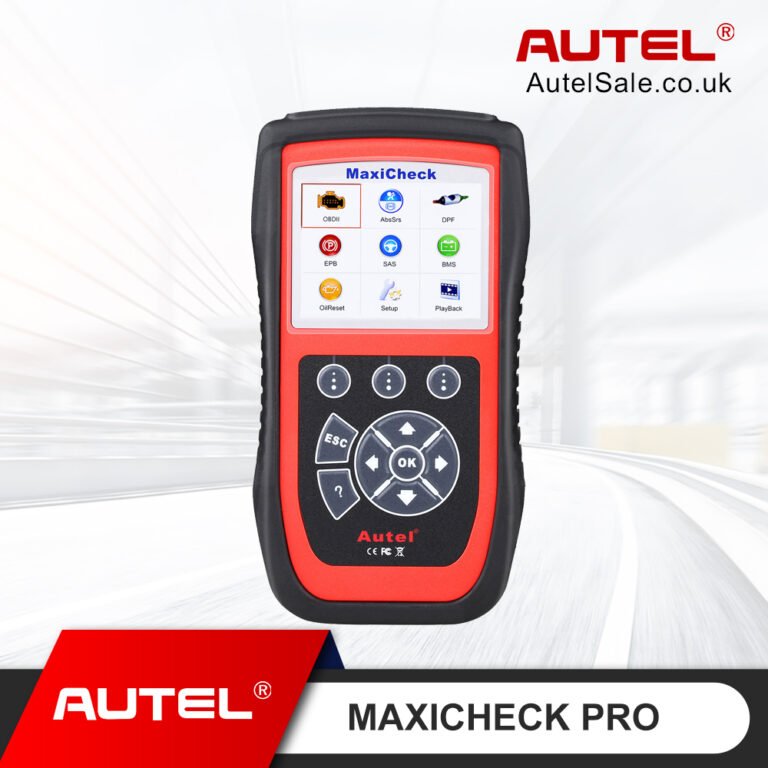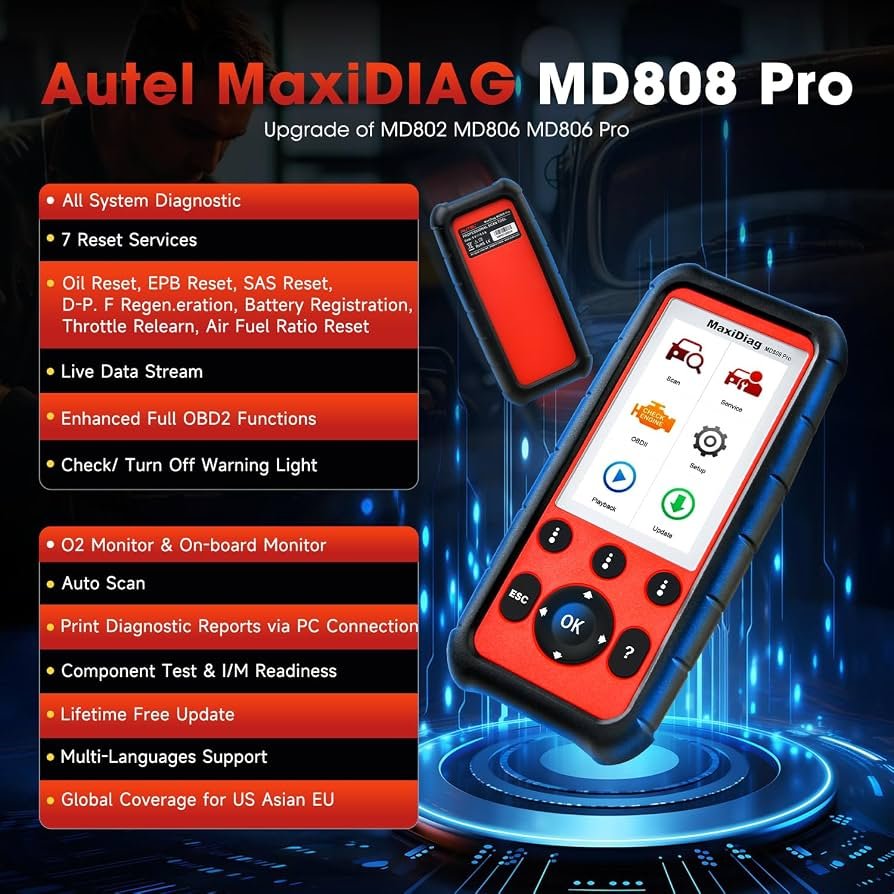
Autel MaxiDiag MD808 Pro Troubleshooting Guide
Most MD808 Pro issues come from power, cable, update, or vehicle communication problems.
The Autel MaxiDiag MD808 Pro Troubleshooting process is usually simpler than people expect once you know where to look. I have seen this scanner behave perfectly on one car and then seem “dead” on another, only to find the real issue was a weak battery, a loose OBD2 connection, or a vehicle-side fault. If you want a clear, practical guide to Autel MaxiDiag MD808 Pro Troubleshooting, this article walks you through the most common problems, what they mean, and how to fix them step by step.

Common Autel MaxiDiag MD808 Pro Problems and What They Usually Mean
The Autel MaxiDiag MD808 Pro is a solid scan tool, but like any diagnostic device, it can run into simple setup issues or deeper vehicle communication problems. Most complaints fall into a few familiar buckets: no power, failed updates, CAN communication errors, incomplete scans, or freeze-frame data that does not appear when expected.
From real-world use, I have found that the scanner itself is rarely the real villain. More often, the trouble starts with the vehicle’s battery voltage, a dirty connector, a blown fuse, or a software mismatch after an update. That is why Autel MaxiDiag MD808 Pro Troubleshooting works best when you begin with the basics and move outward in a logical order.
Common symptoms include:
- The scanner will not turn on
- The unit powers up, then shuts off
- It says “linking error” or “communication error”
- It cannot read a specific module
- It freezes during code reading or clearing
- Live data loads slowly or not at all
- A reset function does not complete
If you think of the scanner as a translator, it needs a clean line of communication between the tool and the car. When that line is weak, scrambled, or interrupted, the scanner may look faulty even when the real issue sits elsewhere.

Before You Troubleshoot the Scanner, Check the Vehicle First
One mistake I see often is people blaming the scanner before checking the car. That can waste a lot of time. The MD808 Pro depends on the vehicle’s power, data link, and module health, so a bad vehicle condition can make the tool appear broken.
Start with these checks:
- Make sure the ignition is in the correct position
- Confirm the vehicle battery is healthy and charged
- Inspect the OBD2 port for bent pins, dirt, or damage
- Check related fuses, especially if the port has no power
- Try the scanner on another vehicle if possible
A weak battery can cause unstable communication. In many cases, if voltage drops too far during a scan, the MD808 Pro may fail to finish reading modules. I have seen this during winter diagnostics more than once, and a quick battery charge solved what looked like a scanner problem.
Autel MaxiDiag MD808 Pro Troubleshooting for Power Issues
If your Autel MaxiDiag MD808 Pro will not power on, the first thing to verify is whether the vehicle is supplying power through the OBD2 port. The scanner normally draws power from pin 16 and ground pins on the connector, so if that circuit is open, the device may stay dark.
Try these steps:
- Insert the connector firmly into the OBD2 port.
- Turn the ignition to ON if the vehicle requires it.
- Check the vehicle fuse for the diagnostic port.
- Test the port with another known-good scanner or power meter.
- Inspect the cable for cuts, bent pins, or loose fit.
If the scanner still does not power up, the issue may be with the connector or internal cable wear. One practical lesson: do not yank the cable by the wire jacket after use. I have seen that shorten the life of scan tool cords faster than people expect.
If the MD808 Pro powers on briefly and then shuts off, suspect unstable vehicle power. A failing battery, corroded ground, or intermittent port connection can cause that kind of behavior.
Fixing Communication Errors and Link Failures
Communication errors are one of the most common complaints in Autel MaxiDiag MD808 Pro Troubleshooting. The tool may say it cannot establish a link, cannot communicate with the ECU, or cannot read a module at all. That does not always mean the scanner is defective.
Possible causes include:
- Ignition not turned on
- Wrong vehicle menu selection
- Loose or dirty OBD2 connection
- Blown diagnostic port fuse
- ECU or module fault in the car
- Low vehicle voltage
- Unsupported protocol on that vehicle
Here is the best way to approach it:
- Recheck the make, model, year, and engine selection.
- Disconnect the scanner and reconnect it slowly and firmly.
- Turn the ignition fully ON, not just accessory mode.
- Verify battery voltage with a multimeter if available.
- Try another module to see whether the issue is vehicle-wide or limited.
Sometimes the scanner is reading one system fine but failing on another. That usually points to a vehicle-side module issue rather than a tool problem. In older cars, protocol mismatch can also happen if the vehicle uses a communication path the scanner cannot fully access.
Updating the MD808 Pro the Right Way
Software update problems are another frequent part of Autel MaxiDiag MD808 Pro Troubleshooting. Updates can fail if the USB cable is bad, the computer software is outdated, the connection drops, or the device is not recognized correctly.
To improve update success:
- Use a stable internet connection
- Plug the tool directly into the computer, not through a weak hub
- Confirm the Autel update software is installed correctly
- Keep the scanner connected until the process finishes
- Avoid interrupting the update once it starts
A small but important tip from experience: update the scanner when your computer and internet are both stable. I once watched a routine update fail simply because the laptop went into power-saving mode mid-process. That kind of thing is easy to miss and frustrating to fix.
If the scanner becomes unresponsive after a failed update, try reconnecting it to the update software and checking whether the tool is still detected. In many cases, the device can recover if the update process is resumed correctly.
When the Scanner Cannot Read Codes or Live Data
If the MD808 Pro powers up but cannot read trouble codes or live data, the cause may be deeper than the scanner itself. Some vehicles limit access to certain modules, and some systems require a specific ignition state or engine condition before data appears.
Check the following:
- The engine is in the correct state for the data you want
- The vehicle supports that function on that system
- The connector is fully seated
- No other aftermarket devices are interfering
- The module is actually responding
For live data, some vehicles only display useful information with the engine running. If you are looking at sensor data with the ignition on but the engine off, the numbers may look incomplete or flat. That is not always a fault. It is just how the vehicle reports data.
When the scanner refuses to read a module, I usually ask one question first: is the fault isolated or widespread? If only one system fails, that often points to a module issue. If everything fails, look at power, wiring, and the OBD2 port.
Reset Functions Not Working on the Autel MaxiDiag MD808 Pro
The MD808 Pro is known for service reset functions such as oil reset, EPB, SAS, and battery registration-related tasks on supported vehicles. If one of these does not work, the issue may be compatibility, procedure, or vehicle condition.
Common reasons a reset fails:
- The vehicle is not supported for that exact service
- Steps were not followed in the right order
- Brake pedal, ignition, or steering position requirements were missed
- The battery voltage is too low
- A related fault code is still active
A reset function can be a bit like following a recipe. If you skip a step, the end result may fail even if all the ingredients are present. I have seen EPB resets fail simply because the parking brake switch was not in the expected state.
Best practices include:
- Read the on-screen instructions carefully
- Keep the battery charged during service work
- Clear active faults before repeating the reset
- Make sure the vehicle actually supports the function
How to Check for OBD2 Port and Cable Problems
The connector and cable are often overlooked in Autel MaxiDiag MD808 Pro Troubleshooting. A scanner can seem unreliable when the real issue is physical wear at the port or plug.
Inspect for:
- Loose fit in the OBD2 socket
- Bent or recessed pins
- Dirt, grease, or corrosion
- Cracked cable insulation
- Damage near the strain relief
- Worn internal contacts
You can also gently wiggle the connector while the scanner is plugged in. If the display flickers or the connection drops, you may have a cable or port issue. Do this carefully, because forcing the plug can create more damage.
A clean, tight connection is like a handshake. If the grip is weak, the message gets lost before it even starts.
Practical Step-by-Step Autel MaxiDiag MD808 Pro Troubleshooting Routine
When you want a fast and sensible repair path, use this order. It saves time and keeps you from guessing.
- Confirm vehicle battery health.
- Check ignition position and vehicle compatibility.
- Inspect the OBD2 port for damage.
- Reseat the connector firmly.
- Test the scanner on another vehicle.
- Try reading a different module.
- Attempt the update again if software is involved.
- Review the vehicle for blown fuses or module faults.
This routine works because it separates tool problems from vehicle problems. That separation matters more than people think. If you skip straight to replacement or repair, you may spend money on the wrong fix.
Preventing Future Issues
The best troubleshooting is the kind you do before the problem starts. A little care goes a long way with the MD808 Pro and other diagnostic tools.
Helpful habits include:
- Store the tool in a dry place
- Avoid pulling on the cable
- Keep firmware and software updated
- Charge the vehicle battery before long diagnostic sessions
- Clean the OBD2 port when needed
- Use the scanner only on supported vehicles
One thing I learned early in my own work was that many scanner issues are really workflow issues. If you rush the setup, the tool looks bad. If you slow down and check the basics, it usually behaves well.
Limitations You Should Know
No scan tool can solve every vehicle problem. The Autel MaxiDiag MD808 Pro is useful, but it has limits. Some advanced manufacturer-specific functions, hidden modules, or special programming tasks may require a higher-end tool.
Keep in mind:
- Not every vehicle supports every reset
- Some faults are caused by the car, not the scanner
- A scan tool cannot repair wiring, modules, or mechanical damage
- Older or modified vehicles may behave unpredictably
That honesty matters. Good diagnostics are not magic. They are careful observation, patient testing, and knowing where the line ends between tool ability and vehicle repair.
Frequently Asked Questions of Autel MaxiDiag MD808 Pro Troubleshooting
Why does my Autel MaxiDiag MD808 Pro not turn on?
Usually, the vehicle is not supplying power through the OBD2 port, or the connector is not seated properly. Check the ignition, port fuse, and cable condition before assuming the scanner is faulty.
Why does the scanner show a communication error?
A communication error often means the vehicle battery is weak, the port connection is poor, or the selected vehicle profile is wrong. It can also mean the control module you are trying to read has a fault.
Can a bad car battery affect the MD808 Pro?
Yes, absolutely. Low voltage can interrupt communication, cause scan failures, and stop reset functions from finishing correctly.
Why does the update fail on my Autel MaxiDiag MD808 Pro?
Update failures usually come from unstable internet, a bad USB connection, or a computer issue during the process. Reconnect the tool, use a stable computer, and try again without interrupting the update.
Why can the scanner read one module but not another?
That often points to a module-specific fault or a vehicle-side communication issue. It may also mean that system is not fully supported on that model.
Do I need the engine running for live data?
Not always, but some vehicles show better data with the engine running. If the screen looks empty or flat, check the vehicle’s data conditions before blaming the scanner.
Conclusion
Autel MaxiDiag MD808 Pro Troubleshooting becomes much easier when you start with the basics and follow a clear process. Most problems come down to power, connection, vehicle voltage, update issues, or supported-function limits rather than a broken tool. With a calm, step-by-step approach, you can save time, avoid bad guesses, and get more reliable results from the scanner.
If you use the MD808 Pro regularly, keep this guide handy and make it part of your normal diagnostic routine. The more consistently you check the vehicle, connector, and software side first, the fewer headaches you will have later. If this helped, explore more diagnostic tips and share your own troubleshooting experience in the comments.