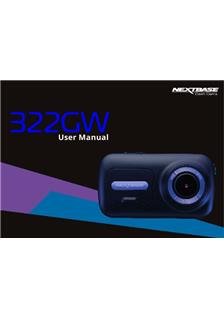
Nextbase 322GW Troubleshooting: Quick Fix Guide
Nextbase 322GW troubleshooting usually starts with checking power, the memory card, firmware, and camera settings.
The Nextbase 322GW is a dependable dash cam, but even good cameras can freeze, stop recording, lose GPS, or show memory card errors. This Nextbase 322GW troubleshooting guide explains the most common causes and shows safe steps to fix them without guesswork.
Before You Start Nextbase 322GW Troubleshooting
Park your vehicle before checking the camera. Do not adjust the dash cam while driving, even if the screen looks frozen.
Use the original power cable and a suitable 12V car adapter when possible. A weak USB adapter may power the screen but fail to provide stable current for recording.
For a smooth Nextbase 322GW troubleshooting process, prepare these items:
• The original power cable, if available
• A computer with a reliable card reader
• A compatible microSD card
• A small pin or paper clip for the reset button
• The latest firmware and camera instructions from Nextbase
• A clean microfiber cloth for the lens and screen
Before removing the memory card, turn the camera off. Removing a card while the camera is writing video can damage files or corrupt the card.
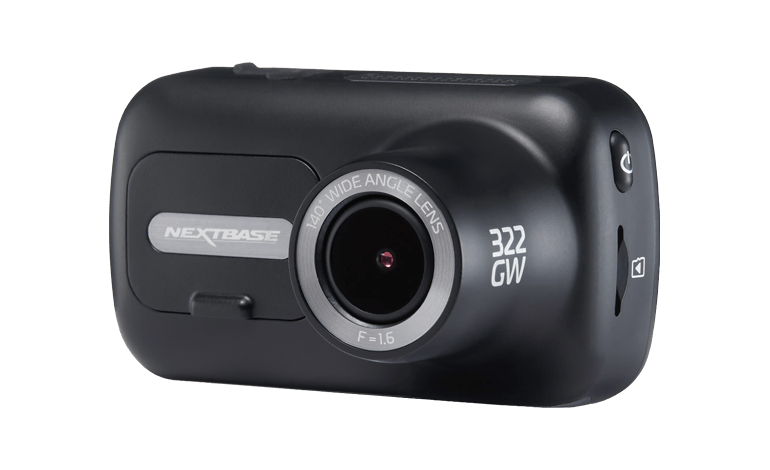
Nextbase 322GW Troubleshooting: Camera Will Not Turn On
A 322GW that shows no sign of life may have a power issue, a flat internal battery, a damaged cable, or a locked system.
Start with the simple checks:
- Connect the dash cam to the vehicle power socket.
- Turn the vehicle ignition on.
- Check whether the camera screen or status light appears.
- Test another compatible power socket.
- Try another suitable mini-USB power cable.
- Press and hold the power button for several seconds.
The camera may not start if the car socket only works when the ignition is on. Some vehicles also switch power off after a short delay. This is normal behavior and can look like a fault.
If the camera turns on only when connected to a computer, the car adapter or cable may be the problem. A damaged cable often causes repeated restarts, especially when the vehicle moves over bumps.
The internal battery is mainly designed to save files and support short tasks. It is not meant to power the camera for long periods. If the battery is old, the camera may shut down quickly after external power is removed.
If there is still no response, use the reset button. Press it gently with a pin, then connect the camera to power again. Do not force the button, as the opening is small and the switch can be damaged.
-001.jpg)
Nextbase 322GW Keeps Freezing or Restarting
Freezing and random restarts are often linked to the memory card. A card can appear normal on a computer but fail when the dash cam writes large video files again and again.
This is one of the most useful Nextbase 322GW troubleshooting checks:
• Turn the camera off.
• Remove the microSD card.
• Start the camera without the card.
• Let it run for several minutes.
If the camera works normally without the card, replace or format the card. Use a high-quality card designed for continuous video recording. Cheap cards may have poor write speed or false capacity ratings.
A full card can also cause trouble if loop recording is not working correctly. The camera should overwrite older protected files, but locked emergency files can take up space over time.
Check the power connection as well. A loose cable can make the camera restart each time the connection briefly drops. Try routing the cable so it does not pull against the camera or hang under tension.
A factory reset may help if the camera freezes after changing settings. Record any important settings first, then reset the device through its menu. A reset will not repair a failing memory card or damaged hardware.
Fixing Nextbase 322GW Memory Card Errors
Memory card errors are among the most common dash cam problems. The 322GW needs a card that can handle repeated recording, heat, vibration, and frequent file changes.
First, back up any important videos. Formatting permanently removes files from the card.
Then format the card in the camera menu if that option is available. Camera formatting is usually better than a quick computer format because it creates the file structure the dash cam expects.
If the error returns, replace the card. Look for a reputable microSD card with a suitable speed rating. Follow the current Nextbase card recommendations because supported capacities and card types can vary by firmware and model.
Avoid these common mistakes:
• Using a very old card from a phone or tablet
• Buying a card from an unknown seller
• Using a card with a fake storage capacity
• Removing the card while the camera is recording
• Keeping every emergency video permanently locked
• Formatting the card without first saving important footage
Many dash cam cards wear out faster than ordinary storage cards. Continuous recording is demanding. If the camera records daily, regular card replacement can prevent lost footage.
A useful habit is to check the first and last video after formatting. Make sure the camera records, saves, and plays files correctly before relying on it on the road.
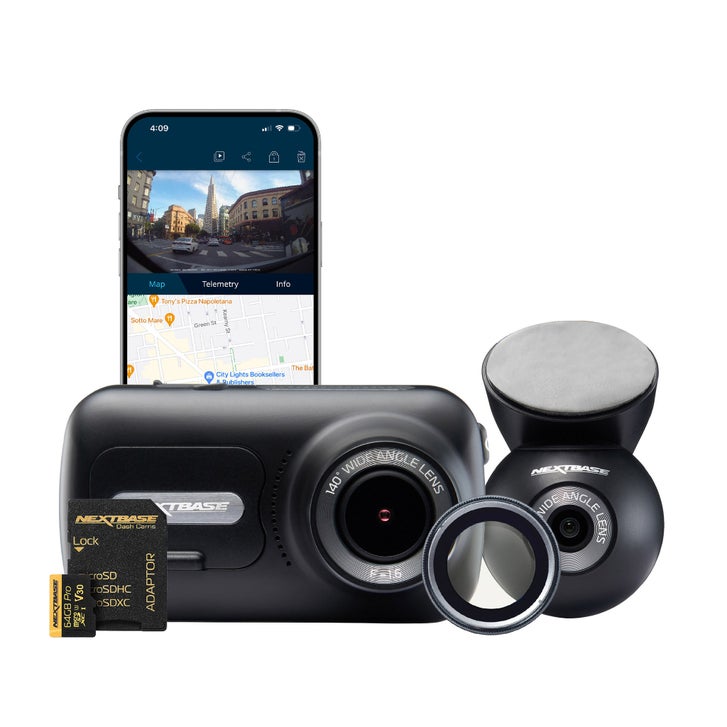
Nextbase 322GW Is Not Recording Video
If the screen is on but no video files appear, check whether recording has started. Some dash cams show a red recording symbol, while others use a flashing status light.
Press the record button once and watch for a change on the screen. If the camera starts recording manually but not when the car starts, the issue may be power detection or the vehicle socket.
Check these settings:
• Loop recording is enabled
• The memory card is inserted correctly
• The card is not full or locked
• The camera is not in playback mode
• The recording resolution is supported by the installed card
• The power cable is connected to the correct port
The camera may also stop recording if the memory card has reached the end of its usable life. Formatting can help for a short time, but repeated errors usually mean replacement is the better choice.
If the camera records but files are missing, look for folders created by the dash cam. Emergency files may be stored separately from normal loop recordings. Also check whether a computer is hiding files because of a damaged file system.
During Nextbase 322GW troubleshooting, test the camera with a short drive in a safe area. Confirm that the time, date, front view, and audio settings are correct before a long journey.

Nextbase 322GW Screen Is Frozen or Unresponsive
A frozen screen does not always mean the camera is permanently damaged. It may be processing a file, responding to a card error, or stuck after a power interruption.
Try this order:
- Hold the power button to shut the camera down.
- Disconnect the power cable.
- Remove the microSD card.
- Press the reset button gently.
- Reconnect power without the card.
- Test the camera again.
If the camera works without the card, format or replace the card. If it remains frozen without a card, check the power source and install approved firmware if an update is available.
Do not repeatedly press every button or disconnect power while a file is saving. That can create more corrupted files and make the problem harder to diagnose.
A hot camera can also become unstable. Dash cams sit behind glass and may face very high temperatures in direct sunlight. Let the unit cool before testing it. Never place it in a freezer or use a rapid cooling method, because condensation can damage electronics.
If the screen is cracked, has lines, or shows permanent dark areas, software troubleshooting may not help. That points to display or internal hardware damage.
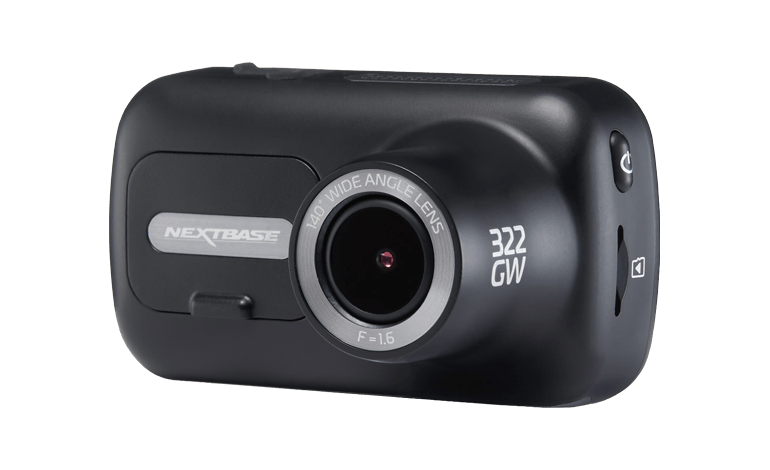
Nextbase 322GW GPS Is Not Working
The GPS system needs a clear view of the sky. It may take longer to lock when the camera is inside a garage, under a roof, or surrounded by tall buildings.
When checking GPS, make sure the camera is mounted correctly and has enough time outside. A first satellite lock can take longer than later locks.
GPS problems may come from:
• A blocked or poorly positioned camera
• Metalized or heated windscreen glass
• Firmware problems
• A damaged GPS mount or connection
• Weak satellite visibility
• Incorrect date or time settings
If speed, location, or route data is missing, check whether the GPS icon appears during recording. Review a new file after a short outdoor drive rather than relying on an old recording.
Some windscreens contain a special area for toll tags or sensors. Mounting the camera in that area can affect GPS reception. Try a slightly different legal mounting position while keeping the view clear.
GPS accuracy can also vary by environment. Tall buildings, tunnels, trees, and storms can reduce satellite reception. A short loss of signal does not always indicate a faulty camera.
Nextbase 322GW Date and Time Are Wrong
An incorrect date and time can reduce the usefulness of dash cam evidence. It may also happen after the internal battery loses charge or after a long period without power.
Open the camera settings and set the correct time zone, date format, and daylight-saving option if available. Then connect the camera to power and allow it to receive GPS data.
If the time changes again after every shutdown, the internal battery may no longer hold a charge. In that case, the camera may need service or replacement rather than a simple setting change.
Check the time on a newly saved video. The screen can show one time while the recorded file contains another if the settings did not save correctly.
Keep in mind that GPS time and local time are not always the same. GPS uses a universal time reference, while the camera must apply your local time zone. This is why time-zone settings matter.
Nextbase 322GW Audio or Microphone Problems
If video records without sound, open the settings and confirm that the microphone is enabled. Some drivers turn audio off for privacy and later forget the setting.
Test the camera in a quiet place. Speak near the unit, save a short clip, and play it on a computer or phone. This helps separate a microphone fault from a playback problem.
Low or unclear audio may result from:
• A covered microphone opening
• Wind noise from an open window
• A loose mount vibrating against the glass
• Heavy road noise
• A damaged microphone
Do not clean the microphone opening with a sharp object. Use a soft, dry brush or gentle air from a safe distance.
Remember that privacy laws differ by location. Recording inside a vehicle may capture conversations, passengers, or nearby people. Check local rules before using audio recording for work or commercial driving.
Nextbase 322GW Wi-Fi and Phone Connection Problems
The 322GW may use a wireless connection for transferring or viewing footage, but phone connections can fail when the camera is already linked to another device.
Try these steps:
• Turn Wi-Fi off and on in the camera menu.
• Close the Nextbase app completely.
• Forget the dash cam network in your phone settings.
• Restart both the phone and camera.
• Disable mobile data temporarily during setup.
• Keep the phone close to the camera.
• Check that the app supports your phone’s operating system.
Some phones automatically leave a Wi-Fi network when they detect that it has no internet access. This can interrupt the dash cam connection. Temporarily disabling automatic network switching may help.
Wireless transfer can be slow for large video files. A memory card reader is often faster when you need to copy many recordings. Wi-Fi is convenient for checking a short clip, but it is not always the best way to back up a full trip.
During Nextbase 322GW troubleshooting, avoid changing several phone permissions at once. Test one step, then reconnect. This makes it easier to identify the real cause.
Nextbase 322GW Parking Mode Problems
Parking Mode depends on how the camera receives power. If the 12V socket turns off with the ignition, the camera cannot continue recording unless it uses a suitable hardwire kit or another always-on power source.
The camera also needs enough battery or external power to save a clip. A weak internal battery may cause Parking Mode to stop quickly or fail to save an event.
Check:
• Whether Parking Mode is enabled
• Whether the camera detects motion or impact
• Whether the vehicle socket remains powered
• Whether a compatible hardwire kit is installed
• Whether the memory card has free space
• Whether the camera is overheating
Impact detection is not perfect. A light bump may not trigger an event, while a door slam or strong vibration may create a protected file. Motion detection also depends on light, distance, and the camera’s field of view.
Never install a hardwire kit without understanding the vehicle’s fuse system. Incorrect wiring can drain the battery or damage electrical circuits. If you are unsure, use a qualified installer.
Updating Nextbase 322GW Firmware
Firmware is the software that controls the camera. An update may improve stability, fix bugs, or improve compatibility with accessories and memory cards.
Before updating:
- Back up important recordings.
- Fully charge or power the camera.
- Use a reliable, compatible memory card.
- Download the correct firmware for the exact model.
- Follow the manufacturer’s installation steps.
- Do not disconnect power during the update.
Using firmware for another Nextbase model can make the camera unusable. Confirm that the file is intended for the 322GW before copying it to the card.
After updating, check the date, time, resolution, loop recording, microphone, and Parking Mode settings. Firmware updates can return some options to their default values.
If an update fails, do not keep trying random files. Remove the update file, format the card when safe, and review the official instructions for the exact failure message.
When a Factory Reset Helps
A factory reset can fix unusual settings conflicts. It is useful when the camera behaves differently after multiple menu changes or when a setting appears stuck.
A reset may remove:
• Custom camera settings
• Date and time preferences
• Wi-Fi connection details
• Parking Mode choices
• Exposure or microphone settings
Save important videos before resetting. A factory reset normally does not recover damaged recordings or repair a worn memory card.
After the reset, change only one setting at a time. Record a short test clip after each major change. This simple method makes future Nextbase 322GW troubleshooting much easier.
Common Mistakes to Avoid
Most dash cam problems become harder when basic checks are skipped. A calm, step-by-step approach works better than replacing parts at random.
Avoid these mistakes:
• Formatting a card before saving important evidence
• Using a phone charging cable that does not provide stable power
• Updating with the wrong firmware
• Pulling out the card while recording
• Testing GPS inside a garage
• Blaming the camera when the car socket is faulty
• Leaving the camera in extreme heat for long periods
• Installing a hardwire kit without checking fuse safety
• Assuming a protected file will be overwritten automatically
One practical lesson from repeated dash cam support cases is that the memory card should be tested early. It is often the weakest link because it works constantly in heat and vibration.
When to Contact Nextbase Support
Contact official support or an approved repair service when the camera remains faulty after testing a known-good power source and memory card.
Get professional help if:
• The camera smells burnt
• The case is swollen, cracked, or very hot
• The screen has permanent damage
• The camera will not update with the correct firmware
• The mount or GPS connection is damaged
• Files are repeatedly corrupted with different cards
• The unit restarts without a card and with stable power
Keep your purchase details, model number, firmware version, error messages, and test results ready. This information helps support staff avoid repeating basic steps.
Do not open the camera unless you are trained to repair electronics. Opening the case can create safety risks and may affect warranty coverage.
Frequently Asked Questions About Nextbase 322GW Troubleshooting
Why does my Nextbase 322GW keep turning off?
The most common causes are unstable power, a damaged cable, a failing memory card, or an aging internal battery. Test the camera with another suitable cable and without the memory card to narrow down the cause.
How do I reset my Nextbase 322GW?
Disconnect external power and press the small reset button gently with a pin or similar tool. Reconnect power and allow the camera to restart, then check its settings and memory card.
What memory card does the Nextbase 322GW use?
The 322GW uses a microSD card designed for continuous video recording. Use the current card recommendation from Nextbase and format the card in the camera before recording important journeys.
Why is my Nextbase 322GW not recording?
Check that the card is inserted, has space, and is not corrupted. Also confirm that loop recording is enabled and that the camera receives stable power when the vehicle starts.
Why is GPS not showing on my Nextbase 322GW?
GPS may need time to lock and may not work well inside a garage, under cover, or near tall buildings. Test the camera outdoors with a clear view of the sky and check the GPS icon during a new recording.
Can a faulty cable cause Nextbase 322GW problems?
Yes. A damaged or loose cable can cause shutdowns, missing recordings, and repeated restarts. Test with the original cable or a known-good compatible replacement.
Does a factory reset delete videos?
A factory reset usually changes camera settings, but the exact behavior can vary by firmware. Always back up important files before resetting or formatting the memory card.
Conclusion
Nextbase 322GW troubleshooting is usually straightforward when you test one cause at a time. Start with power, then check the microSD card, recording settings, GPS position, firmware, and reset options.
A reliable card, stable power, sensible heat protection, and regular video checks can prevent many problems. Test your camera today with a short drive and confirm that it saves clear video, correct time, and usable audio. Share your experience or explore more dash cam guides for practical setup tips.